
How to Pixelate a Face in a Photo (Free, No Upload)
Share a group photo, a rental listing, or a screenshot with a stranger in the background, and you just published someone's face…
Read article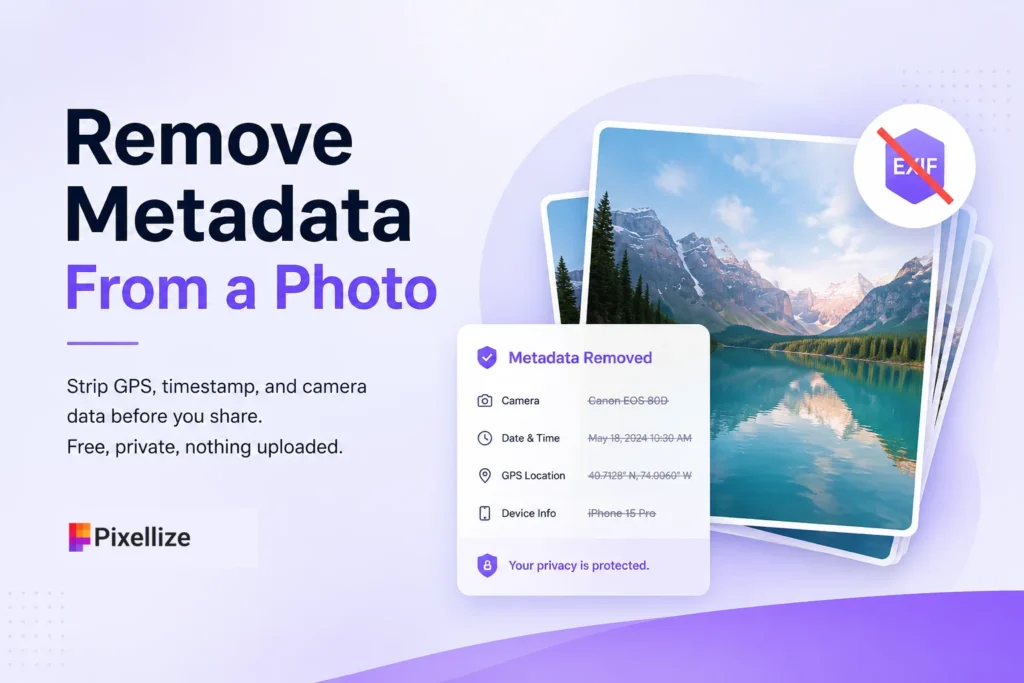
Snap a photo on your phone and you save more than the picture. Tucked inside the file is a quiet record: the exact GPS spot where you stood, the date and time, your camera model, even the serial number on some devices. Post that image straight to a forum or marketplace listing and anyone who downloads it can read all of it. The good news is you can remove metadata from a photo in about ten seconds, and you do not need Photoshop or a paid app to do it.
This guide walks through every method that works, browser, Windows, Mac, iPhone, and Android, plus the two questions nobody else answers: does stripping metadata hurt your image quality, and why does some data come back even after you delete it.
Short on time? Here is the fastest clean-photo method for each platform. The sections below explain each one step by step.
| Device | Fastest method | Removes GPS? | Removes all EXIF? |
|---|---|---|---|
| Any (browser) | Pixellize EXIF remover, drag and drop | Yes | Yes |
| Windows | Right-click, Properties, Details, Remove Properties | Yes | Most fields |
| Mac | Preview, then a metadata tool for full strip | Location only | No, needs a tool |
| iPhone | Share sheet, Options, turn off Location | Yes | Location only |
| Android | Gallery share, Remove location data | Yes | Location only |
Photo metadata is a block of hidden information saved inside an image file, most of it in a format called EXIF. It records up to a few dozen fields: GPS coordinates, date and time, camera make and model, lens, shutter speed, ISO, and sometimes a device serial number. Your eyes never see it, but any file inspector can.
Think of EXIF like the label sewn into a jacket. The jacket looks the same to everyone, but flip it inside out and the label tells you where it was made and when. A photo works the same way. Here’s the thing: most people never flip the jacket, so they assume the label is not there.
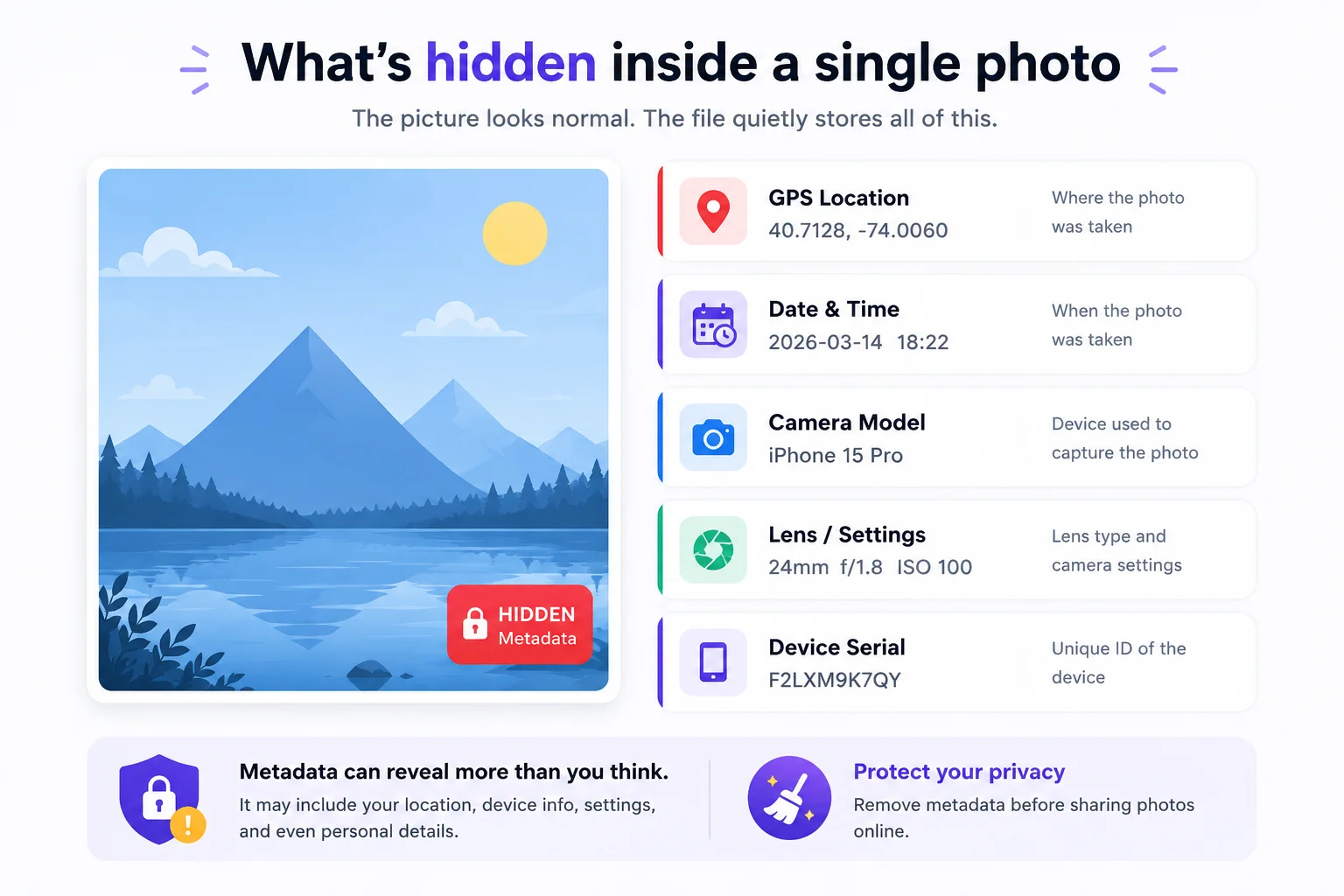
Want to see exactly what your own photos carry before you strip anything? The Pixellize EXIF viewer lists every field in a file so you know what you are dealing with.
The main reason is location privacy. If your camera saved GPS coordinates, a photo of your living room or your kid’s school can hand a stranger the exact address. This caught me off guard the first time I checked an old vacation photo and found the pin dropped on my hotel room.
Did you know some social platforms strip EXIF automatically on upload, but many forums, cloud drives, and email attachments do not? That gap is exactly why you want to clean a file yourself before it leaves your device. The quickest way is to remove EXIF data online free with a browser tool that never uploads your image.
The fastest method works on any device with a browser, including a Chromebook or a phone, and it does not send your photo anywhere. Pixellize runs the whole process on your own machine, so the file never touches a server. Here is the full flow:
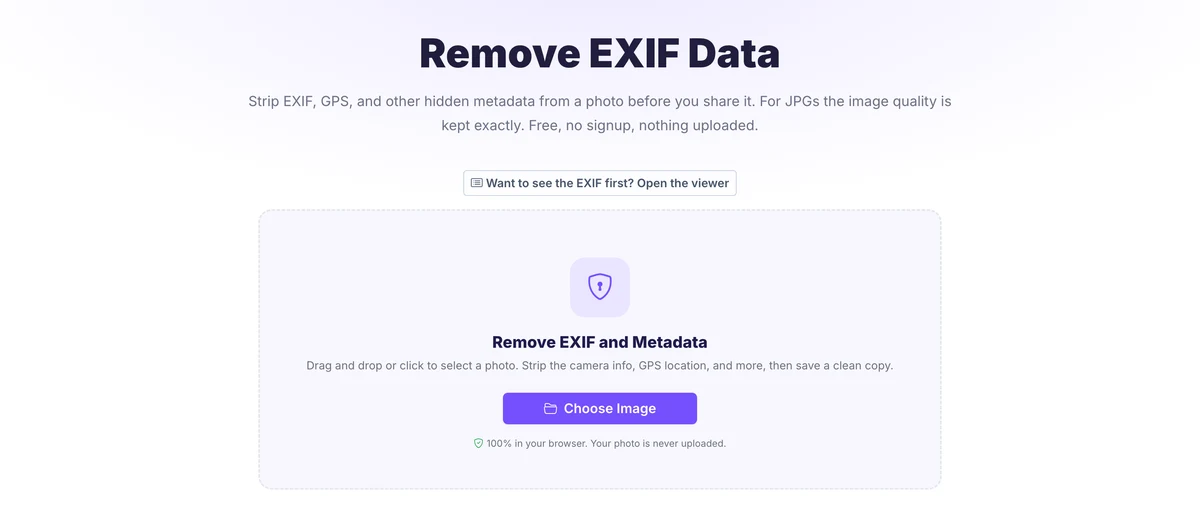
Because the work happens locally, this is the safest option when the photo is sensitive. Keep in mind it cleans one image at a time, so it is built for the photo you are about to share, not a bulk archive job. If you edited the shot first, say you blurred the background, run it through the remover as the very last step so the export does not add fresh metadata.
Windows has removed metadata natively since Windows 7, no download required. Right-click the image and choose Properties. Open the Details tab, then click Remove Properties and Personal Information at the bottom.
You get two choices. Create a copy with all possible properties removed makes a clean duplicate and leaves the original untouched, which is the safer pick. Or select specific fields to erase from the file itself. Windows clears most fields this way, though a few camera-specific tags can linger, so verify with a viewer if the photo is high-stakes.
macOS is trickier because Preview only removes location, not the full EXIF block. Open the photo in Preview, choose Tools, then Show Inspector, click the info tab, find the GPS section, and choose Remove Location Info. That kills the address but leaves camera data behind.
For a full strip on Mac, use a free tool like ImageOptim or ExifTool, or just open the Pixellize remover in Safari. The browser route skips the install entirely, which is why I reach for it on a Mac that is not mine.
iOS makes the common case easy. Open Photos, tap the photo, tap Share, then tap Options at the top of the share sheet and turn Location off. Now share or save, and the copy goes out without GPS. Apple documents this step in its own personal safety guide, and it is the fix for the “remove metadata from photo iPhone” problem most people actually have.
The catch: this only strips location, not the timestamp or camera fields. For a complete clean on iPhone, open Safari and run the photo through the Pixellize browser tool, which handles the rest without an app install.
On Samsung Gallery, open the photo, tap Share, and look for Remove location data under the preview before you send. Google Photos offers a similar location toggle when you share a link. These built-in options cover GPS, the field that matters most.
Android is fragmented, so menus vary by brand. When the built-in toggle is missing or you need every field gone, the Pixellize browser remover works the same on any Android phone through Chrome. No permissions, no install.
No, removing metadata does not reduce image quality. EXIF data lives in a separate part of the file from the actual pixels, so stripping it leaves the visible image untouched. A clean copy looks identical to the original, just slightly smaller because the hidden text block is gone. The one exception is the screenshot trick, covered next.
A quick warning about that old screenshot hack. Taking a screenshot of a photo does wipe the metadata, because a screenshot is a brand-new image. But it also re-compresses the picture and often drops the resolution, so you trade privacy for a softer, lower-quality file. A proper remover avoids that tradeoff completely.
Here is the part most guides skip. Cleaning your local copy does not control what happens after you upload. Some platforms strip EXIF on upload, which is good, but others add their own tracking data, and a few keep a copy of the original on their servers even after they show a stripped version publicly.
The takeaway: strip metadata before the photo leaves your device, and treat any image you have already posted as public. Cleaning it now does not un-share the old copy.
The cleanest fix is to never save GPS at all. On iPhone, go to Settings, Privacy and Security, Location Services, Camera and set it to Never. On Android, open the camera app settings and turn off Location tags or Save location. New photos then ship without coordinates, and you skip the cleanup step for everything going forward.
You will still want to remove GPS location data from photos you took before flipping this switch, but at least the backlog stops growing.
Hidden metadata is one of those risks that stays invisible until it costs you. The fix is quick and free, so there is no reason to skip it. Built-in tools on Windows and your phone handle the common location case, but for a complete strip on any device, the simplest path is to remove metadata from a photo with the Pixellize browser tool, drag, download, done, with nothing uploaded. Pair it with the EXIF viewer first if you want to see exactly what you are clearing. Clean the file before it leaves your hands, and the photo stays a photo, not a map to your front door.
The fastest free method is a browser tool like the Pixellize EXIF remover. Drag your photo in, and it strips the GPS, timestamp, and camera data on your own device, then lets you download a clean copy. Nothing is uploaded to a server. Windows and your phone also have built-in options, though those usually clear location only.
No. Metadata sits in a separate part of the file from the image pixels, so removing it leaves the visible photo untouched. A clean copy looks identical to the original and is only slightly smaller. The one exception is the screenshot trick, which re-compresses the image and can lower its resolution.
Yes. On iPhone, open the photo, tap Share, tap Options, and turn Location off before you share. On Android, use the Remove location data option in the Gallery share screen. Both strip the GPS tag, though they may leave the timestamp and camera fields in place.
Some do, many do not. Large platforms often strip EXIF on upload, but forums, cloud drives, and email attachments frequently keep it. Because the behavior is inconsistent, the safe move is to clean the file yourself before you share it rather than trusting the site to handle it.
It depends on the tool. Many online removers upload your photo to their server, which defeats the purpose if the image is sensitive. Choose a tool that processes the file in your browser, like Pixellize, so the photo never leaves your device while its metadata is stripped.
No, not from the clean copy. Once you save a stripped version, the EXIF fields are gone from that file. Keep in mind the original still holds its metadata, and any copy you already shared or backed up is unaffected, so treat previously posted photos as public.

Founder and CEO of Pixellize.io, building AI-powered web tools and digital products with a focus on user experience and automation. M.Sc. Zoology, working at the intersection of technology, data analytics, and life sciences.