
How to Shorten a URL and Track Clicks (Free, No Signup)
A step-by-step guide to shorten a URL and track clicks for free, with custom aliases, expiring links, and privacy-first analytics.
Read articleA step-by-step guide to convert MP4 to MP3 free and in your browser, with the right bitrate and nothing uploaded.

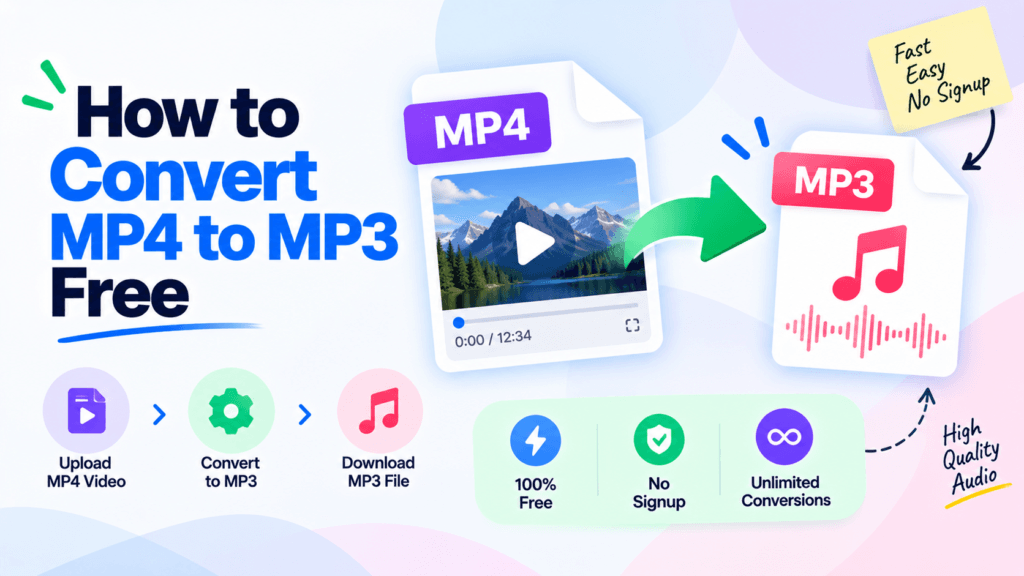
You have a lecture recording, a podcast video, or a music clip saved as an MP4, and you only want the audio. Playing a 300 MB video just to hear it wastes space and battery. Learning how to convert MP4 to MP3 fixes that in a few seconds, and you do not need to install anything or hand your file to a random website. This guide uses the free Pixellize MP4 to MP3 converter, which runs entirely in your browser.
To convert MP4 to MP3, open a converter, add your MP4 file, choose an audio bitrate like 192 kbps, then click convert and download the MP3. With Pixellize the whole process takes under 10 seconds for a short clip and happens in your browser, so the file never leaves your device and there is no upload wait.
| What you want | How Pixellize handles it |
|---|---|
| Audio only from a video | Extracts the audio track to MP3 |
| Keep the file private | Runs in-browser, nothing uploaded |
| Control quality | Pick 128, 192, or 320 kbps |
| Other formats | MOV, WebM, and M4A also work |
| Cost | Free, no signup, no watermark |
Here is the full flow on the Pixellize converter. There is no account and no software to install.
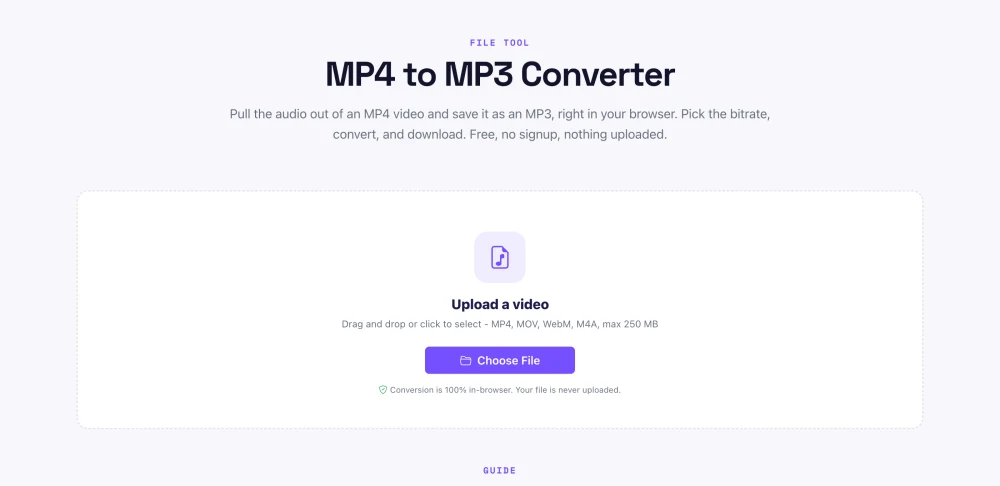
The right bitrate depends on the audio. For a voice recording or podcast, 128 kbps sounds clean and keeps the file small. For music, 192 kbps is the sweet spot most people cannot tell from the source. Choose 320 kbps when you want the highest MP3 quality, at roughly double the file size of 128 kbps. Bitrate is the amount of data per second of audio, measured in kilobits, as the MP3 format overview on Wikipedia explains.
Keep in mind that converting to MP3 will not add quality the video never had. If the original audio was recorded at a low bitrate, picking 320 kbps just makes a bigger file, not a better one. Match the bitrate to the source and to how you will listen.
Most free MP4 to MP3 sites upload your video to their servers, convert it there, and send back the MP3. That works, but your file sits on a stranger’s computer, and you wait through an upload and a download. An in-browser tool like Pixellize does the conversion on your own machine, so nothing is uploaded and there is no queue. This caught me off guard the first time I used it, the MP3 was ready before an upload site would have finished sending the file.
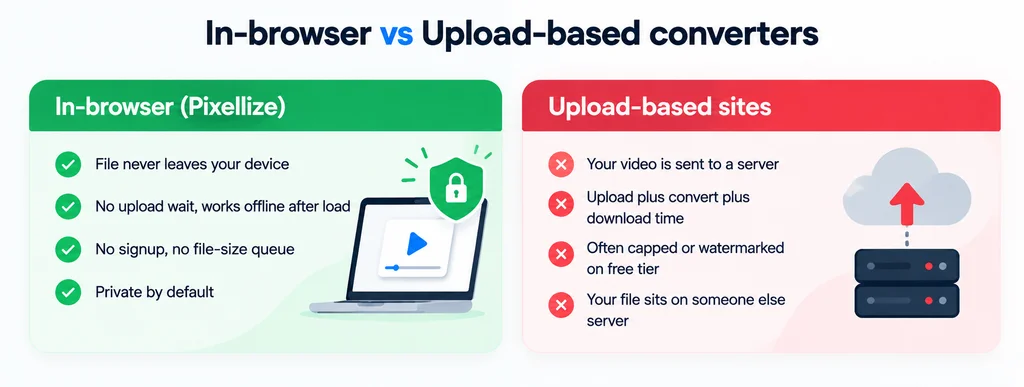
Privacy matters here. A lecture, a client call, or unreleased music is not something you want on an unknown server. The US Federal Trade Commission advises limiting the personal files you hand to online services, and keeping the conversion on your device is the simplest way to do that.
Converting MP4 to MP3 does lose a small amount of quality, because MP3 is a compressed format. At 192 kbps or higher the difference is inaudible to most listeners on normal speakers or earbuds. The loss comes from MP3 compression, not from Pixellize, and picking a higher bitrate keeps more of the original detail.
An MP4 carries both video and audio, so it is large even when you only care about the sound. A one hour lecture can be over 500 MB as MP4 but around 50 MB as a 128 kbps MP3. That is roughly a tenth of the size for the same words.
Smaller files are the obvious win, but there are others. An MP3 plays on any phone, car stereo, or smart speaker without a video player. It uses less battery because the screen stays off. And it is easy to drop into a podcast app or a playlist. People learn how to convert MP4 to MP3 for lectures, interviews, sermons, music videos, and voice notes, anywhere the picture is optional and the audio is the point.
Yes, the Pixellize converter works on a phone because it runs in the mobile browser, with no app to install. Open the page in Chrome or Safari, tap Choose File, pick a video from your camera roll or files, set the bitrate, and download the MP3. On a phone, keep an eye on file size, since a long 4K video can be heavy to process in a mobile browser.
Here is the thing about mobile conversion: because the work happens on your device, a very large file leans on your phone’s memory rather than a server. For clips up to a few hundred megabytes it is quick. For a feature-length recording, a laptop will chew through it faster. The 250 MB limit in Pixellize is set with that in mind, so the tool stays responsive on typical hardware.
MP3 is the most compatible audio format, so it is the safe default. It plays everywhere, from a 2005 car stereo to the newest phone, which is why it has stayed popular for more than 20 years. For most people extracting audio from a video, MP3 is the right pick.
There are cases where another format fits better. If you are editing the audio and want zero quality loss, a lossless format like WAV is better, though the files are far larger. If storage is tight and your devices support it, AAC or Opus squeeze similar quality into a smaller file. But if you just want a small, universal file that plays anywhere, MP3 wins on simplicity. Pick the bitrate, convert, and you are done.
Once you know how to convert MP4 to MP3, pulling audio out of any video becomes a 10-second job. Pixellize keeps it free and private, and pairs well with the rest of the toolkit like the online audio player for a quick listen and the video to GIF tool when you want the visuals instead.
Free, in your browser, with a bitrate you choose. Nothing is uploaded.
Open the MP4 to MP3 ConverterOpen a free converter like Pixellize, add your MP4 file, choose a bitrate such as 192 kbps, then click convert and download the MP3. It runs in your browser with no signup, no watermark, and no upload, and it also accepts MOV, WebM, and M4A files.
It is safe when the tool converts in your browser instead of uploading your file. Pixellize does all the work on your device, so the video never reaches a server. Upload-based sites are riskier because your file is stored on their servers during conversion.
Yes, slightly, because MP3 is a compressed format. At 192 kbps or higher most people cannot hear the difference on normal speakers or earbuds. Choosing a higher bitrate like 320 kbps keeps more detail, but it cannot add quality the original audio never had.
Use 128 kbps for speech and podcasts, 192 kbps for music, and 320 kbps for the highest quality. Higher bitrates sound better but make larger files. Match the bitrate to the source audio and how you plan to listen.
Yes. The Pixellize converter accepts MP4, MOV, WebM, and M4A files up to 250 MB and extracts the audio to MP3 the same way. You do not need a separate tool for each video format.
No. Pixellize runs entirely in your web browser, so there is nothing to download or install. Open the page, add your video, and convert, which works on any modern browser on Windows, Mac, or mobile.
Founder and CEO of Pixellize.io, building AI-powered web tools and digital products with a focus on user experience and automation. M.Sc. Zoology, working at the intersection of technology, data analytics, and life sciences.