
How to Download an Instagram Profile Picture in Full Size
Tap someone's Instagram profile picture and Instagram gives you a tiny circle, sometimes not even a full view. There is no built-in…
Read articleLearn how to save TikTok videos on iPhone and Android with the built-in button, where the files land, and how to get a clean copy with no watermark.

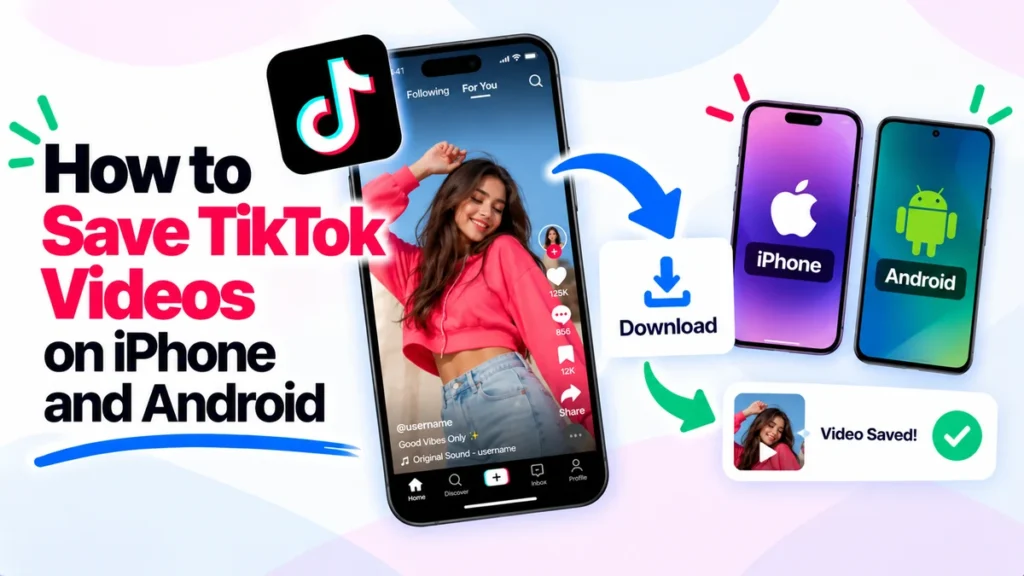
You find a TikTok worth keeping, a recipe, a workout, a clip of your own, and then you want it saved on your phone, not just liked and lost in the feed. The good news is that TikTok has a built-in save button. The catch is that it stamps a watermark, and some videos block it entirely. This guide covers how to save TikTok videos on iPhone and on Android, where the files actually land, and what to do when the save option is missing. For a clean copy, the free Pixellize TikTok downloader helps too.
Yes. TikTok has one built-in Save video button in the Share menu, and it works on both iPhone and Android. The saved file goes to your phone’s gallery in a few seconds, but it carries the TikTok watermark and the creator’s username. Some creators turn the option off, so it will not always appear.
Here is the part worth knowing up front. The in-app save is perfect for personal viewing, but that moving watermark makes it a poor choice if you plan to reshare or reuse the clip. For anything public, a clean copy is the better starting point, and the Pixellize downloader handles that in the same number of taps.
On an iPhone, the whole thing takes three taps and the clip lands in Photos. Here is the built-in way, step by step.
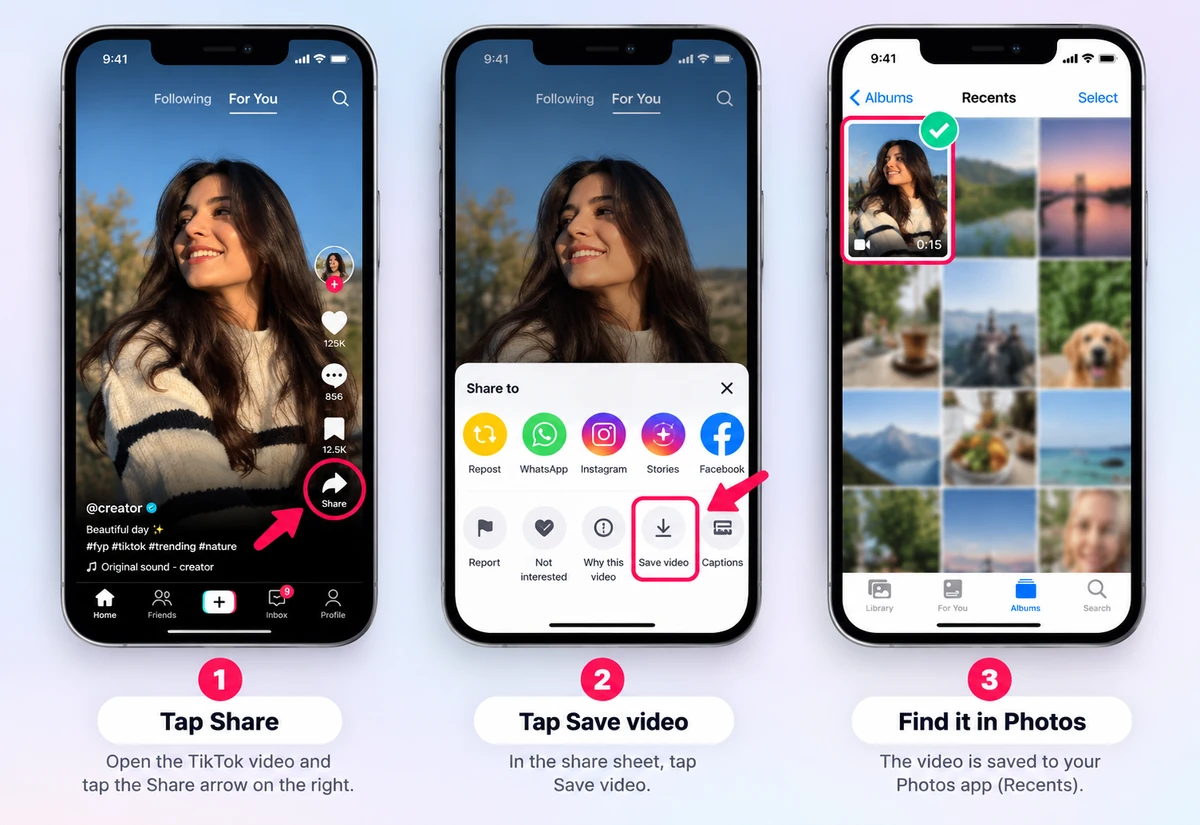
That is the entire flow on iOS. If the Save video button is greyed out or missing, jump to the troubleshooting section below, since the creator has almost certainly turned downloads off for that clip.
The first time I did this I kept checking my camera roll and almost missed the clip, because Photos also files a copy in a separate TikTok album. Check both spots if it does not show up right away.
Android works the same way, and the file drops into your gallery. The steps match almost exactly, so if you switch phones the habit carries over.
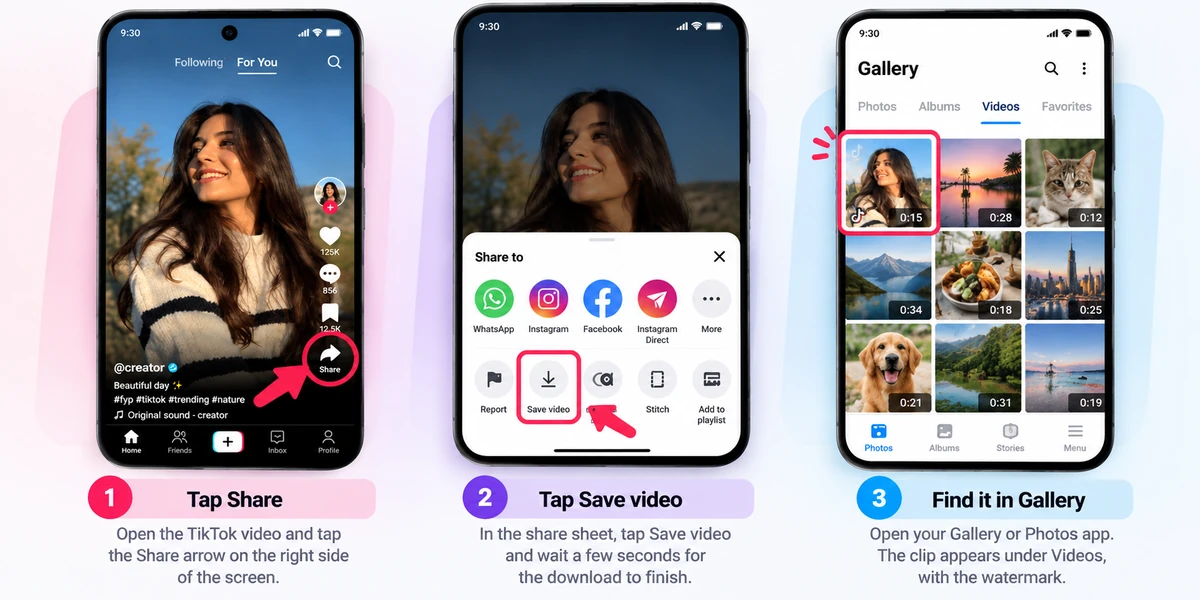
Saved TikToks go to your phone’s main photo library, in one of two spots. On iPhone they land in the camera roll and in a dedicated TikTok album inside Photos. On Android they appear in your Gallery or Google Photos, usually under a Videos or Download folder. In both cases the file is a standard MP4 with the watermark baked in, and it saves within a few seconds.
One habit that saves time later: rename the file as soon as it lands. TikTok filenames are long strings of numbers, so a folder of saved clips turns into guesswork fast. If you save a lot, a quick label like recipe-pasta or workout-abs beats scrolling through thumbnails. Pixellize downloads behave the same way, so the renaming tip applies whether you use the app button or a clean copy.
The in-app save always stamps the logo and username. To get a clean MP4, skip the app button and use a link-based tool. Copy the video link from the Share menu, open the Pixellize TikTok downloader in your browser, paste the link, tap Get Video, then tap No watermark HD. The clean file saves straight to your phone, no app to install.
This works the same on a phone as on a desktop, since Pixellize runs entirely in the browser. On an iPhone the clean MP4 lands in your Files app under Downloads, and on Android it goes to your Downloads folder, from where you can move it into Photos. Nothing is stored on the server after the file is pulled, so the link you paste is the only thing that touches it.

For the full walkthrough, see our guide on how to download TikTok videos without watermark. If you only want the audio, the TikTok sound to MP3 steps cover that in one click.
Paste a public link and save the HD video with no watermark, or the sound as an MP3. Free, no app, no sign up.
Open the TikTok DownloaderDrafts are trickier, because TikTok has no direct Save button for an unposted draft. The common workaround is to post it privately first, then save it. Open the draft, set Who can watch this video to Only me, and post it. Now open that private post, tap Share, and tap Save video, exactly like any other clip. The video lands in your camera roll or gallery, and you can delete the private post afterward.
One caveat: this route still adds the watermark to your own draft. If you want a clean version, export the finished video from your editor before you ever import it into TikTok, and keep that file as your master. For a clip already posted, the Pixellize downloader pulls a clean copy from its link in seconds.
A TikTok usually will not save for one of four reasons: the creator turned off downloads, the account is private, the video was deleted, or the post is a photo slideshow rather than a video. When the Save video button is missing, it is almost always the creator’s download setting, not a bug on your phone.
Each method trades convenience for control. The quick table below lines up the four common routes so you can pick the right one for the job, whether you just want a clip to rewatch or a clean file to edit and reshare.
| Method | Watermark? | Keeps audio | Works if download is off | Best for |
|---|---|---|---|---|
| In-app Save video | Yes | Yes | No | Quick personal saves |
| Link-based tool (Pixellize) | No | Yes | Yes | Clean reshares and edits |
| Save as GIF | Yes | No | Sometimes | Short silent clips |
| Screen recording | Captures overlays | Yes | Yes | Last resort |
Saving a public TikTok for personal use is generally fine, but you do not own it. Copyright in the US runs for the author’s life plus 70 years, per the US Copyright Office, so the creator and the artist keep their rights. Reposting a saved clip as your own can break copyright law.
With more than 1 billion monthly active users on TikTok as of September 2021, popular clips get watched closely by rights holders, so keep saved videos for reference and personal edits.
Now you know how to save TikTok videos on iPhone and Android with the in-app button, where the files land, and why the Save option sometimes vanishes. For a quick personal copy, the app’s Save video is enough. For a clean, watermark-free clip you can reshare or edit, paste the link into the Pixellize TikTok downloader and pick HD, SD, or MP3. Keep it for personal use, mind the rights, and credit the creator.
Open the video, tap the Share arrow, then tap Save video. The clip saves to your camera roll and a TikTok album in Photos, with the watermark. If Save video is missing, the creator disabled downloads.
Tap the Share arrow on the video, then tap Save video and wait a few seconds. The clip lands in your Gallery or Google Photos under Videos, with the TikTok watermark on it.
The creator has turned off downloads for that clip, or the account is private. Photo slideshow posts also have no Save video button, since they are not video files.
On iPhone they go to your camera roll and a TikTok album in Photos. On Android they appear in your Gallery or Google Photos, usually under a Videos or Download folder.
The in-app save always adds a watermark. To get a clean copy, copy the video link, paste it into a link-based downloader, and choose the No watermark HD option. The MP4 saves straight to your phone.
No. Saving a video, whether through the app or a link-based tool, does not notify the creator. They are not told who downloaded their clip.
Saving for personal use is generally fine, but many sounds and clips are copyrighted. Reposting a saved video as your own can break copyright law, so credit the creator and check music rights before publishing.
Founder and CEO of Pixellize.io, building AI-powered web tools and digital products with a focus on user experience and automation. M.Sc. Zoology, working at the intersection of technology, data analytics, and life sciences.