
Audio Converter
Convert audio between MP3, WAV, M4A, AAC, OGG, and FLAC right in your browser. No upload and no sign up, so your files never leave your device. Free, with a quick preview before you download.
How to convert an audio file
Choose your audio
Drop in an MP3, WAV, M4A, AAC, OGG, or FLAC file, or click to browse. It stays on your device.
Pick a format
Select the output you want, like MP3 to share or FLAC for quality. The format your file is already in is turned off, so you never convert to the same thing.
Convert and download
Press Convert, listen to the preview, then download. Nothing is uploaded at any step.
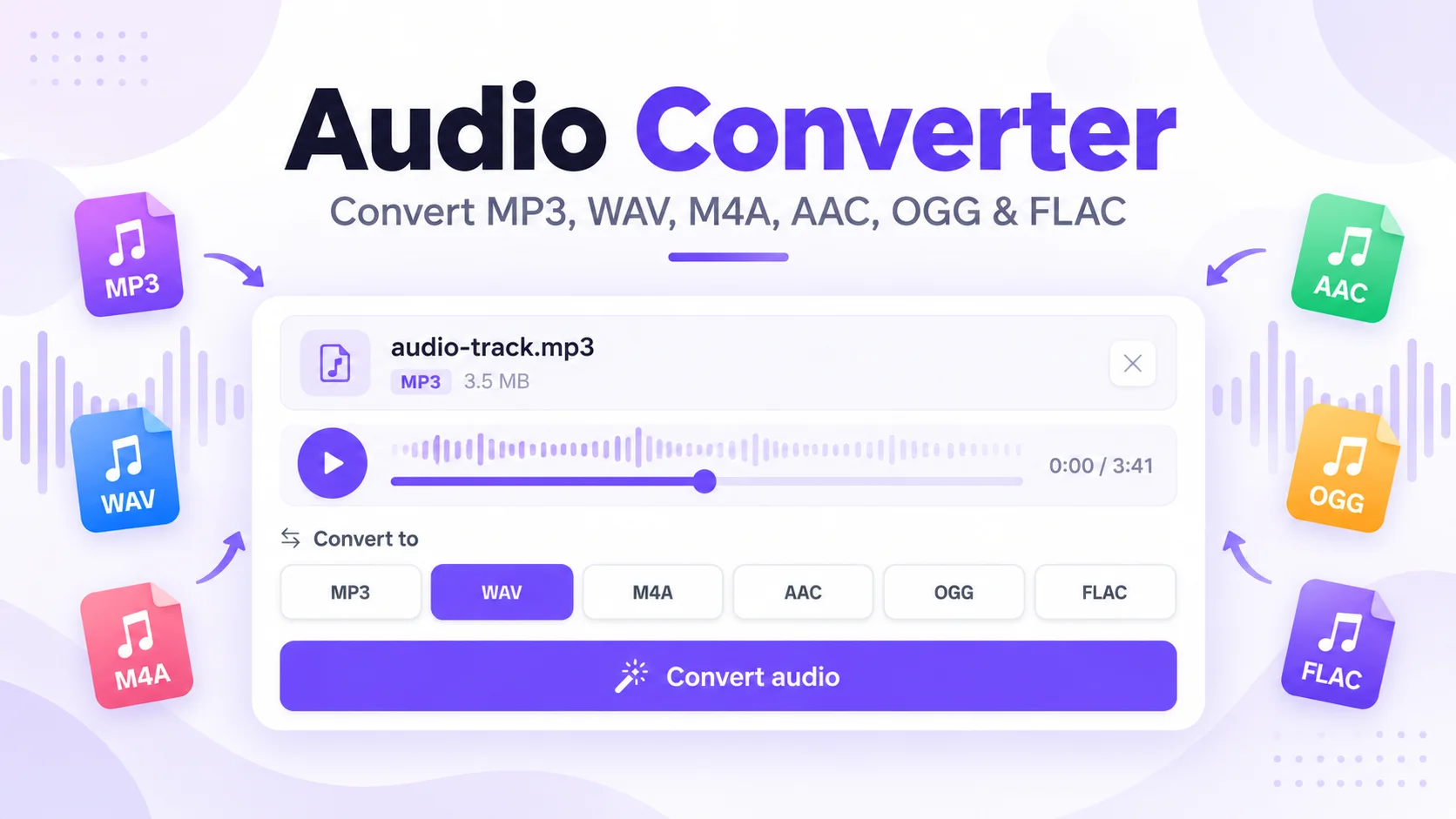
Convert audio to MP3, WAV, FLAC and more, free
This free audio converter changes a sound file from one format to another without uploading it anywhere. Pick a file, choose an output like MP3 or WAV, and the whole job runs in your browser, so a private recording or a client track never leaves your computer. There is no account and no watermark.
Convert M4A to MP3, and back
M4A is what an iPhone voice memo or an Apple Music track uses, and MP3 is the format that plays on almost anything. Drop the M4A in, choose MP3, and you get a file you can email, upload, or play on an old car stereo. The audio converter goes the other way too, and it treats AAC the same way since it is closely related to M4A.
Convert WAV to MP3 to shrink the file
WAV is uncompressed, so a three-minute song can run close to 30 MB. Converting WAV to MP3 brings that down to roughly 3 MB at a clean 192 kbps, and the sound stays close to the original, which makes it easy to email or post. When quality matters more than size, convert to FLAC instead, since it compresses without throwing anything away.
FLAC and OGG for quality and the open web
FLAC keeps every bit of the original audio in a file about half the size of WAV, so it suits music libraries and backups. OGG is a free, open format that plays well on the web and on Android. Convert FLAC to MP3 when you need the widest compatibility, or move the other way when you want the best possible quality.
Private by default
Most online converters send your file to a server, convert it there, and keep it for a while. This one does the work on your own device, so the audio is never transferred, logged, or stored. The converter loads once on the first run, around a one-time download, then your browser caches it. Working from a video? Use the MP4 to MP3 tool to pull the audio out first.
A quick note on quality: MP3, AAC, and OGG are lossy, so they drop some data to save space, You can pick 128 kbps for the smallest file, 192 kbps for a clean balance, or 320 kbps to stay closest to the original. WAV and FLAC are lossless and hold the full quality. Files up to 200 MB convert smoothly, and a very long recording may take a moment on a phone.
Why use this audio converter?
Six Formats, Both Ways
Convert between MP3, WAV, M4A, AAC, OGG, and FLAC in any direction.
Nothing Uploaded
The conversion runs in your browser, so your audio never leaves your device.
Free, No Sign Up
No account, no watermark, and no limit on how many files you convert.
Preview Before Download
Listen to the converted file right here before you save it.
Keeps The Quality
Choose 128, 192, or 320 kbps for MP3, AAC, and OGG, with lossless FLAC and WAV when you want every detail.
Works Everywhere
Runs in any modern browser on a computer, phone, or tablet. No app to install.
Frequently Asked Questions
Common questions about converting audio files.
How do I convert audio to MP3?
Drop your file in, choose MP3 as the output, and press Convert. You can preview the result, then download it. It works for WAV, M4A, AAC, OGG, and FLAC sources, and the file is converted in your browser, so nothing is uploaded.
How do I convert M4A to MP3?
Choose your M4A file, pick MP3, and press Convert. M4A is common for iPhone voice memos and Apple audio, while MP3 plays almost everywhere. The whole conversion happens on your device, with no account needed.
How do I convert WAV to MP3?
Select the WAV file and choose MP3. WAV is uncompressed, so switching to MP3 makes the file much smaller while keeping the sound close to the original. For no quality loss at all, choose FLAC instead.
How do I convert FLAC to MP3?
Pick the FLAC file, choose MP3, and convert. FLAC is lossless and large, while MP3 is smaller and plays on any device. Set the bitrate to 320 kbps to stay closest to the original, or 128 kbps for the smallest file. To keep every detail for archiving, convert to WAV or keep the FLAC.
Are my audio files uploaded to a server?
No. The converter runs entirely in your browser, so your files are never uploaded, stored, or shared. Only the converter engine is downloaded once, then your browser caches it.
Will converting reduce the audio quality?
It depends on the output. MP3, AAC, and OGG are lossy, so they drop some data to save space; pick 128 kbps for the smallest file, 192 kbps for a clean balance, or 320 kbps to stay closest to the original. WAV and FLAC are lossless and keep the full quality. Converting one lossy file to another loses a little more each time, so convert from the original when you can.
Is the audio converter free?
Yes. Every format and direction is free, with no sign up, no watermark, and no limit on how many files you convert.
What audio formats can I convert?
You can convert between MP3, WAV, M4A, AAC, OGG, and FLAC in any direction. The format your file is already in is turned off, since there is no need to convert to the same thing. Files up to 200 MB work smoothly.