
How to Create a RAR File Online (Free, Without WinRAR)
You need to send a few files as a single .rar, but WinRAR is not installed and the trial nag is annoying.…
Read articleOpen a 7z file on any device, free. See the fastest way on Windows, Mac, and phone, how to handle password-protected archives, and how to extract one in your browser.

You double-click a .7z file and nothing happens. No preview, no extraction, just an icon that refuses to cooperate. That is because most computers do not ship with 7z support built in, the way they do for ZIP. Opening one takes about two minutes, though, and you do not need WinRAR or any paid app. This guide covers how to open a 7z file on Windows, Mac, Linux, and your phone, plus a browser option like the free Pixellize 7z Extractor that opens the archive without uploading it anywhere.
A 7z file is a compressed archive created by the free 7-Zip program. It bundles one or more files into a single container and shrinks them, often to around 50 to 70 percent of the original size, which beats ZIP on most content. The format is open source and supports AES-256 encryption for password protection.
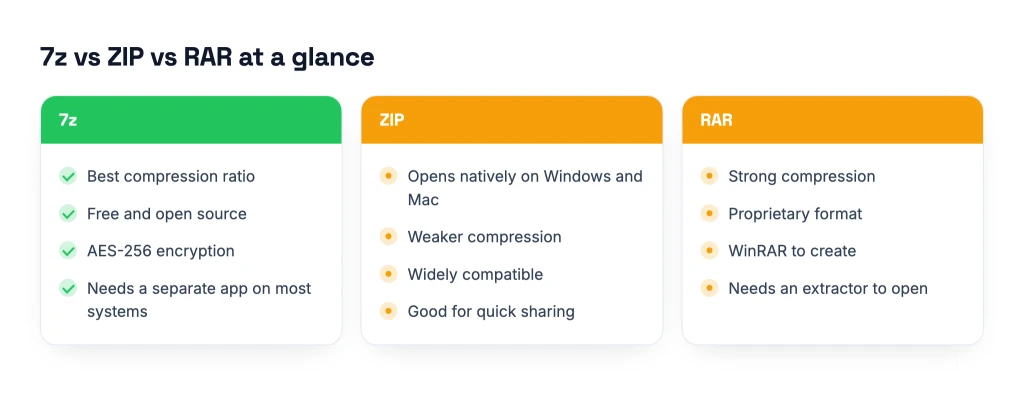
Think of it like a vacuum-sealed bag for data. The trade-off is compatibility. ZIP opens on almost anything out of the box, while 7z usually needs a dedicated tool. That single gap is why your double-click failed. Use 7z when you want the smallest file and control over who opens it. Use ZIP when you just need something that opens everywhere without fuss.
| Format | Compression | Opens natively on | Password support |
|---|---|---|---|
| 7z | Best | Windows 11 (23H2+) | Yes, AES-256 |
| ZIP | Weakest | Windows, Mac, Linux | Yes, weaker |
| RAR | Strong | Nothing by default | Yes |
If you are on Windows 11 version 23H2 or newer, try the simple path first. Right-click the .7z file, choose Extract All, pick a folder, and Windows pulls the files out on its own. Microsoft added native 7z reading to File Explorer in late 2023, so no extra software is needed for standard archives.
On Windows 10, or when the native option stalls on a split or encrypted archive, install free 7-Zip. After it is installed, right-click the file, hover 7-Zip, and choose Extract Here or Extract to “folder”. One thing that caught me out the first time on Windows 11: the 7-Zip menu hides under Show more options, so if you do not see it on the first right-click, that is where it lives.
Macs do not include 7z support, and 7-Zip itself has no Mac app, so grab a free helper. Keka and The Unarchiver are the two most trusted free options, both on the Mac App Store. Install one, then double-click your .7z file and it extracts into the same folder.
Want every 7z file to open with your chosen app automatically? Right-click the file, pick Get Info, change Open with to Keka or The Unarchiver, then click Change All. The built-in Archive Utility can sometimes handle a basic 7z too, but it fails on encrypted or multi-part archives, so a dedicated app is the reliable choice.
Most Linux desktops handle 7z once you add the p7zip package. On Debian or Ubuntu, run sudo apt install p7zip-full in a terminal. After that, double-click the archive to open it in Archive Manager or File Roller, or extract from the command line with 7z x archive.7z.
The 7z x command keeps the folder structure inside the archive, while 7z e dumps every file into one flat folder. For anything with nested folders, stick with x so paths stay intact.
On an iPhone or iPad, install a free archive app like iZip or Documents by Readdle, open the .7z file through the app’s file picker, and tap to extract. On Android, ZArchiver is the go-to free tool: open it, tap the archive, and choose Extract here.
If you would rather skip an install on mobile, the browser route in the next section works on a phone too. It runs in Safari or Chrome, so there is nothing to download from an app store.
When you do not want to install anything, a browser-based extractor is the fastest way to open a 7z file. The Pixellize 7z Extractor reads the archive right inside your browser using your device, so the file never leaves your computer. When I dropped a test .7z into it, the file list appeared in under a second, and the network tab showed nothing was uploaded. Most online tools skip that and send your file to a server instead.
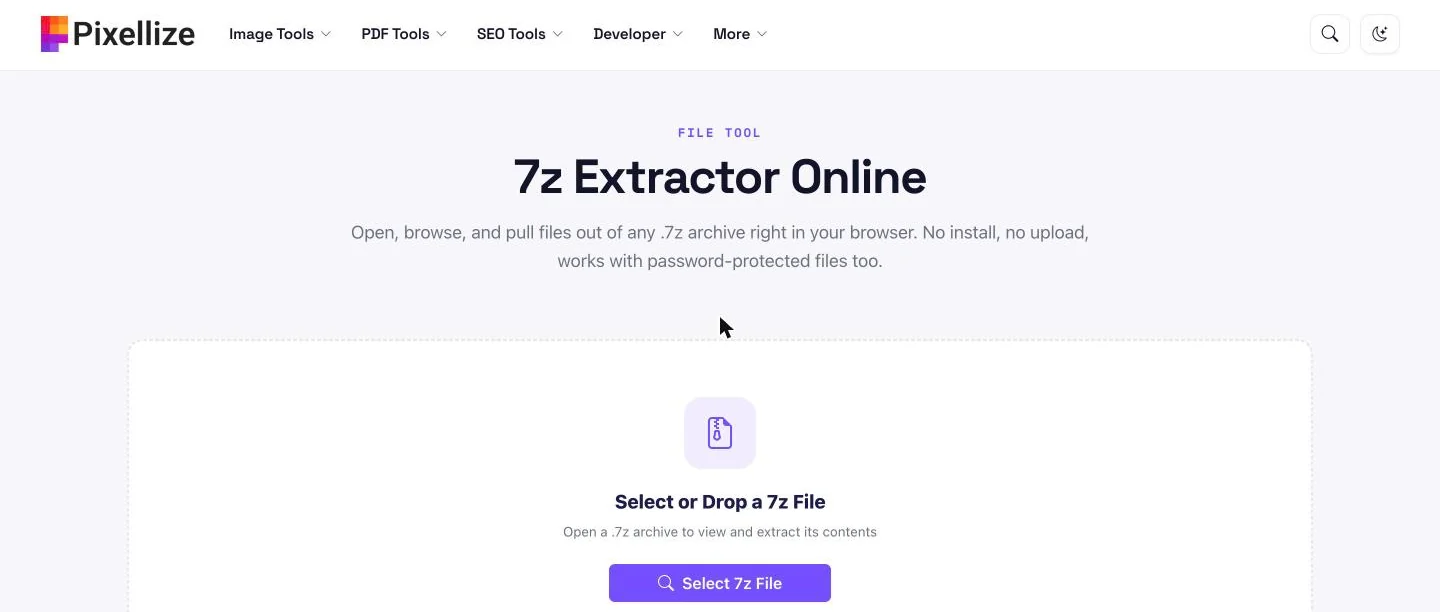
Go to the Pixellize 7z Extractor and either drag your .7z file onto the drop zone or click Select 7z File to pick it. Nothing uploads at this point, the tool loads the archive into your browser.
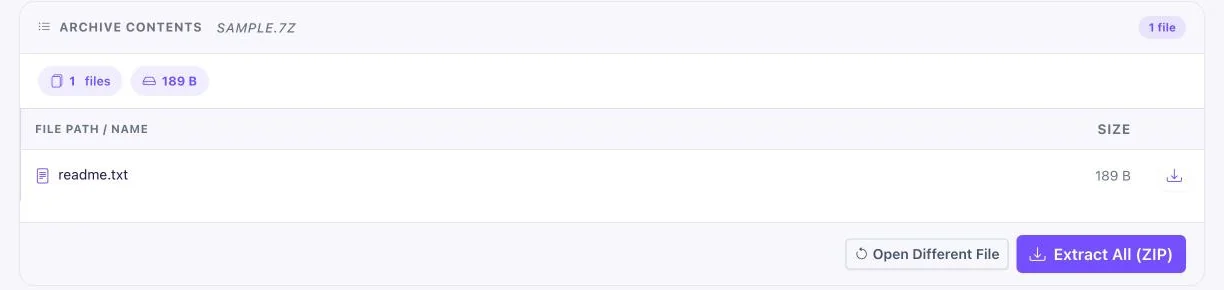
The tool lists every file inside the archive with its name and size, plus a total count. Scan the list to confirm you have the right archive before you pull anything out. If the archive is encrypted, this is where you enter the password.
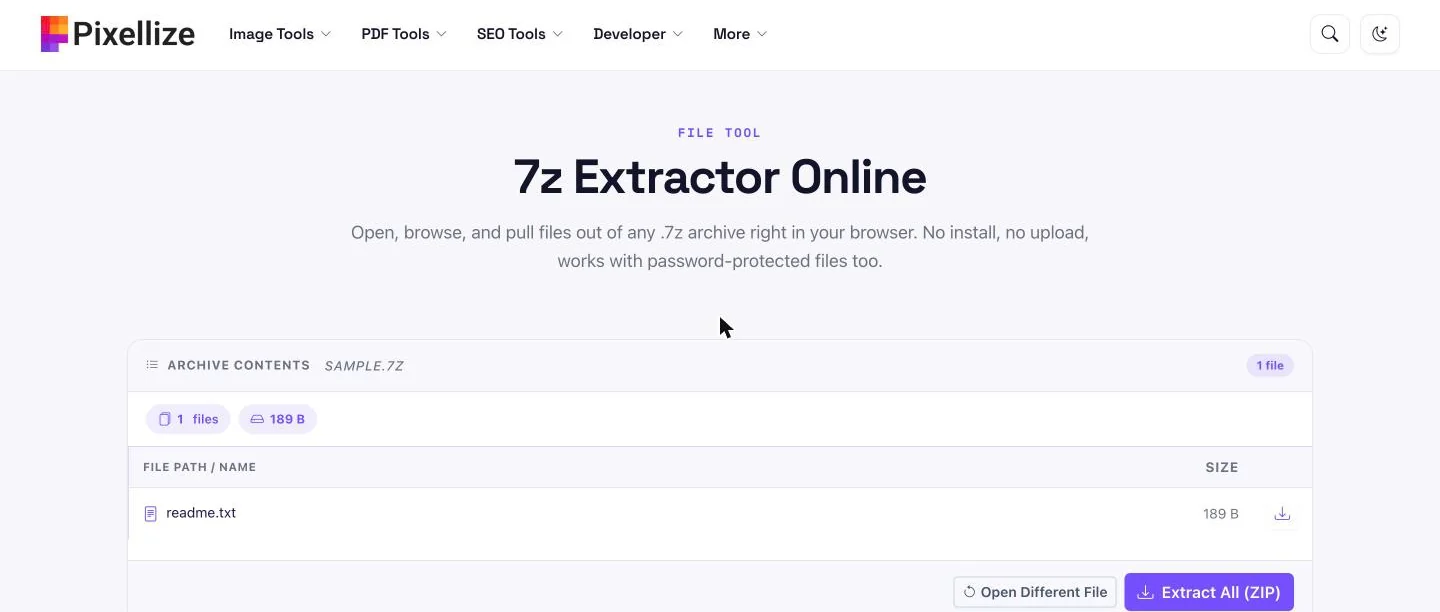
Download a single file with the button on its row, or click Extract All (ZIP) to grab everything as one ZIP you can open anywhere. That is it, no WinRAR, no sign-up, and the whole job happened on your own device.
To open a password-protected 7z file you need the exact password, there is no legitimate way around it. Enter it when your tool prompts you: 7-Zip on Windows, Keka on Mac, or the Pixellize 7z Extractor in the browser all ask for it the moment they detect an encrypted archive. Without the correct password, the files stay locked by AES-256.
If you created the archive yourself and forgot the password, recovery is slow and often impossible, since strong encryption is built to resist guessing. The practical move is to re-request the file from whoever sent it. For a password you do have, the Pixellize extractor keeps the whole unlock step on your device, so the password never travels to a server.
Opening 7z files online is safe when the tool processes the archive in your browser rather than uploading it to a server. Many online extractors do upload your file, which is a real privacy risk for anything sensitive. The Pixellize 7z Extractor runs client-side, so your data stays on your device and nothing is stored or sent.
For a personal photo archive, a contract, or anything confidential, stick with a client-side tool. A simple safety test for any online extractor: if the page works with your Wi-Fi switched off after it loads, it is processing locally and your file is not being uploaded. If it fails offline, your file is going to someone’s server.
7z x, not 7z e, when the archive has folders inside.No install, no upload, works with password-protected archives. Everything runs in your browser.
Open the 7z ExtractorNow you have a route for every device you own. On Windows 11, let File Explorer do it. On older Windows, install 7-Zip. On a Mac, Keka or The Unarchiver takes two clicks. And when you want zero setup, open the archive in your browser with the Pixellize 7z Extractor, which keeps your file on your device the whole time. Working with other archive types next? Pixellize also has an online unzip tool and a RAR file creator that run the same way. Whichever route you choose, you now know how to open a 7z file in under two minutes, so open the file and get back to work.
The free 7-Zip program opens 7z files on Windows, and Keka or The Unarchiver do the same on Mac. On Linux, the p7zip package handles them. If you do not want to install anything, a browser tool like the Pixellize 7z Extractor opens and extracts a 7z file online without any software.
Yes. Windows 11 version 23H2 and newer can open 7z files natively in File Explorer. Right-click the archive and choose Extract All. Microsoft added this in late 2023. For encrypted or split 7z archives, you may still need free 7-Zip, since the built-in support covers standard files only.
Install a free app such as Keka or The Unarchiver from the Mac App Store, then double-click the .7z file to extract it. Macs have no built-in 7z support and 7-Zip has no Mac version, so one of these free helpers is the simplest route. The Pixellize browser tool also works on a Mac.
Yes, you never need WinRAR for a 7z file. Free 7-Zip on Windows, Keka on Mac, and p7zip on Linux all open it. The quickest no-install option is the Pixellize 7z Extractor, which opens and extracts the archive right in your browser with nothing uploaded to a server.
Enter the correct password when your extractor prompts for it. 7-Zip, Keka, and the Pixellize 7z Extractor all detect an encrypted archive and ask for the password before showing the files. Without the exact password the AES-256 encryption cannot be bypassed, so request the file again if you have lost it.
It is safe when the tool processes the file in your browser instead of uploading it. The Pixellize 7z Extractor runs client-side, so your archive stays on your device and nothing is stored or sent. Avoid online extractors that upload your file to a server when the archive contains anything private.
A 7z file uses stronger compression, so it is usually smaller than the same files in ZIP, and it supports AES-256 encryption. ZIP is weaker at compression but opens natively on almost every device without extra software. Use 7z for the smallest files and ZIP when you need the widest compatibility.
Founder and CEO of Pixellize.io, building AI-powered web tools and digital products with a focus on user experience and automation. M.Sc. Zoology, working at the intersection of technology, data analytics, and life sciences.