
Markdown Editor
Write Markdown with a live preview that updates as you type. Formatting toolbar, keyboard shortcuts, autosave in your browser, and one-click export to .md or .html. Free and nothing is uploaded.
How to use the online Markdown editor
Start Typing
Write or paste Markdown on the left, or open an existing .md file. The preview on the right updates as you type.
Format Fast
Use the toolbar or shortcuts like Ctrl+B and Ctrl+K for bold, links, lists, tables, and code blocks.
Export Your Work
Copy the Markdown or HTML, or download the document as a .md file or a styled .html page.
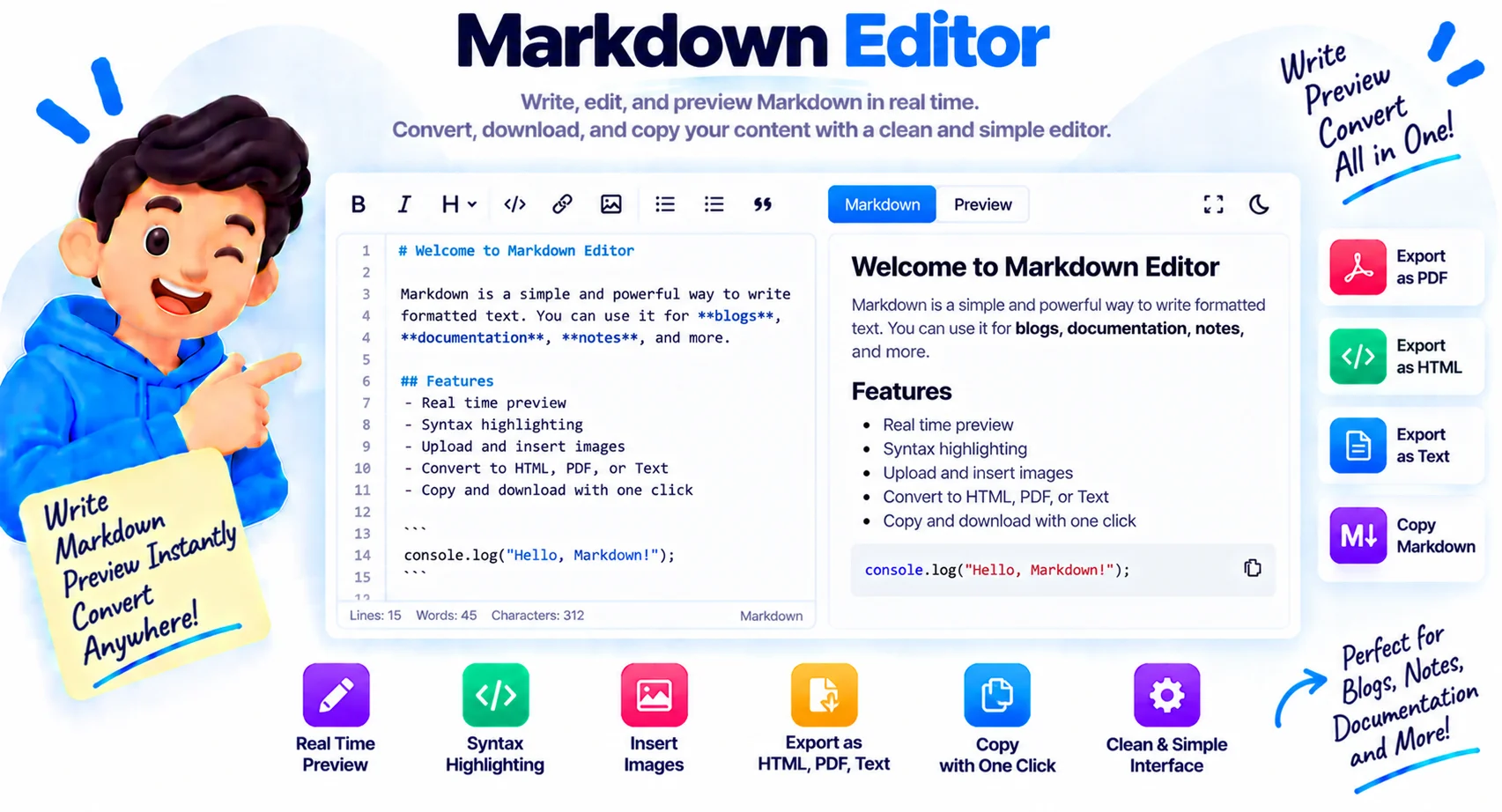
Write Markdown, See The Result Instantly
Markdown is easy to write and hard to trust. A missing space turns a heading into plain text, a broken pipe collapses a table, and you only find out after you commit the README or publish the post. A live preview closes that gap: the right pane renders your document with GitHub-flavored rules while you type, so a mistake shows up the second you make it.
The editor covers the everyday moves without getting in the way. The toolbar and shortcuts wrap your selection in bold, italic, links, or code, insert tables and task lists, and toggle list prefixes on whole blocks of lines. Synced scrolling keeps the preview aligned with where you are writing, and the status bar tracks words, characters, and reading time. When you are done, export a .md file for a repo, a styled .html page you can open anywhere, or copy the raw HTML for a CMS.
Your draft autosaves to your own browser as you type, and nothing you write is uploaded. That makes it a safe scratchpad for README files, blog posts, documentation, and notes. If you need the document as a PDF instead, the matching Markdown to PDF tool takes the same text and gives you paged output.
Why Use Our Markdown Editor?
Live GitHub-Flavored Preview
See exactly how your Markdown renders as you type, including tables, task lists, fenced code blocks, and strikethrough.
Formatting Toolbar
Bold, italic, headings, quotes, links, images, lists, tables, and code are one click away, and they wrap whatever you have selected.
Keyboard Shortcuts
Ctrl+B for bold, Ctrl+I for italic, Ctrl+K for a link, and Tab for indentation, so your hands stay on the keys.
Autosave In Your Browser
Your draft is saved on your device as you type. Close the tab, come back tomorrow, and it is still there.
Export .md Or .html
Download your document as a Markdown file or a clean standalone web page, or copy the Markdown or HTML to your clipboard.
Private And Free
Everything runs in your browser. Your writing is never uploaded, and there is no account, watermark, or word limit.
Similar Tools
More Developer tools you might find useful.
Frequently Asked Questions
Common questions about the online Markdown editor.
How do I use the Markdown editor?
Type or paste Markdown in the left pane and the live preview renders it on the right as you type. Use the toolbar or shortcuts like Ctrl+B and Ctrl+K to format, then download the result as a .md or .html file, or copy it to your clipboard.
Does the editor support GitHub-flavored Markdown?
Yes. Tables, task lists with checkboxes, fenced code blocks, and strikethrough all render in the preview the way GitHub shows them, so what you see here is what your README will look like.
Will I lose my work if I close the tab?
No. The editor autosaves your draft to your own browser as you type, and it restores automatically when you come back on the same device and browser. Clearing the editor or your browser data removes the draft, so download a .md copy of anything important.
Can I open an existing Markdown file?
Yes. Click Open and pick a .md, .markdown, or .txt file, or just drag the file onto the editor pane. The content loads instantly and the preview renders it right away.
Is my writing uploaded anywhere?
No. The editor, the preview, and the autosave all run in your browser on your own device. Nothing you type is sent to a server, which makes the tool safe for private notes, internal docs, and unpublished drafts.
Can I convert my Markdown to a PDF?
Yes, in two steps. Write and polish the document here, then open it in the Pixellize Markdown to PDF tool, which renders the same GitHub-flavored Markdown into a paged, downloadable PDF. Both tools run in your browser.