
How to Download an Instagram Profile Picture in Full Size
Tap someone's Instagram profile picture and Instagram gives you a tiny circle, sometimes not even a full view. There is no built-in…
Read articleTranscribe audio to text for free without uploading a single file, using nothing more than your browser's built-in speech tools and a few honest tradeoffs.

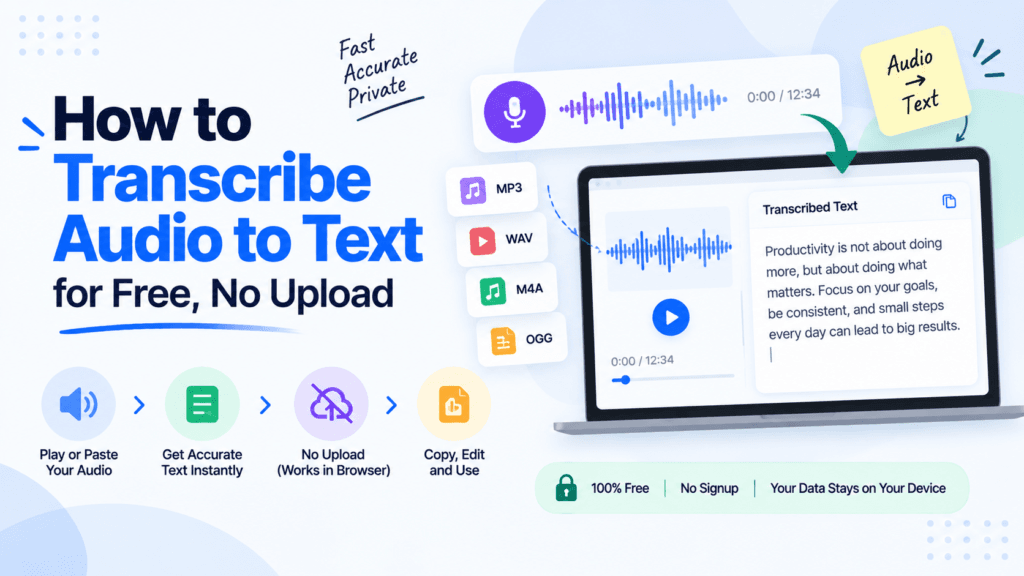
Most guides on how to transcribe audio to text for free end with the same instruction: upload your file to a stranger’s server. That is fine for a birthday voicemail. It is a different story when the recording is a client call, a therapy note, or a meeting where someone said something they will regret in writing. You do not need to hand your audio to a server to get a transcript. Pixellize runs a speech to text tool straight in your browser, and there is also a genuine no-upload trick for files you already have. Here is every free method, ranked by how much of your audio actually leaves your device.
“Free” rarely means unlimited. I tested five of the most recommended ways to transcribe audio to text for free, and the catch is different every time. Some cap the minutes, some hold your file on a server for as long as your account exists, some just want an email address before they let you export a single word.
| Tool | Free limit | Where your audio goes |
|---|---|---|
| Pixellize speech to text | Unlimited | Nowhere, stays in your browser |
| HappyScribe | 10 minutes, no card | Uploaded to their servers |
| UniScribe | Short clips on the free plan | Uploaded to their servers |
| Adobe Podcast | Free, needs an Adobe account | Uploaded to Adobe’s cloud |
| Desktop app (Whisper, MacWhisper) | Unlimited | Nowhere, runs on your machine |
Yes. Two free methods keep your audio off any server: dictating live into a browser tool that uses your device’s own speech engine, or playing an existing recording out loud next to your microphone so that same tool transcribes it in real time. Both run on the Web Speech API already built into Chrome, Edge, and Safari.
Neither method sends a single byte of audio anywhere. Your browser listens, converts speech to words locally in the browser engine, and prints the result. No server, no account, no file ever gets created in the first place for the live method.
This is the case Pixellize’s speech to text tool is actually built for: real-time dictation during a meeting, a lecture, or a voice memo you are recording right now. Nothing gets uploaded because nothing gets saved as a file first. Your browser’s own speech engine listens and prints words as you talk.
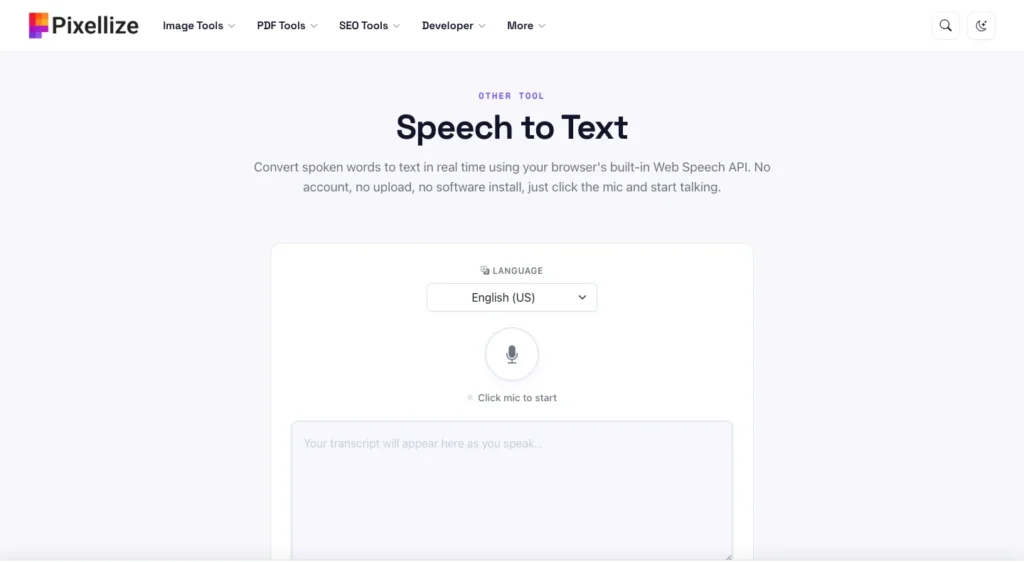
Dictate a meeting, a lecture, or a quick voice memo straight into text with Pixellize, free and with nothing uploaded.
Open the Speech to Text ToolThe first time I tried this on a rambling 20-minute interview I had recorded on my phone, I expected garbage. It actually held up fine for the first ten minutes. Then my laptop speaker started clipping and half a paragraph turned into nonsense.
The trick is simple: play your recording out loud, close to a microphone, while the same browser tool listens. It is not real audio-file transcription, it is your browser hearing a speaker the same way it would hear you talking, so quality depends entirely on how clean your playback sounds.
This is not a substitute for real audio-file transcription software, and it will not add speaker labels or timestamps. What it is: a genuinely free way to get a rough, editable transcript of a short recording without ever touching an upload button. For anything over 15 minutes, or recorded in a noisy room, skip ahead to the cloud or desktop options below. If your recording is trapped inside a video file, run it through the MP4 to MP3 converter first so you can play just the audio.
Not everything needs to stay local. A public webinar recording or a podcast episode you are transcribing for show notes is not sensitive, so uploading is a reasonable tradeoff for speed and accuracy on longer files.
Each of these keeps a copy of your audio on their servers for as long as your account exists, so read the privacy policy before you upload anything with a real name attached to it. This is the tradeoff every cloud tool asks you to make, speed and accuracy in exchange for your file leaving your device.
For files you transcribe often, or long recordings on a slow connection, a desktop app skips the upload entirely and usually beats a browser tool on accuracy.
None of these are one-click for a non-technical reader, which is exactly why the browser method above exists for anyone who just wants text right now, not a model to install.
I once transcribed a full team standup with the mic muted for the first 90 seconds, because I had allowed the browser’s permission prompt but never actually clicked the mic icon itself. Small mistake, and it wasted a third of the recording before anyone noticed.
Free transcription tools hit roughly 95 to 98 percent word accuracy on clean audio with a single speaker, according to AssemblyAI’s 2026 accuracy benchmark. That accuracy drops fast once background noise enters the recording, a pattern a 2013 study on speech recognition in natural background noise documented well before today’s AI models existed.
Accents widen the gap further. Studies on accented English have measured word error rates of 30 to 50 percent, against 2 to 8 percent for speakers whose accent matches what the model trained on. Paying for a subscription does not close this gap, most consumer tools, free or paid, run on the same handful of underlying speech models.
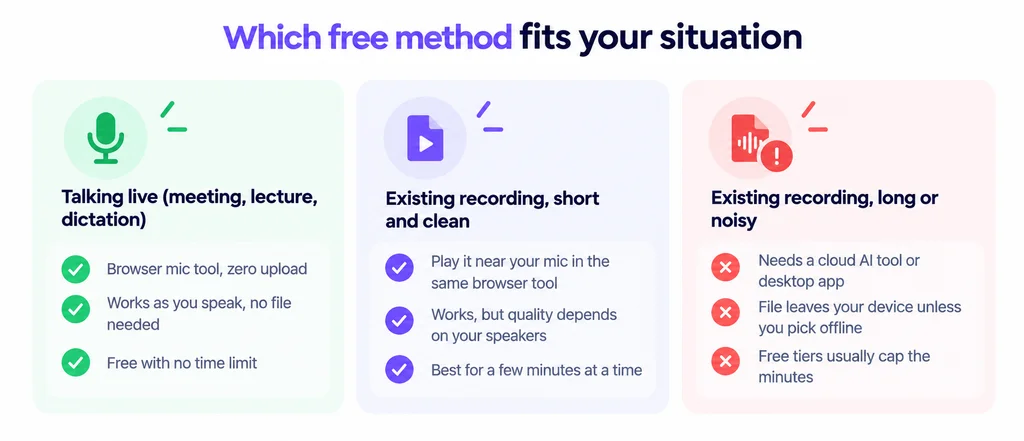
Pixellize’s browser tool covers the first two columns for free, with nothing uploaded either way. Once a recording is long, noisy, or already sitting in a downloads folder from someone else, a cloud tool or a desktop app like Whisper is the more realistic choice, and the text to speech tool is worth a look too if you ever need to go the other direction.
There is no single best way to transcribe audio to text for free, only the method that matches what you are actually holding. A live conversation belongs in Pixellize’s browser speech to text tool, where nothing ever leaves your device. A short recording can go through the same tool with the playback trick. Anything long, noisy, or already sitting in your downloads folder is better off in a proper cloud or desktop transcriber, uploaded on purpose rather than by default. Open the tool, pick your language, and see how far your browser gets you before you reach for anything else.
Yes. Dictating live into a browser speech to text tool never creates an audio file, so there is nothing to upload. For an existing recording, playing it out loud near your microphone keeps it local too, though a cloud tool works better for long or noisy files.
Free tools hit roughly 95 to 98 percent word accuracy on clean audio with one speaker. Background noise and overlapping voices push errors higher, and accented speech has measured error rates of 30 to 50 percent against 2 to 8 percent for a matched accent.
Dictate it live with Pixellize's browser speech to text tool while the meeting happens. It costs nothing, needs no account, and nothing is uploaded because the tool transcribes speech as it hears it instead of recording a file first.
Yes, three ways: play it near your microphone in a browser speech to text tool for a rough transcript, upload the first 10 minutes free to a cloud tool like HappyScribe, or run it through a free desktop app like Whisper with no time limit.
Chrome, Edge, and Safari all support the Web Speech API that free browser transcription tools rely on. Firefox does not implement it yet, so switch browsers if your transcript box stays blank after you click the microphone.
Yes. Pixellize's speech to text tool supports 13 languages including Hindi, Spanish, French, and Arabic, and cloud tools like HappyScribe cover 150 or more. Accuracy is generally best in whichever language the underlying model was trained on most heavily.
A browser speech to text tool has no time limit since nothing is uploaded or stored. Cloud tools cap the free tier, HappyScribe stops at 10 minutes, for example, while a desktop app like Whisper has no cap once it is installed.
Founder and CEO of Pixellize.io, building AI-powered web tools and digital products with a focus on user experience and automation. M.Sc. Zoology, working at the intersection of technology, data analytics, and life sciences.