
Chrome Extension Icon Generator
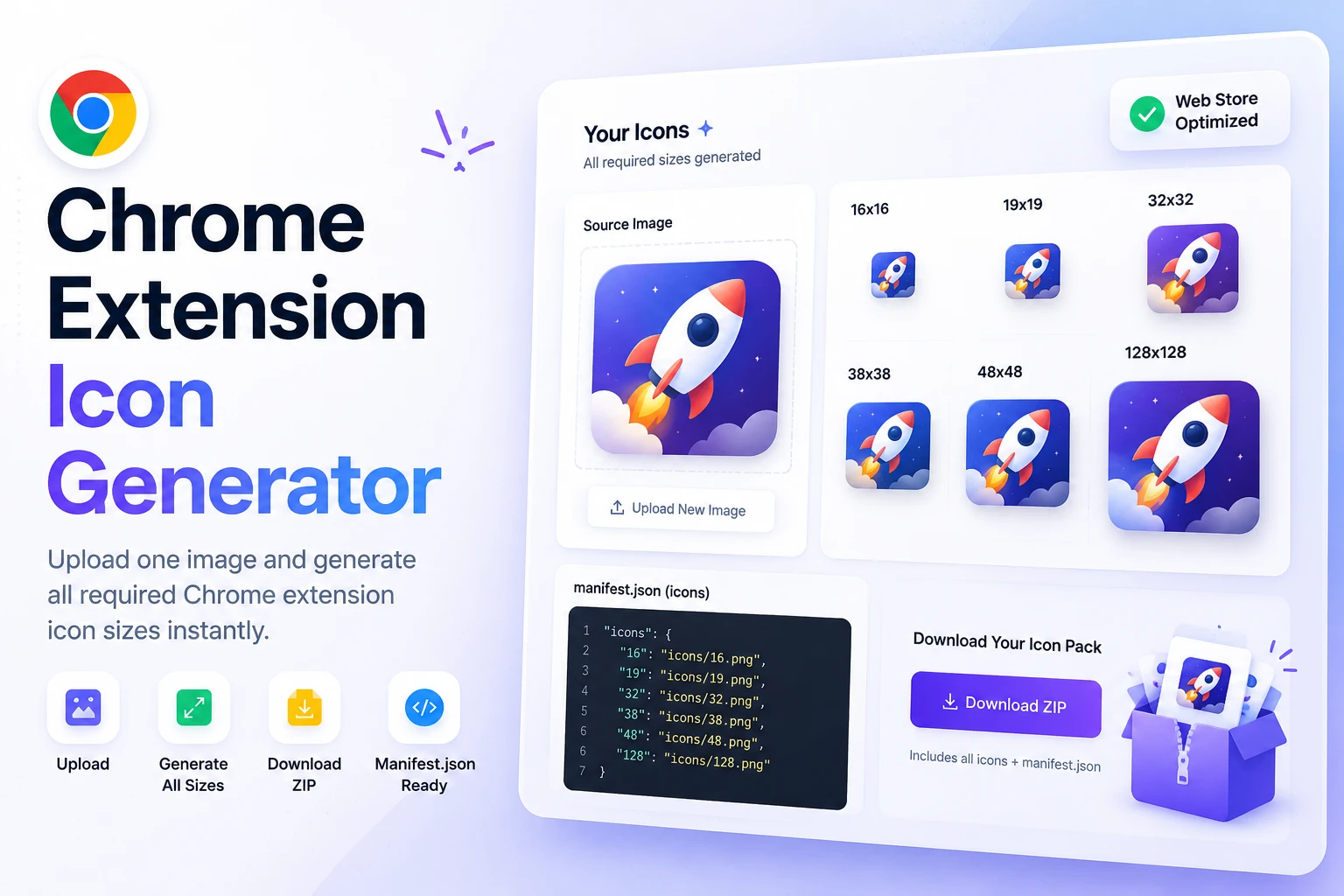
Upload one image and instantly export all four Chrome extension icon sizes: 16, 32, 48, and 128 pixels. Each tile has its own download button, and Download All as ZIP gives you an icons folder named exactly how your manifest.json expects.
How to use the Chrome Extension Icon Generator
Upload your source image
Drop a PNG, JPG, WebP, or SVG onto the upload zone, or click Choose Image. A 512 x 512 square source gives the cleanest result, but any image works.
Review the four generated sizes
The tool renders 16, 32, 48, and 128 px previews automatically. Non-square sources are auto-cropped to square and transparency is preserved in the PNG output.
Download single sizes or the full ZIP
Click any per-size button to grab one icon, or hit Download All as ZIP to get an icons folder with all four PNGs and a copy-paste manifest snippet.
A faster way to ship Chrome extension icons
Chrome extensions require icons at four exact sizes: 16 pixels for the favicon and omnibox, 32 pixels for the Windows context menu, 48 pixels for the extensions management page, and 128 pixels for the Chrome Web Store listing. Most icon makers handle only one size at a time, which leaves you resizing four versions by hand, renaming them to match the manifest convention, and zipping the result before you can ship.
This tool collapses all of that into one upload. Drop in any PNG, JPG, WebP, or SVG and you get all four sizes rendered side by side with a download button under each. Hit Download All as ZIP and you get an icons folder with icon16.png, icon32.png, icon48.png, and icon128.png, ready to drop into your extension project root. The matching manifest.json icons block sits right under the previews with a one-click copy.
Why this Chrome extension icon generator works better
Single upload, all four sizes
Drop one PNG, JPG, WebP, or SVG and the tool generates 16, 32, 48, and 128 px PNGs at once. No need to upload four times or resize manually.
ZIP with the right folder structure
Download All as ZIP exports a single icons.zip that contains the icons folder with icon16.png, icon32.png, icon48.png, and icon128.png. Drop the folder into your extension project root and reference it from manifest.json.
manifest.json snippet ready to copy
The matching icons block is shown right under the previews with a one-click Copy button. Paste it into your manifest.json and your icons are wired up.
Auto square-crop, transparent PNG
Non-square sources are center-cropped to square automatically. PNG output preserves alpha, so transparent backgrounds stay transparent in your extension icons.
High quality downscaling
Each PNG is rendered with high-quality canvas resampling so 16 and 32 px icons stay crisp instead of turning to mush.
No upload, no signup, no watermark
Everything runs in your browser. Your source image and exported PNGs never travel to a server. The PNGs and ZIP have only your image, nothing added.
Similar Tools
More Other tools you might find useful.
Chrome extension icon generator FAQ
Which Chrome extension icon sizes are required?
The Chrome extension manifest expects four icon sizes: 16 x 16 (favicon and omnibox), 32 x 32 (Windows context menu), 48 x 48 (extensions management page), and 128 x 128 (Chrome Web Store listing). This tool generates all four from one upload.
What source size should I upload?
A 512 x 512 square PNG or SVG gives the cleanest result. The tool downscales with high-quality resampling, so any image larger than 128 x 128 works. SVG vectors give the sharpest results since they can be rasterized fresh at each size.
What is in the ZIP download?
The ZIP contains a single icons folder with icon16.png, icon32.png, icon48.png, and icon128.png. The manifest snippet shown above the ZIP button is the matching icons block you can copy into your manifest.json. Drop the icons folder into your extension project root and reference it from manifest.json.
Do I need to handle transparency myself?
No. PNG output preserves alpha automatically, so any transparency in your source image is kept in all four icon sizes. The exported PNGs are ready for Chrome, Firefox, and Edge without any extra processing.
Will my image be uploaded to a server?
No. Everything runs in your browser using JavaScript. Your source image is read locally, resized locally, and packaged locally. Close the tab and nothing is retained.
Can I use this for Firefox or Edge extensions?
Yes. Firefox and Edge use the same manifest icons format and the same four standard sizes work. The exported icons folder is compatible with all three browsers.