
How to Convert Audio to MP3 Free (No Upload Needed)
You record a voice memo on your iPhone, try to send it to a friend on Windows, and it will not play.…
Read articleConvert AVIF to JPG in three quick browser steps, free and private, with no upload and no sign up.

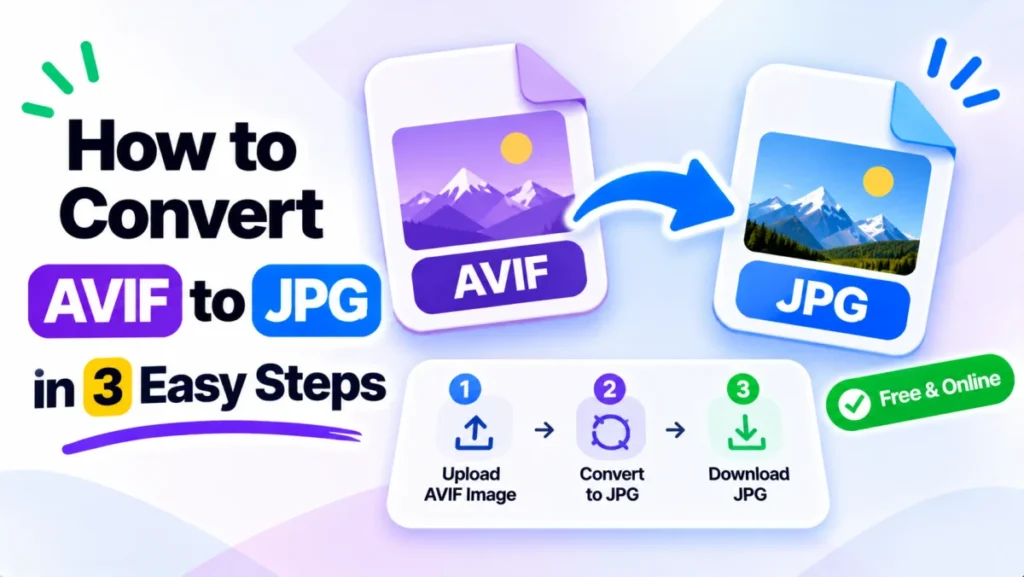
You download a photo, double click it, and nothing opens. The file ends in .avif, and your editor just shrugs. AVIF is a newer image format that saves real space, but plenty of apps, older phones, and clients still cannot read it. The fix is simple: convert AVIF to JPG, the format everything opens. This guide shows you how to convert AVIF to JPG in three steps using the free Pixellize AVIF to JPG converter, plus desktop and command line methods for bulk jobs.
AVIF squeezes an image into roughly half the size of a JPG at the same quality, which is great for a website but awkward everywhere else. Email clients, older Windows photo viewers, many print shops, and some social uploaders still reject .avif. JPG is almost 30 years old and opens on everything, so converting gives you a file you can actually send, print, or hand to a client. Think of AVIF as the format you store in and JPG as the format you share in.
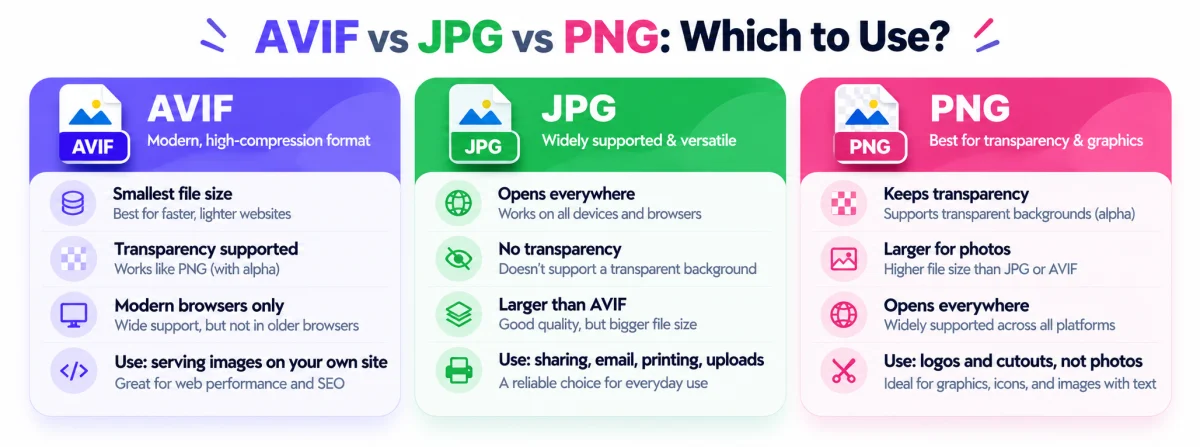
| Format | File size | Transparency | Support | Best for |
|---|---|---|---|---|
| AVIF | Smallest | Yes | Modern browsers only | Storing and serving on the web |
| JPG | Larger | No | Everything | Sharing, printing, uploading anywhere |
Before you convert, it helps to know where each format wins. AVIF has the smallest files and now works in over 90 percent of browsers worldwide, which is why it is great for serving images on a site. JPG opens on everything but has no transparency. PNG keeps transparency but is heavy for photos. The quick rule: serve AVIF, share JPG, and reach for PNG only when you need a see-through background.
Here is the quickest route. The whole thing runs in your browser, so there is no software to install and your image never leaves your computer. The first time I tried this I kept looking for an upload progress bar, then realized there was none because the work happens locally.
Go to the AVIF to JPG converter and drag your .avif file onto the drop zone, or click Choose AVIF Files to pick it. You can add several at once for a batch.

Each file shows a thumbnail once it loads. Choose a JPG quality, Best, High, Medium, or Small, depending on whether you care more about detail or file size, then click Convert.

When the green check appears, the JPG is ready. Click Save to download it. The tool shows the before and after size so you know what changed, and you can save each file in a batch separately.

Converting AVIF to JPG can lose a little quality, because both are lossy formats and JPG is less efficient. At High or Best quality the difference is hard to see on a normal photo. The JPG file is often larger than the AVIF, since JPG needs more data to hold the same detail. Pick Best when sharpness matters most. If you want the technical background on how browsers treat each format, MDN’s image format guide is the reference. The Pixellize converter defaults to High, which keeps the detail most people need.
JPG does not support transparency, so any transparent area in an AVIF becomes a solid fill, usually white, after you convert AVIF to JPG. If your image has a see-through background, like a logo, convert it to PNG instead to keep the transparency. For regular photos with no transparent pixels, JPG is the right choice.
A browser tool is easiest for a few files, but these help for bulk or scripted work.
magick input.avif output.jpg for one file, or a short shell loop to convert a whole folder at once.These need an install or the command line. For a quick, private, no-setup convert, the Pixellize converter is faster, since the whole job runs in your browser. Pixellize never uploads your file, which is the part most online converters get wrong.
Knowing how to convert AVIF to JPG is only half of it, the other half is knowing when. Convert when you need to email a photo, when a client or CMS rejects the .avif upload, when you want to print, or when you are opening the image on an older phone or a work laptop that cannot read AVIF. Keep the original AVIF for your website, where its smaller size genuinely helps page speed. For everything that leaves your own setup, a JPG copy saves you the “it won’t open” message. I now keep both versions side by side, AVIF for the site and a JPG export for anything I send out.
Free, in your browser, nothing uploaded, no sign up.
Open the AVIF to JPG converterThat is all it takes to convert AVIF to JPG. Store your images as AVIF to save space, and convert a copy to JPG whenever you need to send, print, or upload it somewhere that has not caught up yet. Open the Pixellize AVIF to JPG converter and try it with your own file. Pixellize keeps it free, with no sign up and no watermark.
Yes, when the tool converts in your browser. The Pixellize converter processes the image on your own device, so nothing is uploaded to a server. Your photos never leave your computer, which matters for private or client images. You can even disconnect from the internet after the page loads.
Because AVIF is a more efficient format. It stores the same image in far less space, so when you convert AVIF to JPG the file usually grows. A 78 KB AVIF can become a 120 KB JPG at high quality. That is normal, and the tradeoff is that JPG opens everywhere.
Yes. Drop multiple .avif files into the converter and it handles them as a batch, each with its own quality and save button. For very large folders, ImageMagick with a short shell loop is faster, since it runs from the command line without a browser.
No. JPG cannot store transparency, so any transparent area becomes a solid background, usually white. If your AVIF has a see-through background, convert it to PNG instead to keep the transparency. Use JPG only for photos and images with no transparent pixels.
Use High or Best for photos you will print or share at full size, since they keep the most detail. Medium is fine for most web use. Small makes the file tiny for thumbnails or quick previews, but softens the image, so avoid it for anything important.
No. A browser converter needs no install and no sign up, it just loads a web page. Desktop options like ImageMagick, Preview, or Photoshop work too, but they require software. For a one-off convert, the browser tool is the fastest route.
Founder and CEO of Pixellize.io, building AI-powered web tools and digital products with a focus on user experience and automation. M.Sc. Zoology, working at the intersection of technology, data analytics, and life sciences.