
How to Convert Audio to MP3 Free (No Upload Needed)
You record a voice memo on your iPhone, try to send it to a friend on Windows, and it will not play.…
Read articleLearn how to convert CSV to Excel without losing leading zeros, dates, or columns, using four free methods plus a one-click browser converter.

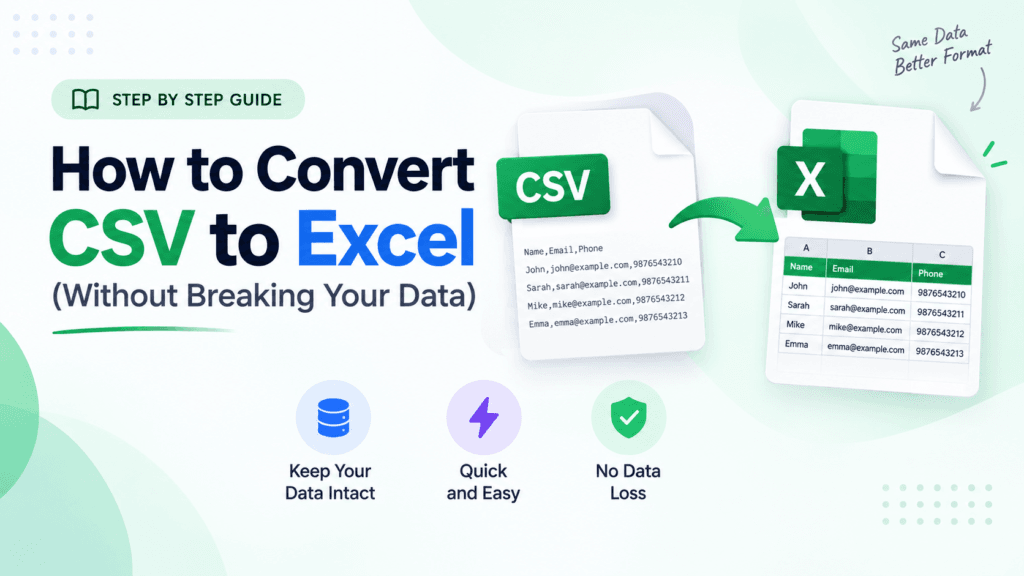
You double-click a CSV, Excel opens it, and your order IDs like 00123 are suddenly 123. Or every date flipped from day-month to month-day. If that sounds familiar, you already know the tricky part of how to convert CSV to Excel is not opening the file, it is keeping the data intact. This guide covers four reliable methods, from a two-click open to a one-step browser tool, and shows exactly how to stop Excel from mangling zeros, dates, and long numbers. If you just want a clean workbook without the wizard clicks, the Pixellize CSV to XLSX converter handles it in your browser.
Here is the thing most guides skip. A CSV is plain text with values separated by commas. Excel can display it, but the file is still a .csv until you save it as a workbook. Opening and converting are two different actions.
When you just open a CSV, Excel makes silent guesses about every column. It decides what is a number, what is a date, and what is text, and it is wrong often enough to cost you an afternoon. Converting properly means telling Excel those types yourself, then saving to .xlsx so the choices stick. The four methods below all end the same way: a real Excel workbook you can trust.
| Method | Best for | Protects your data? | Needs Excel? |
|---|---|---|---|
| Open directly | A quick look | No, Excel auto-guesses types | Yes |
| Power Query (Get Data) | Clean, repeatable imports | Yes, you set column types | Yes |
| Text Import Wizard | Older Excel versions | Yes, step by step | Yes |
| Browser converter (Pixellize) | One-step .xlsx, no setup | Yes, you review the grid | No |
This is the fastest route and the one most people already use. It is fine when the data is simple text and numbers with nothing fragile. Skip it if your file has IDs with leading zeros, long numbers, or mixed date formats.
That last step matters. If you stop after opening, the file is still a CSV and your next save may drop everything back to plain text.
If you care about converting CSV to Excel without losing formatting, this is the method to learn. Power Query, found under Data then Get Data, previews the file and lets you assign each column a type before a single row lands in the sheet. It is also repeatable: refresh the query and a new version of the CSV re-imports with the same rules.
Microsoft’s own documentation recommends this import path for anything beyond a throwaway file, and once you have used it twice it is faster than fixing broken columns by hand. Keep in mind it only exists in Excel 2016 and later.
On Excel 2013 and earlier, or when you want the classic step-by-step control, the Text Import Wizard is the answer. It is also the fix for the “how to open a CSV in Excel with columns” problem when a file refuses to split correctly.
In newer Excel the wizard is hidden by default. You can turn it back on under File, Options, Data, “Show legacy data import wizards.”
Sometimes you do not have Excel open, you are on a borrowed laptop, or you just want a clean .xlsx without clicking through a wizard. That is where a browser converter earns its place. To convert CSV to Excel online free, the Pixellize CSV to XLSX converter reads the file in your browser, shows the parsed grid so you can spot a bad column, and downloads a real .xlsx. Nothing is uploaded to a server, which matters when the data is a client list or anything private.

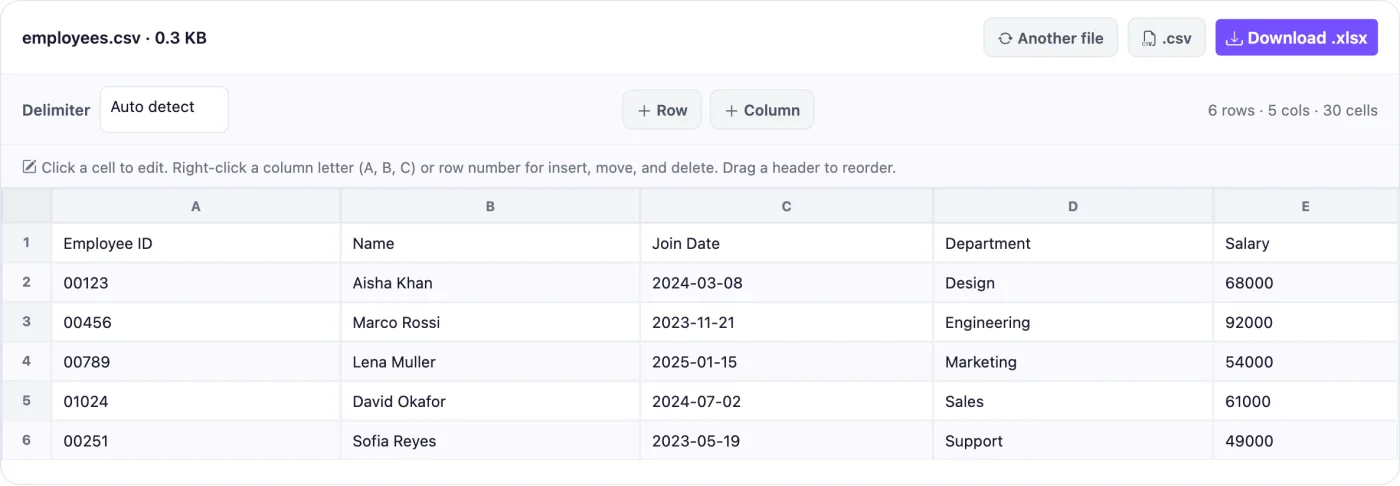
This caught me out the first time I sent a spreadsheet to a client: I had “converted” a CSV by opening it, emailed the still-CSV file, and they got a wall of commas. A one-step converter removes that whole class of mistake. If you need the reverse trip later, Pixellize also has an XLSX to CSV converter and an Excel to JSON tool for developers.
A CSV opens with everything in column A when Excel expected a different separator than the file actually uses. In many European locales Excel treats the semicolon as the list separator, so a comma file never splits into columns. Re import through Method 2 or 3 and set the delimiter by hand to fix it.
You stop Excel from breaking your data by importing instead of opening, then setting each fragile column’s type before it loads. Force IDs, zip codes, and phone numbers to Text so leading zeros and long numbers survive, choose UTF-8 so accents render, and pick the date order that matches your file. These four choices prevent almost every silent conversion error.
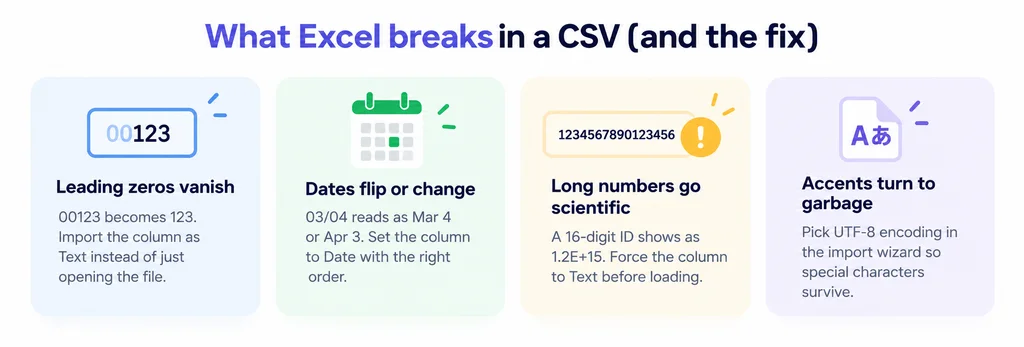
Microsoft has a short reference on keeping leading zeros and large numbers if you want the official wording to share with a teammate.
When a folder full of CSVs needs the same treatment, do not open them one by one. In Excel, go to Data, then Get Data, then From File, then From Folder. Point it at the folder, and Power Query stacks every CSV into one query you can clean once and load together. Refresh it next month and the new files come in automatically. For a handful of files, converting each with the browser tool is quicker than setting up the folder query.
Excel for Mac has the same From Text/CSV import under the Data tab, so Method 2 works the same way. If you use Apple Numbers instead, open the CSV in Numbers, then choose File, Export To, Excel to save an .xlsx. Numbers is gentler with leading zeros than a raw Excel open, but it still helps to check ID columns before you export. When you are on someone else’s Mac with neither app installed, the Pixellize browser converter is the fastest path to a workbook.
Use Method 1 for a quick glance at clean data. Use Power Query whenever the file has IDs, dates, or anything you cannot afford to lose, and especially when you will re-import the same report again. Reach for the Text Import Wizard on older Excel. And when there is no Excel around, or you want a clean .xlsx in three clicks, the browser converter wins. Learning how to convert CSV to Excel really comes down to matching the method to the data, not memorizing one path.
Drop a CSV, review the grid, and download a real Excel workbook. Free, no signup, and nothing leaves your browser.
Open the CSV to XLSX converterKnowing how to convert CSV to Excel is really about protecting the data on the way in. Open a file for a quick look, but import it with Power Query when the numbers and dates matter, and always finish by saving to .xlsx. When you would rather skip the wizard entirely, the Pixellize CSV to XLSX converter gets you a clean workbook in one step, right in your browser. Pick the method that fits the file in front of you and you will never lose another leading zero.
No. Opening a CSV only displays it, and the file stays a .csv. To actually convert it you must click File, then Save As, and choose Excel Workbook (.xlsx). Only then do formulas, multiple sheets, and cell formatting get saved with the file.
Import the file instead of opening it. Use Data, then Get Data, then From Text/CSV, click Transform Data, and set the column that holds your IDs or zip codes to the Text type before loading. Text columns keep every leading zero, so 00123 stays 00123 instead of becoming 123.
Excel expected a different separator than your file uses. In some regions Excel treats the semicolon as the list separator, so a comma-separated file will not split. Re-import through the wizard or Power Query and set the delimiter to comma by hand to fix it.
Yes. A browser-based converter such as the Pixellize CSV to XLSX tool reads the file on your device and downloads a real .xlsx workbook, with no software to install and nothing uploaded to a server. It works on any computer, including one that does not have Excel.
Use Power Query. In Excel go to Data, then Get Data, then From File, then From Folder, and point it at the folder of CSVs. Power Query combines them into one query you clean once and load together, and you can refresh it later to pull in new files automatically.
It can, if you just open the file and let Excel guess. Excel may strip leading zeros, turn long numbers into scientific notation, and reformat dates. Importing with Power Query or the Text Import Wizard and setting column types first prevents these changes.
Founder and CEO of Pixellize.io, building AI-powered web tools and digital products with a focus on user experience and automation. M.Sc. Zoology, working at the intersection of technology, data analytics, and life sciences.