
How to Download an Instagram Profile Picture in Full Size
Tap someone's Instagram profile picture and Instagram gives you a tiny circle, sometimes not even a full view. There is no built-in…
Read articleLearn how to extract images from a website the fast way: paste a URL into a free extractor and download every image as a ZIP, plus four manual and code methods.

You found a page full of product shots, and you need all of them. Right-clicking and saving each one is slow, and it quietly misses the images that only load as you scroll. There is a faster route. The quickest way to extract images from a website is to paste the page URL into a free online extractor, let it read every image tag on the page, and download the whole set as one ZIP. This guide compares the five best free tools for the job, starting with the Pixellize Image Extractor, so you can pick the one that fits the page you are working on.
Extracting images from a website means collecting every image file a page references and saving those files to your device. A single page often holds 15 to 20 or more images across visible photos, logos, icons, lazy-loaded thumbnails, and the Open Graph image used for social previews. A good extractor reads the page source, finds each image URL, and downloads the files in their original format, whether that is JPEG, PNG, WebP, GIF, or vector SVG, so you get the full set instead of only what you can see.
That distinction matters, because what your eye sees is not the full list. Many pages load images only as you scroll, and some sit in CSS as background images, so a quick visual count is almost always short. Reading the HTML is how you catch all of them.
All five run in your browser with nothing to install. They differ in how they handle lazy-loaded images, whether they offer a one-click bulk download, and whether they ask you to sign up. Here is the quick comparison before the detail.
| Tool | Input | Catches lazy images | Bulk ZIP download | Free / no signup |
|---|---|---|---|---|
| Pixellize Image Extractor | Page URL | Yes, plus Open Graph | Yes, one click | Yes, no signup |
| Bulk Image Downloader by Pixellize | Current tab (extension) | Yes | Yes, in bulk | Yes, free |
| extract.pics | Page URL | Yes | Yes | Free tier |
| TestingBot Image Extractor | Page URL | Advertised | Per image | Yes |
| Octoparse | URL or crawl | Yes | Scripted | Free tier, app |
The Pixellize Image Extractor is the one we reach for first. It runs in your browser, needs no install, and handles the images a manual grab misses. Because the page is fetched on the server and the raw HTML is parsed, it picks up lazy-loaded data-src images and the Open Graph preview, which a right-click never reaches. Here is the three-step flow.
Open the Pixellize Image Extractor and paste the full address of the page you want. Any public URL works, from a blog post to a product listing. Press Enter or click Extract Images to start.

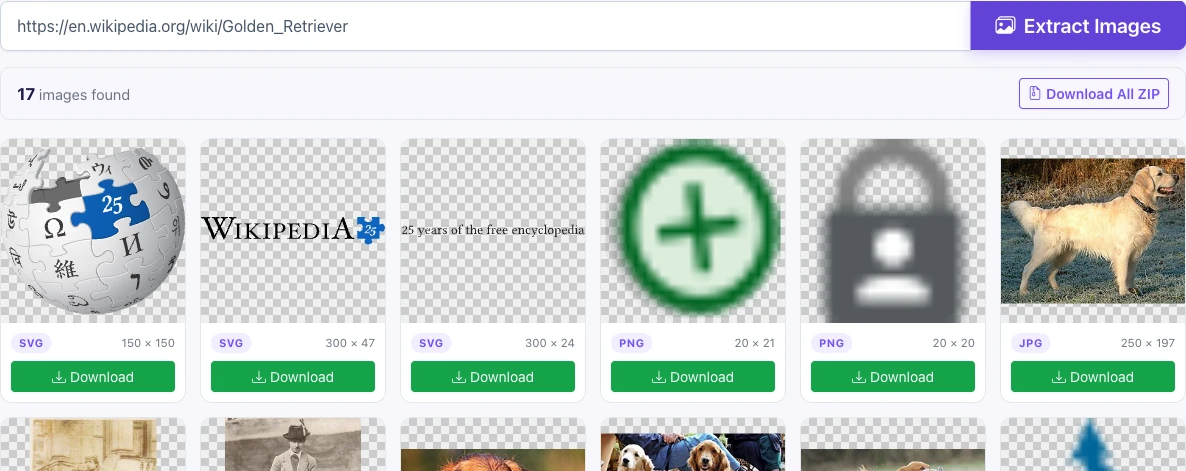
The tool fetches the page and lists every image it finds, each with its format and pixel size. On a Wikipedia article we tested, the Pixellize Image Extractor returned 17 images in one pass: five SVG logos and icons, four small PNG graphics, seven JPG photographs, and a 1×1 tracking pixel, ranging from that single transparent dot up to a 652×515 photo. It also grabbed the Open Graph preview and the lazy-loaded thumbnails that a manual save would have skipped.
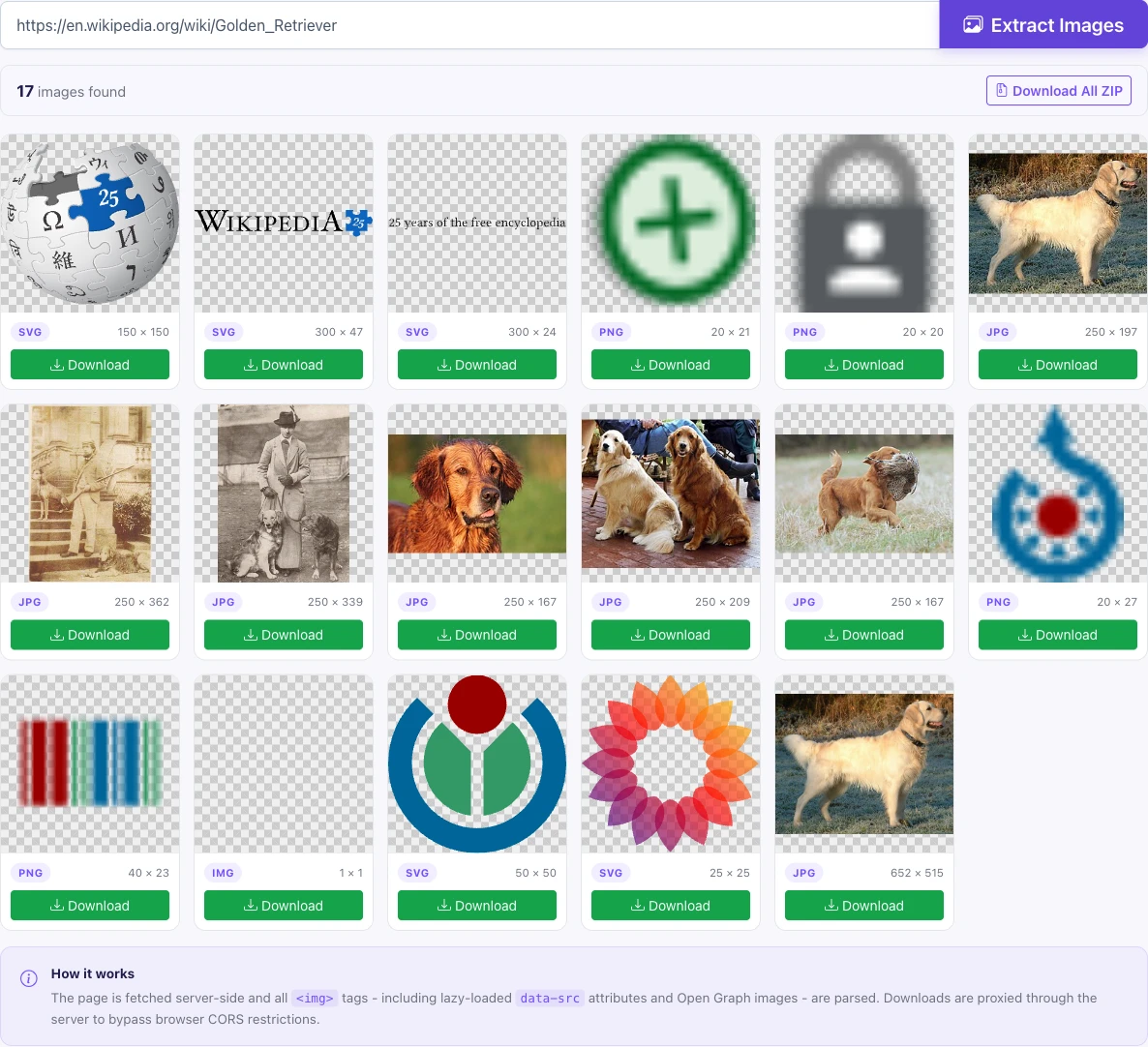
Click Download under any single image to save just that one. To grab everything, click Download All ZIP and Pixellize packs the full set into one archive. Downloads are proxied through the server, so cross-origin images that a browser would block still save cleanly.
If you live in Chrome, our own Bulk Image Downloader by Pixellize is the companion to the web tool. Instead of pasting a URL, it works on the tab you are already looking at, so it reaches pages that a URL fetch cannot: anything behind a login, or images you revealed by scrolling. From the toolbar you can extract, preview, filter, and download a page’s images in bulk, then save the ones you want in a couple of clicks. It is the right pick when the images sit on a page only you can see while signed in.
extract.pics is one of the better-known web extractors, and the interface shows why. You paste a page URL, it loads the page in the background, then lays out every image it found as a clean grid you can scroll. Tick the thumbnails you want, or take the lot, and it resolves lazy-loaded sources on most pages without any configuration. It shines when you would rather eyeball a visual gallery before committing to a download.
The TestingBot Image Extractor is a free online tool aimed at testers and developers. It advertises detection of background images, lazy-loaded content, and SVGs, across formats like JPEG, PNG, and WebP. The interface is plain, with no frills, but it does the core job well: paste a URL and it returns the images it finds. Reach for it when a lighter tool left CSS background images behind, since it specifically targets those.
Octoparse is a different kind of tool. It is a full web-scraping platform, so image extraction is one job among many. That power pays off when you need images from many pages on a schedule, or from a site that loads content dynamically. For a single page, it is more than you need, but for a recurring crawl across a whole catalog, it is built for exactly that.
To download all images from a website at once, use a tool with a bulk option instead of saving files one by one. Paste the page URL into a website image extractor, let it list every image, then click its Download All ZIP button. Pixellize gives you a single archive with all the files, which is far faster than dozens of right-click saves on a long page.
The images that go missing are almost always lazy-loaded or set in CSS. Lazy loading keeps the real URL in an attribute like data-src until you scroll near the image, so a tool that only reads src grabs a placeholder. Per the MDN documentation on the img element, the loading attribute controls when a browser requests an image, which is why scroll-triggered images hide their real URL until they load. Background images live in stylesheets, not in <img> tags, so they slip past simple grabs too.
A server-side extractor sidesteps the first problem by reading the raw HTML and checking the lazy-load attributes, which is how the Pixellize tool caught the Wikipedia thumbnails in the test above. The first time I tried to save a long gallery by hand, half the files came out blank, because the images had not loaded yet when I right-clicked. No tool to hand? Right-click and Save image as still works for one visible photo, and Inspect Element lets you copy the URL of a CSS background image.
Downloading an image for private reference is generally low risk, but reusing it is a different question. Most images are protected by copyright the moment they are created, so republishing, selling, or using one in your own work can need permission. The U.S. Copyright Office explains that copyright protects original works including photographs. Before you reuse anything, check the site’s terms and the image license, and prefer sources that state a clear reuse license.
Paste a URL, see every image, and download the whole set as a ZIP. Pixellize keeps it free, with no signup.
Open the Image ExtractorAll five tools here are free and run in the browser, so the best way to extract images from a website comes down to the extras. For a one-click ZIP of the whole page, including lazy-loaded and Open Graph images, the Pixellize Image Extractor is our pick. The other four are worth a try if a page serves its images in an unusual way. Working with files instead of a live page? Our guides on how to extract images from a PDF and how to extract images from a Word document cover those. To clean up what you pull, try the image upscaler or invert image colors online.
Paste the page URL into a free image extractor, let it read every image tag on the page, and click Download All ZIP. The tool reads the raw HTML, so it collects visible photos, icons, lazy-loaded images, and the Open Graph preview in one pass, then packs them into a single archive.
Yes. A browser-based image extractor with a bulk option lets you download all images from a website at once. Paste the URL, wait for the list, then click Download All ZIP to save every file as one archive instead of right-clicking each image.
Use a browser-based extractor that runs on a web page. You paste the URL, it fetches and lists every image, and you download them, with nothing to install. For a single image you can also right-click and choose Save image as.
Many pages lazy-load images, keeping the real file in a data-src attribute until you scroll near it, so a right-click saves a blank placeholder. Background images set in CSS are not in img tags at all. A tool that reads the raw HTML catches both.
Saving an image for private reference is generally low risk, but most images are protected by copyright, so reusing one can need permission. Check the site terms and the image license before you republish or sell anything you download.
Yes. A browser-based extractor works in a mobile browser the same way it does on desktop. Paste the page URL, let it list the images, and download the ones you want or the full ZIP.
Founder and CEO of Pixellize.io, building AI-powered web tools and digital products with a focus on user experience and automation. M.Sc. Zoology, working at the intersection of technology, data analytics, and life sciences.