
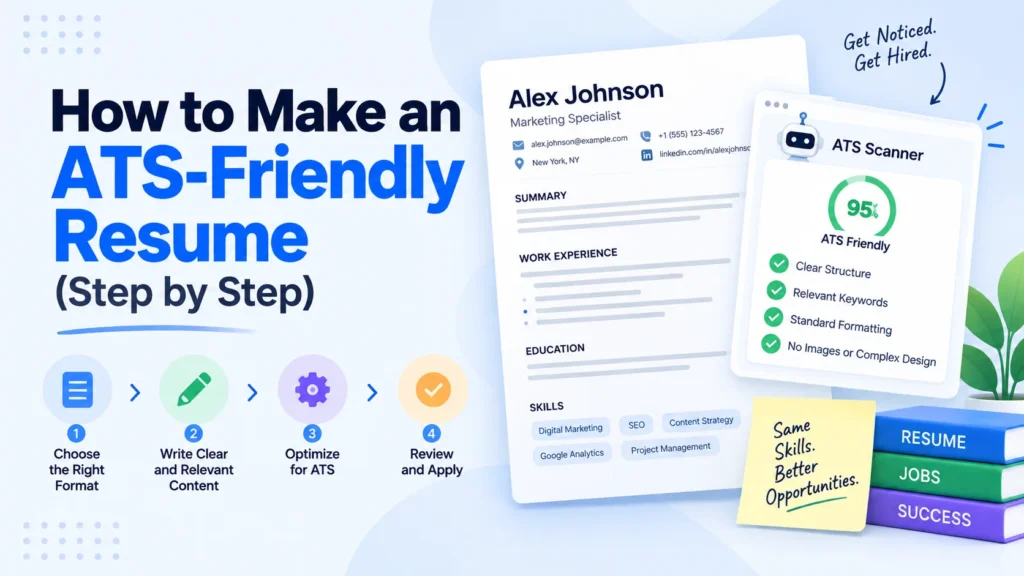
You spent hours on your resume, hit submit, and heard nothing back. It stings more when you learn the truth: a piece of software may have rejected it before any person read a word. That software is called an applicant tracking system, and learning how to make an ATS-friendly resume is often the difference between a callback and silence. The good news is that the rules are mechanical, not mysterious. Get the format right and your resume gets parsed cleanly, ranked fairly, and passed to a human. You can build one for free in the Pixellize Resume Builder without signing up or uploading anything.
- An ATS reads your resume by parsing text into fields, so anything it cannot read (tables, columns, graphics, text boxes) can scramble your data.
- Use a single-column layout, standard fonts at 10 to 12pt, and standard section headings like Work Experience and Skills.
- Put your name, phone, and email in the body of the document, never in the header or footer.
- Mirror the job posting’s keywords, and include both the acronym and the spelled-out term once each.
- A text-based PDF is safe for most modern systems, but a .docx is the safest universal choice when a posting does not specify.
What is an ATS-friendly resume?
An ATS-friendly resume is one formatted so an applicant tracking system can read every line correctly and file it into the right fields. It uses a single column, plain text, standard headings, and no graphics or tables. Roughly 99% of Fortune 500 companies use an ATS, so this format decides whether a recruiter ever sees you.
Think of the system as a very literal filing clerk. It opens your file, hunts for a name, a job title, dates, and skills, then drops each piece into a database. If your layout hides those pieces inside a two-column grid or a text box, the clerk files them wrong or not at all. A resume that looks gorgeous in a design app can turn into garbled fragments the second it lands in the database.
None of this means your resume has to look boring. It means the structure underneath has to stay simple. Once the parsing is clean, you have plenty of room for a strong summary and sharp bullet points that win over the human on the other side.
How does an ATS actually read your resume?
Every ATS does three things in order: it parses the file into raw text, categorizes that text into fields like name, experience, and education, then indexes it so recruiters can search and rank applicants by keyword. The parsing step is where most resumes quietly break.
Here is the part almost no career guide will tell you: these are real products with real quirks. Workday, Greenhouse, iCIMS, Taleo, and Lever each parse a little differently. Older systems like Taleo are famously strict and choke on multi-column layouts. Newer ones like Greenhouse handle a text-based PDF well but still trip over images and tables. You will rarely know which system a company runs, so the only safe move is to format for the pickiest one. Build to the lowest common denominator and you pass them all.
I learned this the hard way early in my career. A resume with a slick sidebar for skills looked perfect to me and parsed into a single unreadable blob for the recruiter. My skills, my contact details, all of it landed in the wrong fields. The sidebar was the culprit, and I never got a reply.
Formatting rules that keep your resume parseable
Most ATS failures come down to layout, not content. These are the rules that matter, and they take minutes to apply. Keep in mind that “simple” here is a feature, not a compromise.
- One column only. Multi-column layouts and sidebars get read left to right across the page, which jumbles your content. A single column reads top to bottom, exactly how the parser expects.
- No tables, text boxes, or graphics. These are the top reason data gets dropped. A skills table can vanish entirely. Charts, logos, and photos are invisible to the parser.
- Standard fonts. Arial, Calibri, Helvetica, Georgia, or Times New Roman at 10 to 12pt for body text. Decorative fonts can be misread character by character.
- Standard section headings. Use “Work Experience,” “Education,” “Skills,” and “Summary.” Clever labels like “Where I’ve Made an Impact” confuse the categorizer.
- Contact info in the body. Many systems ignore headers and footers, so a phone number or email tucked up there can disappear. Put it in the first lines of the document itself.
- Simple bullets. Use a solid circle or square. Skip arrows, checkmarks, and emoji, which some parsers read as stray characters.
- Roomy margins. Keep 0.5 to 1 inch on all sides. Cramming text to the edges can cause characters to run together on parse.
Here is a quick reference you can scan before you export.
| Element | ATS-safe | Risky, avoid it |
|---|---|---|
| Layout | Single column | Two columns, sidebars |
| Skills | Comma or bullet list | Table or skill bars |
| Contact info | In the body, top of page | In the header or footer |
| Fonts | Arial, Calibri, Times, 10 to 12pt | Decorative or script fonts |
| Headings | Work Experience, Skills | Creative section names |
| Graphics | None | Logos, photos, icons, charts |
| File | Text-based PDF or .docx | Image-only PDF, .pages, .jpg |
If building all of this by hand sounds tedious, it is. The Pixellize Resume Builder ships an ATS layout that follows every rule above by default, so you fill in your details and the format stays clean.
Should you send a PDF or a Word document?
Send a text-based PDF for most modern systems, and a .docx when the posting does not specify or the company feels older. A PDF keeps your formatting locked across devices, and systems like Greenhouse and Lever read text-based PDFs cleanly. The one file to never send is an image-only PDF, which has no readable text at all.
The advice you will find online genuinely conflicts, so here is the reasoning that settles it. The risk with PDF was never the format itself, it was scanned or exported PDFs that store your resume as a picture instead of selectable text. If you can click and highlight the words in your PDF, an ATS can read them. If you cannot, it sees a blank page. A .docx sidesteps that risk entirely, which is why it remains the safe default when you are unsure. When a job posting names a format, follow it exactly.
| Situation | Best file type | Why |
|---|---|---|
| Posting specifies a format | Whatever it names | Follow instructions exactly |
| Modern company, no preference | Text-based PDF | Locks formatting, reads cleanly |
| Older company or unsure | .docx | Universally parseable |
| Any scanned or exported image PDF | Never send it | No readable text to parse |
Section by section: what to put where
Once the format is clean, the content has to earn the human’s attention. Keep each section short and specific.
- Summary. Two or three lines at the top, in plain text. Name your role, your years of experience, and one measurable result. Skip the objective statement, which wastes prime space.
- Work experience. List jobs in reverse chronological order with job title, company, location, and dates. Lead each bullet with an action verb and a number. “Cut support tickets 30%” beats “responsible for support.”
- Skills. A plain list of the hard skills that match the posting. This is the section the ATS mines hardest, so keep it honest and relevant.
- Education. Degree, school, and year. Recent graduates can add coursework or a GPA above 3.5. Everyone else can keep it to one line.
A word on dates and titles. Keep the format consistent, because a parser reads “Mar 2021 to Present” more reliably than a graphic timeline or a range hidden in a right-aligned column. Consistency is quietly one of the biggest wins here.
Which resume format is best for an ATS?
Reverse-chronological is the safest resume format for an ATS, because it lists your jobs newest first with the clear titles and dates a parser expects to find. Functional resumes, which group skills and drop the dated history, confuse both the software and the recruiter. Most resumes that pass cleanly use a reverse-chronological or hybrid structure.
There are three common structures, and only two of them play well with automated screening.
- Reverse-chronological. Your work history, newest first. It is the default for a reason: parsers map it perfectly and recruiters read it fastest. Use this unless you have a strong reason not to.
- Hybrid, or combination. A short skills summary up top, then a full reverse-chronological history below. Good for career changers who want to lead with skills but still hand the ATS the dated job history it needs.
- Functional. Skills grouped by theme with little or no work history and no dates. It reads as a red flag to recruiters and starves the parser of the fields it wants. Skip it for online applications.
| Format | Best for | ATS-safe? |
|---|---|---|
| Reverse-chronological | Most applicants with steady history | Yes, the safest choice |
| Hybrid, combination | Career changers, mixed backgrounds | Yes, with a dated history below |
| Functional | Rarely a good fit online | No, avoid for applications |
The Pixellize Resume Builder uses a reverse-chronological order across all three of its layouts, so you get the ATS-friendly structure without setting it up yourself. Pick the ATS layout for the strictest systems, or the Modern or Sidebar layout when you know the company reads resumes by hand.
How to use keywords without stuffing
An ATS ranks you partly on how well your resume matches the job description, so keywords matter. The trick is to mirror the posting’s exact language. If it asks for “project management,” use that phrase, not “led projects.” Include both the acronym and the spelled-out term once each, so “SEO (Search Engine Optimization)” covers a recruiter searching either way.
Here is the thing: you cannot cheat the system, and trying backfires. White text stuffed with hidden keywords gets caught, because the parser reads text you cannot see on screen. Recruiters who spot it toss the resume, and some systems flag it. Weave keywords into real accomplishments instead. A skill listed next to a result you delivered reads as true, to both the software and the person.
How do I check if my resume is ATS-friendly?
The fastest check takes about 30 seconds: open your resume, select all the text, copy it, and paste it into a plain text editor like Notepad or TextEdit. If everything comes out in a clean, readable order, an ATS can read it too. If your skills scatter, your columns collide, or whole sections vanish, the parser will see the same mess.
Run through this quick list after the paste test.
- Copy-paste into a plain text editor: does everything read in order?
- Is the whole resume a single column?
- Are there any tables, text boxes, images, or icons? Remove them.
- Are your name, phone, and email in the body, not the header?
- Do your section headings use standard names?
- Can you click and highlight the text in your exported PDF?
If you would rather skip the manual fixing, start from a format that is already clean. Build your resume in the Pixellize Resume Builder, pick the ATS layout, and it stays single-column and parseable while you edit. Everything runs in your browser, so nothing is uploaded.
How to build an ATS-friendly resume with Pixellize, step by step
Here is the full flow, start to finish. The whole thing takes about five minutes, and every rule from this guide is built into the layout so you do not have to remember them.
- Open the builder. Go to the Pixellize Resume Builder and start with a blank form, or click Upload an existing PDF to auto-fill your details from an old resume.
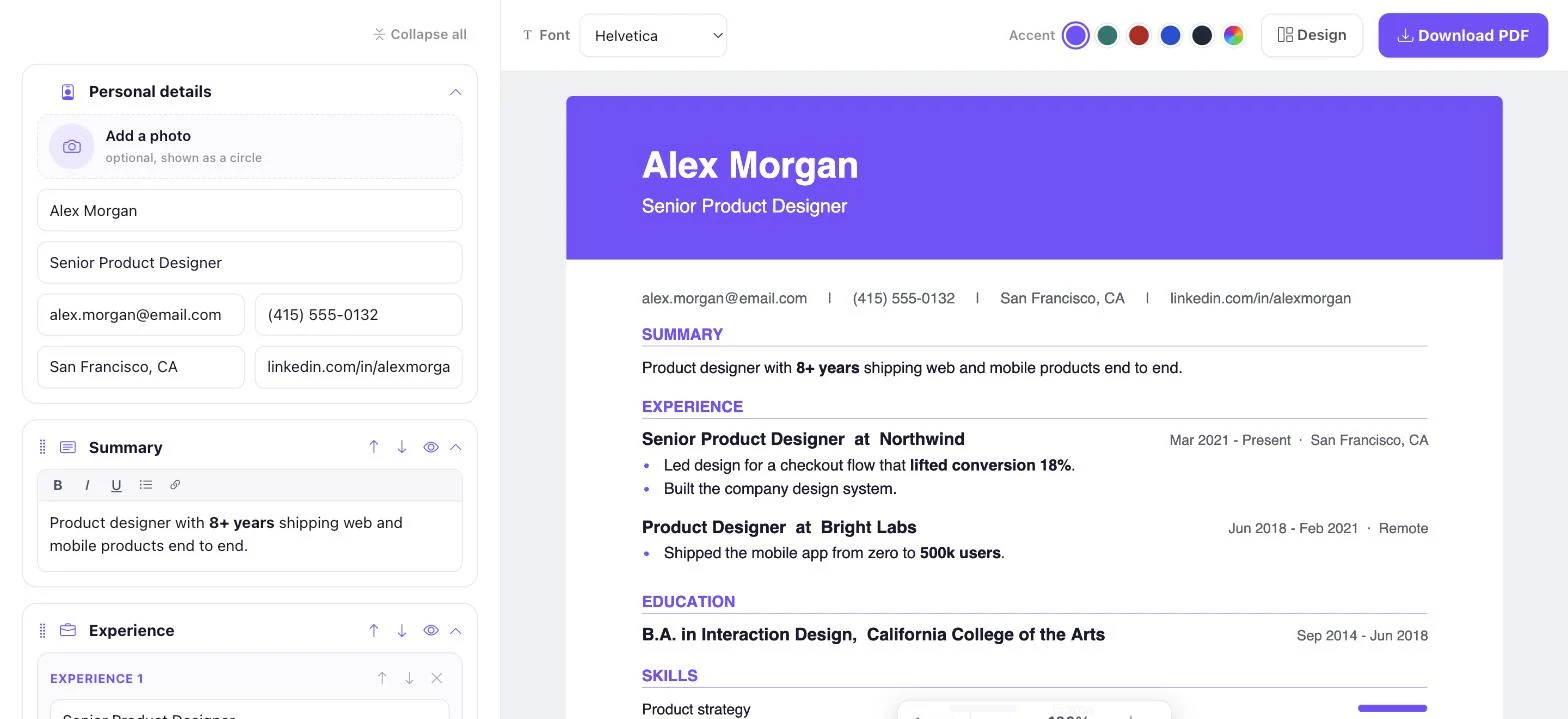
- Fill in your sections. Type your personal details, summary, experience, education, and skills. The live preview on the right updates as you type, so you always see the real result.
- Pick a layout. Click the Design button, then choose Modern, Sidebar, or ATS-friendly. For applicant tracking systems, pick ATS-friendly, which keeps everything in a single column of plain text.
- Set margins, spacing, and page size. In the same Design panel, choose Narrow, Normal, or Wide margins, your line spacing, and A4 or US Letter. Use US Letter if you are applying in the United States.
- Change the accent color and font. Use the accent swatches in the top bar to match your style, or open the color picker for a custom shade. Keep the font standard, like Helvetica or Times, so it parses cleanly.
- Download the PDF. Click Download PDF to export a clean, selectable-text resume. There is no watermark and no sign up, and the file downloads straight to your device.
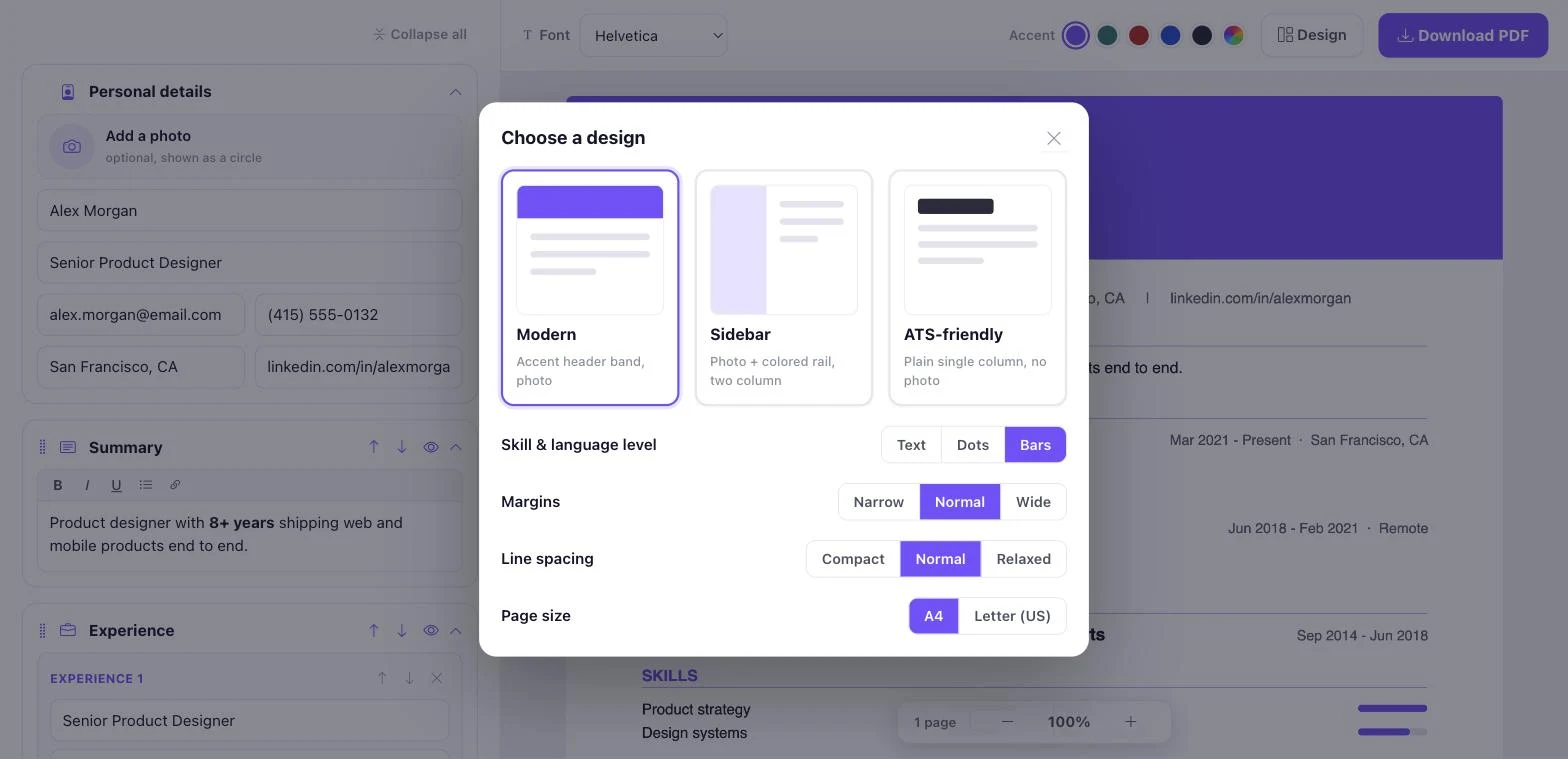
Changing the accent color is a one-click job. The swatches sit in the top toolbar next to the font picker, and the last swatch opens a full color picker if you want an exact shade.

Common mistakes that break ATS parsing
Even careful applicants trip on the same handful of issues. Watch for these before you submit.
- A two-column template from a design site. It looks modern and parses poorly. This is the single most common cause of scrambled resumes.
- Contact details in the header. If a recruiter cannot find your phone number, the strongest resume in the pile is useless.
- An image-only or scanned PDF. No readable text means no parse. Export from a document, do not scan a printout.
- Creative section titles. “My Journey” tells the categorizer nothing. “Work Experience” tells it everything.
- Keyword stuffing. Hidden or repeated keywords get flagged and read as spam.
- Fancy bullets and symbols. Arrows and checkmarks can parse as junk characters mid-line.
Fix these six and you have cleared the bar that stops most applicants. The reason this matters is not abstract. A 2021 Harvard Business School and Accenture report found that automated screening filters out millions of qualified candidates, often for formatting reasons that have nothing to do with their ability to do the job. A clean resume keeps you out of that pile.
Do all companies use an ATS?
Not every company uses one, but most large employers do. Around 99% of Fortune 500 companies run an applicant tracking system, and adoption is common at mid-size firms too. Small businesses and some startups still read resumes by hand. Since you rarely know which case you are in, formatting for an ATS costs you nothing when a person reads it and saves you when a machine does.
Building in the Pixellize Resume Builder covers you either way, because the ATS layout stays clean whether a parser or a recruiter opens the file. You are never guessing wrong.
Can an ATS detect an AI-written resume?
An ATS does not screen for AI writing. It parses and ranks text, it does not judge who or what wrote it. Recruiters, on the other hand, increasingly notice generic, buzzword-heavy resumes that read like a template filled itself in. The fix works for both: specific results and real numbers.
“Grew signups 40% in six months” reads as human because it is concrete, and it hands the parser a keyword-rich, quantified line to index. Draft with AI if it helps you get unstuck, then replace every vague claim with something only you could have written. That single habit lifts your resume past both filters at once.
Start from a clean single-column layout, import an old PDF to auto-fill it, and download in A4 or US Letter. No sign up, and nothing leaves your browser.
Open the Pixellize Resume BuilderYour next step
Making an ATS-friendly resume is mostly about getting out of the parser’s way. Keep it to one column, use plain text and standard headings, put your contact details in the body, mirror the job’s keywords honestly, and export a text-based PDF or a .docx. Do that, and the software passes you through to the person who can actually say yes. Open the Pixellize Resume Builder, pick the ATS layout, and you will have a clean draft in a few minutes. From there, the only thing left is tailoring it to the job you want.
Frequently Asked Questions
What is an ATS-friendly resume?
An ATS-friendly resume is formatted so an applicant tracking system can read every line and file it into the right fields. It uses a single column, plain text, standard headings like Work Experience and Skills, and no tables, columns, or graphics. That clean structure is what lets the software parse you correctly and pass you to a recruiter.
Should I use a PDF or a Word document for an ATS?
Use a text-based PDF for most modern systems, and a .docx when the job posting does not specify or the company feels older. The real risk was never PDF itself, it was scanned or image-only PDFs with no readable text. If you can click and highlight the words in your file, an ATS can read them.
Can an ATS read tables, columns, and graphics?
No, and these are the top cause of scrambled resumes. Multi-column layouts get read across the page and jumble your content, tables can drop entire sections, and images, icons, and charts are invisible to the parser. Keep your resume to a single column of plain text so nothing gets lost.
How do I know if my resume is ATS-friendly?
Copy all the text from your resume and paste it into a plain text editor like Notepad or TextEdit. If everything comes out in a clean, readable order, an ATS can read it too. If sections scatter or columns collide, the parser will see the same mess and you should simplify the layout.
How many keywords should I put on my resume?
Match the job posting, do not chase a number. Include the important skills and titles from the description, and add both the acronym and the spelled-out term once each, such as SEO and Search Engine Optimization. Weave them into real accomplishments. Hidden or repeated keyword stuffing gets flagged and hurts you.
Can you make a resume 100% ATS-proof?
No resume is fully immune, because systems parse differently, but you can pass nearly all of them. Format for the strictest one: a single column, standard fonts and headings, contact details in the body, and a text-based file. That lowest-common-denominator approach clears the bar that stops most applicants.

Simranjit Kaur
Founder and CEO of Pixellize.io, building AI-powered web tools and digital products with a focus on user experience and automation. M.Sc. Zoology, working at the intersection of technology, data analytics, and life sciences.