
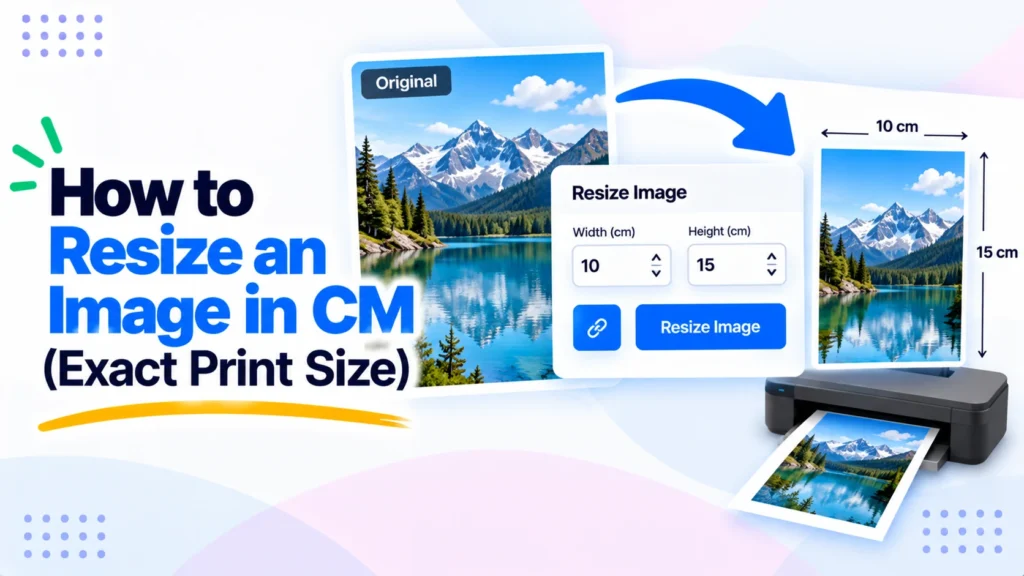
You size a photo to 3.5 by 4.5 cm for a passport application, send it to print, and it comes back blurry or cropped wrong. The problem is not your photo. It is that a digital image has no centimeters, only pixels. How big it prints depends on a setting called DPI, and most editors hide it. This guide shows you how to resize an image in cm the right way, the exact cm to pixels math, and the print sizes you actually need. You can do the whole thing in your browser with the free Pixellize resize image in cm tool.
- Images are stored in pixels, not cm. Print size = pixels divided by DPI.
- The formula: pixels = (cm / 2.54) x DPI. At 300 DPI, 10 cm = 1181 pixels.
- 300 DPI is the print standard. 72 to 96 DPI is fine for screens only.
- A4 at 300 DPI is 2480 x 3508 px. A passport 3.5 x 4.5 cm photo is 413 x 531 px.
- Lock the aspect ratio so the image scales without stretching.
What does it mean to resize an image in cm?
Resizing an image in cm means setting its print dimensions in centimeters instead of pixels. A digital file only stores pixels, so a tool converts your cm target into a pixel count using the DPI value, then redraws the image at that size. The cm number controls how large it prints, not how it looks on screen.
Here is the part that trips people up. The same 1200 pixel image can print at 4 cm or 40 cm depending on the DPI you assign. Centimeters only become real when the image hits paper. On a screen, your monitor ignores cm entirely and shows raw pixels. That is why “make it 10 cm wide” has no meaning until you also say at what DPI.
How to resize an image in cm
You can do the pixel math by hand, but a cm-first tool handles the conversion for you. Here is how to do it with the Pixellize tool, step by step. It runs in your browser, so nothing is uploaded to a server.
Step 1: Upload your image
Drag your photo onto the tool or click to select it. JPG, PNG, and WebP all work. The image loads straight into the editor with no account and no wait.

Step 2: Enter the width and height in cm
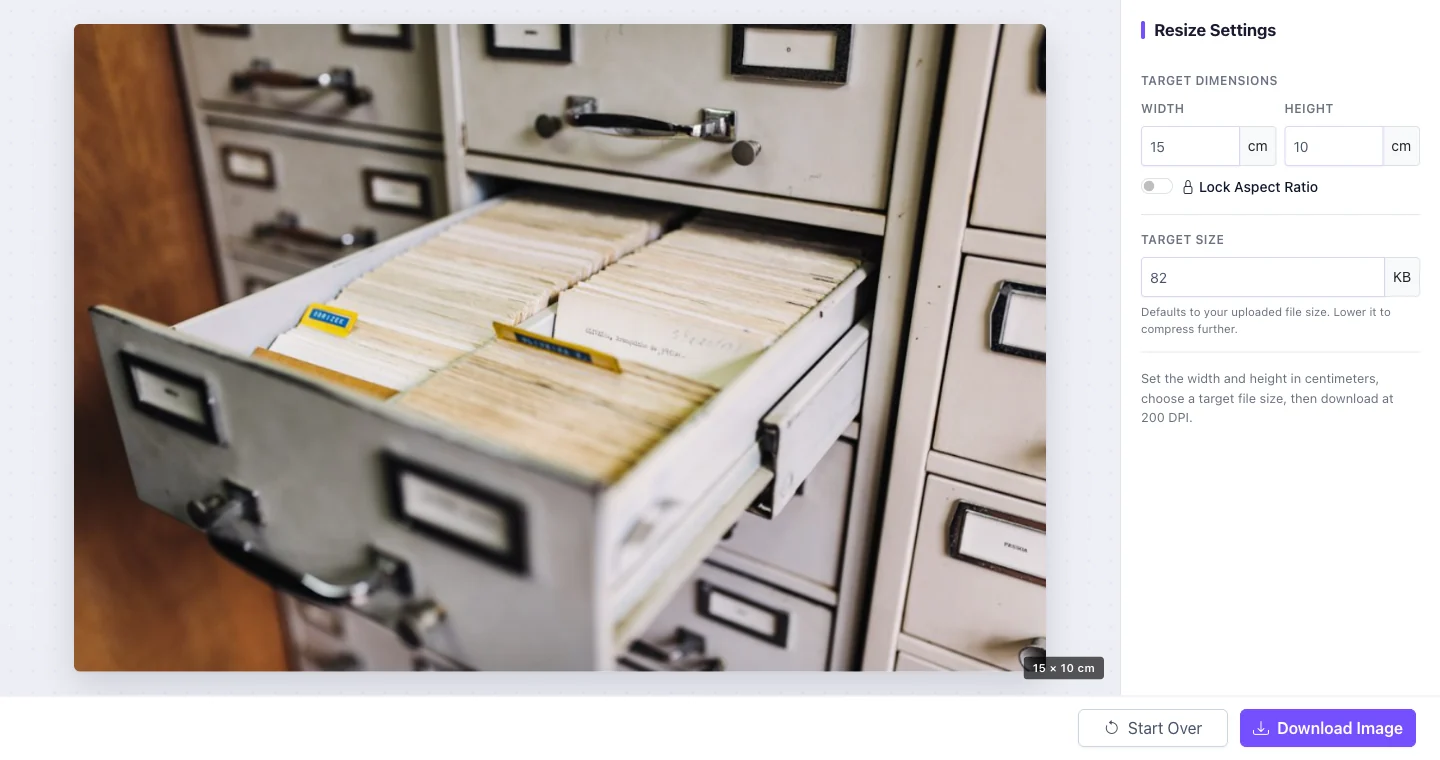
Type your target width and height in centimeters, for example 15 by 10 for a standard photo print. Turn on Lock Aspect Ratio if you want the height to follow the width automatically. You can also set a target file size in KB to keep the download small.
Step 3: Download your resized image
Click Download Image and you get a JPG sized to your exact centimeters. The Pixellize tool renders at 200 DPI, which prints cleanly for everyday photos, forms, and documents. In our test, a 15 by 10 cm export came out at 1181 by 787 pixels, exactly what the 200 DPI math predicts.

Need a precise 300 DPI file for professional printing? Work out the pixels with the formula below, then set those exact numbers in the pixel resizer. For everyday prints, the cm tool is faster.
The cm to pixels formula, and why DPI decides it
To convert centimeters to pixels, divide the cm by 2.54 to get inches, then multiply by your DPI. One inch is 2.54 cm, so the full formula is: pixels = (cm / 2.54) x DPI. At the 300 DPI print standard, 10 cm works out to 1181 pixels. Change the DPI and the pixel count changes with it.
- Formula: pixels = (cm ÷ 2.54) × DPI
- 1 cm at 300 DPI = 118 px | 1 cm at 200 DPI = 79 px | 1 cm at 72 DPI = 28 px
- Reverse it: cm = (pixels ÷ DPI) × 2.54
DPI, dots per inch, is the bridge between the digital and the physical. A centimeter value on its own is incomplete information. It is like saying a trip is “two hours” without a speed, you cannot know the distance. Pair the cm with a DPI and the pixel count is fixed. If you are unsure what a file is set to, you can check the DPI of an image first.
Common print sizes in cm and pixels
These are the sizes people resize to most, with the pixel count at 300 DPI for sharp printing. Paper sizes follow the ISO 216 standard.
| Use | Size in cm | Pixels at 300 DPI |
|---|---|---|
| A3 poster | 29.7 x 42 cm | 3508 x 4961 px |
| A4 document | 21 x 29.7 cm | 2480 x 3508 px |
| A5 flyer | 14.8 x 21 cm | 1748 x 2480 px |
| A6 postcard | 10.5 x 14.8 cm | 1240 x 1748 px |
| Passport photo | 3.5 x 4.5 cm | 413 x 531 px |
| US passport / ID | 5.08 x 5.08 cm (2 x 2 in) | 600 x 600 px |
| Standard photo | 10 x 15 cm | 1181 x 1772 px |
| Large photo | 13 x 18 cm | 1535 x 2126 px |
The passport row is worth a bookmark. Most visa and ID applications want exactly 3.5 x 4.5 cm, which is 413 x 531 pixels at 300 DPI. We break that one down in the 3.5 x 4.5 cm photo size guide. Pixellize keeps a dedicated tool for it too.
How many pixels do you need for a sharp print?
For a sharp print you need about 300 pixels per inch, which is 118 pixels per cm. So a 10 cm wide print needs roughly 1181 pixels across. Below 150 DPI, prints start to look soft and jagged. On a screen, 72 to 96 DPI is plenty because monitors show pixels directly.
This is the print versus screen split that catches people out. The first time I resized a banner to “30 cm” and it looked fine on my laptop, it printed as a pixelated mess, because the source only had 400 pixels to spread across 30 cm. Screens forgive low resolution. Paper does not. If your original is small, resizing the cm value up will not add detail that was never there. Start from the highest-resolution copy you have.
Not sure your photo is big enough? Check its pixel size first (right-click then Properties on Windows, or Get Info on Mac) and compare it to the target column in the table above. If your image is smaller than the target pixels, it will print soft, so track down a larger original before you resize.
Size matters less as the viewing distance grows. A passport photo is held at arm’s length, so it needs the full 300 DPI. A3 posters on a wall, read from a meter away, still look crisp at 150 DPI, which halves the pixels you need. Billboards run as low as 20 DPI because nobody stands close. So match the DPI to how near the viewer will be, not to a single rule.
Upload, type your cm size, lock the ratio, and download. Free, in your browser, nothing uploaded.
Open the Resize Image in CM toolLock the aspect ratio so your image does not stretch
If you set both width and height to values that do not match the original proportions, the image squashes or stretches. Turn on Lock Aspect Ratio and you only set one dimension, the other follows automatically. Keep it on unless a form demands an exact size that crops differently, like a square ID photo from a landscape shot.
When a target size forces a different shape, crop first, then resize. That way you choose what stays in frame instead of letting the tool decide. A passport photo from a wide holiday snap almost always needs a crop before the 3.5 x 4.5 cm resize.
cm, mm, and inches: picking the right unit
Centimeters suit most print jobs. For very small, precise work like stamps or labels, millimeters are easier, and much of the world’s print industry quotes in mm. Inches show up on US print services and photo labs. The math is identical, only the divisor changes: 2.54 for cm, 25.4 for mm, and 1 for inches.
Pixellize has a matching tool for each: resize in cm, resize in mm, and resize in inches. Pick the unit your print spec uses so you are not converting in your head. If the spec is in KB rather than dimensions, the reduce image size in KB guide and the increase image size in KB guide cover file weight instead.
Common mistakes when resizing an image in cm
A handful of errors turn up again and again. Avoid these and your prints come out right the first time.
- Setting cm without checking the DPI. Ten cm at 72 DPI is only 283 pixels, far too soft for paper. Confirm the DPI before you trust the size.
- Enlarging a small image. Pushing a 400 pixel photo to 20 cm cannot invent detail. It spreads the same pixels thinner and looks blurry. Start from the largest original you have.
- Leaving the aspect ratio unlocked by accident. Mismatched width and height stretch faces and text. Lock the ratio unless a form needs an exact crop.
- Trusting the on-screen preview for print. A monitor shows pixels, not centimeters, so “looks fine here” tells you nothing about the printed size. Judge it by the pixel count and DPI.
- Ignoring a file size limit. Some upload forms reject files over a KB cap. The Pixellize cm resizer lets you set a target size in KB so the image fits both the form and the dimensions.
Once you know how to resize an image in cm, print sizing stops being guesswork. Set the centimeters, confirm the DPI for your output, lock the ratio, and download. For the full print-ready workflow, pair the Pixellize resize image in cm tool with the pixel and DPI guides above. Everything on Pixellize is free, with no sign up and nothing uploaded from your device.
Frequently Asked Questions
How do I resize an image in cm?
Upload your image to the Pixellize resize image in cm tool, type the width and height in centimeters, lock the aspect ratio if you want proportional scaling, and download. The tool converts your cm size to pixels automatically, so no math is needed.
How do I convert cm to pixels?
Divide the centimeters by 2.54 to get inches, then multiply by the DPI. The formula is pixels = (cm / 2.54) x DPI. At 300 DPI, 10 cm equals 1181 pixels. At 72 DPI the same 10 cm is only 283 pixels.
What size is an A4 image in pixels?
An A4 page is 21 x 29.7 cm, which is 2480 x 3508 pixels at 300 DPI. At 150 DPI it is 1240 x 1754 pixels. Use 300 DPI for sharp printing and lower values only for screen use.
What DPI should I use to print an image?
Use 300 DPI for sharp photo and document printing, which is the industry standard. 200 DPI is acceptable for everyday prints and forms. Anything below 150 DPI starts to look soft on paper. Screens only need 72 to 96 DPI.
Does resizing an image in cm change the file size?
Yes. Fewer pixels usually means a smaller file. The Pixellize tool also lets you set a target size in KB, so you can control the download weight while keeping your exact cm dimensions.
Can I resize to mm or inches instead of cm?
Yes. Pixellize has separate tools to resize in mm and in inches. The conversion is the same, only the divisor changes: 2.54 for cm, 25.4 for mm, and 1 for inches. Pick the unit your print spec uses.
Does the Pixellize cm tool export at 300 DPI?
The cm tool renders at 200 DPI, which prints cleanly for everyday photos, forms, and most ID uses. If an application strictly requires 300 DPI, calculate the exact pixels with the formula (cm / 2.54 x 300) and set those numbers in the Pixellize pixel resizer instead.

Simranjit Kaur
Founder and CEO of Pixellize.io, building AI-powered web tools and digital products with a focus on user experience and automation. M.Sc. Zoology, working at the intersection of technology, data analytics, and life sciences.