
How to Find Broken Links on a Website (5 Easy Ways)
Find broken links on a website for free: scan a page or whole site, see every 404, and fix each with a…
Read articleAn image sitemap is an XML file listing your images and the page each sits on. Build one with the free Pixellize generator: enter your URL, let it crawl, download image-sitemap.xml, then submit it in Google Search Console. Only the image:loc tag is required, and up to 1,000 images are allowed per page.


You can publish a page full of sharp product shots and still watch Google index none of them. It happens more than you would think. If your images load through JavaScript, sit inside a slider, or live deep in a large archive, the crawler can walk right past them. An image sitemap fixes that by handing Google a plain list of every image and the page it belongs to. This guide shows you how to create an image sitemap, what the XML looks like, and how to submit it so your pictures start showing up in search. You can build the file in about a minute with the free Pixellize image sitemap generator.
An image sitemap is an XML file that lists the images on your site and the page each one appears on. It uses Google’s image namespace with an image:loc tag per image, so crawlers can find and index pictures they might otherwise skip, including images loaded by JavaScript or hidden behind a gallery script.
Think of it like a guest list for a venue with a dozen side rooms. Google can find the main hall on its own. The side rooms, the lazy-loaded carousels, the CDN-hosted thumbnails, those are the ones that get missed. The sitemap names them all in one place. It does not change your images or your pages. It is a separate file that points to them.
Google Images drives a real slice of search traffic, and image results now sit inside regular search and AI overviews too. If a picture never gets indexed, it never earns a click. An image sitemap will not force a ranking on its own, but it closes the discovery gap, which is the part most sites get wrong. The sitemap solves a discovery problem, not a quality problem. Clean file names and real alt text still decide whether an indexed image ranks.
Some sites need one more than others. Here is where it pays off most:
If none of those sound like you and every image sits in plain HTML, Google probably finds them already. For everyone else, the sitemap is cheap insurance. I added one to a small portfolio site that had 140 images and only 30 indexed. Within three weeks the indexed count more than doubled, and I rebuilt the file in Pixellize each time I added new work.
You can write the XML by hand, but that only scales to a handful of pages. The faster route is to let a crawler read your site and build the file for you. Here is how to create an image sitemap with the Pixellize image sitemap generator, step by step. The whole thing runs in your browser and nothing about your site is stored.
Paste your homepage address into the box and press Generate. One URL is enough. The crawler uses it as the starting point and follows internal links from there.

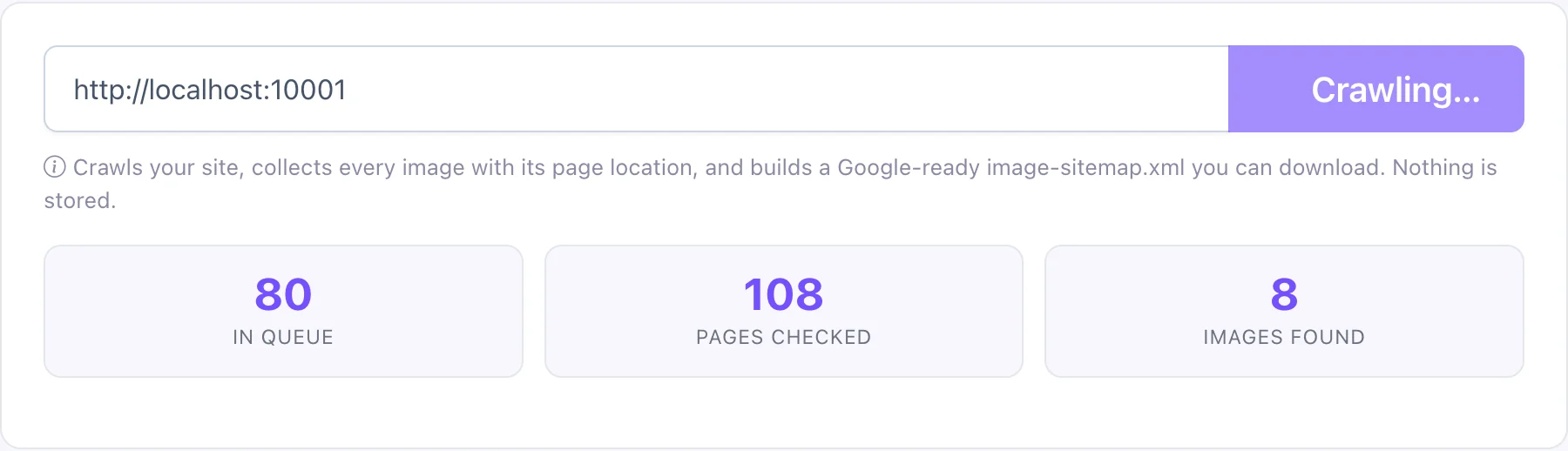
The tool walks your pages and collects every image along with the page it sits on. A live counter shows pages in the queue, pages checked, and images found, so you can watch it work. On larger sites this takes a minute or two.
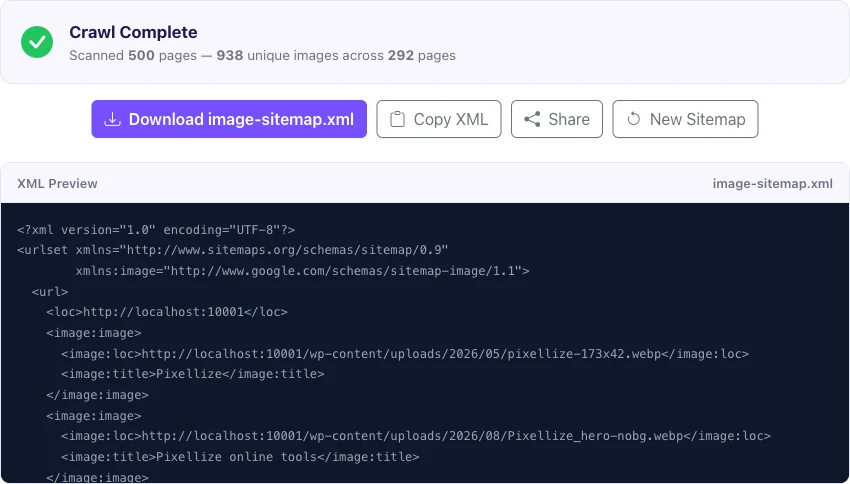
When the crawl finishes you get a ready-to-use image-sitemap.xml. Check the XML preview, then click Download, or copy it to paste into your own setup. On a 500-page crawl in our own test, the Pixellize generator found 938 unique images across 292 pages and wrote the whole file in seconds.
Upload the file to your site’s root folder so it lives at a clean address like example.com/image-sitemap.xml. That is the URL you will hand to Google in the next section.
The format builds on the open sitemaps.org protocol, so it is simpler than most people expect. Following Google Search Central’s image sitemap guidelines, you start with a standard sitemap, add the image namespace to the opening urlset tag, then nest an image:image block inside each page’s url entry. One block per image, each with an image:loc that holds the full image URL.
<?xml version="1.0" encoding="UTF-8"?>
<urlset xmlns="http://www.sitemaps.org/schemas/sitemap/0.9"
        xmlns:image="http://www.google.com/schemas/sitemap-image/1.1">
  <url>
    <loc>https://example.com/red-shoes.html</loc>
    <image:image>
      <image:loc>https://example.com/photos/red-shoes.jpg</image:loc>
    </image:image>
    <image:image>
      <image:loc>https://example.com/photos/red-shoes-side.jpg</image:loc>
    </image:image>
  </url>
</urlset>
Two things trip people up here. First, image:loc is the only tag you still need. Google retired the image:caption, image:title, image:license, and image:geo_location tags back in 2022, so any template that still writes them is wasting bytes. Second, a single page can list up to 1,000 images, which is Google’s cap per URL entry. If a page somehow has more, split it, though in practice you will never hit that.
You also do not have to host the images on the same domain as your pages. A product page on example.com can point to an image on a CDN like cdn.example.net, and the sitemap handles that fine. That one detail is why CDN-heavy stores benefit so much from an image sitemap generator. Keep each image:loc pointing to the live, final URL rather than a redirect, so Google reaches the picture in a single hop. Redirected image URLs still work, but they slow discovery and spend a little crawl budget on every pass.
To submit an image sitemap to Google, upload the file to your site root, open Google Search Console, go to the Sitemaps report, enter the path like image-sitemap.xml, and click Submit. Google then crawls the file and reports its status, usually within a few days. No extra setup is needed.
Here is the full flow once the file is live:
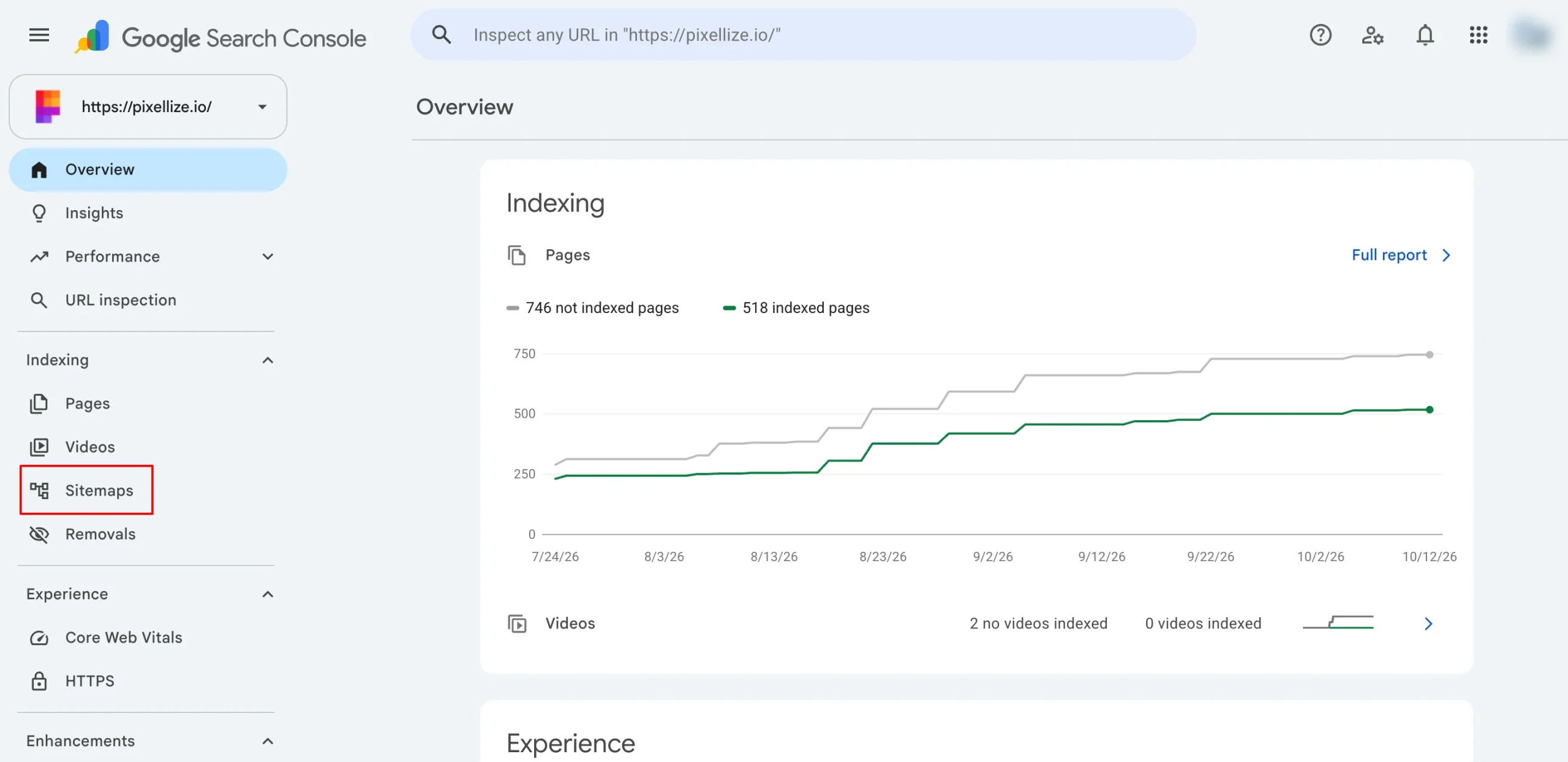
image-sitemap.xml, and press Submit.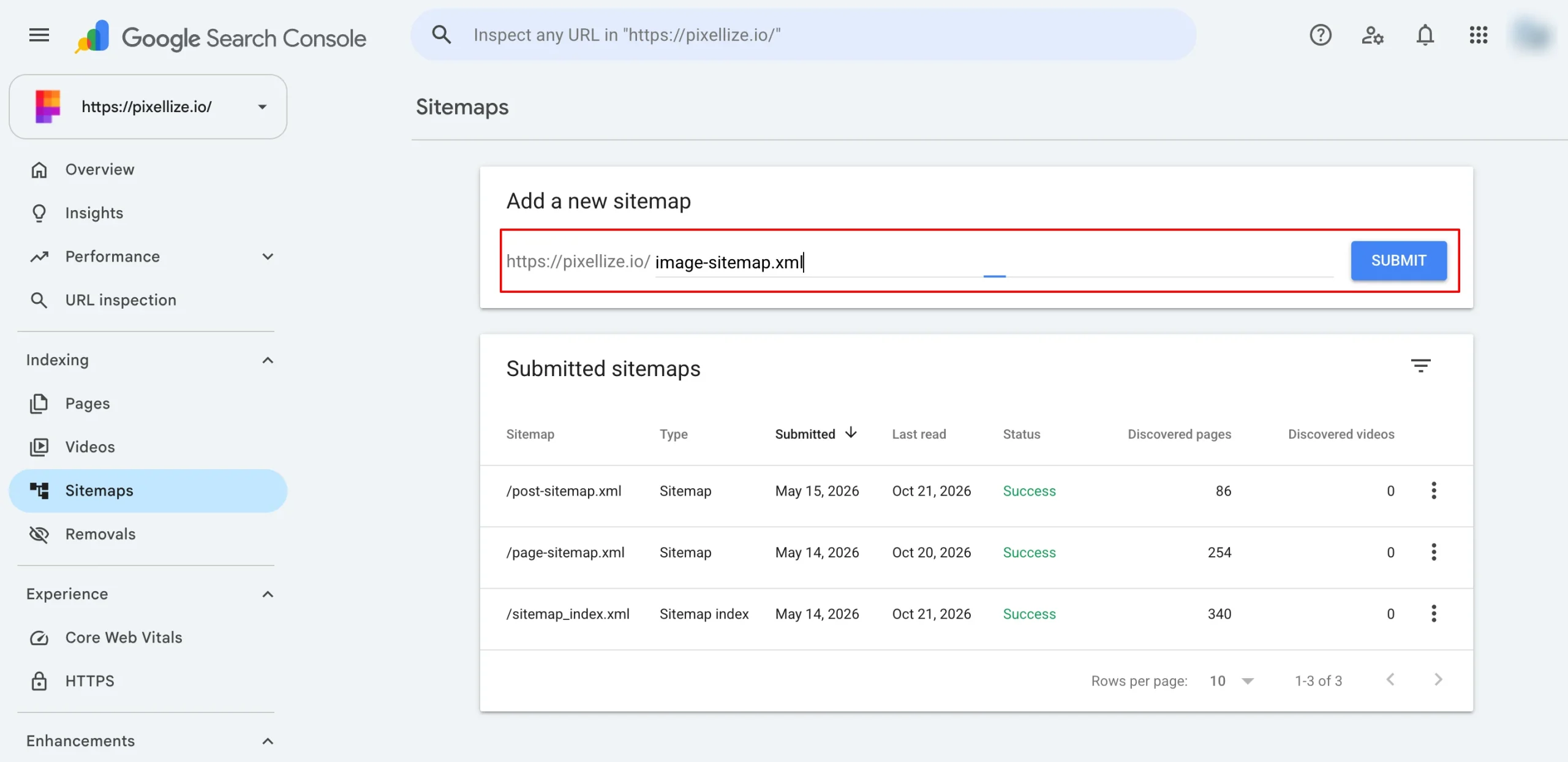
You can skip the dashboard entirely if you prefer. Add a line like Sitemap: https://example.com/image-sitemap.xml to your robots.txt and Google will discover it on its next crawl. Not sure your robots file is set up right? Run it through the Pixellize robots.txt checker first. The same logic applies to a video library, which the video sitemap guide walks through. To confirm it worked a day or two later, open the Images report, or paste a key image URL into URL Inspection to see whether Google has indexed it yet.
You have two choices: add image tags to your existing sitemap, or publish a standalone image sitemap. Both are valid. The right call depends on your site size and how your sitemaps are built.
| Situation | Best option |
|---|---|
| Small to mid-size site, one sitemap | Add image:image tags inside your main sitemap |
| Large site, split or paginated sitemaps | Publish a separate image-sitemap.xml |
| Images on a separate CDN or subdomain | Separate file keeps image URLs organized |
| WordPress with Yoast or Rank Math | Check first, these plugins often add image tags automatically |
That last row matters. If you run WordPress with Yoast or Rank Math, open your existing sitemap and look for image:image tags before you build anything. Many sites already have image coverage and do not know it. A separate file is for cases where the plugin falls short or you want full control over which images get listed, which is exactly what the Pixellize generator gives you. If you do not have a main sitemap at all yet, build one first with the Pixellize XML sitemap generator, then layer the image file on top.
Knowing how to create an image sitemap is only half the job. Keeping it accurate is the other half. Set a reminder to rebuild it whenever you ship a big content update, and spot-check the file in Search Console once a month. The Pixellize image sitemap generator makes the rebuild a one-minute task, so there is no excuse to let it go stale. Pixellize keeps the whole flow free, with no account and nothing saved from your crawl.
Enter your website URL in the Pixellize image sitemap generator, let it crawl your pages, and download the image-sitemap.xml. It groups every image under the page it appears on and writes the file in Google format automatically, no coding needed.
It is a standard XML sitemap with Google's image namespace added to the urlset tag. Each page is a url entry with a loc, and inside it one image:image block per image, each holding an image:loc with the full image URL. image:loc is the only required tag.
Upload the file to your site root, open Google Search Console, go to the Sitemaps report, enter the path such as image-sitemap.xml, and click Submit. You can also add a Sitemap line to your robots.txt and Google will find it on its next crawl.
Not always. Small sites can add image tags to their main sitemap, and WordPress plugins like Yoast or Rank Math often do this for you. A separate image-sitemap.xml helps large sites, CDN-hosted images, or when you want full control over which images are listed.
Up to 1,000 images per page entry, which is Google's limit. A generator groups images under the page they appear on, so you rarely need to think about the cap.
It helps Google discover and index images it might otherwise miss, especially lazy-loaded or JavaScript images. It does not rank images on its own. Clear file names, real alt text, and relevant pages still decide how well an indexed image ranks.
Founder and CEO of Pixellize.io, building AI-powered web tools and digital products with a focus on user experience and automation. M.Sc. Zoology, working at the intersection of technology, data analytics, and life sciences.