
HEIC to JPG Converter
Turn iPhone HEIC and HEIF photos into JPG or PNG that open anywhere. Drop in several at once and download them one by one or as a ZIP. Free, no signup, runs in your browser.
How to convert HEIC to JPG
Add Your HEIC Files
Drag in or choose the .heic or .heif photos from your iPhone. You can add several at once.
Pick Format And Quality
Choose JPG or PNG, and for JPG set the quality you want, then click Convert.
Download Your Images
Save each converted photo, or grab them all together in a single ZIP.
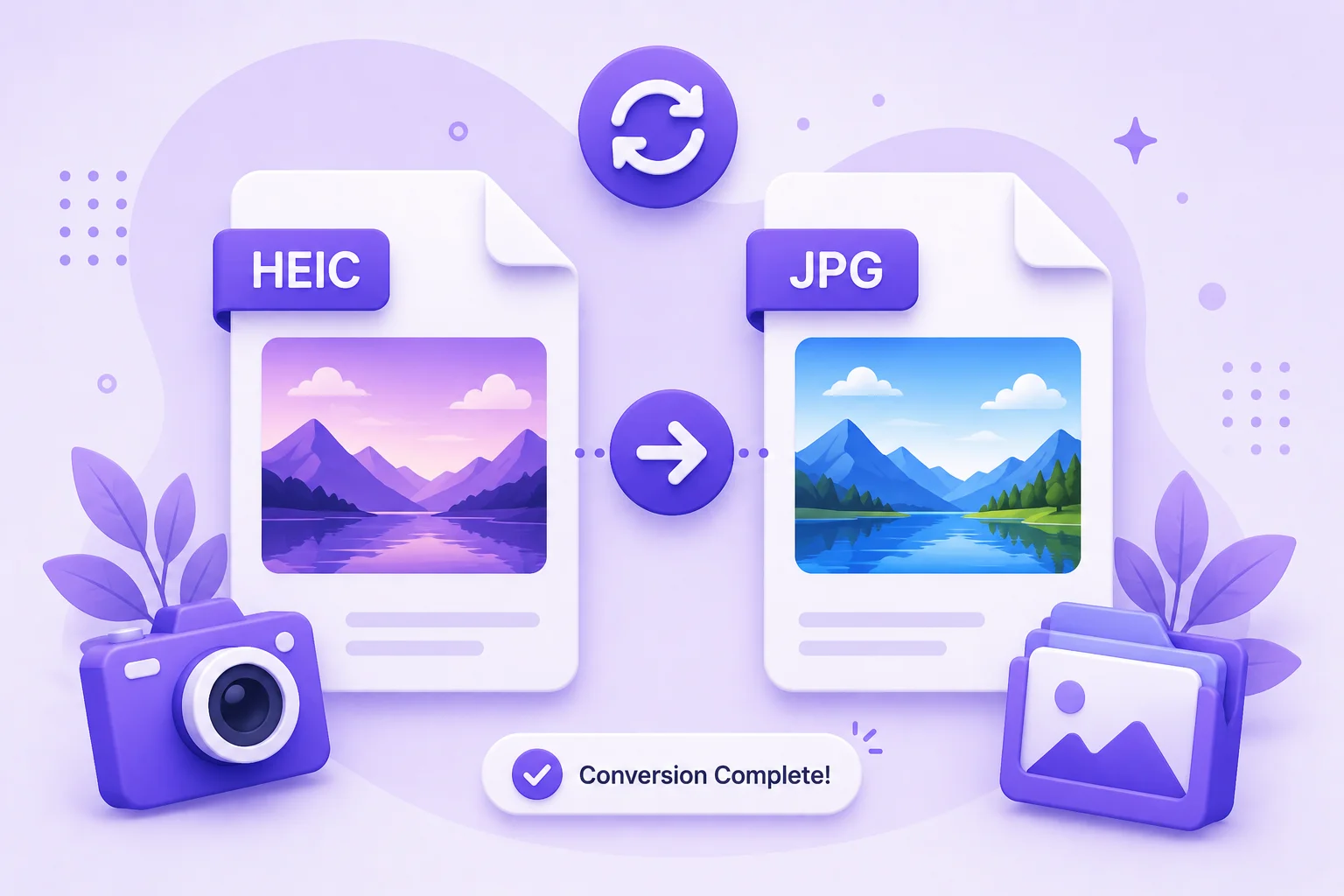
Make iPhone Photos Open Anywhere
Newer iPhones save photos as HEIC, a format that packs great quality into a small file. The catch is that a lot of apps, websites, and Windows computers still cannot open it. You email a photo and the other person cannot see it, or you try to upload one and the site rejects the file. Converting to JPG or PNG fixes that, because those formats open on just about everything.
This converter takes your HEIC and HEIF files and turns them into standard JPG or PNG right in your browser. Add one photo or a whole batch, choose your format, and for JPG pick the quality that fits. Each photo shows its original and new size so you can see the result, and you can download them individually or as a single ZIP.
Because the conversion runs on your own device, your photos never get uploaded to a server. That keeps personal pictures private, and it means there are no limits, no accounts, and no waiting in a queue.
Why Use Our HEIC to JPG Converter?
Batch Convert
Drop in a whole album of HEIC photos and convert them in one go, not one tedious file at a time.
JPG Or PNG
Export to JPG for small, shareable files, or PNG when you want a lossless copy.
Quality Control
Choose the JPG quality so you can balance a smaller file against the sharpest possible image.
Download As ZIP
Converted a batch? Get every image in a single ZIP instead of clicking save over and over.
No Account Needed
No email, no signup, no watermark. Open the page, drop your files, and convert.
In Your Browser
Your photos are converted on your device. Nothing is uploaded, which keeps personal pictures private.
Similar Tools
More Image tools you might find useful.
Frequently Asked Questions
Common questions about converting HEIC photos.
What is a HEIC file and why convert it?
HEIC is the photo format newer iPhones use by default. It saves space while keeping quality, but many apps, websites, and Windows PCs cannot open it. Converting to JPG or PNG makes the photo open and share anywhere, which is why most people convert before sending or uploading.
How do I convert HEIC to JPG?
Add your .heic files by dragging them in or choosing them, pick JPG as the format and set the quality, then click Convert. Each photo is processed in your browser and you can download it on its own or get the whole batch as a ZIP. No signup is needed.
Can I convert more than one HEIC at once?
Yes. You can drop in many HEIC or HEIF photos and convert them all in one batch. Each one shows its own progress and result, and the download all button packs every converted image into a single ZIP so you do not have to save them one by one.
Should I choose JPG or PNG?
Choose JPG for everyday photos you want to share or upload, since it makes much smaller files. Choose PNG when you want a lossless copy with no compression, for example if you plan to edit the image further. JPG also lets you set the quality to trade size against detail.
Are my photos uploaded to a server?
No. The conversion happens entirely in your browser on your own device, so your photos are never uploaded, logged, or stored anywhere. That keeps personal pictures private and means there are no file count or size limits beyond your device memory.
Is the HEIC to JPG converter free?
Yes, it is completely free with no limits, no watermark, and no signup. Convert as many HEIC photos to JPG or PNG as you need.