
Add Drop Shadow to Image
Add a drop shadow to any image right in your browser. The shadow follows PNG transparency, with offset, blur, opacity, and color controls plus one-click presets. Free, no signup, and nothing is uploaded.
How to add a drop shadow to an image
Upload An Image
Drag in or choose a PNG, JPG, or WebP. A transparent PNG gets a shadow that traces the object itself.
Shape The Shadow
Pick a preset or drag the offset, blur, and opacity sliders. Change the shadow color if you want a glow.
Download The PNG
The canvas grows so the shadow never gets cut off. Download the result as a transparent PNG.
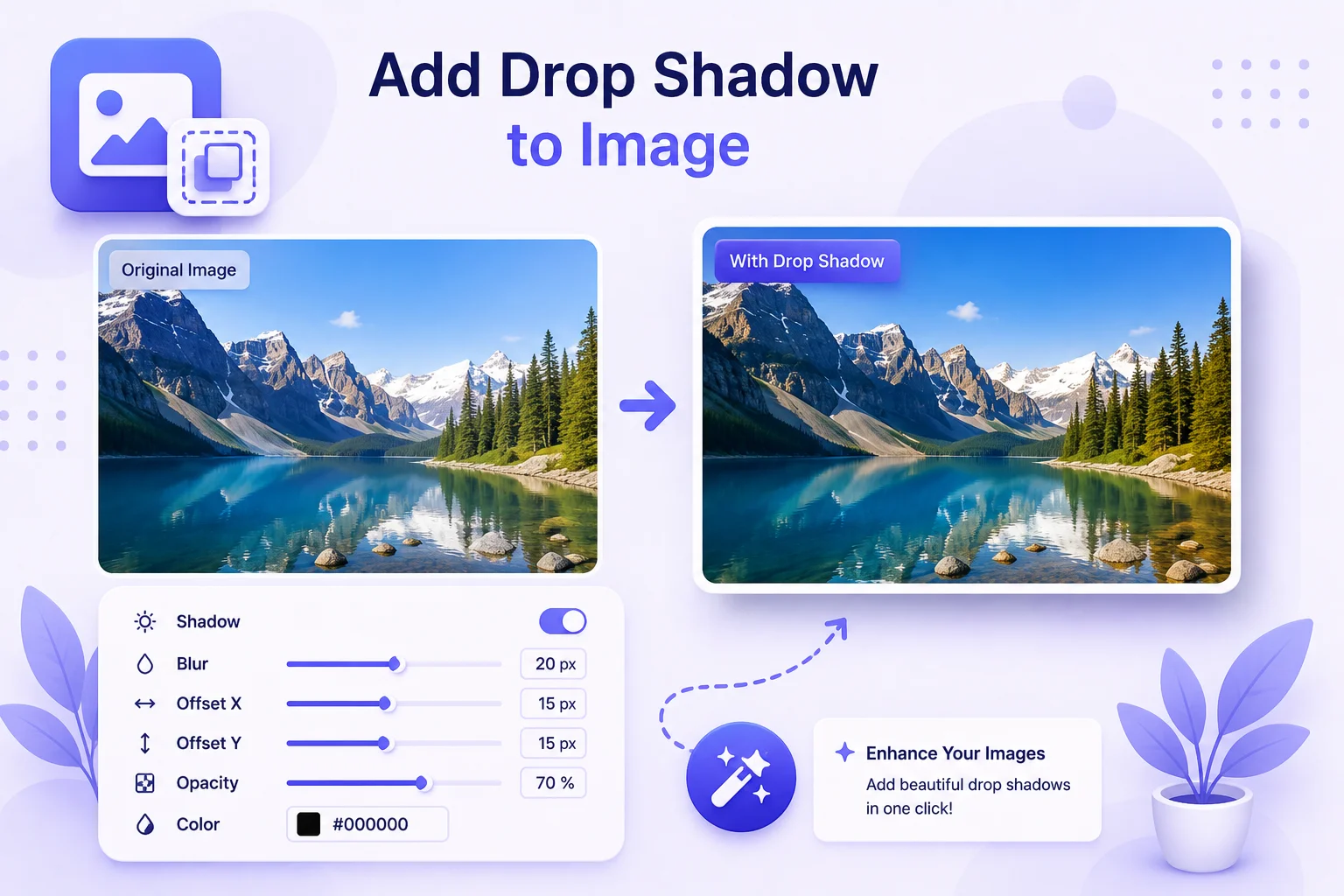
A Real Shadow, Not A Gray Rectangle
A drop shadow is the fastest way to lift a flat image off the page. Product photos look staged instead of pasted, logos gain depth on light backgrounds, and screenshots stop blending into the article around them. The catch is that most quick tools draw the shadow as a rectangle behind the whole file, which looks wrong the moment your image has a transparent background.
This tool reads the alpha channel, so on a transparent PNG the shadow traces the object itself: the outline of the product, the letterforms of the logo, the curve of the cutout. You control where the shadow falls with the X and Y offsets, how soft it is with blur, and how heavy it is with opacity. The four presets cover the usual looks, and setting the offset to zero with a colored shadow gives you a glow instead. The canvas grows automatically to make room, so a big soft shadow never gets clipped at the edge.
The result downloads as a PNG with the transparency intact, ready to drop into a deck, a store listing, or a website. Everything happens on your device, with no account and no watermark. If you want a border instead of a shadow, or rounded corners before the shadow, the matching border and corner tools work the same way.
Why Use Our Drop Shadow Tool?
Follows PNG Transparency
On a transparent PNG the shadow traces the actual object, a logo, a product cutout, or a signature, not just a rectangle around the file.
Full Control
Offset X and Y, blur, and opacity sliders shape the shadow live, and negative offsets throw it in any direction.
One-Click Presets
Subtle, soft, hard, and glow presets cover the common looks, then fine tune from there.
Any Shadow Color
Black is the default, but a colored shadow with zero offset turns into a glow, useful for logos on dark backgrounds.
Never Clipped
The canvas expands automatically to fit the shadow at any setting, so nothing gets cut off at the edges.
Private And Free
Everything renders on your device. Your image is never uploaded, and there is no signup or watermark.
Similar Tools
More Image tools you might find useful.
Frequently Asked Questions
Common questions about adding a drop shadow to an image.
How do I add a drop shadow to an image?
Upload your image, then pick a preset or drag the offset, blur, and opacity sliders until the shadow looks right. The preview updates live, and when you are done the result downloads as a PNG with the shadow baked in.
Does the shadow follow the shape of a transparent PNG?
Yes. On a PNG with a transparent background the shadow traces the visible object, not the rectangular file, so a logo or product cutout gets a natural shadow around its actual outline. On a JPG, which has no transparency, the shadow falls around the full rectangle.
Can I make a glow instead of a shadow?
Yes. Set both offsets to zero, raise the blur, and pick a bright shadow color. The glow preset does exactly this with one click, and it works well for logos or icons headed for a dark background.
Will a big shadow get cut off at the edges?
No. The canvas expands automatically based on your blur and offset settings, so the full shadow always fits. That padding is included in the downloaded PNG, which keeps the shadow intact wherever you place the image.
What format does the result download in?
Always PNG, because PNG keeps the transparency that makes the shadow usable on any background. If you started from a JPG and want a solid background instead, switch off the transparent background and pick a fill color before downloading.
Is the drop shadow tool free?
Yes, completely free with no signup, no watermark, and no limit on how many images you process. The whole thing runs in your browser, so your images are never uploaded.