
How to Convert Text to Handwriting (Free, Online)
Copying a page of notes by hand takes a solid twenty minutes if your hand does not cramp halfway through. A text…
Read articleSign a PDF without Adobe using free browser tools or Pixellize's PDF signing tool. Draw, type, or upload your signature, then download in under a minute.

Printing a contract just to sign it and scan it back in is a special kind of annoying, and you do not need Adobe Acrobat to skip that step. This guide covers how to sign a PDF without Adobe using free browser tools, your operating system’s own signing feature, and Pixellize’s free PDF signing tool, which lets you draw, type, or upload a signature and drop it on any page. Whether you want to type your name, draw a signature with your mouse, or drop in a photo of your real signature, one of the methods below gets you a signed PDF in under a minute, no account and no upload required.
| Where | How to Sign | Cost |
|---|---|---|
| Pixellize PDF signing tool | Draw, type, or upload an image, any browser | Free, no signup |
| Chrome / Edge | Freehand drawing only | Free, built in |
| Firefox | Draw, type, or upload an image | Free, built in |
| Mac (Preview) | Draw, or capture with your camera | Free, built in |
| iPhone | Draw with Markup in Files or Mail | Free, built in |
| Android | Varies by phone, a web tool is the reliable fallback | Free |
Yes. You can sign a PDF without Adobe using your browser’s built-in PDF viewer, a free web tool like Pixellize’s PDF signing tool, or your operating system’s own tools, Preview on a Mac or a Fill and Sign feature on some devices. None of these require an Adobe account or a paid Acrobat subscription.
Adobe Acrobat is the best-known name in PDF software, so it is the default assumption for a lot of people. But Acrobat’s signing feature sits behind a paid plan for anything beyond basic viewing, and most people only sign a document once or twice a month. That is not worth a subscription for most of us.
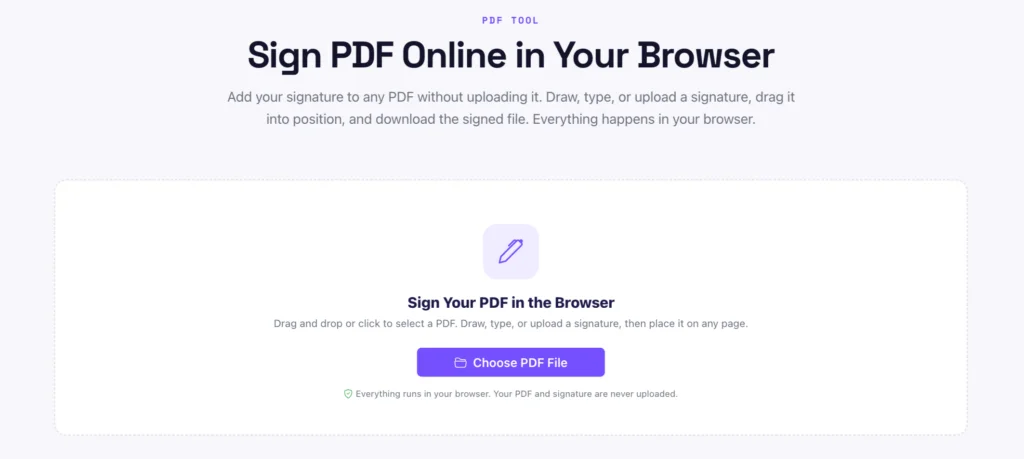
The whole thing takes three steps in Pixellize’s free PDF signing tool, and every step happens in your browser, so the document you are signing never touches a server. Here is exactly what to do.
Go to Pixellize’s free PDF signing tool and drag your document onto the page, or click Choose PDF File to pick it from your computer. It renders straight away, and nothing uploads. You can drop in any PDF up to the usual size, a one-page contract or a ten-page agreement both work the same way.
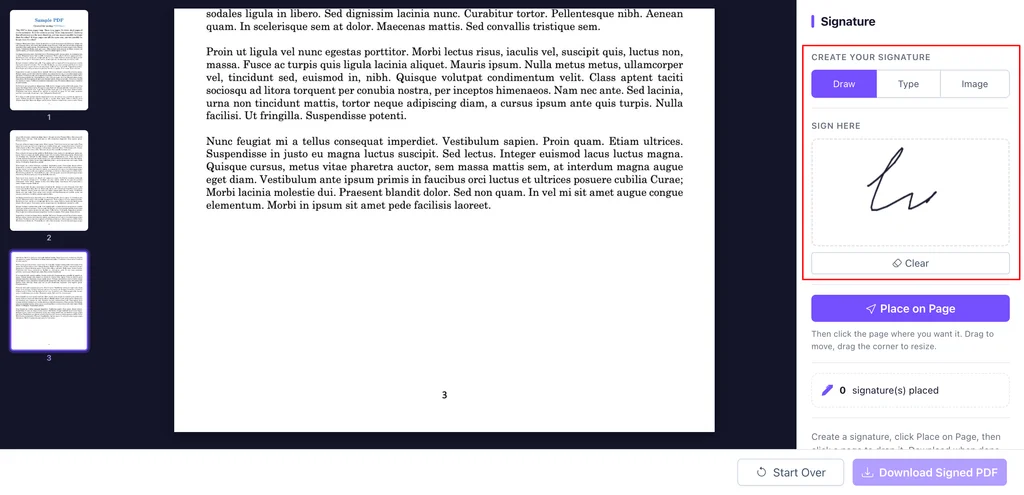
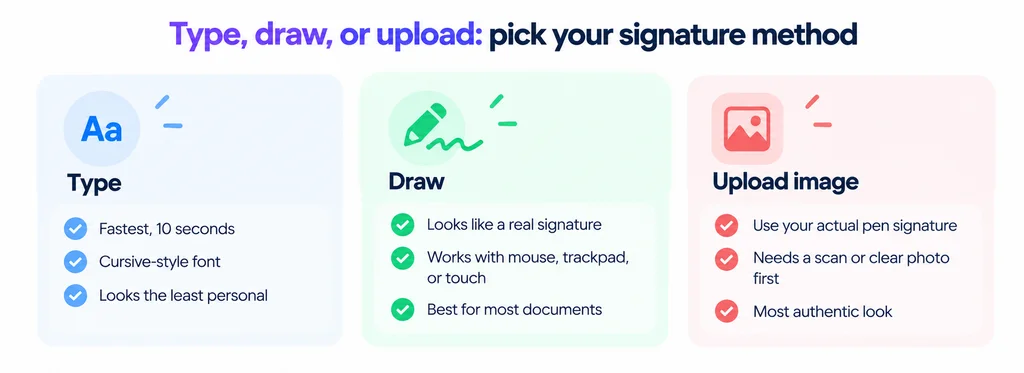
In the Signature panel on the right, pick one of three tabs. Draw lets you sign with your mouse, trackpad, or finger. Type turns your name into a signature-style font. Image lets you upload a photo of your real pen signature. Not happy with a draw? Hit Clear and go again.
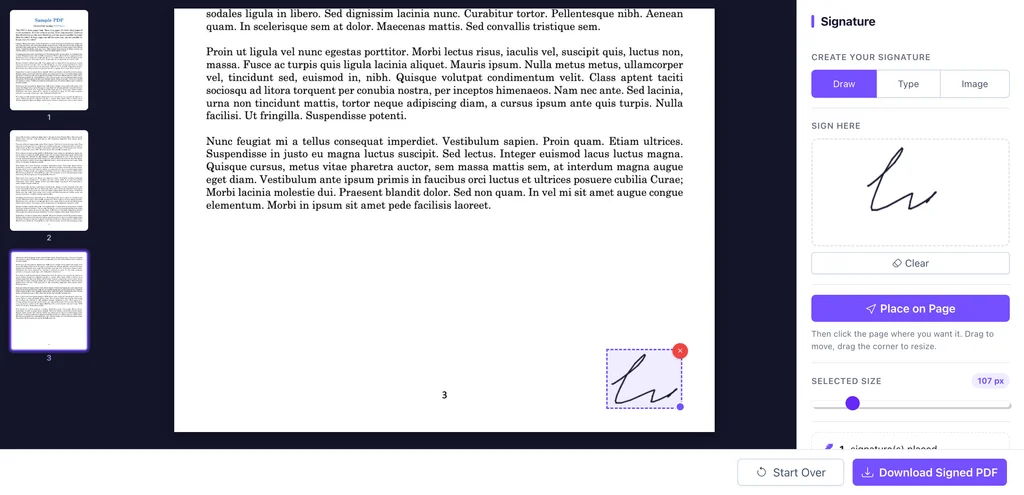
Click Place on Page, then click the exact spot on the document where the signature belongs, usually the signature line. It drops in with handles: drag the box to move it, drag the corner to resize, or hit the red x to remove it. When it looks right, click Download Signed PDF and the file saves to your device.
The first time I signed a PDF this way, I expected the signature to look shaky and fake once it shrank onto the page. It actually reads fine at normal size, the trick is to draw it a bit bigger than you think on the pad, since it scales down when it lands on the document. If you sign a lot of the same forms, the Image tab lets you reuse one clean signature every time.
Every major browser can open and mark up a PDF without any extra software, though what each one supports for signing is different.
Chrome: open the PDF in Chrome, click the pencil icon in the toolbar, and draw directly on the page. Worth knowing before you start, Chrome’s PDF viewer only supports freehand drawing, it cannot type a signature or insert a signature image, according to Google’s own support documentation. If you want a typed or image signature, use one of the other methods here instead.
Firefox: its built-in PDF viewer added a proper signature tool that lets you draw, type, or upload an image of your signature directly on the page before you download it, a step ahead of Chrome for this specific job.
Edge: Microsoft Edge runs on the same engine as Chrome, so its PDF viewer works the same way, freehand drawing only, through the draw or markup tool in the toolbar.
Safari: on a Mac, PDFs opened in Safari get the same Preview-powered markup toolbar described in the Mac section below, so you get the full type, draw, and camera-capture set of options rather than the freehand-only limit Chrome and Edge have.
Draw is the best default for most documents, it looks the closest to a real signature and works with a mouse, trackpad, or touchscreen. Type is faster if you do not care much about appearance, and uploading a photo of your actual signature looks the most authentic but takes an extra step to scan or photograph it first.
If you sign the same kind of document often, invoices, lease renewals, permission slips, draw your signature once and save it as an image so you can reuse it instead of redrawing it every time.
The camera capture trick surprises most people the first time they see it, and it produces a more natural-looking signature than trying to draw one with a trackpad.
On an iPhone, open the PDF in Files or as a Mail attachment, tap the markup icon (the pen tip), then the plus button and Signature. You can draw with your finger or Apple Pencil, save it, and it stays available for next time.
Android’s options vary more by manufacturer and PDF app, some phones include a Fill and Sign option in Google Drive’s PDF viewer, others do not. The one method that works the same on every Android phone is opening a browser and using a web tool. Pixellize’s PDF signing tool works in a mobile browser exactly like it does on a laptop, so it is a reliable fallback when your phone’s built-in option is not there.
Yes, for most everyday documents. Under the US ESIGN Act, an electronic signature, typed, drawn, or an image, carries the same legal weight as a handwritten one, as long as both sides intended to sign and agreed to do business electronically. A handful of document types are excluded and still need a wet signature or notarization.
The excluded categories are narrower than people assume, wills, certain court orders, and some real estate transfer documents, according to the Cornell Law School Legal Information Institute. A freelance contract, a permission slip, an NDA, or a lease renewal are all fine to sign electronically. If you are ever unsure about a specific document, a quick check with whoever is requesting the signature settles it faster than guessing.
One distinction worth knowing: an electronic signature (what every method in this guide produces) is different from a digital signature, which is a certificate-based system that cryptographically ties the signature to your identity and flags if the document changes after signing. Banks, government filings, and some corporate contracts specifically ask for a digital signature by name. If a form just says “sign here,” an electronic signature is what it means.
If the signed file ends up too large to email, Pixellize’s PDF compressor shrinks it without touching the signature quality.
Once you know how to sign a PDF without Adobe, going back to printing and scanning feels pointless. Draw your signature once, drop it on the page, and download. Pixellize’s PDF signing tool does the whole thing in your browser, and nothing you sign is ever uploaded to a server.
Draw, type, or upload your signature. No Adobe, no signup, nothing uploaded.
Open the PDF SignerSave your signature as an image the first time and you will not need to redraw it again, just add it, resize it, and you are done.
Yes. Your browser's built-in PDF viewer, free web tools like Pixellize's PDF signing tool, and your operating system's own signing feature (Preview on Mac, Markup on iPhone) all sign a PDF without needing Adobe Acrobat or an Adobe account.
For most everyday documents, yes. Under the US ESIGN Act, a typed, drawn, or image-based signature has the same legal standing as a handwritten one, as long as both parties intended to sign electronically. Wills, certain court orders, and some real estate transfers are common exceptions.
An electronic signature is any typed, drawn, or image signature applied to a document. A digital signature is a certificate-based system that cryptographically ties the signature to your identity and flags if the file changes afterward. Most everyday forms only need an electronic signature.
Yes, but only with freehand drawing. Chrome's built-in PDF viewer does not support typing a signature or inserting a signature image, according to Google's own support documentation. Use Firefox, Preview on Mac, or a free web tool if you need a typed or image signature.
On iPhone, open the PDF in Files or Mail, tap the markup pen icon, then the plus button and Signature to draw one with your finger. On Android, options vary by device, so opening a free web-based PDF signing tool in your mobile browser is the most consistent method across phones.
It depends on how the tool works. Tools that process the file entirely in your browser, like Pixellize's PDF signing tool, never upload your document to a server, so nothing leaves your device. Tools that require you to upload your file to their servers carry more risk if you are signing something sensitive.
Founder and CEO of Pixellize.io, building AI-powered web tools and digital products with a focus on user experience and automation. M.Sc. Zoology, working at the intersection of technology, data analytics, and life sciences.