
How to Split a PDF (Free, Online)
You have a 60-page scanned contract, but the other side only needs pages 3 to 10. Emailing the whole thing is slow,…
Read article
You have a 40-page report, but you only need to send pages 3 to 5. Emailing the whole thing is sloppy, and screenshotting each page loses the text. Knowing how to extract pages from a PDF lets you pull out just the pages you want and save them as a clean, separate file. This guide covers four ways to do it, from the free Pixellize Extract Pages from PDF tool to Adobe Acrobat, so you can pick whatever fits your device and budget.
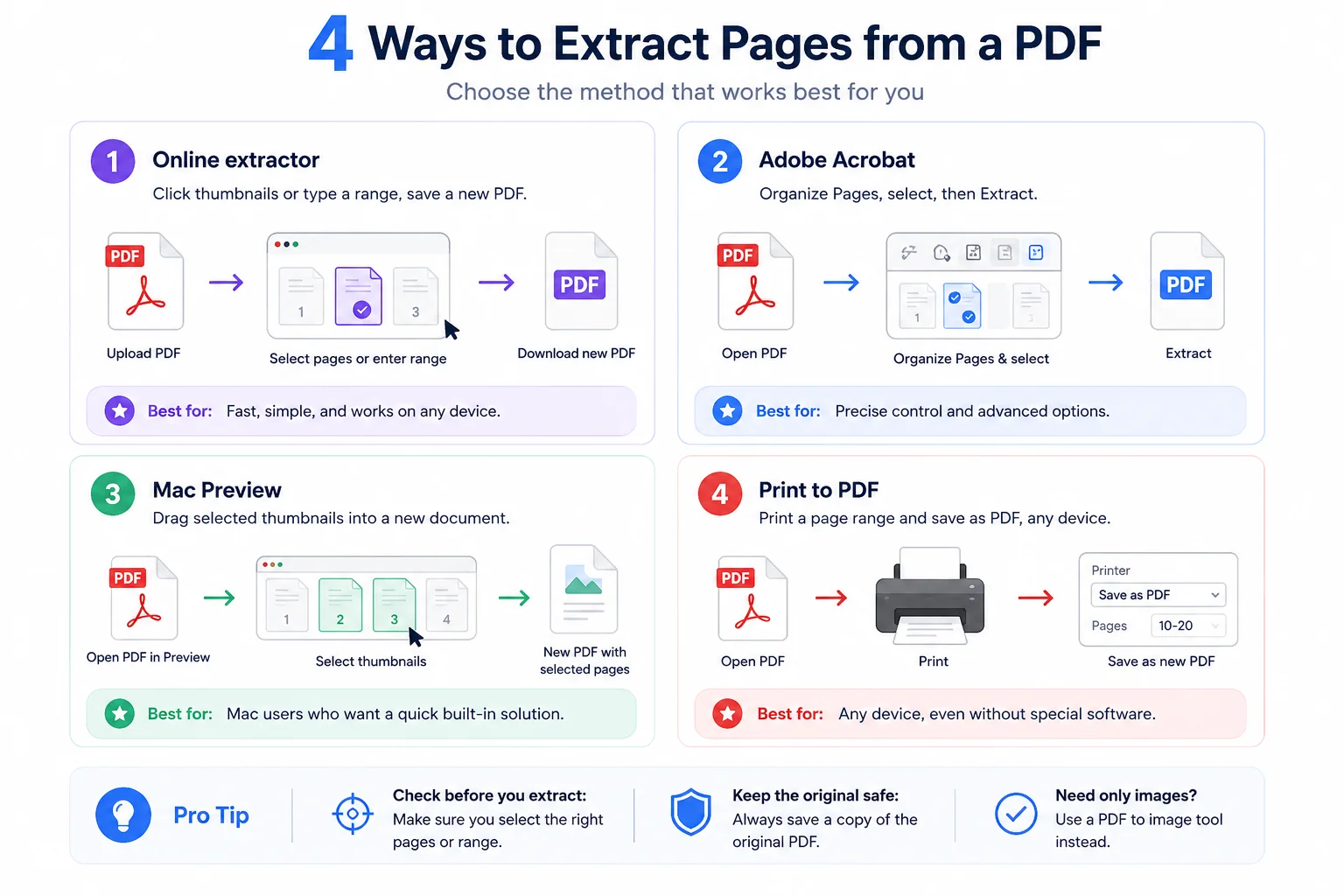
The easiest way to extract pages from a PDF is a free online tool: open the file, click the page thumbnails you want or type a range like 1-3, 5, then save them as a new PDF. Pixellize does this in your browser in seconds, with no signup and no upload.
Here is the thing to remember before you start. Extracting copies the pages you choose into a brand new file and leaves your original untouched. So there is no risk of wrecking the source document, which means you can experiment freely until the selection is right.
No software, any device. Open the Pixellize Extract Pages from PDF tool and drop your file in. Every page shows up as a thumbnail, so you can see what you are picking. Click the pages you want, or type a range in the box, then hit Extract Pages to download a new PDF of just those pages.
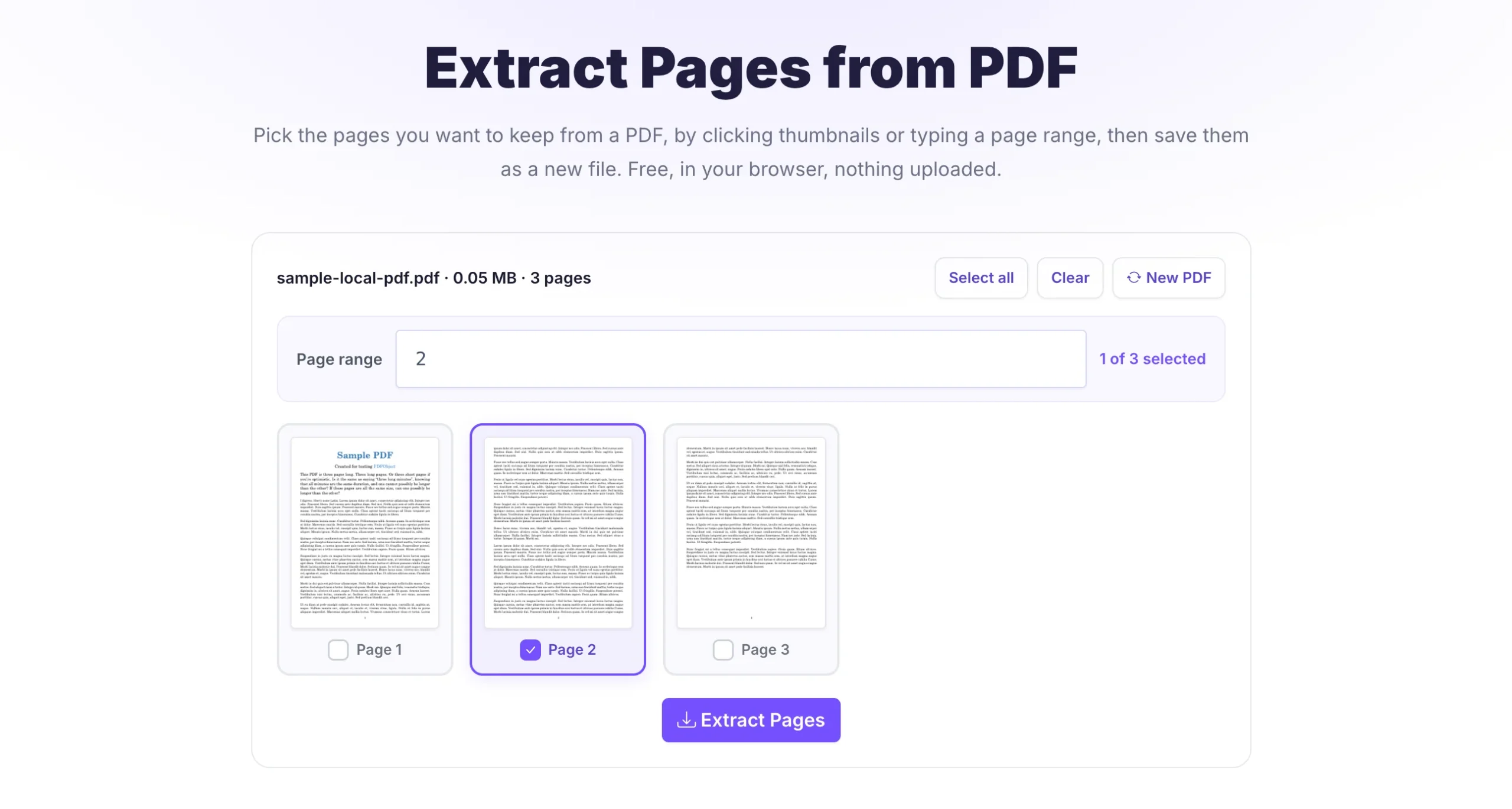
Two details make this smooth. The clicking and the range box stay in sync, so you can type 1-3 then click one more page and both update together. And the saved file keeps the pages in their original order no matter what order you picked them. Because Pixellize runs entirely in your browser, a contract or a bank statement never leaves your computer, which is the part cloud tools cannot promise. There is also no page limit and no watermark stamped on the result, two things free cloud extractors often slip in.
If you pay for Acrobat Pro, it has a built-in extractor. Open the Organize Pages tool, then select the pages you want. Hold Shift for a run of consecutive pages or Ctrl, which is Cmd on a Mac, for scattered ones. Click Extract, and Acrobat opens the selected pages as a new document you can save. Adobe walks through it in its official tutorial.
Acrobat is powerful and reliable, with one catch: the subscription runs around 20 dollars a month. If you edit PDFs all day it earns its keep. For an occasional page pull, it is a lot of money for a job a free tool handles in seconds. Other paid editors like Nitro work similarly, as their user guide shows.
Mac users already have a tool for this. Open the PDF in Preview, show the thumbnail sidebar with View then Thumbnails, and select the pages you need with Cmd-click. Drag that selection out to your desktop and Preview drops a new PDF containing only those pages. It is quick once you know the trick.
The limit is platform. This only works on macOS, so it is no help on Windows or a Chromebook. Preview can also be finicky with very large files. Still, for a Mac owner who needs a couple of pages, it is free and already installed.
This is the trick almost nobody mentions, and it works on any operating system. Open the PDF in any viewer, choose Print, and in the printer list pick Save as PDF or Microsoft Print to PDF. Set the page range to the pages you want, like 3 to 5, then save. You get a new PDF of only those pages without installing a thing.
The tradeoff is fidelity. Printing to PDF can flatten form fields, drop bookmarks, and sometimes re-rasterize the page, so text may no longer be selectable. For a quick share it is fine. For an archive copy where you need the real text layer, use one of the first two methods instead. Think of print to PDF as the universal fallback, always available, but it is more like a photocopy of the page than a true copy of the file.
All four get you a new PDF, but they suit different situations. These options cover how to extract pages from a PDF on Windows, Mac, or a phone, with or without paid software. The table sorts them out.
| Method | Cost | Works on | Keeps text layer? |
|---|---|---|---|
| Pixellize online tool | Free | Any device | Yes |
| Adobe Acrobat | Paid | Windows, Mac | Yes |
| Mac Preview | Free | Mac only | Yes |
| Print to PDF | Free | Any device | Not always |
For most people the free online tool is the fastest path, and it keeps your file private. When you need related jobs, Pixellize also has a split PDF tool for breaking a file into many, a merge PDF tool for joining files, and a delete pages tool for the opposite job.
Extracting pages from a PDF does not change the original file. The process copies the pages you select into a new document and leaves the source exactly as it was. Pixellize states this plainly: your original file is never modified, and because nothing is uploaded, the source stays only on your device.
That non-destructive behavior is why you can pull pages with confidence. If you pick the wrong ones, just run it again. The worst case is one extra file in your downloads folder, not a damaged master document.
These three jobs sound alike but solve different problems, and picking the wrong one wastes time. Extract and delete are really two sides of the same coin: you either name the pages to keep or the pages to lose. Here is the quick way to tell all three apart.
Once you know how to extract pages from a PDF, sending just the right pages stops being a chore. For a quick, private job on any device, the free online route wins. For heavy daily PDF work, a paid editor pays off. Either way, you end up with a clean file of exactly the pages you wanted. The Pixellize Extract Pages from PDF tool is free, shows every page as a thumbnail, keeps your original untouched, and never uploads a thing, so give it your next big PDF and grab only what you need.
Open a free online extractor, add your PDF, then click the page thumbnails you want or type a range like 2-4, 7. The Pixellize Extract Pages from PDF tool saves those pages as a new file in your browser, with no signup. Your original PDF stays untouched and nothing is uploaded to a server.
Yes. You do not need Acrobat at all. A free browser tool like Pixellize lets you pick pages and save a new PDF in seconds. On a Mac you can drag selected pages out of Preview, and on any device you can use Print, choose Save as PDF, and set a page range. All three avoid a paid subscription.
Open the PDF in Preview and show the thumbnail sidebar with View then Thumbnails. Cmd-click the pages you want, then drag the selection to your desktop. Preview creates a new PDF with just those pages. It is free and built into macOS, though it only works on Mac, not Windows or Chromebook.
No. Extracting copies the selected pages into a new file and leaves the original exactly as it was. Pixellize never modifies your source document, and since the file is processed in your browser, the original only ever exists on your device. If you pick the wrong pages, just run the extraction again.
Extracting pulls a specific set of pages into one new PDF, ideal when you want a subset like pages 3 to 5. Splitting breaks a PDF into several separate files, often one per page or per range, ideal when you need many documents at once. Use extract for a single subset and split for bulk separation.
Most extractors accept a range in plain text. In the Pixellize tool, type something like 1-3, 5, 8-10 into the page range box and those pages are selected instantly. You can mix ranges and single pages, and the thumbnails update to match so you can confirm the selection before you save.

Founder and CEO of Pixellize.io, building AI-powered web tools and digital products with a focus on user experience and automation. M.Sc. Zoology, working at the intersection of technology, data analytics, and life sciences.