
How to Save TikTok Videos on iPhone and Android
You find a TikTok worth keeping, a recipe, a workout, a clip of your own, and then you want it saved on…
Read articleDownload an Instagram profile picture in full size, free and with no login or app, whether it is your own photo, an insta dp, or any public account.

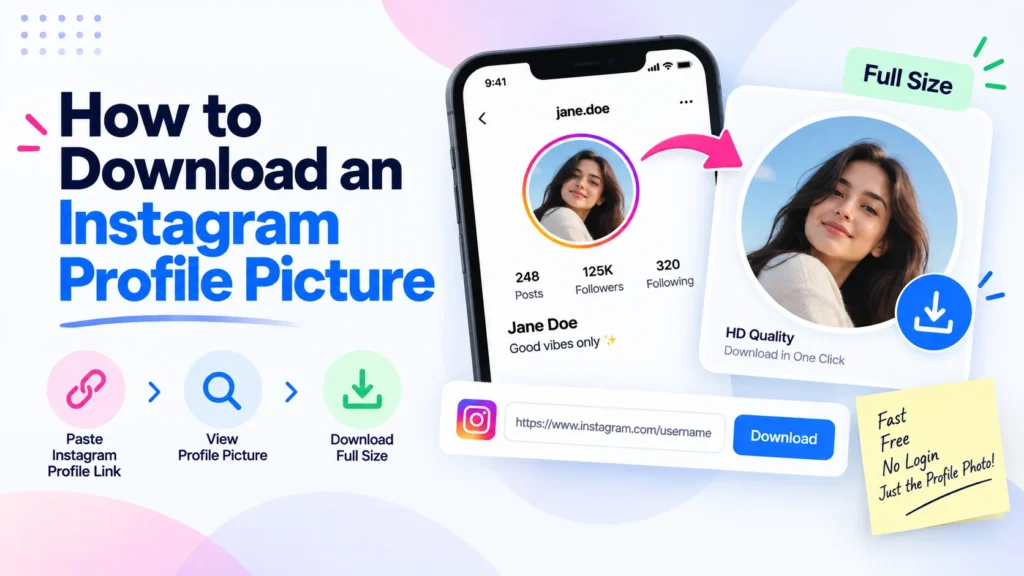
Tap someone’s Instagram profile picture and Instagram gives you a tiny circle, sometimes not even a full view. There is no built-in save button, no download option, nothing. This guide covers how to download an Instagram profile picture in full size, at the real resolution Instagram stores it at, using Pixellize’s free Instagram profile picture downloader, with no login and no app install. It works the same way for your own photo, an insta dp you want to keep, or any public account. One honest note up front: keep a picture you save for personal use, not for reposting as your own.
Instagram displays profile pictures inside a small circular crop, and the app gives you no long-press save option for it the way it does for a regular post. That is by design, not a bug. Per Instagram’s own Help Center, your profile photo is the image you upload, which the app then crops to a circle and renders small on screen. A profile picture downloader works by requesting the largest version Instagram exposes publicly, its full-size profile URL, instead of screenshotting the compressed circle, which is why the result looks noticeably sharper. That stored version is modest, often around 320 pixels and sometimes larger, not a 1080p or high-megapixel file.
| Version | Size | How you get it |
|---|---|---|
| What the app shows you | A compressed circle, roughly 110px on screen | Default view, no save option |
| What Instagram stores | The full square you uploaded, often around 320px, sometimes larger | A profile picture downloader |
| What a screenshot gives you | Whatever your screen resolution is, blurry | Not recommended |
Yes, if the account is public. A free downloader tool pulls the full-size image straight from Instagram’s own servers using just the username, no login or special access required. Private accounts are excluded entirely, since their photos are never exposed publicly in the first place.
This takes under 10 seconds once you have the username. Pixellize’s tool skips the account-copying and pasting-a-link routine that a lot of similar sites still make you do. Here is exactly what each step looks like, using our own @pixellize_io account as the example.
Open the free Instagram profile picture downloader and type the username into the search box, without the @ symbol. You can also paste a full profile link like instagram.com/username. Then click Get Picture.
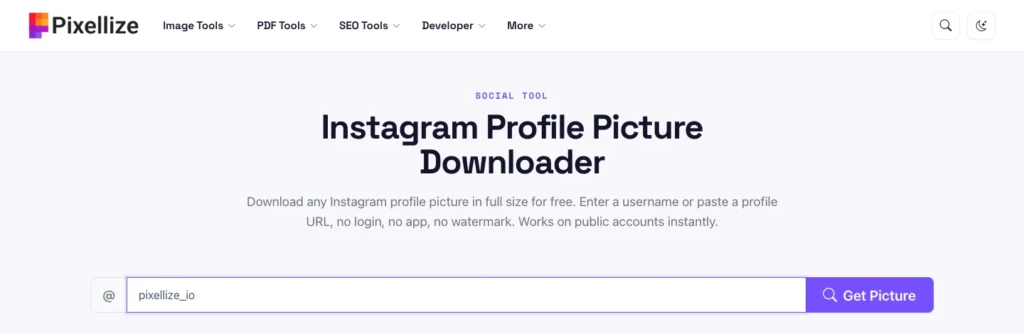
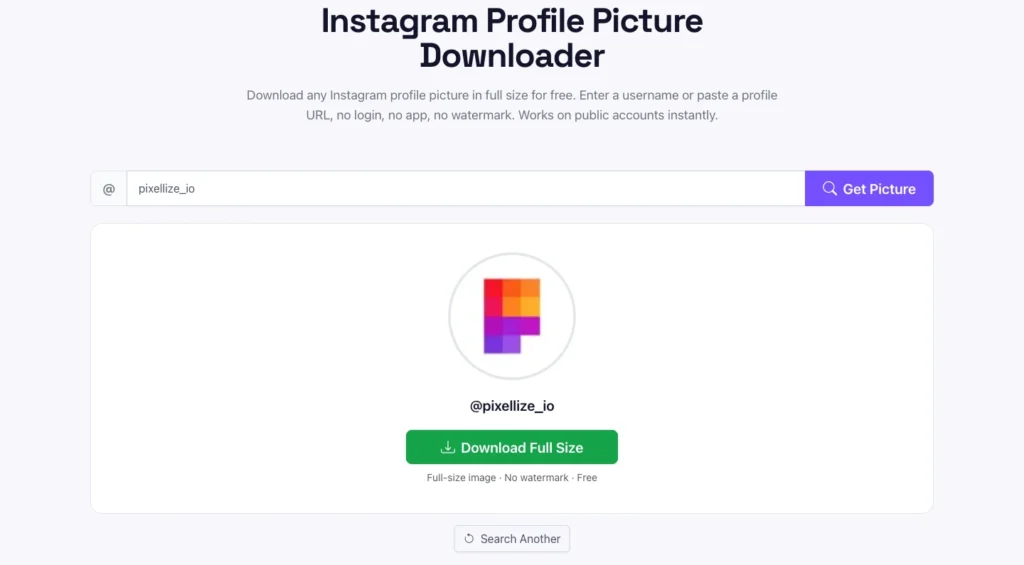
The tool fetches the account’s current profile photo at the largest size Instagram exposes and shows a preview. Click the green Download Full Size button to save it to your device. It grabs whatever picture the account is using right now, not any older ones they have replaced. No account, no watermark, and nothing you searched is stored on a server. Whether you call it an insta profile pic download, download insta profile pic, or instagram dp download, you get the real stored image, not the compressed circle the app shows.
Download any public Instagram profile picture with Pixellize, free and with no login.
Open the DownloaderPeople assume that because they own the account, Instagram must let them save their own profile picture somewhere in settings. It does not. Instagram treats your own profile photo exactly like anyone else’s for download purposes, meaning there is still no export button in the app itself.
The fix is the same free Pixellize tool, just pointed at your own username instead. This is handy when you are switching platforms and want your current Instagram photo as a starting point elsewhere, or you simply lost the original file you uploaded years ago and Instagram is now the only copy that exists. It also saves you from digging through old phone backups looking for a photo you already have live on your profile right now.
The steps are identical on a phone and a desktop, since the tool runs in any browser. The only real difference is where the file lands after you click or tap Download Full Size, and how you copy a profile link if you prefer that over typing the username.
If you would rather paste a profile link than type the username, copy it first. On iPhone, open the profile, tap the three dots, and tap Copy Profile URL. On Android, tap the three dots, tap Share Profile, and choose Copy Link. Honestly, typing the username is one step shorter, and Instagram usernames rarely change.
Most failures trace back to one of a few things. Run through these before deciding the tool is broken.
A private account’s profile picture is only visible to approved followers, so Instagram’s servers never expose that image publicly in the first place. Any tool claiming to bypass this for a private account is either lying or asking you to hand over your own Instagram login, which is a real security risk worth avoiding. Pixellize’s downloader does not ask for a login at all, precisely because it only ever touches what is already public, and it has no way around an account that has not approved you as a follower.
A downloaded profile picture usually lands as a square JPG or WebP, which is often good enough on its own. If you want to reuse it as a new profile photo somewhere else, crop it to a perfect circle first with Pixellize’s circle crop tool so it previews the way it will actually display. Want to touch it up, adjust the crop, or add a border before reusing it? The photo editor handles all of that in the same browser tab, still with nothing uploaded to a server.
A 320×320 file is small enough that file size rarely matters, but if the platform you are uploading to has a strict limit under a certain KB count, run it through the image size reducer first rather than fighting with a rejected upload. Most platforms accept a profile photo well under 1MB, so this step is optional for the vast majority of uses and only worth doing if you actually hit an upload error.
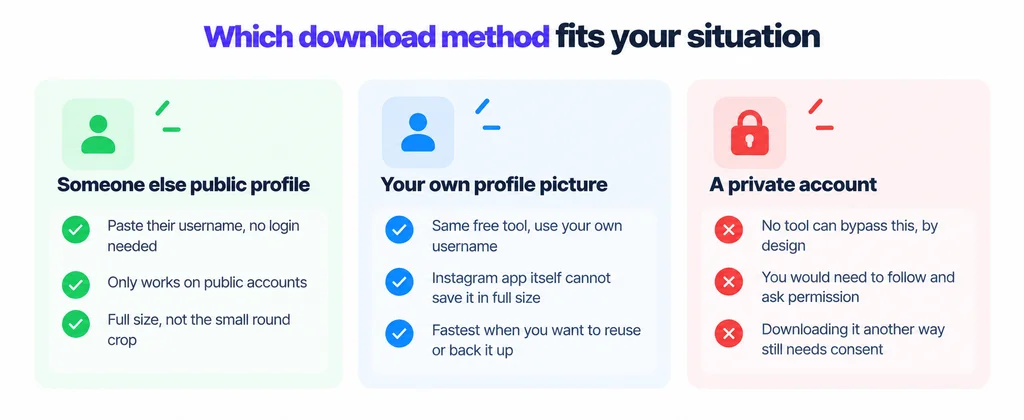
Saving a public profile picture to your own device for personal use, like recognizing a contact or keeping a private record, is generally not a problem. Publishing it elsewhere, using it commercially, or presenting it as your own work is a different matter. Instagram’s own Terms of Use state that content on the platform belongs to whoever posted it, and using someone else’s photo without permission, especially for anything commercial, can amount to copyright infringement regardless of how easy a tool makes the download.
My rule of thumb: if I would not want a stranger reposting my own profile picture without asking, I do not do it to someone else’s either.
Downloading an Instagram profile picture in full size comes down to one honest limitation and one simple tool. The limitation: private accounts are off limits, and that is by design, not a bug to work around. The tool: paste a username into Pixellize’s free downloader and the full-resolution image is ready in seconds, whether it belongs to you or to someone whose public profile you are looking up. Keep the personal-use versus republishing line in mind, crop or edit the result if you plan to reuse it, and you have the whole process covered.
That is the whole of how to download an Instagram profile picture in full size. The same personal-use rule applies when you download Facebook videos as an MP4.
Paste the username or profile link into Pixellize's free Instagram profile picture downloader and click Get Picture. It fetches the account's actual uploaded image, not the small compressed circle the app displays, with no login required.
Yes. Instagram does not offer a save option for your own profile photo either, so the same free downloader works by entering your own username, giving you the full-size file to reuse or back up.
Instagram's app displays profile pictures inside a small, heavily compressed circle, often only around 110 pixels wide. A downloader requests the largest version Instagram exposes publicly, which is bigger and sharper than the circle, though still a modest square, not a 1080p photo.
If the account is public, open Pixellize's downloader in any browser, type the username, and view or save the full-size insta dp, no login needed. A private account's picture is never public, so no tool can show it without that person approving you as a follower.
No. Instagram does not store profile pictures at 1080p or 4K, so no tool can produce one. The downloader gives you the largest version Instagram keeps publicly, usually around 320 pixels and sometimes larger, which is sharper than the app circle but still a small square.
Yes. The instagram dp download runs in any mobile browser on iPhone and Android, with no app to install. Enter the username, tap Download Full Size, and the picture saves to your Photos or Downloads.
No. Private account photos are never exposed publicly, so no legitimate tool can retrieve them. Any site claiming otherwise is either misleading or asking for your Instagram login, which is a security risk.
Saving it for personal use is generally fine. Publishing, reposting, or using it commercially without permission can violate Instagram's Terms of Use and copyright law, since the photo still belongs to whoever posted it.
No. A free browser-based downloader only needs the public username or profile URL. You never enter your own Instagram credentials, which also means there is no security risk to your account.
It downloads as a standard JPG or WebP image, the same square format Instagram stores it in internally, before the app crops it into the circle you see on screen.
Founder and CEO of Pixellize.io, building AI-powered web tools and digital products with a focus on user experience and automation. M.Sc. Zoology, working at the intersection of technology, data analytics, and life sciences.