
How to Find What WordPress Theme a Website Is Using (5 Methods)
You found a WordPress site whose design you want to study, copy a pattern from, or pitch a redesign of. The next…
Read articleSave any site as a ZIP with a free online website cloner, no install, then compare it with HTTrack, SiteSucker, and wget for bigger mirrors.

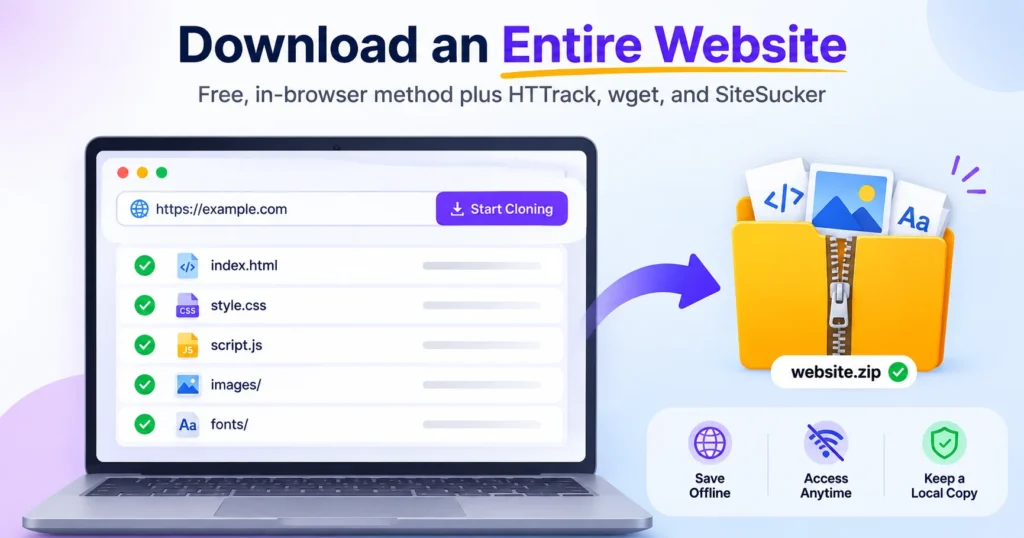
Three ways actually work: a free online website cloner that needs no install, desktop software like HTTrack or SiteSucker, or a one-line command with wget. If you’re wondering how to download an entire website without touching your terminal, the browser cloner below saves any site as a ZIP in under a minute, no download or account required. It packages the HTML, CSS, JavaScript, images, and fonts so the copy opens offline.
wget --mirror --convert-links --page-requisites is the fastest command-line option on Mac and Linux.Yes, downloading a public website for personal, offline use is generally legal under fair use principles, but the content underneath is still copyrighted. Check the site’s robots.txt file and terms of service before crawling, avoid republishing what you save, and slow your requests down so you don’t hammer someone’s server.
Here’s the thing people skip: copyright protects the words, images, and code on a page, not your right to view them offline. Saving a copy of a public recipe blog for a camping trip is fine. Downloading a competitor’s entire product catalog and reposting it is not, that’s a copyright and possibly a trademark problem.
Before you crawl anything at scale, check example.com/robots.txt. Most sites list a Disallow section that tells automated tools which paths are off-limits. It’s not legally binding on its own in most jurisdictions, but ignoring it is a fast way to get your IP address blocked, and some terms of service explicitly forbid scraping, which turns “against the rules” into “against a contract you agreed to.” A few practical rules of thumb:
An online website cloner is the method most people actually want when they search for how to download an entire website, and it’s the one every other guide on this topic skips. Pixellize’s Website Clone tool runs entirely in your browser: paste a URL, pick what to grab, and it downloads the page’s HTML, rewrites every internal link and asset path to point at local files, and hands you a ready-to-open ZIP. Nothing installs on your computer and nothing you clone is stored on a server, which is why a free website cloner beats a desktop install for most quick jobs.
I use this one first almost every time now, mostly because I got tired of waiting for HTTrack to finish indexing a site I only needed three pages from.
http:// or https://.index.html inside the extracted folder to browse it offline.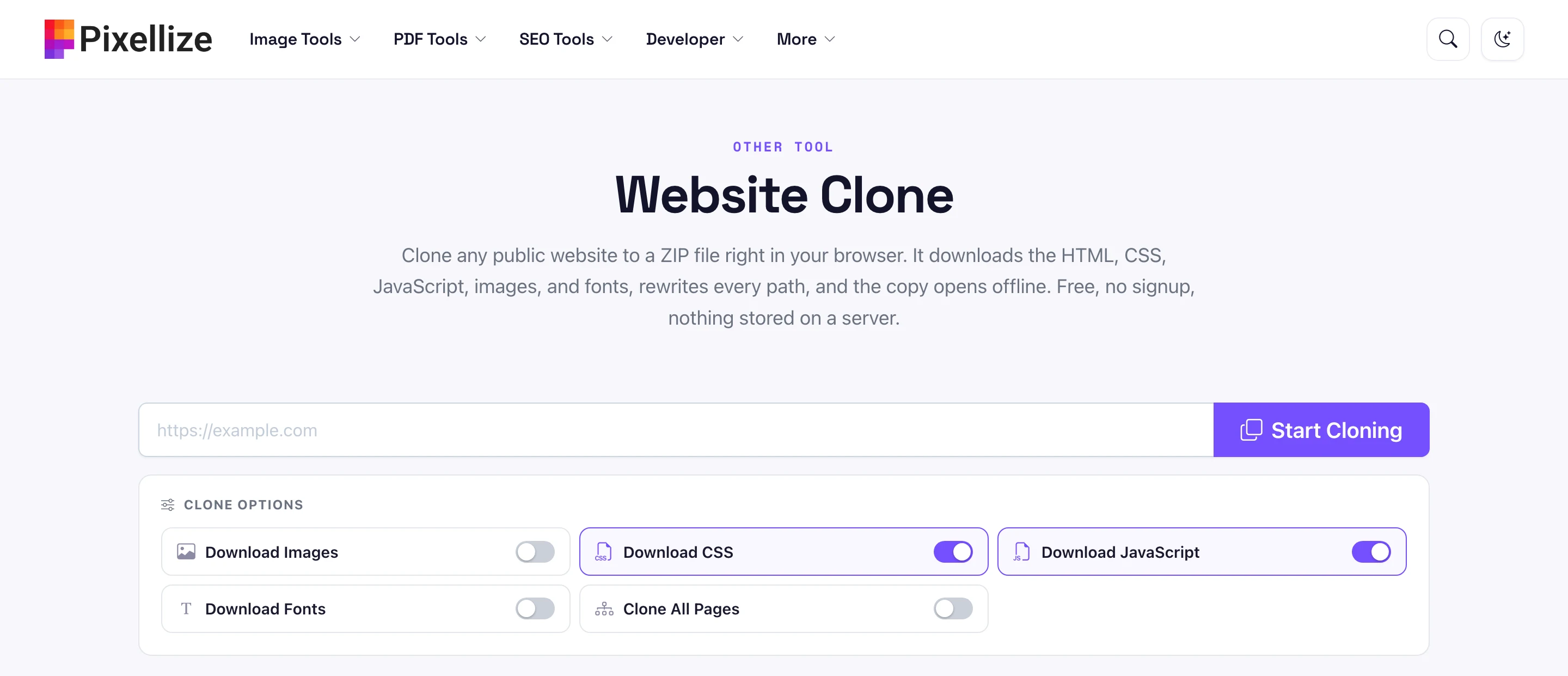
The tool saves the page’s HTML, linked stylesheets, scripts, images, and fonts, including assets referenced inside CSS files like background images, and rewrites every path so the copy renders correctly offline. What it can’t save is anything that only exists behind a login, in a database that generates pages on request, or content a script builds after the page loads, more on that in the JavaScript section below.
Once you’ve got the ZIP, you can pack it with other files or compress it further using Create ZIP File, or convert it to a RAR archive with Create RAR File if that’s what your team standardizes on.
To save a website as a ZIP, open a browser based website cloner, paste the site URL, and choose whether to include images, CSS, JavaScript, and fonts. The tool crawls the pages, rewrites every link to point at local files, and bundles the whole site into one ZIP you download. No terminal and no install, and for a single page your browser’s Save Page As also works.
Saving a site as a ZIP, rather than a loose folder of files, keeps every asset and the rewritten links together in one portable archive. That makes it easy to email, store, or hand off before a redesign, and it extracts the same way on any machine. If you cloned several sites, keep each one as its own ZIP so the index.html and asset folders never collide.
HTTrack is the tool most “how to download a website” guides default to, and for good reason, it’s free, open source, and has been mirroring sites since 1998. It builds a local directory structure using the HTML, files, and images from the server, then arranges everything so you can browse the mirror in a normal browser like the live site. Here’s how to run it.
httrack package from most repos).index.html in the project folder to browse the site offline.On Linux, skip the GUI entirely and run it from the terminal: httrack "https://example.com" -O "/path/to/folder" "+*.example.com/*" -v. The +*.example.com/* filter keeps the crawl inside that domain instead of following every outbound link on the page, which is easy to forget and can turn a 20-page site into a 2,000-page download.
Keep in mind HTTrack can take anywhere from a few minutes to several hours depending on site size, and it will hit the target server with hundreds of requests if you don’t cap the connection count in its options. Play polite and set a connection limit for anything you don’t own.
Cyotek WebCopy is a free Windows-only tool that does roughly what HTTrack does with a friendlier interface, it scans a website, then copies the pages, images, and other files locally so you get a browsable offline copy. It’s a solid pick if HTTrack’s older UI puts you off.
The scan-before-copy step is the main thing WebCopy does better than HTTrack, you see the full page count and can trim it before committing to a multi-hour download. Only works on Windows though, Mac and Linux users need SiteSucker or wget instead.
SiteSucker is the closest thing Mac has to a native HTTrack. It’s a paid app on the Mac App Store (a few dollars, one-time), but it’s genuinely simple: paste a URL, hit the download button, and it recursively grabs the whole site, following links and saving pages, images, PDFs, and style sheets to a local folder that mirrors the site’s structure.
It pauses and resumes downloads cleanly, which matters on a slow connection or a site with a few thousand pages. The tradeoff is it’s Mac-only and not free, so if you’re on Windows or Linux, HTTrack or wget cover the same ground at no cost.
Wget is a free command-line utility for retrieving files over HTTP, HTTPS, and FTP, and it’s built into most Linux distributions and installable on Mac via Homebrew. One command mirrors an entire site onto your computer, no GUI required. Per the GNU Wget manual, this is the exact command to run:
wget --mirror --convert-links --page-requisites --no-parent https://example.comEach flag does one job. --mirror turns on recursive downloading with settings tuned for a full site copy (infinite recursion depth, timestamps, and directory structure preserved). --convert-links rewrites links after the download finishes so they point to your local files instead of the live URLs, which is what makes the copy actually browsable offline. --page-requisites pulls in everything a page needs to display correctly, images, CSS, and embedded scripts, even if those files live outside the page’s own folder. --no-parent keeps wget from climbing up to a parent directory and crawling the rest of the domain if you only pointed it at a subfolder.
Add --wait=1 --limit-rate=200k if you want to be polite to the server, that adds a one-second pause between requests and caps your download speed, both of which matter on sites you don’t own. On Mac, install wget first with brew install wget if it’s not already on your system.
For one page rather than a whole site, your browser already has this built in. Open the page, let it fully load, then press Ctrl+S on Windows or Cmd+S on Mac. Chrome and Edge offer “Webpage, Complete” in the save dialog, which downloads the HTML plus a folder of the CSS, images, and scripts that page needs.
This is the fallback when none of the other methods are worth the setup, you just need one article or one product page saved, not a whole domain. The catch is it only grabs that single page, it doesn’t follow links, so it’s not a real substitute for Methods 1 through 5 if you actually need “the entire website.”
If you don’t need the HTML or code, only the photos, skip the full mirror. Pixellize’s Image Extractor pulls every image from a page URL and lets you download them as a batch, no need to right-click and save each one individually. It’s faster than any of the desktop tools above when images are the only thing you’re after.
JavaScript-heavy sites often download as a nearly empty page because traditional crawlers save the HTML that arrives first, not the content a script builds afterward. React, Vue, and Next.js apps frequently render their real content client-side, so the raw HTML wget or HTTrack fetches is just a <div id="root"></div> and a script tag.
Did you know this is the single most common complaint in forum threads about failed site downloads? Someone runs HTTrack against a modern web app, opens the result, and finds a blank white page. It’s not a bug in the tool, the content genuinely isn’t in the HTML the server sent.
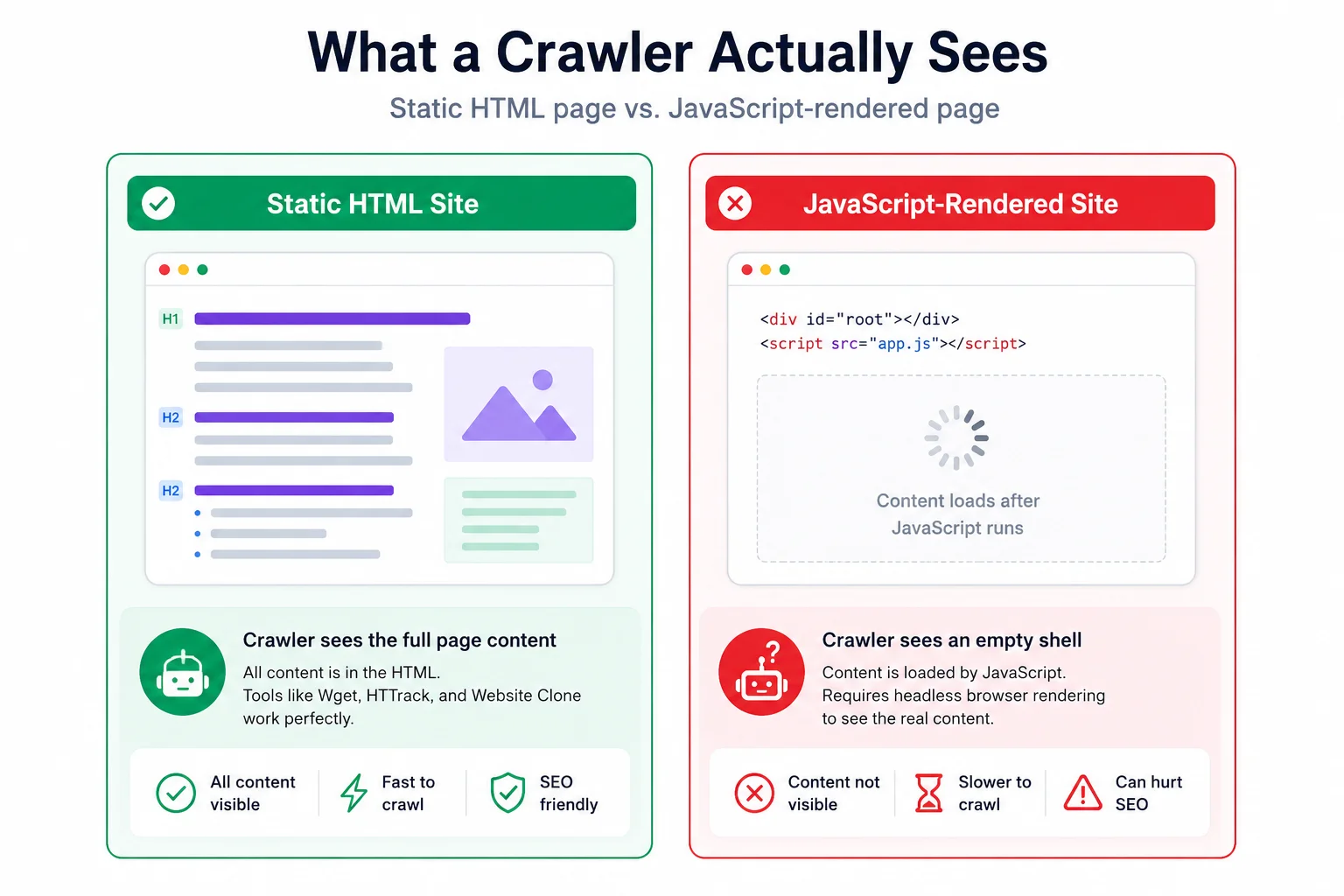
A few ways to work around it:
Downloading pages behind a login generally requires passing your session cookie to the crawler, and even then it only works for content your account can already see. Wget supports this with --load-cookies pointing at a cookies.txt file exported from your browser, and HTTrack has a similar cookie-import option in its advanced settings.
In practice this gets messy fast. Sessions expire mid-crawl, some sites detect the request pattern and log you out, and two-factor auth breaks automated logins entirely. A few honest limits worth knowing before you try:
Before you start a multi-hour crawl, estimate the size first, a site with a lot of high-resolution images or video can easily run into gigabytes. Run the target URL through Pixellize’s Website Page Size Checker to see roughly how heavy a single page is, then multiply by the page count for a rough total.
To find the real page count before committing, map every URL on the site with Link Finder, or pull a full sitemap with Sitemap Finder if the site publishes one. Both give you a page count in seconds instead of guessing, which matters because HTTrack and wget don’t tell you how big a job is until they’re already halfway through it. If you’re auditing the site rather than archiving it, Broken Link Checker is worth running alongside this, since a full crawl is also a good time to catch dead links, our guide on auditing a WordPress site for broken links and images covers that in more depth.
Once you’ve got a saved copy, it’s also a decent time to inspect the site’s design system. Website Typography Extractor and Website Color Palette Extractor both work straight off a live URL if you’re pulling fonts and colors for a redesign reference, no need to dig through the downloaded CSS by hand.
| Method | Install needed | Platform | Best for | Cost |
|---|---|---|---|---|
| Website Clone (in-browser cloner) | None | Any (browser only) | Quick copies, saving a site as a ZIP, no setup | Free |
| HTTrack | Yes | Windows, Linux | Large multi-page mirrors, offline archiving | Free |
| Cyotek WebCopy | Yes | Windows | Scan-before-download control over what gets copied | Free |
| SiteSucker | Yes | Mac | Native Mac users who want a simple GUI | Paid (one-time) |
| wget | Usually pre-installed | Mac, Linux, Windows (WSL) | Scripting, automation, servers without a GUI | Free |
| Browser Save Page As | None | Any | A single page, not a whole site | Free |
Pixellize’s Website Clone is a free website cloner that packages a full site into a ready-to-open ZIP right in your browser, HTML, CSS, JS, images, and fonts included.
Open Website CloneFor most people asking how to download an entire website, the answer isn’t a piece of software at all, it’s picking the method that matches how much of the site you actually need and whether you’re okay installing something. If you only need a handful of pages, start with Pixellize’s in-browser website cloner to save the site as a ZIP, and save the desktop installs for sites with hundreds of pages that genuinely need an overnight crawl. Mapping every URL with Pixellize’s Link Finder first, an approach we cover in more depth in how to find all links on a website, takes the guesswork out of whichever method you pick.
A website cloner is a tool that copies a site's pages and assets, the HTML, CSS, JavaScript, images, and fonts, so the copy opens offline. A free online website cloner like Pixellize's Website Clone runs in your browser and packages everything into a ZIP, with no install or account needed.
Paste the URL into a browser based website cloner, pick what to include, and click start. It crawls the pages and bundles the HTML, CSS, images, and scripts into one ZIP you download. For a single page, your browser's Save Page As works too, but it will not follow internal links.
Yes. Pixellize's Website Clone is a free website cloner that works in any browser with no sign-up, and HTTrack and wget are free desktop and command-line options. SiteSucker on Mac is the main paid one, at a few dollars one-time.
Generally yes for personal, offline use, since copyright covers the content, not your right to view it offline. Avoid republishing what you save, respect robots.txt and the site's terms of service, and rate-limit your requests so you do not overload the server.
Sometimes. If the site renders its HTML on the server (common with Next.js or Nuxt SSR), standard tools work fine. If it builds content client-side, a plain crawler saves an empty shell, so use a tool that runs JavaScript first, or open each page and use the browser Save Page As.
If you only need the photos and not the full site, use an image extractor. Pixellize's Image Extractor pulls every image from a page URL and downloads them as a batch, which is faster than running a full site mirror just to collect pictures.
It depends on page count and average page weight. A 10-page site at roughly 2 MB per page is about 20 MB and a few minutes. A 500-page, image-heavy blog can hit 1.5 GB and over an hour, so estimate the size first and add a 20 to 30 percent buffer.
Founder and CEO of Pixellize.io, building AI-powered web tools and digital products with a focus on user experience and automation. M.Sc. Zoology, working at the intersection of technology, data analytics, and life sciences.