
How to Download Instagram Profile Picture Full Size (HD)
Tap someone's Instagram profile picture and Instagram gives you a tiny circle, sometimes not even a full view. There is no built-in…
Read articleLearn how to download Facebook videos free as a clean MP4 in HD or SD, on phone or desktop, with no app and no watermark. Public videos and reels only.

You find a great clip on Facebook, a recipe reel, a match highlight, a friend’s travel video, and there is no save button that keeps it on your device. Facebook does not let you download most videos from the app itself. The fix is a link and a browser. This guide shows how to download Facebook videos as a plain MP4, in HD or SD, on a phone or a computer, using the free Facebook Video Downloader from Pixellize. No app, no watermark, and it only works on public videos, which is the honest and legal way to do it.
The reliable way to download Facebook videos is a browser tool, no install required. With the Pixellize Facebook Video Downloader it is three steps:
On the video, tap Share, then Copy link. On a computer, click the three dots in the top corner of the post and pick Copy link. The video URL is now on your clipboard.
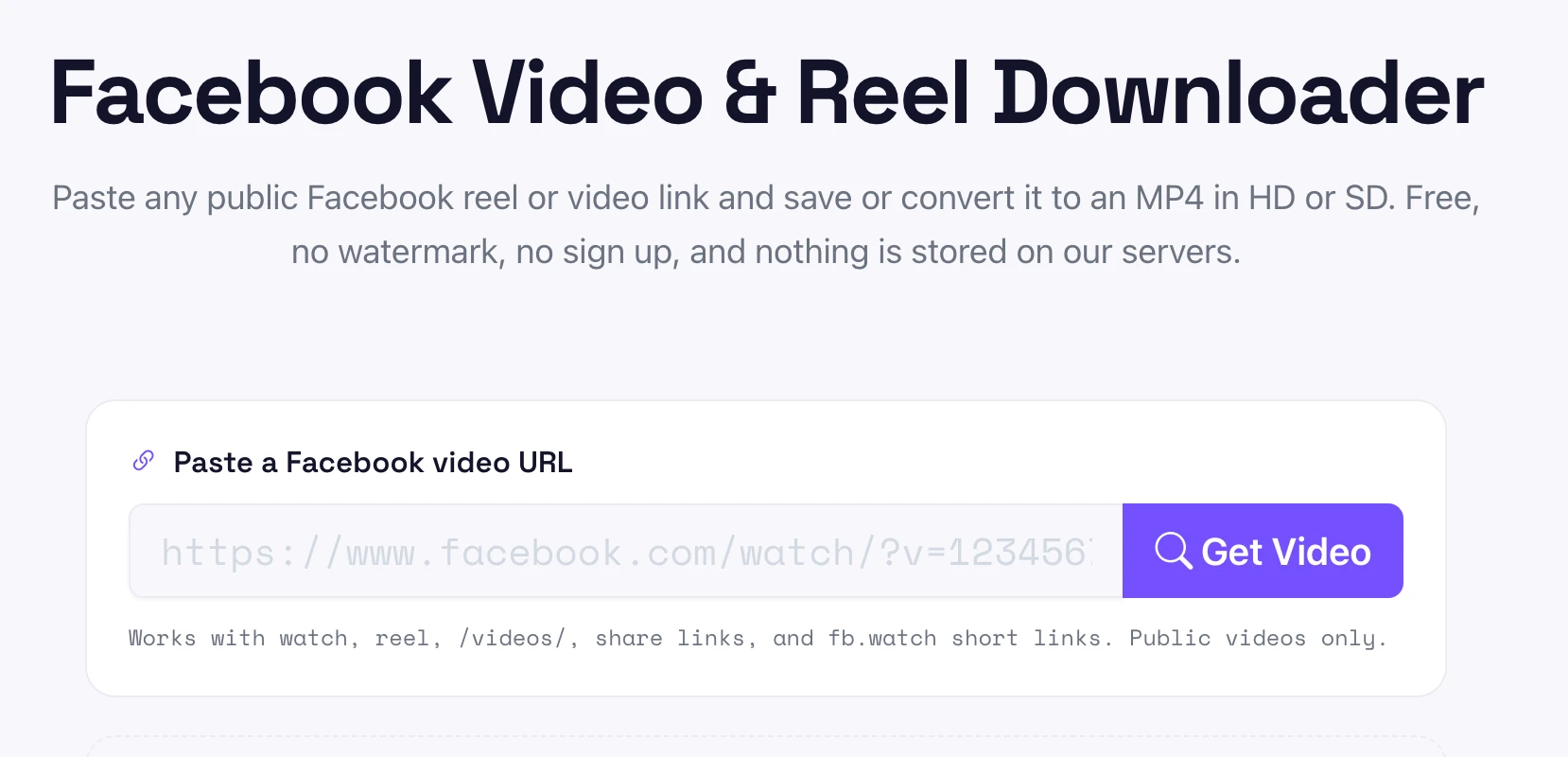
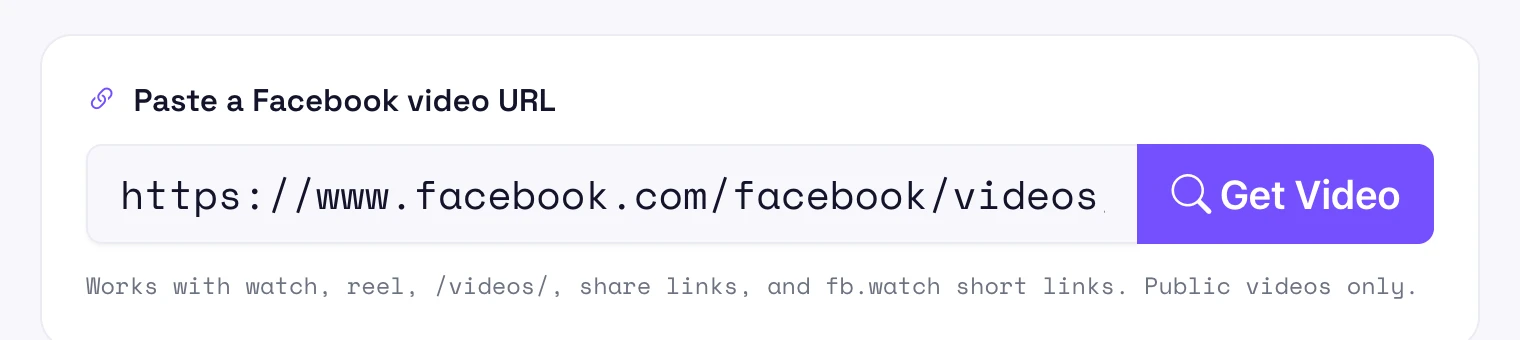
Open the Pixellize Facebook Video Downloader, paste the link into the box, and click Get Video. It reads the link and fetches the video server-side, so nothing you paste is stored.
Pick Download HD for the sharpest copy or SD for a smaller file. The MP4 saves straight to your device, with no watermark and no sign up. A short clip is ready in a few seconds.
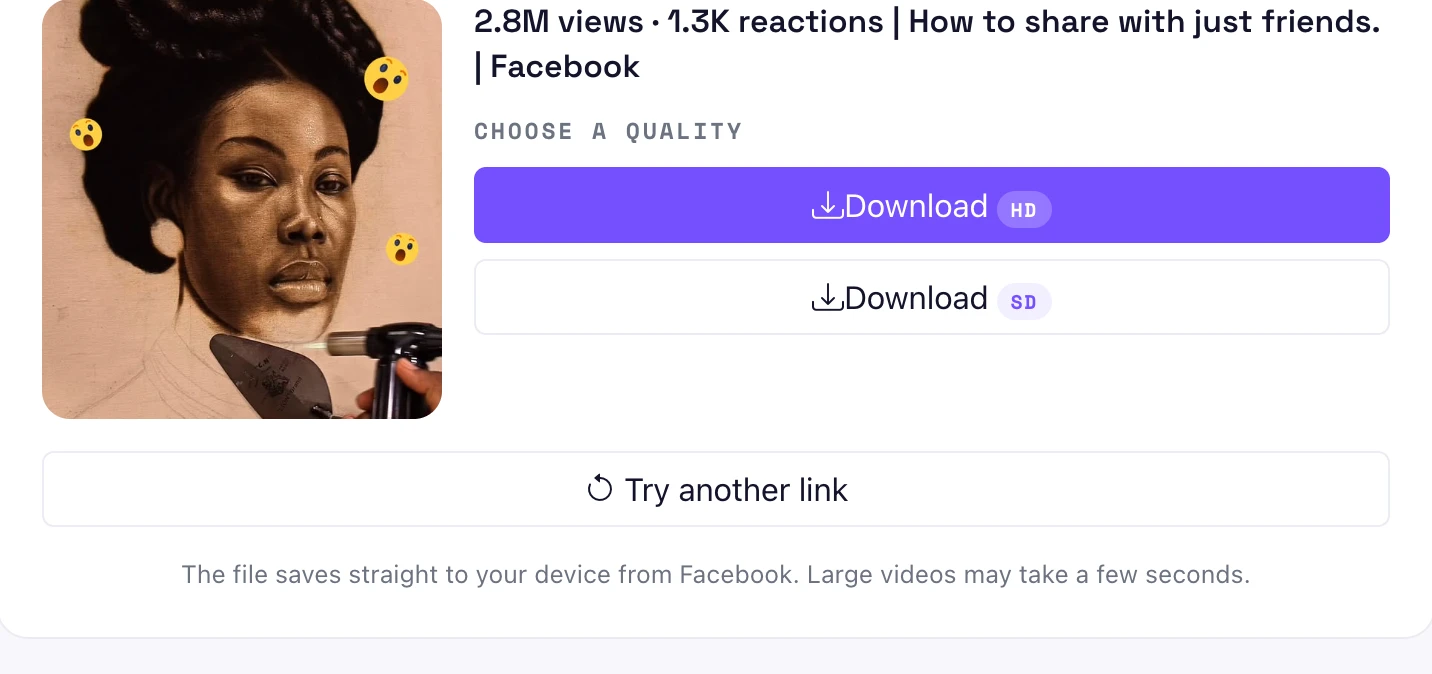
That is it. No account, no app, and the file is a clean MP4 with no watermark stamped across it. The link is read and the video is fetched server-side, so nothing you paste is stored. I timed a reel from tapped-link to saved file at under fifteen seconds.
To copy a Facebook video link, tap the Share arrow under the video and choose Copy link, or on a computer click the three dots in the top corner of the post and pick Copy link. Paste that link into the downloader. The share link is what works, not the text in your browser address bar. Facebook’s help on sharing posts (retrieved October 2026) covers where the Copy link option lives.
Here is the part that trips people up. In the Facebook app, the address bar does not exist, so you must use Share then Copy link. On a reel especially, grabbing the link any other way often gives a page the downloader cannot read. The tool accepts watch links, reel links, /videos/ links, share links, and fb.watch short links, so any proper Copy link result works.
Reels download the same way as any other video. Open the reel, tap Share, and choose Copy link, which gives a facebook.com/reel/ address. Paste it into the Pixellize tool and click Get Video. Reels are usually vertical and shorter, so the file is small and the HD option is worth picking for a crisp result on a phone screen. If a reel was shared to a Story or cross-posted from Instagram, use the original reel link rather than the Story, because a Story link expires after 24 hours and the downloader will not find anything behind it.
No phone app is needed. In the Facebook app, tap Share then Copy link, switch to your browser (Safari or Chrome), open the Pixellize tool, paste, and tap Get Video. On iPhone the MP4 saves to Files or Photos depending on your choice; on Android it lands in Downloads. Because it runs in the browser, the same page works on a laptop, a tablet, and a phone with no separate install. The file comes out as a standard MP4, which plays in Photos, the Files app, VLC, and every video editor, so you never have to convert it afterward.
| Where | How to copy the link | Where the file lands |
|---|---|---|
| iPhone (app) | Share, then Copy link | Files or Photos |
| Android (app) | Share, then Copy link | Downloads folder |
| Desktop browser | Three dots, then Copy link | Downloads folder |
If the video is one you posted, Facebook gives you an official download and you do not need any outside tool. Open your post, click the three dots in the top corner, and choose Download video. To grab everything at once, go to Settings and privacy, then Your information, then Download your information, tick Posts, and request the file. Facebook emails you a zip with your uploads in it.
Here is the catch most people hit: that Download video option only appears on your own content. On someone else’s public video the three-dots menu has no download at all, which is exactly the gap the Pixellize tool fills. So the rule is simple. Your own uploads, use Facebook’s built-in download. Other people’s public videos, use the copy-link-and-paste method above.
Some Facebook videos cannot be downloaded because they are not public. A private post, a video in a private group, an age-restricted clip, or a login-only video is sealed off, and no downloader can reach it. If the tool returns an error, that is almost always why, not a bug.
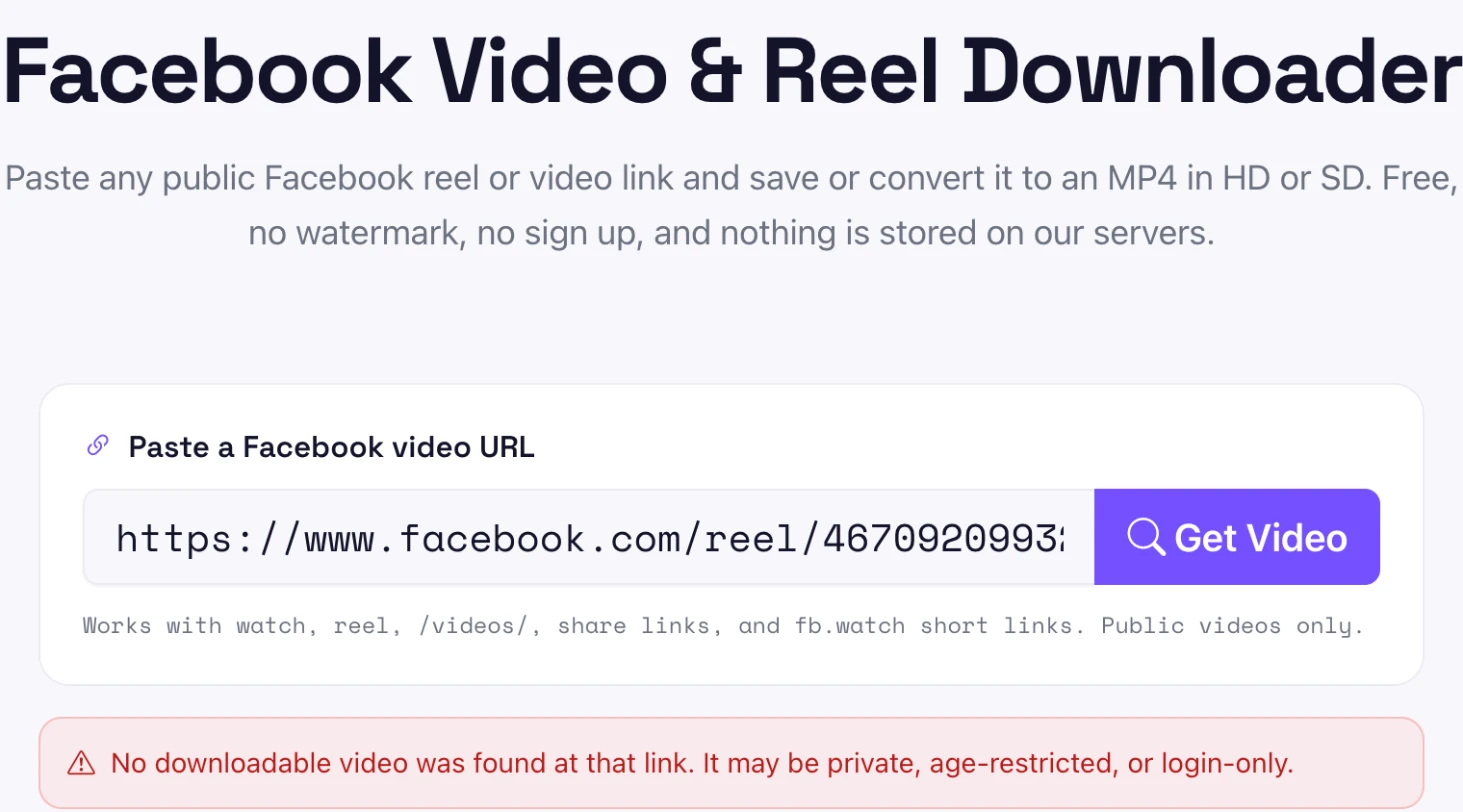
This is the honest limit of every Facebook downloader, including the paid ones that claim otherwise. If you can open the video in a private browser window while logged out, it is public and the tool can fetch it. If it asks you to log in, it is not downloadable. The Pixellize tool tells you plainly rather than spinning forever or handing back a broken file.
Pick HD when you want the sharpest copy, for saving a highlight or re-watching on a big screen. Pick SD when the file size matters more than clarity, like sending it over a slow connection or a messaging app with a size cap. The tool shows both links when they are available, so you can grab whichever fits. A short reel in HD is usually only a few megabytes, while a long watch video in HD can run to a couple of hundred. If you plan to edit the clip later, always take HD, because you cannot add detail back to an SD file once it is saved.
Downloading a public Facebook video for your own offline viewing is generally fine, but the video still belongs to whoever made it. Reposting it, using it in your own content, or sharing it as your own can breach copyright. Facebook’s own intellectual property help (retrieved October 2026) spells this out. When in doubt, ask the creator first, and never download private or restricted content.
Paste a public video or reel link, pick HD or SD, and download a clean MP4. Free, no app, no watermark, nothing stored.
Open the Facebook Video DownloaderOnce you know how to download Facebook videos, it is a ten-second habit: copy the link, paste it, pick HD or SD, done. Keep it to public videos, keep it to personal use, and you stay on the right side of both Facebook and copyright. When you have a link ready, the Pixellize Facebook Video Downloader turns it into a clean MP4 with no app and no watermark. For other platforms, the same approach works to download a YouTube thumbnail or to download an Instagram profile picture. That is how to download Facebook videos, start to finish.
Copy the video link with Share then Copy link, paste it into the free Pixellize Facebook Video Downloader, and click Get Video. Pick HD or SD and the MP4 saves to your device. There is no app, no sign up, and no watermark.
Yes. Open the reel, tap Share, choose Copy link to get a facebook.com/reel link, and paste it into the downloader. Reels save as a normal MP4 just like any other video, and the HD option keeps them crisp on a phone screen.
In the Facebook app tap Share then Copy link, switch to Safari or Chrome, open the Pixellize tool, paste the link, and tap Get Video. On iPhone it saves to Files or Photos; on Android it goes to your Downloads folder. No app install is needed.
Private, group-only, age-restricted, and login-only videos are sealed off, so no downloader can reach them. If you cannot open the video in a logged-out browser window, it is not public and cannot be downloaded. The tool shows an error instead of a broken file.
Not with the Pixellize tool. It hands back the original MP4 with no watermark added and no ads bundled in. Many other sites stamp a logo or wrap the download in redirects, so check before you use one.
Saving a public video for personal offline viewing is generally fine, but the creator still owns it. Reposting or reusing it can breach copyright, so ask permission first. Never try to download private or restricted content.
Founder and CEO of Pixellize.io, building AI-powered web tools and digital products with a focus on user experience and automation. M.Sc. Zoology, working at the intersection of technology, data analytics, and life sciences.