
How to Convert MP4 to MP3 Free (In Your Browser)
A step-by-step guide to convert MP4 to MP3 free in your browser, with the right bitrate and no uploads.
Read articleConvert audio to MP3 free in your browser, with no upload and no sign up. Here is the step-by-step method plus the best bitrate to pick.

You record a voice memo on your iPhone, try to send it to a friend on Windows, and it will not play. The file is an M4A, and plenty of apps still want an MP3. Learning how to convert audio to MP3 fixes that in seconds, and you do not need to install anything or hand your recording to a random website. The free Pixellize Audio Converter does the whole job inside your browser, so the file never leaves your device. This guide walks through the online method step by step, the built-in options on Windows and Mac, and how to pick a bitrate that keeps the sound clean.
Converting audio to MP3 means re-encoding a sound file into the MP3 format so it plays on almost any device or app. MP3 is a compressed, lossy format, so it drops data your ears barely notice to make the file roughly ten times smaller than an uncompressed WAV. That small size is why MP3 became the default for sharing music and voice.
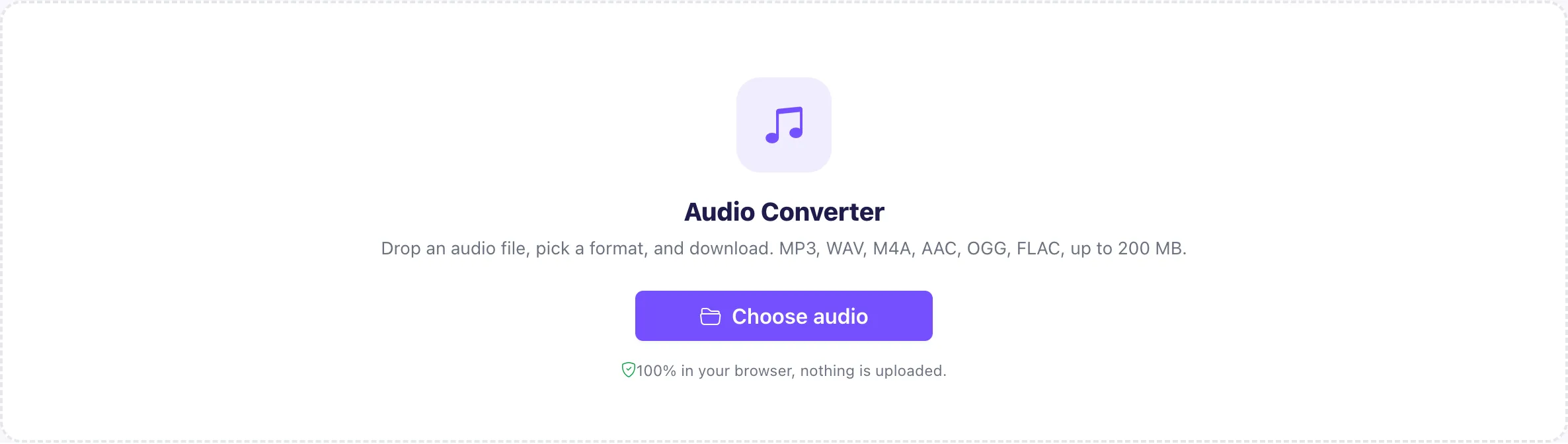
Here is the fastest route with no software to install. The Pixellize Audio Converter runs in the browser, so your file is read and re-encoded on your own machine. Nothing is uploaded to a server. It takes three steps.
Open the Audio Converter, then drag your file in or click Choose audio to browse. It accepts MP3, WAV, M4A, AAC, OGG, and FLAC, up to 200 MB. The file stays on your device from the moment you drop it, since the tool reads it right in the page.
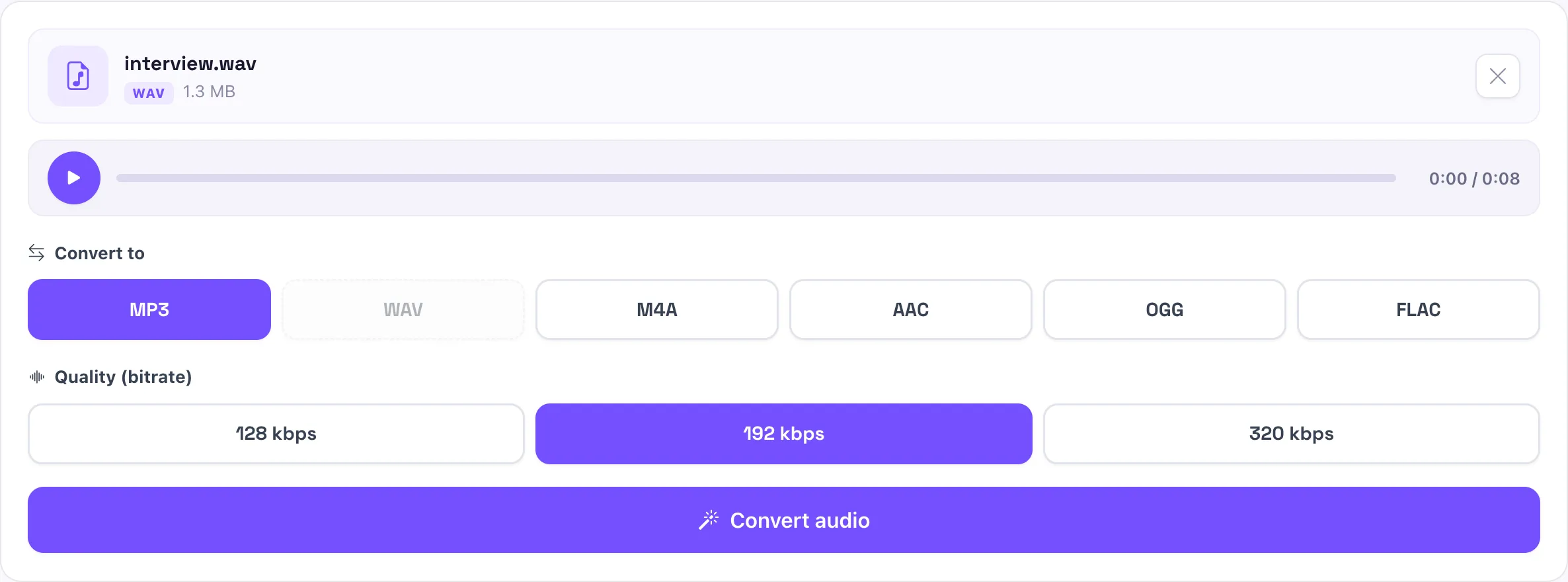
You get a badge showing the source format and a player to preview the file. Pick MP3 as the output. The format your file is already in is turned off, since there is no point converting to the same thing. Then set the quality: 128, 192, or 320 kbps.
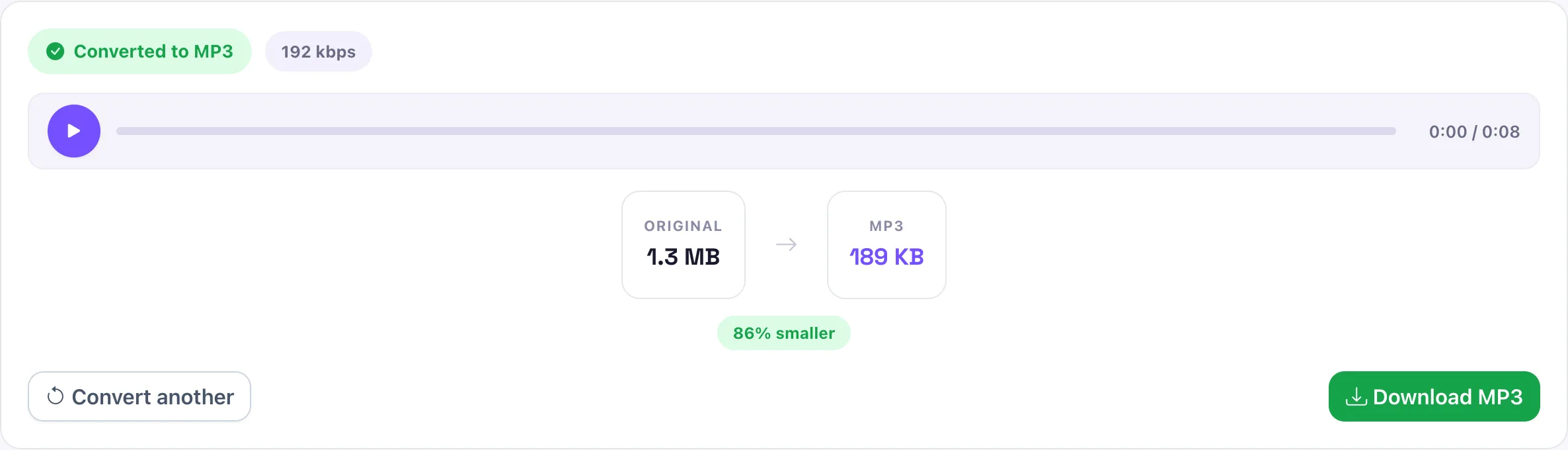
Press Convert audio, listen to the preview, then download. For a normal file it takes a second or two. In our test, an 8 second WAV at 1.3 MB came out as a 190 KB MP3 at 192 kbps, about 86 percent smaller, with no audible difference for speech.
Choose 192 kbps for most audio, 320 kbps for music you care about, and 128 kbps for voice or podcasts where small size matters most. Bitrate is how much data each second of audio keeps: higher means better sound and a bigger file. For speech, 128 kbps is usually fine; for a song, 320 kbps stays closest to the source.
| Bitrate | Best for | Rough size (3 min) |
|---|---|---|
| 128 kbps | Voice, podcasts, audiobooks | ~2.8 MB |
| 192 kbps | General use, a clean balance | ~4.2 MB |
| 320 kbps | Music, closest to the original | ~7 MB |
Keep in mind MP3 is a lossy format, so a higher bitrate reduces loss but never fully removes it. See the MP3 reference on Wikipedia for how the compression works (retrieved October 2026).
The steps are the same for every source format, but each one has a reason you would convert it. Here is what to expect from the common ones.
Working from a video instead of an audio file? Pixellize has a separate guide on saving videos, and the MP4 to MP3 tool pulls the audio out of a clip first.
You can convert without a browser tool if you prefer built-in software, though it takes more steps.
Converting in your browser keeps the file on your own device, while most online converters upload it to a server, process it there, and store it for a while. For a client interview, a private voice note, or unreleased music, that upload is the real risk. The Pixellize Audio Converter does the work locally, so nothing is transferred or logged.
Here is a rule that saves quality: always convert from the original file, not from a copy you already converted. Each lossy conversion throws away a little more sound, so an MP3 made from an MP3 made from an M4A is noticeably worse than one made straight from the M4A. Convert once, from the source.
Free, no sign up, nothing uploaded. MP3, WAV, M4A, AAC, OGG, and FLAC, with the bitrate you choose.
Open the Audio ConverterNow that you know how to convert audio to MP3, the fastest path is a browser tool for everyday files and a built-in app when you want to batch a whole folder. Next time an M4A or WAV will not play where you need it, drop it into the Pixellize Audio Converter, pick MP3, and download a file that plays anywhere.
Open the Pixellize Audio Converter, drop in your M4A file, choose MP3, and press Convert. M4A is common for iPhone voice memos, and the MP3 you get plays on almost any device. The conversion runs in your browser, so nothing is uploaded.
Yes. The Pixellize Audio Converter is free with no sign up, no watermark, and no limit on how many files you convert. Every format and bitrate is included at no cost.
MP3 is a lossy format, so it drops some data to shrink the file. At 192 or 320 kbps the difference is hard to hear for most audio. For zero loss, keep a WAV or FLAC copy of the original.
Use 192 kbps for general use, 320 kbps for music, and 128 kbps for voice or podcasts. Higher bitrate keeps more detail but makes a larger file, so match it to the type of audio.
It depends on the tool. Many online converters upload your file to a server. The Pixellize Audio Converter runs entirely in your browser, so your audio is never uploaded, stored, or shared.
You can convert MP3, WAV, M4A, AAC, OGG, and FLAC. You can also convert between those formats in any direction, and files up to 200 MB work smoothly.
Founder and CEO of Pixellize.io, building AI-powered web tools and digital products with a focus on user experience and automation. M.Sc. Zoology, working at the intersection of technology, data analytics, and life sciences.