
How to Download Facebook Videos Without Watermark
Learn how to download Facebook videos free as an MP4 in HD or SD, on phone or desktop, no app and no…
Read articleLearn how to crop an image to a specific aspect ratio for any platform, lock 1:1, 16:9, or 9:16, keep your quality, and download free in your browser.

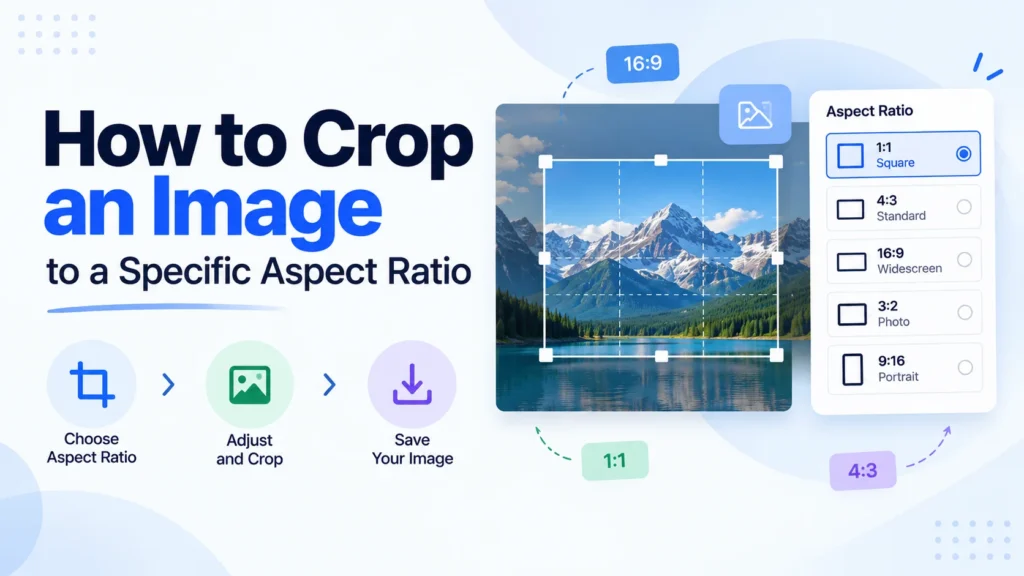
You post a photo to Instagram and it lops off the top of someone’s head. You set a YouTube thumbnail and half your text gets cut. Almost every one of these headaches comes down to aspect ratio, the width-to-height shape of the frame. Knowing how to crop an image to a specific aspect ratio means you decide what stays in the shot, not the platform. This guide covers the quick browser method, the exact ratio each platform wants, and how to crop without turning your photo to mush. The fastest route is the free Pixellize crop image tool, which locks any ratio in one click.
| Platform or use | Aspect ratio | Common pixel size |
|---|---|---|
| Instagram post, square | 1:1 | 1080 x 1080 |
| Instagram post, portrait | 4:5 | 1080 x 1350 |
| Instagram Story or Reel | 9:16 | 1080 x 1920 |
| YouTube thumbnail | 16:9 | 1280 x 720 |
| Facebook feed | 1.91:1 | 1200 x 630 |
| X post image | 16:9 | 1200 x 675 |
| Pinterest pin | 2:3 | 1000 x 1500 |
| LinkedIn share | 1.91:1 | 1200 x 627 |
Here is how to read that table. The left column is where the image will live, the middle is the ratio to lock in your crop tool, and the right is a safe pixel size if you also need to resize. When a platform lists a range, the ratio matters more than the exact pixels, because the site scales your image to fit its slot anyway. Lock the correct ratio and you are covered on every screen size.
Aspect ratio is the proportional relationship between an image’s width and its height, written as two numbers with a colon, like 16:9. A 16:9 image is 16 units wide for every 9 units tall. It describes the shape of the frame, not the size, so a 1:1 square looks the same whether it is 200 pixels or 2,000 pixels across.
Think of it like picture frames at a store. A square frame and a wide panoramic frame hold different shapes of photo, even if both are small. Pick the wrong frame and the photo either does not fit or gets trimmed to make it fit. That trimming is exactly what a social platform does on autopilot when your ratio is off.
The quickest way needs no software. The Pixellize crop tool runs entirely in the browser, and because it locks the ratio for you, the crop box cannot drift out of shape. Here is the whole flow.
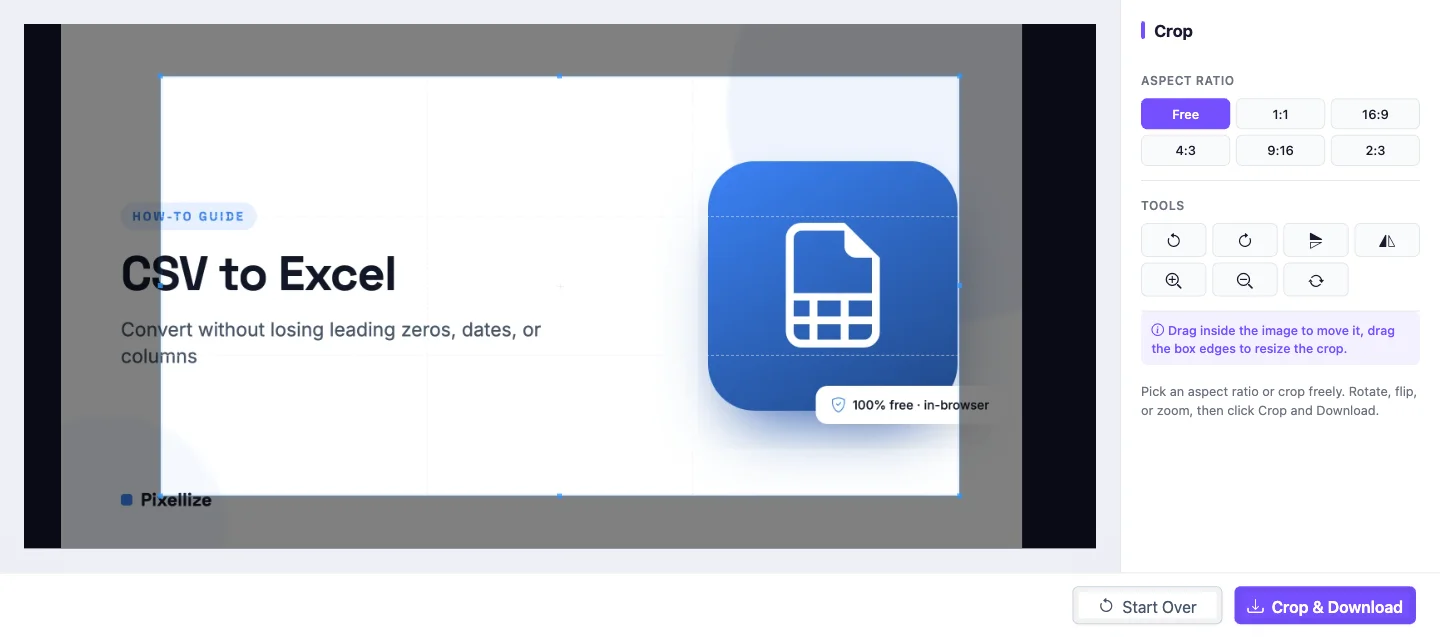
That is the part most desktop apps make harder than it needs to be. With Pixellize the ratio is one tap, and you are looking at the result in seconds.
You only really need to remember a handful. Here is what each common ratio is good for.
Did you know a plain 4 by 6 print is 2:3? That is why phone photos, usually shot at 4:3, get a thin strip trimmed when you print them. Crop to 2:3 first and you control what goes, instead of the print lab guessing.
If you already live in another app, the idea is the same: set the ratio first, then crop. Here is where the control hides in each.
These all work well. The catch is they either cost money or live on one device. When you are on a borrowed laptop or just want a quick crop, the browser tool wins.
Cropping never lowers quality on its own, because it only removes pixels, it does not stretch them. Quality drops when you enlarge a small crop afterward, or when you re-save a JPEG many times over. Start from the highest-resolution original you have, crop once, and export a single final file to keep every detail sharp.
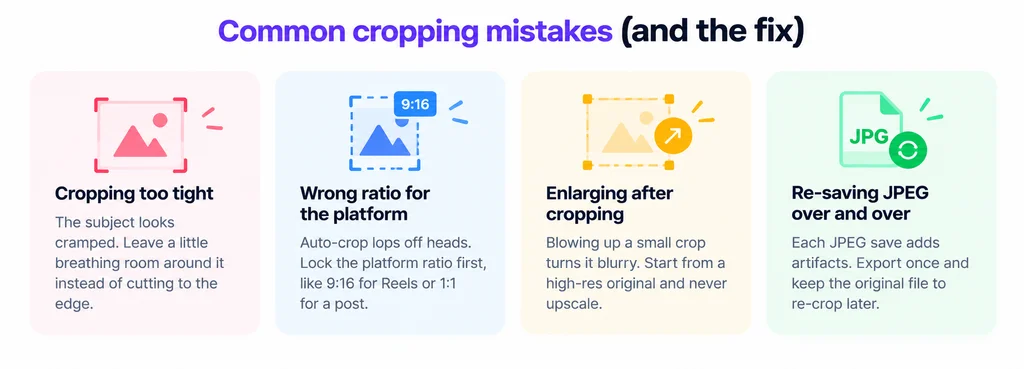
These two get mixed up constantly, and using the wrong one is why images end up stretched. Cropping changes the frame. It removes the parts of the photo outside your box and keeps the rest at full resolution. Resizing changes the dimensions. It scales every pixel up or down, so a 4000 pixel photo becomes, say, 1000 pixels, subject and all.
Use cropping to fix composition or change the aspect ratio. Use resizing to hit a file size or a pixel target after the crop. Most social workflows do both: crop to the right ratio, then let the platform resize to its display size. If you need the second step, the Pixellize image converter and resize tools handle it in the same browser tab.
Lock 1:1, 16:9, 9:16, or a custom shape, frame your subject, and download. Free, no signup, and your photo never leaves your browser.
Open the crop image toolLearning how to crop an image to a specific aspect ratio is really one habit: pick the ratio first, then frame the shot. Match the platform (1:1 or 4:5 for Instagram, 9:16 for Reels, 16:9 for YouTube), crop from a high-resolution original, and export once. The Pixellize crop image tool puts every common ratio one tap away and keeps the whole thing in your browser. Pick your ratio and you decide what stays in frame, every time.
The best aspect ratio depends on where the image goes. Use 1:1 or 4:5 for Instagram posts, 9:16 for Stories, Reels, and TikTok, and 16:9 for YouTube thumbnails and video. For prints, 2:3 matches a 4 by 6 photo. Match the destination first, then crop to that exact ratio so nothing gets trimmed later.
No, cropping by itself does not reduce quality, because it only removes pixels from the edges and keeps the rest at full resolution. Quality only drops if you then enlarge that smaller crop or re-save a JPEG repeatedly. Crop from your highest-resolution original and export once to keep the result sharp.
To crop to 1:1, open the crop tool, select the 1:1 or Square preset, and the crop box locks to a perfect square. Drag it over the part of the photo you want to keep, then download. In the Pixellize crop tool it is a single tap on the 1:1 button, with no math and no guessing.
Cropping changes the frame by cutting away the parts of a photo outside your selection, which also changes the aspect ratio. Resizing changes the dimensions by scaling every pixel up or down, keeping the whole image but at a new size. Crop to fix composition or ratio, then resize to hit a pixel or file-size target.
Choose a Free or custom crop mode instead of a fixed ratio, then drag the box until it shows the pixel dimensions you want. Most tools display the live size as you resize. If you need an exact figure, crop close, then resize the result to the precise pixel dimensions afterward.
Yes. The Pixellize crop image tool is completely free with no signup, no watermark, and no limits. Your photo is processed in your own browser using JavaScript, so it is never uploaded to a server. You can crop, lock any aspect ratio, rotate, flip, and download as many images as you want.
Founder and CEO of Pixellize.io, building AI-powered web tools and digital products with a focus on user experience and automation. M.Sc. Zoology, working at the intersection of technology, data analytics, and life sciences.