
How to Design for Color Blindness: A Practical Guide
A practical guide to design for color blindness: the rules that matter and how to test your work with a free simulator.
Read articleHow to tell if a website is built on WordPress using five quick checks, plus a free detector that names the theme and plugins.


You land on a site with a layout you love, or a competitor you want to size up, and one question follows: is this WordPress? Knowing how to tell if a website is built on WordPress takes about ten seconds once you know where to look, and it opens the door to finding the exact theme and plugins behind the design. This guide walks through five reliable checks you can run by hand, plus a one-click WordPress theme detector for when you want the answer without digging through code.
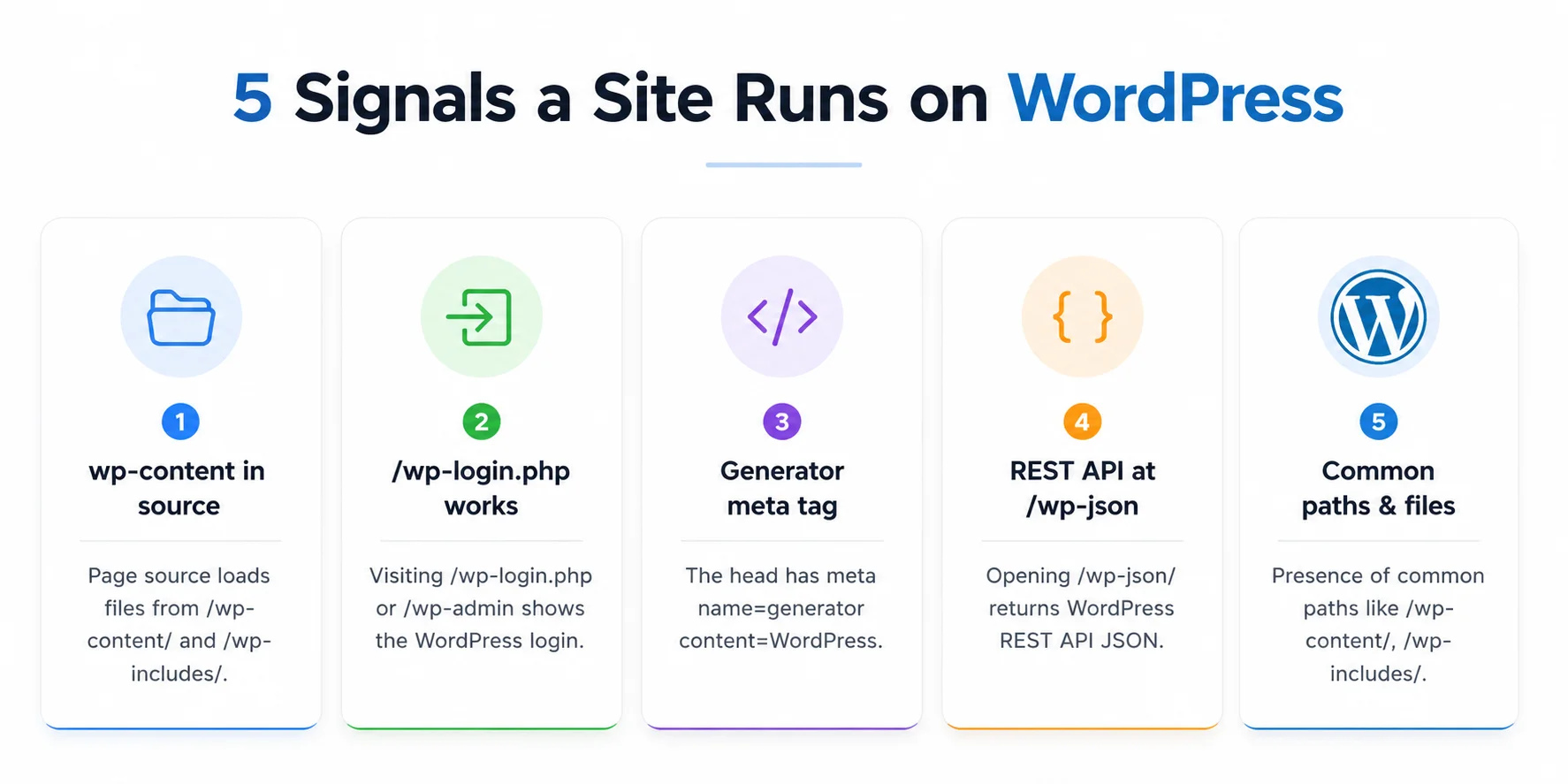
wp-content or wp-includes./wp-login.php, the generator meta tag, and the /wp-json/ REST API.Open the page source and search for the text wp-content or wp-includes. If either appears in the file paths, the site is almost certainly WordPress. You can confirm it in seconds by visiting /wp-login.php, checking the generator meta tag, or opening /wp-json, and each extra signal that matches makes the answer more certain.
That is the short version. Below are the five checks in order of speed, so you can stop at the first one that gives you a clear yes.
This is the most reliable manual check. WordPress serves themes and uploaded files from a folder called /wp-content/, and its core files sit in /wp-includes/. Almost every WordPress page leaks these paths in its HTML.
wp-content./wp-content/themes/ or /wp-content/plugins/, the site runs WordPress.Here is the thing: this works even when the homepage looks nothing like a typical WordPress blog, because the folder structure stays the same no matter how custom the design is.
Every standard WordPress install has a login page at the same address. Add /wp-login.php to the end of the domain, for example example.com/wp-login.php. If the WordPress login screen appears, you have your answer. Visiting /wp-admin does the same thing, since it redirects logged-out visitors to that login page.
Keep in mind that security-conscious owners often rename or hide the login URL, so a missing login page is not proof the site avoids WordPress. Treat this as a strong yes when it works, not a no when it fails.
WordPress adds a line to the page head that names itself. In the page source, search for generator. On a WordPress site you will often find <meta name="generator" content="WordPress 6.x">, which also reveals the exact version. Many sites strip this tag for security, so use it as a bonus confirmation rather than your only test.
Modern WordPress ships with a REST API. Add /wp-json/ to the domain, and if the site returns a page of structured JSON describing routes and namespaces, that is a clear WordPress fingerprint. You can read more about it in the official WordPress REST API documentation.
Older or less hardened installs also keep /readme.html and /license.txt in the root. If either loads and mentions WordPress, the site is running it. Newer setups remove these files, so a blank result here means nothing on its own.
| Signal | Where to look | What it means |
|---|---|---|
| wp-content / wp-includes | Page source (Ctrl+U) | Strongest sign the site is WordPress |
| Login page | /wp-login.php or /wp-admin | WordPress login confirms it (may be hidden) |
| Generator tag | meta name=”generator” in source | Names WordPress and its version |
| REST API | /wp-json/ | JSON output is a clear WordPress fingerprint |
| Readme file | /readme.html | Older installs confirm WordPress here |
If you would rather skip the manual checks, paste the address into a detector. The free Pixellize WordPress theme detector runs every one of the signals above at once and returns a plain yes or no, then goes further and names the theme, its version and author, any child theme, and the active plugins it can see. It runs in your browser with no signup, which is why it is the fastest way to tell if a website is built on WordPress and see what powers it.

Check the page source for platform fingerprints: wp-content means WordPress, cdn.shopify.com means Shopify, and wix.com static hosts mean Wix. The generator meta tag names many platforms directly. A browser extension like Wappalyzer, or a detector tool, reads these same signals and labels the platform for you in one click.
WordPress powers roughly 43 percent of the web according to W3Techs, so when a site is not obviously Shopify or Wix, WordPress is the safe first guess. That single fact makes the wp-content check the smartest one to run first.
No detection method is 100 percent, and it helps to know why a real WordPress site can look invisible:
/readme.html.This is exactly why you check several signals instead of one. If four checks come back empty, the site is probably not WordPress. If even one is a clear match, it almost always is.
Confirming the platform is step one. The useful part is usually what comes next: which theme created that layout and which plugins add the features. The stylesheet at /wp-content/themes/<name>/style.css holds the theme name, version, and author in its header comment. For a faster route, our guide on how to find the WordPress theme a website is using walks through it, and the Pixellize theme detector pulls the same details automatically, including the child theme and parent theme split that trips up most tools. If you also want to audit a page you already own, the meta tags analyzer is a handy companion.
/wp-login.php as proof the site is not WordPress. It often just means the login was moved.Paste any URL and Pixellize confirms WordPress, then reveals the theme, version, and active plugins. Free, no signup.
Open the WordPress Theme DetectorLearning how to tell if a website is built on WordPress comes down to a handful of quick checks: search the source for wp-content, try the login page, read the generator tag, and open /wp-json. Any one match is a strong signal, and together they are close to proof. That is really all there is to how to tell if a website is built on WordPress by hand. When you want the answer plus the theme and plugins in a single step, let the Pixellize detector do the reading for you. Pixellize keeps every one of these checks free and in your browser, so you spend your time on what you found, not on how you found it.
The quickest check is the page source. Open it and search for wp-content or wp-includes. If those paths appear, the site is WordPress. Confirm with /wp-login.php, the generator meta tag, or /wp-json. Any single match is a strong sign, and two or more together is near certain.
Every method here is free. View the page source and search for wp-content, add /wp-login.php to the URL, or open /wp-json. For a no-code option, paste the address into the free Pixellize WordPress theme detector, which runs all these checks at once and needs no signup.
Look at the page source for platform fingerprints. wp-content means WordPress, cdn.shopify.com means Shopify, and Wix static hosts mean Wix. The generator meta tag often names the platform directly. A detector tool or a browser extension reads these signals and labels the platform for you.
Yes. Once you confirm the site is WordPress, the theme lives at /wp-content/themes and its style.css header lists the name, version, and author. A theme detector reads this automatically, including any child theme and its parent, so you see the full picture in one step.
Security plugins can rename the login page, strip the generator tag, and block readme files, while headless WordPress serves pages from a separate front end. Any of these hides the usual clues. Check several signals instead of one, because it is rare for all of them to be masked at once.
Yes, in practice. The wp-content folder is where WordPress stores themes, plugins, and uploads, and no other major platform uses that exact path. If you see /wp-content/ in the page source or an image URL, you can be confident the site is running WordPress.
Founder and CEO of Pixellize.io, building AI-powered web tools and digital products with a focus on user experience and automation. M.Sc. Zoology, working at the intersection of technology, data analytics, and life sciences.