
How to Fix “Excluded by Noindex Tag” in Google Search Console
Seeing "Excluded by noindex tag" in Google Search Console? Find the page, remove the noindex at its real source, clear robots.txt, and…
Read articleLearn how to change a canonical URL in WordPress, raw HTML, and hosted platforms, then verify the rel=canonical tag so Google indexes the right page.

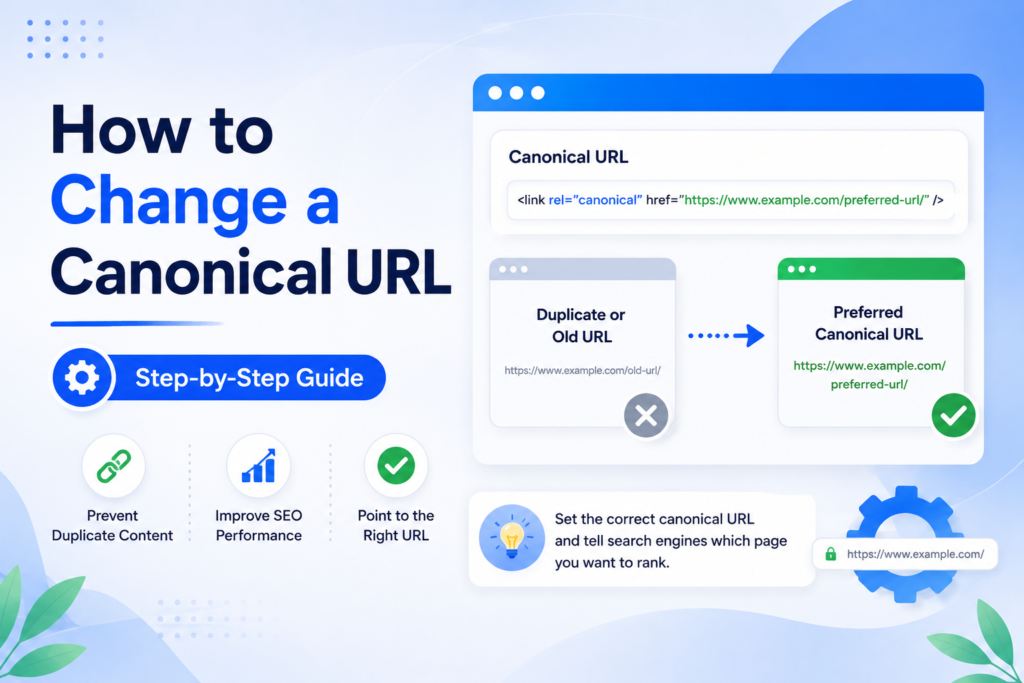
A canonical URL tells Google which version of a page is the real one, so when you have duplicates or the wrong page is ranking, you need to change it. You change a canonical URL by editing the <link rel="canonical" href="..."> tag in the page head, or the setting that generates it. This guide shows how to do that in WordPress, raw HTML, Shopify, Wix, Squarespace, and through an HTTP header, then how to confirm it worked. If you have been searching how to change canonical URL settings without hurting your rankings, this Pixellize guide is the practical version, and every tool it links to is free on Pixellize.
<link rel="canonical"> in the page head, and you change it by editing that tag or the field that outputs it.A canonical tag is a single line in your page head that names the preferred version of a page. Google reads it as a strong hint about which URL to index and show in search, and which near-identical URLs to fold into it. Google explains this in its canonicalization documentation. When the tag points at the wrong address, Google can index the wrong page, split your ranking signals, or drop the page you actually care about.
Here is the thing. Most of the time you never touch it, because good platforms add a self-referencing canonical automatically. You change it when something is off. Common reasons include duplicate content across several URLs, an http version competing with https, a www address competing with non-www, trailing-slash and non-slash copies, tracking-parameter URLs like ?utm_source= that create endless variants, and syndicated or cross-posted articles that should credit the original. In each case you are telling Google, treat this other URL as the master.
Pixellize built its own tools around this exact problem, because a wrong canonical is one of the quietest ways to lose rankings. It rarely throws an error. The page just slowly stops showing up, and you find out weeks later. That is why checking after any change matters as much as the change itself.
To change a canonical URL, edit the <link rel="canonical" href="..."> tag in the page head so its href points to the URL you want indexed. On a CMS you change the canonical field instead of the raw tag, and the platform rewrites the head for you. Use the full absolute URL every time, then save and verify.
The method depends on how your site is built. The table below is the fast reference, and the sections after it walk through each one.
| Platform | Where to change the canonical |
|---|---|
| WordPress (Yoast) | Post editor, Yoast SEO box, Advanced tab, Canonical URL field |
| WordPress (Rank Math) | Post editor, Rank Math box, Advanced tab, Canonical URL field |
| Raw HTML | Edit <link rel="canonical"> inside the page <head> |
| Shopify | theme.liquid head, or a per-template canonical override |
| Wix | Page SEO settings, Advanced SEO, Additional tags or canonical field |
| Squarespace | Limited, uses code injection or built-in AMP or URL settings |
| PDF or non-HTML file | HTTP Link: rel="canonical" response header |
To change the canonical URL in WordPress, open the post or page, scroll to your SEO plugin box, open the Advanced section, and paste the full URL into the Canonical URL field. Yoast SEO and Rank Math both add this field. Save or update the post, and the plugin rewrites the canonical tag in the head.
Here are the exact steps with Yoast SEO, which powers a large share of WordPress sites. This is the method most people mean when they ask how to change canonical URL values on a WordPress site:
Step 1. Log into your WordPress dashboard and open the post, page, category, or tag you want to change.
Step 2. In the editor, open the Yoast SEO sidebar using the Yoast SEO icon at the top right, or scroll to the Yoast SEO box below the content.

Step 3. Click to expand the Advanced section.
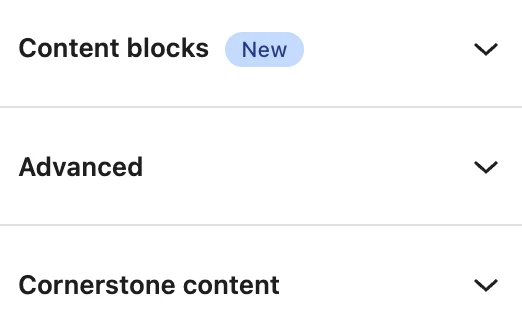
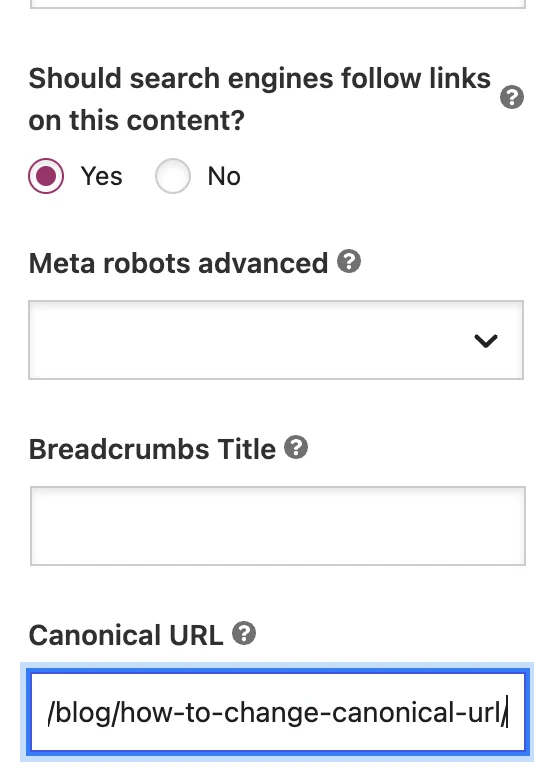
Step 4. Find the Canonical URL field and enter the full URL you want, including https and the www or non-www form your site uses, for example https://www.example.com/main-page/.
Step 5. Click Update or Publish to save. Yoast now writes that URL as the canonical tag in the page head.
One note for Yoast, if the page is set to noindex, Yoast will not output a canonical tag at all, so set the page back to index if you need the canonical to show. The field also overrides the automatic self-referencing canonical, so only fill it when you actually want a different URL. Leaving it blank is correct for most pages, because the plugin already points each page at itself. This is the single most common canonical mistake in Pixellize audits, people fill the field with the wrong URL when blank would have been fine.
Rank Math puts the canonical field in the same place, under an Advanced tab. If Rank Math is your SEO plugin instead of Yoast, follow these steps.
Step 1. Log into your WordPress dashboard, go to Posts or Pages, and click Edit on the post you want to change.
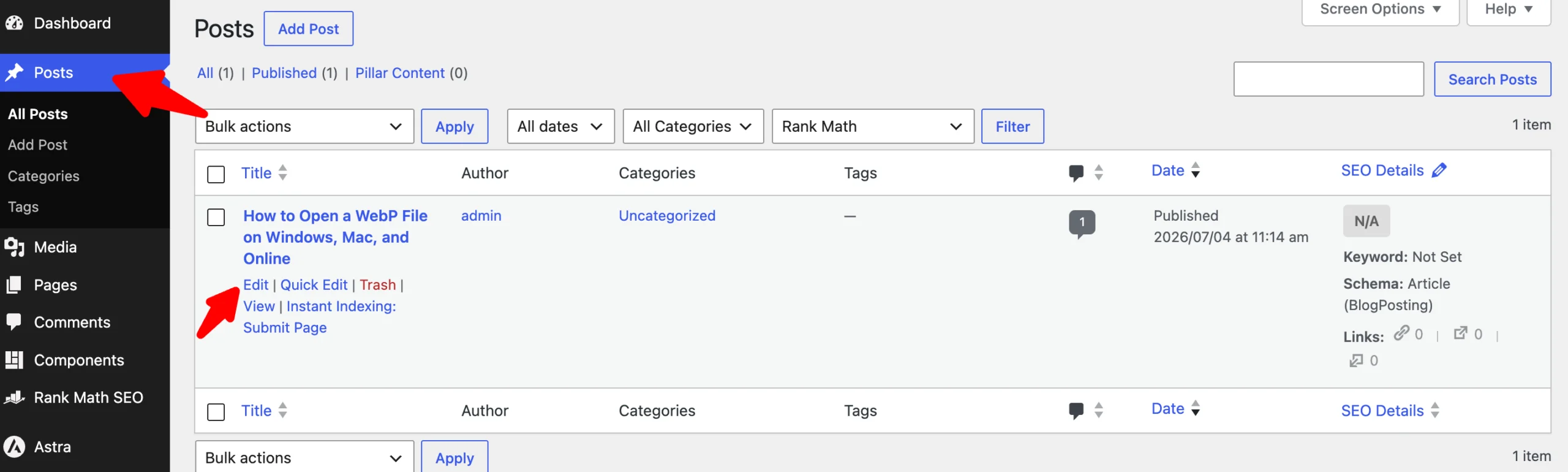
Step 2. In the editor, open the Rank Math sidebar using the Rank Math icon at the top right, or scroll to the Rank Math box below the content.
Step 3. Click the Advanced tab.
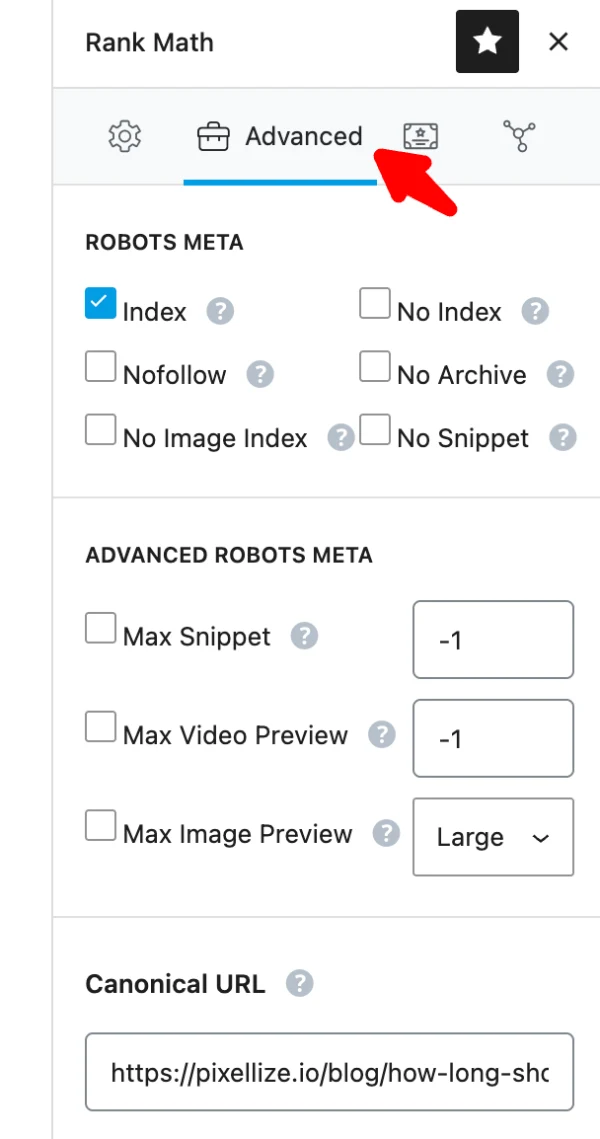
Step 4. Scroll to the Canonical URL field, then enter the full canonical URL you want, including https and the www or non-www form your site uses, for example https://www.example.com/main-page/.
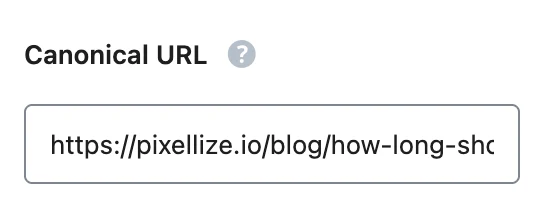
Step 5. Click Update or Publish to save the change. Rank Math writes that URL as the canonical tag in the page head.
Leave the field blank to keep Rank Math’s automatic self-referencing canonical, and only fill it when you want to point somewhere else. As with Yoast, the Robots Meta setting must stay on Index, because a No Index page will not output a canonical tag.
If you hand-code your pages or use a static site, you set the canonical directly in the head. There is only one rule that matters here: it goes inside <head>, and there should be exactly one canonical tag per page.
<head>
  <link rel="canonical" href="https://www.example.com/main-page/" />
</head>
Use an absolute URL, not a relative path like /main-page/. Google accepts relative canonicals, but they are easy to get wrong and a small base-path mistake can point the tag at a URL that does not exist. Absolute URLs remove that risk.
Hosted platforms handle canonicals differently, and some limit how much you can change.
{{ canonical_url }} in theme.liquid. To change it, edit that line in your theme code, or add conditional logic so specific templates output a different canonical. Product pages that appear under multiple collections are the usual case.Some files are not HTML, so they have no head to hold a link tag. A PDF is the classic example. For these you set the canonical in the HTTP response header instead.
Link: <https://www.example.com/guide.pdf>; rel="canonical"You add this in your server config, for example an Apache .htaccess rule or an Nginx add_header directive. It is also valid for normal HTML pages, though the link tag is simpler there. Keep in mind that if a page has both a header canonical and an HTML canonical, and they disagree, you are sending Google a mixed signal. Pick one.
Changing the tag is only half the job. You need to confirm the live page actually outputs what you intended, because caching plugins, themes, and CDNs can serve an old version or add a second tag. Think of it like saving a file, you still open it again to be sure it saved.
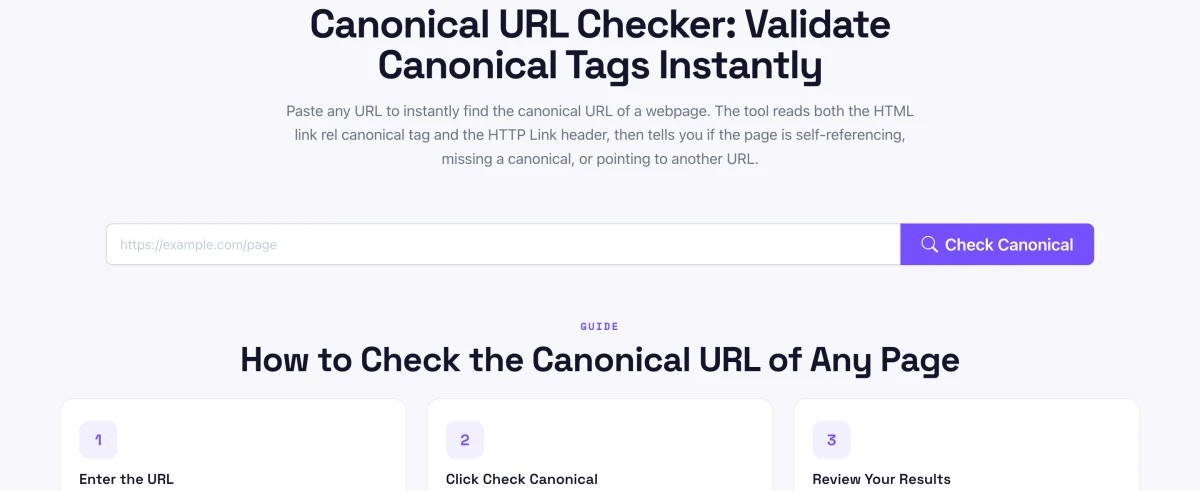
The manual way is to open the page, view source, and search for rel="canonical". The faster way is to paste the URL into the free Pixellize Canonical URL Checker, which reads both the HTML canonical tag and the HTTP Link header and tells you whether the page is self-referencing, missing a canonical, pointing elsewhere, or sending conflicting signals between the two.
Keep in mind that a canonical is a hint, not a command. Google usually respects it, but if your signals conflict, for example your sitemap, internal links, and canonical all point at different URLs, Google decides for itself. Consistency across all of those is what makes the canonical stick.
If you also want to read the current canonical of any page before you change it, the companion guide on how to find the canonical URL of any website covers view source, DevTools, and Search Console. And once your on-page tags are clean, run your title and description through the title and meta description checker and audit your head with the meta tags analyzer so the whole head section is consistent.
Changed a canonical tag? Paste the URL and check it reads correctly before Google does.
Open the Canonical URL CheckerChanging a canonical URL comes down to one idea, point every duplicate at the single page you want Google to rank, using the full absolute address. In WordPress that is the Yoast or Rank Math canonical field, in raw HTML it is the link tag in the head, and for files it is the HTTP header. Do the change, then verify it, because an unchecked canonical is the kind of small mistake that costs rankings for weeks. Now that you know how to change canonical URL settings across WordPress, HTML, and hosted platforms, the habit that protects rankings is simple, change it then verify it. Pixellize built its canonical URL checker for exactly that final step, so bookmark the Pixellize checker and run it after every migration.
Edit the rel=canonical link tag in the page head so its href points to the URL you want indexed, or change the canonical field in your CMS. Always use the full absolute URL, save the page, then verify the tag in the page source or a canonical checker.
Open the post, find the Yoast SEO or Rank Math box, click the Advanced tab, and paste the full URL into the Canonical URL field. Update the post and the plugin rewrites the canonical tag. Leave the field blank to keep the default self-referencing canonical.
A canonical URL is the version of a page you want Google to treat as the original. It is declared with a rel=canonical link tag in the head. When several URLs show similar content, the canonical tells Google which one to index and rank, consolidating signals onto that page.
No, a page should have exactly one canonical tag. If a theme and a plugin both output one, Google sees conflicting signals and usually ignores both. Check the page source after any change and remove the duplicate so only a single canonical remains.
Yes. A correct canonical consolidates ranking signals onto your preferred page and prevents duplicate content issues. A wrong one can deindex the page you care about or split its signals, so verify every change and point the canonical at a live, indexable URL.
Add a single link tag inside the head: <link rel="canonical" href="https://www.example.com/page/">. Use an absolute URL, place it in the head only, and keep just one per page. For non-HTML files like PDFs, set it with an HTTP Link rel=canonical response header instead.
Yes. The canonical must match your live address exactly, including the protocol and the www or non-www choice. A mismatch, such as an http canonical on an https page, sends a conflicting signal and can stop Google from honoring the tag.
Founder and CEO of Pixellize.io, building AI-powered web tools and digital products with a focus on user experience and automation. M.Sc. Zoology, working at the intersection of technology, data analytics, and life sciences.