
How to Convert CSV to Excel (Without Breaking Your Data)
You double-click a CSV, Excel opens it, and your order IDs like 00123 are suddenly 123. Or every date flipped from day-month…
Read articleLearn how to open a WebP file on Windows, Mac, phone, or online, and how to convert WebP to JPG or PNG in seconds.

You saved an image from a website, went to open it, and your computer just stared back at you. The file ends in .webp and nothing seems to want to read it. If you have hit this wall, you are not alone, and the good news is that learning how to open a WebP file takes about ten seconds once you know where to look.
WebP is now the default image format across much of the web, so you will run into it more and more. This guide covers every way to open a WebP file on Windows, Mac, and your phone, how to edit one, and how to convert it to JPG or PNG when an older app refuses to cooperate. If you just want the file converted right now, the Pixellize image converter handles it in your browser.
A WebP file is an image, the same as a JPG or PNG, just saved in a newer format that Google released in 2010. It uses smarter compression, so a WebP is usually 25 to 35 percent smaller than the same picture as a JPG or PNG, with no visible drop in quality. Smaller images mean faster pages, which is why so many sites now serve them.
Here is the thing that trips people up. When you right-click and save an image from a modern website, you often get a .webp file instead of the .jpg you expected. The picture is fine. The only problem is that a few older programs were written before WebP existed and do not recognize the extension yet. That is a software gap, not a broken file. Browser support is now near universal, as the MDN image format reference confirms.
To open a WebP file, double-click it and let your web browser display it, since Chrome, Edge, Firefox, and Safari have all supported WebP since 2020. To view it outside a browser, use the Photos app or Paint on Windows, or Preview on a Mac. Every one of these opens WebP with no extra download.
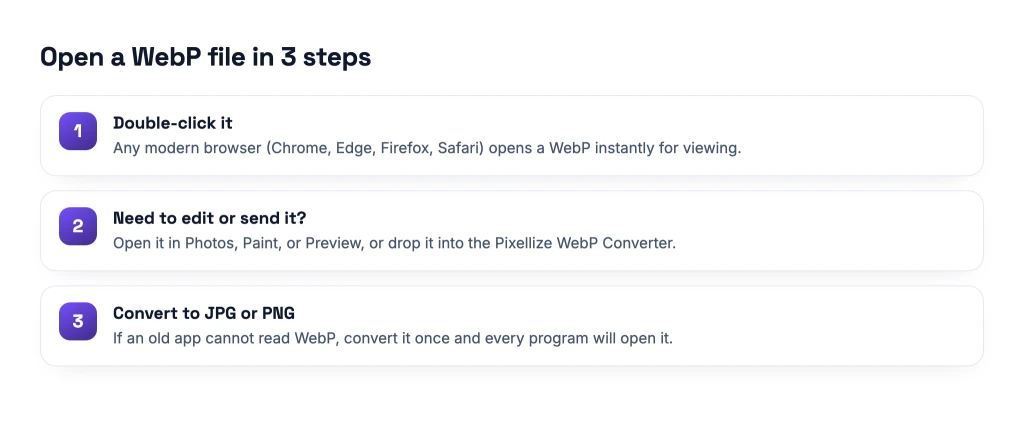
Windows 10 and Windows 11 both read WebP out of the box, so you have three easy options.
If you are on an older Windows 8 or 7 machine that will not open the file, skip to the convert section below. Pixellize can turn it into a format your system already understands.
On any Mac running macOS Monterey or newer, Preview opens WebP files natively. Double-click the file and it appears in Preview, or right-click, choose Open With, then Preview. From there you can use File then Export to save it as JPG, PNG, or another format your other apps prefer. Older macOS versions may need a quick conversion first.
Phones are the easy case. On Android, the Google Photos app and Chrome both open WebP files without any setup, and most gallery apps show them as normal pictures. On iPhone, Safari and the Photos app display WebP fine on iOS 14 and later. If you need to share a WebP with someone on an older device, convert it to JPG first so it opens everywhere.
Viewing is one thing, editing is another. If you want to crop, retouch, or export a WebP, these apps handle it directly:
Keep in mind that installing heavy software just to open one file is overkill. If you only need the image in a common format, a quick conversion is faster than a download and install.
When an app flat out refuses to read WebP, the cleanest fix is to convert the file once. After that, every program on your machine will open it. The Pixellize image converter does exactly this: drop in your WebP, pick JPG or PNG, and download the result. You can also jump straight to a WebP to JPG converter or a WebP to PNG converter if you already know the format you want.
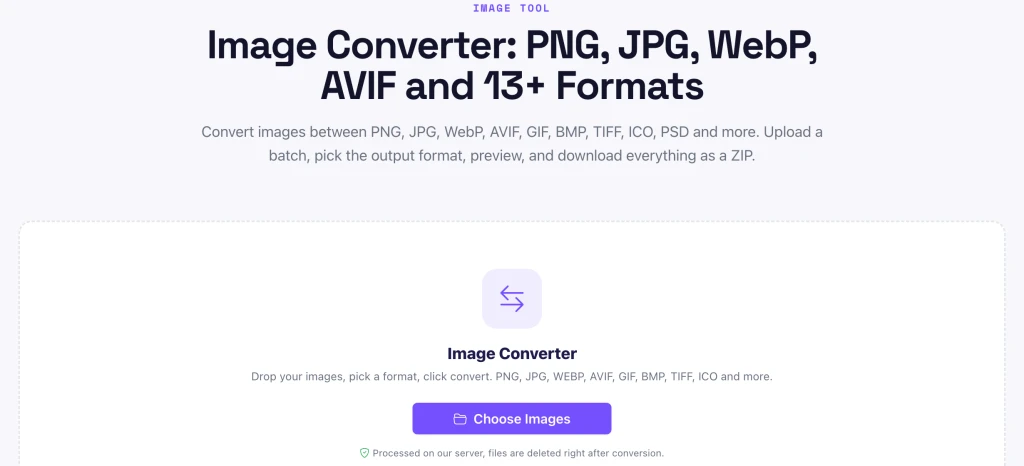
Converting also solves the reverse problem. If you want the space savings WebP gives you but a tool only accepts JPG, you now know both directions are one click apart. For a deeper look at when each format wins, see our guide on the best image format for the web.
A WebP file will not open when the program you are using predates 2020 and never added WebP support, which is common with old photo viewers and early Office versions. The file itself is fine. Open it in a current browser to confirm it displays, then convert it to JPG or PNG so any older app can read it too.
Two other quick checks help. Make sure the extension really is .webp and not a renamed file, and update the app you are trying to use, since many added WebP support in a later patch. If you deal with tricky formats often, our guide on how to convert HEIC to JPG covers the same idea for iPhone photos.
| Platform | How to open | Convert built in? |
|---|---|---|
| Windows 10 or 11 | Browser, Photos, Paint | Yes, Paint Save as |
| Mac (Monterey and newer) | Preview | Yes, Preview Export |
| Android | Google Photos, Chrome | No, use an online converter |
| iPhone (iOS 14 and newer) | Safari, Photos | No, use an online converter |
| Any device | Pixellize image converter | Yes, JPG or PNG |
Convert it to JPG or PNG in seconds, free and online.
Open the Image ConverterLearning how to open a WebP file comes down to one idea: it is a normal image that most modern software already reads. Double-click it in a browser, use Photos or Preview to view and edit, and reach for GIMP or IrfanView when you want full control. On the rare day an old program refuses, convert the WebP to JPG or PNG with Pixellize and move on. Pixellize keeps a full set of free image tools, so whatever format lands in your downloads folder next, you have a quick way to open it.
WebP is not going away, and honestly that is a good thing. Smaller files make the whole web faster. Once you know these methods, that .webp extension stops being a roadblock and goes back to being just another picture. Try the Pixellize image converter the next time one shows up.
Double-click the WebP file and it opens in your web browser, since Chrome, Edge, Firefox, and Safari all support WebP. To view it outside a browser, use Photos or Paint on Windows, or Preview on a Mac. None of these need an extra download.
Web browsers, the Windows Photos app, Windows Paint, and Mac Preview all open WebP files with no setup. For editing, GIMP and IrfanView open them for free, and Photoshop reads WebP in its 2022 release and later.
Upload the WebP to a free converter like the Pixellize image converter, choose JPG as the output, and download the result. The conversion takes a few seconds and the JPG will open in any program, including older software that cannot read WebP.
Images save as WebP because the website serves them in that format to load faster. WebP files are about 25 to 35 percent smaller than JPG or PNG. When you save the image, you get the same WebP file the site used.
Yes. Windows 10 and Windows 11 open WebP files by default in the Photos app, in Paint, and in any browser. Only much older versions like Windows 7 lack built-in support, in which case you convert the file to JPG or PNG first.
Photoshop opens WebP natively starting with the 2022 release. On earlier versions you need to add a free WebP plugin to the plugins folder, after which Photoshop can open and export WebP like any other image format.
Founder and CEO of Pixellize.io, building AI-powered web tools and digital products with a focus on user experience and automation. M.Sc. Zoology, working at the intersection of technology, data analytics, and life sciences.