
JSON Formatter in Your Browser
A free JSON formatter, viewer, and validator. Paste your JSON or upload a file to beautify it with clean indentation, minify it for production, validate it with line-numbered errors, or explore it as a collapsible tree. Everything runs in your browser, nothing uploaded.
How to format your JSON
Paste your JSON
Drop JSON into the input area. You can also click "Load .json file" in the sidebar to open a local file from your computer.
Pick an action
Beautify gives readable, indented output (pick 2 spaces, 4 spaces, or Tab). Minify strips all whitespace for the smallest possible string. Tree view shows the structure as a collapsible outline.
See the result instantly
Switch to the Output tab. The formatted result updates automatically when you change Action (Beautify, Minify, Tree) or Indent size. Invalid JSON gets a red error message with the line number.
Copy or download
Use Copy to grab the result, or Save to download it as a .json file. The file lands directly in your downloads folder.
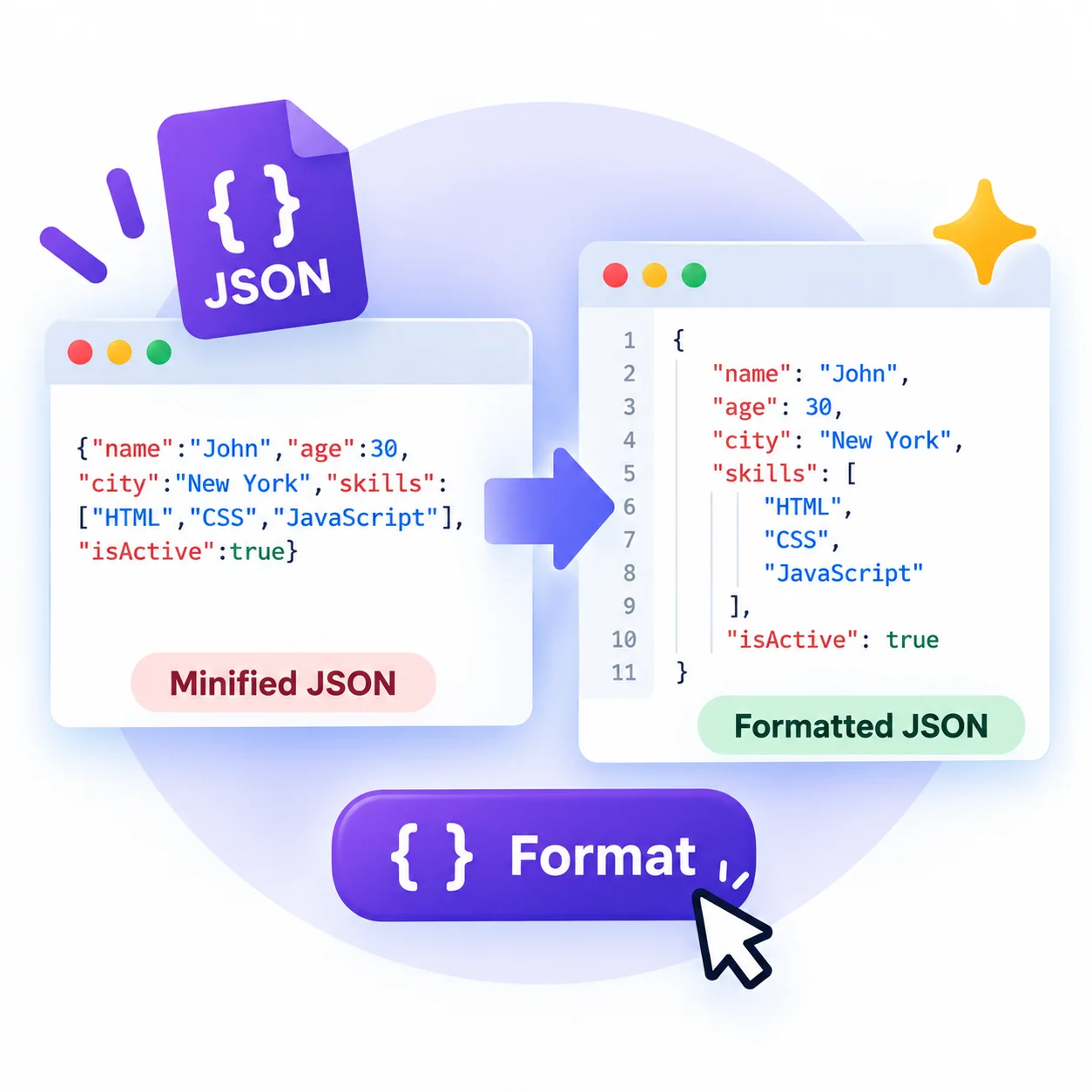
Format, Validate and View JSON Online
This JSON formatter cleans up messy or minified JSON so it is easy to read, debug, and share. Paste your data or upload a .json file and it formats instantly, with valid or invalid flagged as you type. It is a formatter, validator, and tree viewer in one, and everything runs in your browser, so even sensitive JSON like API responses never leaves your device.
Beautify, minify, validate, and tree view
Beautify adds indentation and line breaks (2 spaces, 4 spaces, or tabs) so nested data is readable. Minify strips every space and newline into one compact line for smaller API payloads. Tree view turns the JSON into a collapsible outline so you can expand and explore deep objects and arrays. All three read from the same input, so switching is instant.
Validate JSON and fix errors fast
As you type, the tool parses your JSON and shows Valid or Invalid. When it is invalid, it points to the problem, usually a trailing comma, a missing quote, or a stray bracket, with the line number so you can jump straight to it. A JSON validator like this saves the guesswork of hunting a single misplaced character in a wall of data.
Format vs minify: which to use
Use beautify while you are reading or debugging, when you want the structure obvious. Use minify before shipping, when you want the smallest possible file to send over the network. The logic and values are identical either way, only the whitespace changes, so minified JSON parses exactly the same.
Convert JSON to other formats
Need the data somewhere else? Once it is valid here, convert it with the matching Pixellize tool: JSON to CSV for spreadsheets and analytics, JSON to Excel for .xlsx workbooks, or YAML to JSON and back for config files. Each runs in the browser the same way, with nothing uploaded.
What This JSON Formatter Does
Beautify With Your Indent
Format cluttered JSON with clean indentation, 2 spaces, 4 spaces, or tabs, so nested objects and arrays are easy to read.
Minify for Production
Strip all whitespace into one compact line for the smallest possible API payload, without changing a single value.
Live Validation
See Valid or Invalid as you type, with the exact line number of any error so you can fix a stray comma or bracket fast.
Collapsible Tree View
Explore large JSON as an expandable tree, with keys, item counts, and value types, so deep structures are easy to navigate.
Syntax Highlighting
Keys, strings, numbers, booleans, and null are color-coded on both sides, and line numbers make output easy to scan.
Private and Free
Everything runs in your browser. Your JSON is never uploaded, with no sign-up and no limit.
Similar Tools
More Developer tools you might find useful.
Frequently Asked Questions
Quick answers about JSON validation, privacy, and how this tool works.
How do I format JSON online?
Paste your JSON or upload a .json file and it formats instantly. Pick Beautify for readable indentation, Minify for a compact line, or Tree for a collapsible view, then copy or download the result. It is free and runs in your browser.
What is a JSON formatter?
A JSON formatter beautifies raw or minified JSON into a clean, indented, readable layout. This one also validates the JSON, shows it as a collapsible tree, and minifies it, so it works as a formatter, viewer, and validator in one.
What is the difference between beautify and minify?
Beautify adds indentation and line breaks so JSON is easy to read. Minify removes all whitespace to make the smallest file for production. The data is identical either way, only the spacing changes.
Why does my JSON show an error when it looks fine?
JSON is strict. Common causes are a trailing comma after the last item, single quotes instead of double quotes, unquoted keys, or a missing bracket. The validator shows the line number so you can find it quickly.
Does the tree view show data types?
Yes. Tree view renders each value in its type color, strings, numbers, booleans, and null, and shows key and item counts, so you can scan and collapse deep structures at a glance.
Can I convert JSON to CSV or Excel?
Yes, with the matching Pixellize tools. Validate your JSON here, then use JSON to CSV, JSON to Excel, or YAML to JSON. Each runs in your browser with nothing uploaded.
Is my JSON uploaded anywhere?
No. All formatting, validation, and tree building happen locally in your browser tab, so you can safely paste sensitive JSON like API responses. Nothing is sent to a server.
Is this JSON formatter free?
Yes, completely free with no sign-up and no limits. Format, validate, and view as much JSON as you like.