
Website Color Palette Extractor
A free website color palette extractor. Paste any website URL and the tool reads every CSS file on the page, extracts every hex, rgb, hsl, and named color, and ranks them by how often each appears. Adjust the count from 4 to 32 colors, sort by frequency, hue, or lightness, and copy as HEX, CSS variables, Tailwind config, or JSON. Or download the palette as a PNG card.
How to use the Website Color Palette Extractor
Paste any website URL
Drop the full URL of any public website into the input box and click Extract Palette. The tool fetches the page server-side, no browser CORS hassles, no screenshot needed.
Adjust the number of colors and sort order
The default shows 12 colors sorted by how often each appears in the page CSS. Drag the slider to anywhere between 4 and 32. Switch the sort to Hue or Lightness to see the palette organized differently.
Copy or download the palette
Click any swatch to copy its HEX. Use the sidebar buttons to copy the full palette as CSS variables, Tailwind config, or JSON. Or download the whole thing as a palette card PNG to share or pin to your moodboard.
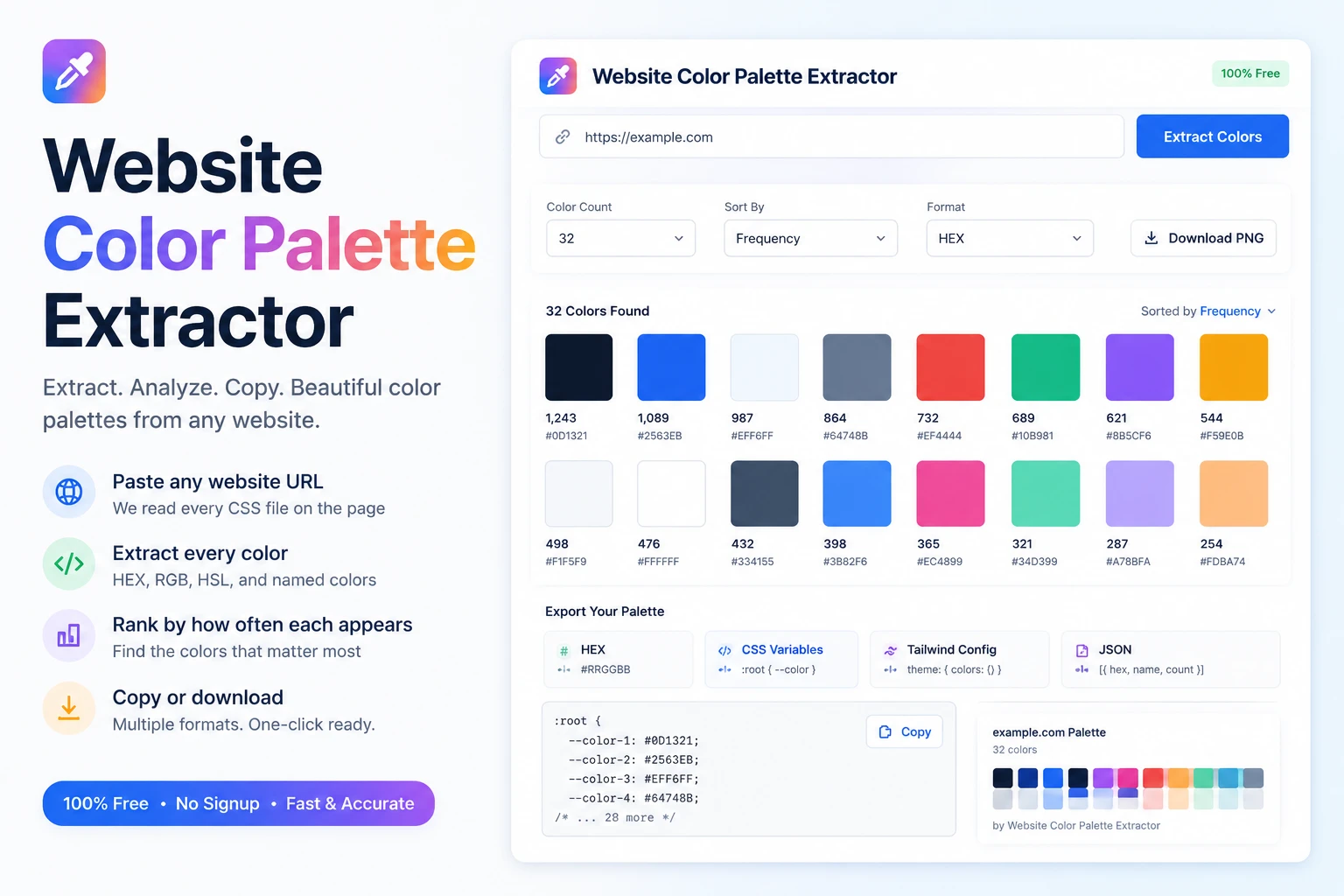
How the website color palette extractor reads any website CSS
Designers and developers extract color palettes from websites for a dozen reasons: matching a client brand when no style guide exists, learning from a competitor design, building a moodboard, or generating CSS variables for a new project. The manual route is opening DevTools, hovering over elements, copying hex values one by one, and rebuilding a palette in Figma. Twenty minutes later you have eight colors and you are still not sure they are the actual dominant ones.
This Website Color Palette Extractor takes any URL you paste, fetches the page server-side, reads every inline style block plus up to five linked CSS files, and pulls every color declaration (hex shorthand, hex full, rgb, rgba, hsl, hsla, and named CSS colors). Each color is normalized to a 6-digit hex and counted by occurrence. The most frequent colors are the dominant brand and UI colors. You can adjust how many to show (4 to 32), sort by frequency, hue, or lightness, and export as CSS variables, Tailwind config, JSON, or a downloadable palette PNG.
Why this Website Color Palette Extractor works better
Works on any image, including website screenshots
Drop a PNG, JPG, or WebP of any website screenshot, design mockup, photo, or graphic. The tool extracts colors the same way for all of them. For best results on a website palette, use a full-page screenshot at native resolution.
Adjustable color count from 4 to 16
Drag the slider to set how many dominant colors you want. The median-cut algorithm reruns instantly. Small palettes (4-6 colors) are good for brand identity work, larger ones (10-16) for detailed UI audits.
HEX, RGB, and HSL on every swatch
Each color shows in all three standard formats. Click any swatch to copy its HEX directly to clipboard. The pixel percentage badge in the corner shows how dominant each color is in the source image.
Sort by dominance, hue, or lightness
Default sort is by dominance (most pixels first). Switch to hue to organize the palette as a color wheel, or lightness to group light and dark colors. Useful for different design workflows.
Copy as CSS variables, Tailwind, or JSON
One-click copy buttons for CSS custom properties (:root variables), Tailwind config theme.extend.colors, and plain JSON. Drop the output straight into your project without manual reformatting.
No upload, no signup, no watermark
Everything runs in your browser using the HTML5 Canvas API. The screenshot never leaves your device. No account, no daily limit, no watermark on the downloaded palette card.
Similar Tools
More Image tools you might find useful.
Website Color Palette Extractor FAQ
How does the website color palette extractor work?
You drop in a screenshot of any website (or any image). The tool draws the image to a hidden canvas, samples up to 40,000 representative pixels, and runs median-cut color quantization (the same algorithm Color Thief and Adobe Express use) to find the dominant colors. The result is a sorted palette of HEX, RGB, and HSL values you can copy or download.
Why do I need to upload a screenshot instead of pasting a URL?
Browsers block cross-origin fetches of arbitrary websites for security reasons (the same-origin policy). A pure browser tool cannot reliably load and screenshot another site without server-side help, which would mean uploading your URL to a server. Going the screenshot route keeps the tool 100 percent in-browser and avoids that. Most modern browsers have a built-in full-page screenshot feature: in Chrome, open DevTools (F12), press Cmd/Ctrl+Shift+P, type "screenshot," choose "Capture full size screenshot."
What is median-cut quantization?
Median-cut is a color quantization algorithm that recursively splits the color space into smaller and smaller buckets by the channel (red, green, or blue) with the widest range, then averages the pixels in each bucket. It is faster than k-means clustering and produces nearly identical results for palette extraction. The same algorithm powers Color Thief, Adobe Express, and most popular palette extractors on the web.
Can I export the palette as CSS or Tailwind?
Yes. The sidebar has three one-click export buttons: Copy CSS variables (outputs :root --color-1 through --color-N), Copy JSON (an array of objects with hex/rgb/hsl per color), and Copy Tailwind config (a snippet ready to drop into tailwind.config.js under theme.extend.colors). All copy to clipboard immediately.
How many colors can I extract?
Between 4 and 16. Drag the slider in the sidebar to set the count. Smaller palettes (4-6) are typical for brand identity work or focused color matching. Larger palettes (10-16) work better for detailed UI audits where you want to see secondary accent colors and neutral grays separately.
Is the website color palette extractor accurate for design work?
Yes for dominant colors. Median-cut surfaces the colors that occupy the most pixels in your screenshot, so you get the actual visual weight, not the colors you remember. Where it is less reliable: very small accent colors that appear in only a few pixels can be smoothed into nearby clusters. For exact spot-color picking, use a hover-style picker instead. For palette-level work, this is the right tool.
Is my screenshot uploaded to any server?
No. The Website Color Palette Extractor runs entirely in your browser using the HTML5 Canvas API. Your screenshot is read locally, processed locally, and the palette is generated locally. Nothing is sent to a Pixellize server, no account is required, and the tool works on the WiFi-disconnected airplane mode.