
PDF to JPG Converter Online Free
Convert a PDF to JPG, PNG, or WebP image in seconds. Pick the pages, set the resolution, then download each one or grab them all in a single ZIP. Runs in your browser, nothing uploaded.
How to Convert a PDF to Image
Upload Your PDF
Drag and drop or choose any PDF file from your device.
Pick Format & Resolution
Pick output format (JPG, PNG, WebP) and resolution from 1x to 4x.
Download Pages
Tick the pages to convert and download as ZIP or one by one.
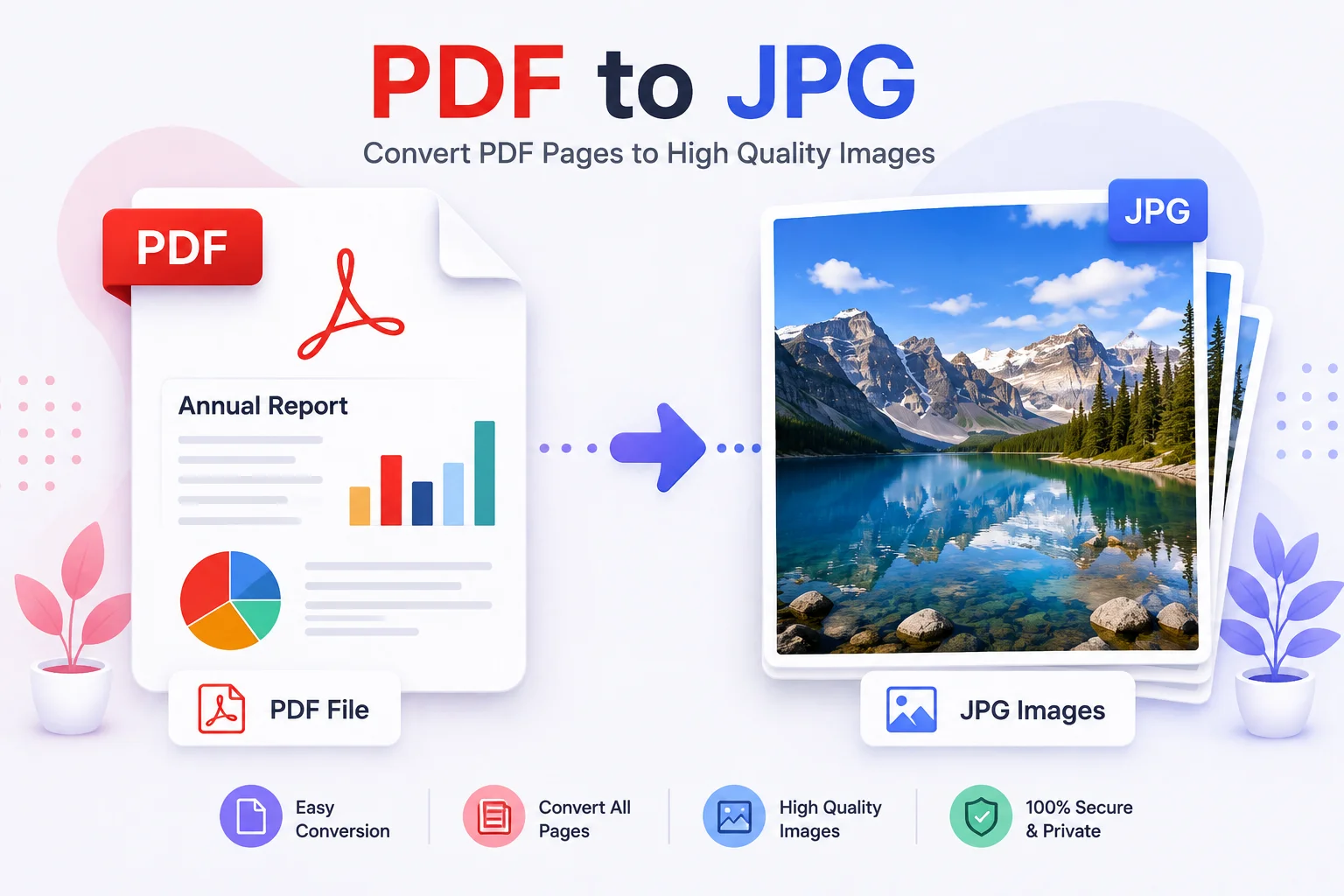
Convert a PDF to JPG, PNG, or WebP
Converting a PDF to JPG is the quickest way to drop a page into a slide deck, a website, a WhatsApp chat, or anywhere that wants an image instead of a document. This tool turns each PDF page into a sharp JPG, right in your browser, rendered at the resolution you choose, from 1x for web to 4x for print quality.
You decide which pages to convert and how sharp they should be, then download each image on its own or grab them all in one ZIP. JPG keeps the file small and is perfect for photos and sharing. Pick PNG when you want a lossless copy or transparency, and WebP for the smallest size at good quality, so a PDF to PNG or PDF to image job is covered by the same tool.
Everything runs on your device, so your PDF is never uploaded, which makes it safe for invoices, contracts, and private files. No signup, no watermark, no page limit. Going the other way? Turn images back into a document with Images to PDF, pull the data out with PDF to Excel, or shrink a large file first using Compress PDF. Browse all the PDF tools.
Why Use This PDF to Image Converter
Pick the Pages You Want
Every page shows as a thumbnail with a checkbox. Convert the whole PDF or just the pages you need, with one-click Select all, None, and Invert.
JPG, PNG, or WebP
Choose JPG for the smallest files, PNG for sharp text and transparency, or WebP for the best quality at a small size.
Up to 4x Resolution
Render at 1x for quick web previews or up to 4x for print-quality output. A Letter page becomes about 2448 by 3168 pixels at 4x.
Per-Page or Bulk ZIP
Download any single page from its card, or bundle every rendered page into one ZIP named after your source PDF.
Live Page Preview
See a thumbnail of every page before you convert, so you pick real pages instead of guessing at page numbers.
Private, Nothing Uploaded
Your PDF is read and rendered on your device. No file is uploaded, logged, or stored, so private scans and contracts stay with you.
Similar Tools
More PDF tools you might find useful.
Frequently Asked Questions
Common questions about converting PDFs to images.
How do I convert a PDF to JPG?
Upload your PDF, choose JPG as the format, pick the pages and the resolution, then download. Each page becomes a separate JPG image, or you can grab them all in one ZIP. It all happens in your browser, so nothing is uploaded.
Can I convert only some pages?
Yes. Every page shows as a checkbox thumbnail. Deselect the pages you do not need, or use Select all, None, and Invert. Only the selected pages are rendered and downloaded.
Which format should I pick, JPG, PNG, or WebP?
JPG is best for everyday text and photo PDFs: small files with universal support. PNG keeps text pixel-sharp and supports transparency. WebP gives the same quality as JPG at a noticeably smaller size for modern websites.
What does the resolution multiplier do?
It scales every page before rendering. 2x doubles the width and height (four times the pixels), 3x triples them, and so on. Use 2x for screens, and 3x or 4x for printing or zoom-friendly copies, which are larger and slower.
Is there a page or file-size limit?
There is no limit set by us; you are bounded by your device memory. A modern laptop converts a 50-page PDF at 2x easily. Very large PDFs at 4x use more memory, so drop the resolution or convert fewer pages at a time.
Is my PDF private and is the tool free?
Yes to both. The tool is completely free with no signup, and your PDF is processed entirely in your browser. Nothing is uploaded, logged, or stored, so your file never leaves your device.