
ZIP Extractor Online: Open and Extract ZIP Files Free
How a ZIP extractor online opens archives in your browser, shows every file inside, and lets you download one file or all…
Read articleBundling files into a ZIP keeps a set together and shrinks anything text-based. You can create a ZIP file online in three clicks from your browser, no software, no signup, and nothing uploaded, on Windows, Mac, or phone.

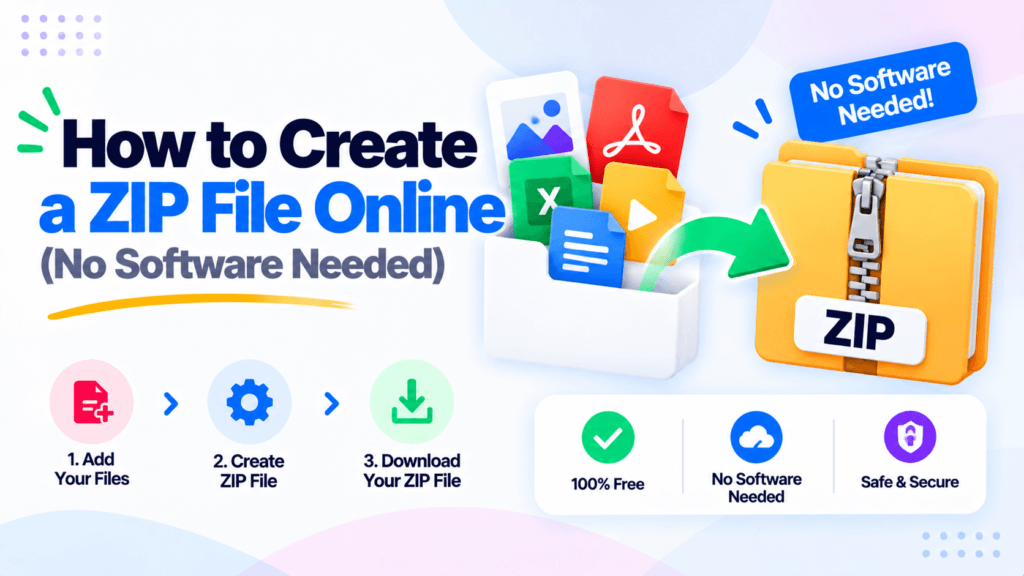
Fifteen loose files in one email never ends well. Half get stripped by the spam filter, the rest land out of order, and someone always replies asking for the one that went missing. Bundling them into a single ZIP fixes all of that, and you do not need WinRAR, 7-Zip, or any install to do it. This guide shows how to create a ZIP file online in a few clicks, straight from your browser, using the free Create ZIP File tool from Pixellize. It works on Windows, Mac, and your phone, and nothing you add ever leaves your device.
A ZIP file is a single container that holds one or more files, usually smaller than the originals because the format compresses them on the way in. Think of it like a vacuum bag for data. You stuff several files in, the air gets squeezed out, and what comes out is one tidy package that is quicker to send and easier to keep together.
You create one when more than a couple of files are going to the same place. A job application with a resume, a cover letter, and two work samples. A design handoff with fonts, logos, and a brief. A month of invoices headed to your accountant. One ZIP keeps the set intact and saves the recipient from downloading each piece one at a time. On the other end, they just unzip it in a click.
The fastest route is a browser tool, no download required. With the Pixellize Create ZIP File tool you do it in three steps:
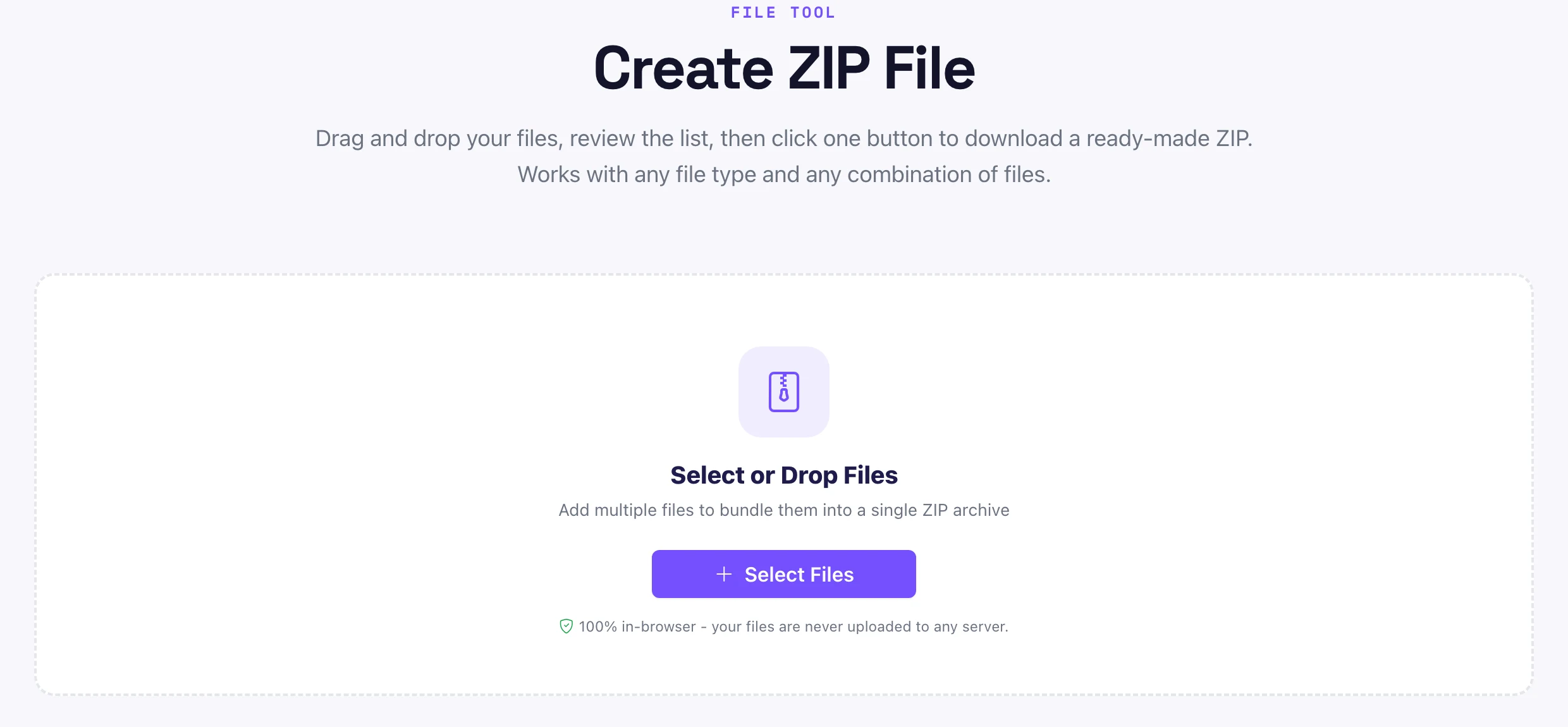
Open the tool and drag your files onto the drop zone, or click Select Files to pick them. Anything on your device works, in any combination.
Check the file list and its running total. Remove anything you added by mistake with the X, or hit Add More to pull in extra files.
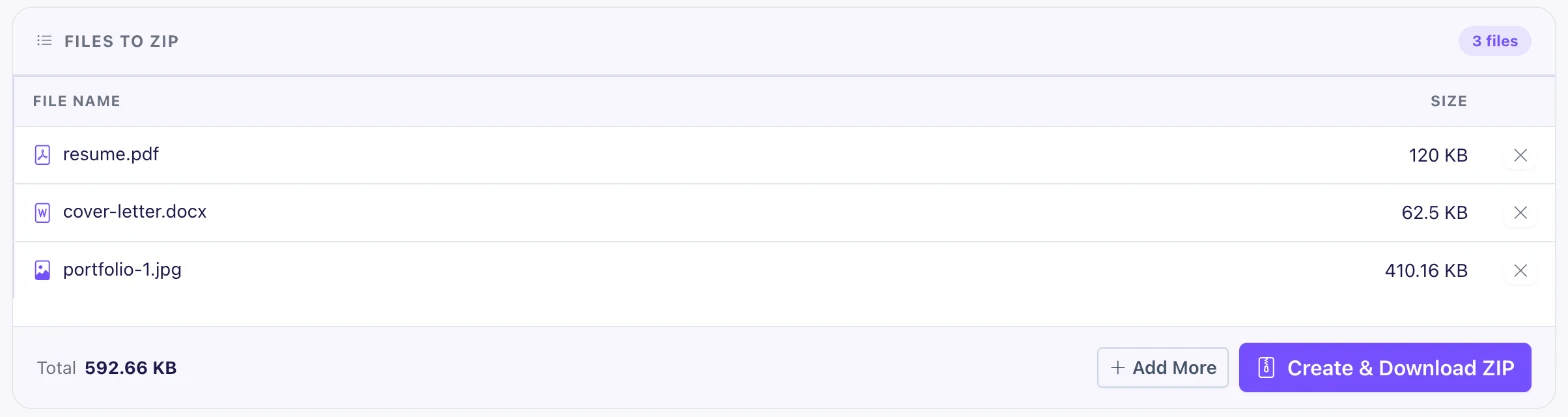
Click Create and Download ZIP. The archive builds in your browser and saves straight to your downloads folder, with nothing uploaded.
That is the whole process. No account, no email wall, and no five-minute upload bar, because the file never goes to a server in the first place (more on that below). A ten-file batch went from drop to download in under two seconds when I ran it.
Zipping saves the most on text and code and almost nothing on media. In our tests a 1.1 MB CSS file dropped by 85 percent, a CSV dataset by 78 percent, and a plain text report by 63 percent. A photo that was already a WebP shrank by just 1 percent.
Here is the thing most guides skip. ZIP works by finding repeated patterns, and text is full of them. Photos, videos, MP3s, and anything ending in .webp, .jpg, or .mp4 are already compressed, so zipping squeezes out close to nothing and can even add a few bytes of overhead. If your batch is mostly images, zip it for tidiness and one-click sharing, not to shrink it.
To put real numbers on it, the same four files weighed 1.54 MB loose and 301 KB zipped, about a 5-to-1 reduction driven almost entirely by the code and data, not the photo.
Since the format can only compress what is not already compressed, the real size wins happen before you zip, not during. A few habits that actually move the number:
Sometimes you want the whole folder, structure and all, not a flat pile of files. Most browsers let you drag an entire folder onto the Pixellize Create ZIP File drop zone, and it keeps the subfolders in place inside the archive. On a desktop, grab the folder from your file manager and drop it in. On Chrome and Edge you can also use Select Files and choose a folder when the picker allows it.
If your browser flattens the folder, there is a reliable fallback. Zip the folder natively first with your operating system’s right-click Compress option (see the Windows, Mac, and phone section below), or select all the files inside and let the tool bundle them. The recipient still gets one file either way.
Good online ZIP tools do not upload anything. Pixellize builds the archive entirely in your browser with local code, so your files are read from disk, compressed on your own machine, and handed back as a download. Nothing touches a server, which means no upload wait and no copy of your data sitting in someone else’s cloud.
That matters more than it sounds. The moment a file leaves your device, you are trusting a stranger’s retention policy. A browser-based tool sidesteps the question. You can even disconnect from the internet, run the tool offline, and it still works, which is the clearest proof the files never leave your machine.
You do not always need a tool. Every modern operating system can make a basic ZIP on its own, and the native route is handy when you are offline or on a locked-down work machine.
| Device | How to zip | Notes |
|---|---|---|
| Windows 10/11 | Select files, right-click, Compress to ZIP file | No password option, basic compression |
| Mac | Select files, right-click, Compress | Creates Archive.zip, rename after |
| iPhone / iPad | Files app, select, tap the three dots, Compress | Saves to the same folder |
| Android | Files by Google, select, tap menu, Zip | Wording varies by phone maker |
| Any browser | Pixellize Create ZIP File tool | Same steps everywhere, no install |
The native options are fine for a quick job. Where they fall short is consistency. The right-click wording differs across Windows builds, older Macs bury the option, and some work laptops disable it. A browser tool behaves the same on every machine, which is why Pixellize is my default when I am helping someone over a screen share.
Email is still where most ZIPs end up, and attachment limits are the reason. Gmail caps attachments at 25 MB, Outlook at 20 MB, and most corporate servers land somewhere between 10 and 25 MB. Zip a folder of documents and you often slip under the line without reaching for a file-sharing link.
Two cautions. A ZIP full of photos will not drop under the limit, because images barely compress, so for a heavy photo set a shared link beats an attachment. And some company mail filters block .zip attachments outright as a security measure. If a ZIP you sent with the Pixellize tool bounces, that is usually why, and a shared download link is the workaround.
The first one caught me out early on. I zipped a folder of RAW photos to email a client, watched the size barely move, and only then understood that the format had nothing left to squeeze.
Creating a ZIP comes down to one habit: whenever more than two files are going to the same place, bundle them first. It keeps the set together, trims the size of anything text-based, and spares the recipient a pile of separate downloads. When you want to create a ZIP file online without installing a thing, the Pixellize Create ZIP File tool does it in three clicks, in your browser, with nothing uploaded. Drop your files in and grab the archive.
Yes. The Pixellize Create ZIP File tool is free with no signup and no limit on how many archives you make. It runs in your browser, so there is no software to install and no account to create.
Use a browser tool. Open the Create ZIP File tool, drag your files in, and click Create and Download ZIP. The archive is built in the browser itself, so WinRAR, 7-Zip, and any desktop install are unnecessary.
No, not with a browser-based tool. Pixellize reads and compresses your files on your own device and hands back the ZIP as a download. The files never leave your machine, so there is no upload and no copy stored anywhere.
It depends on the file type. In our tests, code and text shrank by 60 to 85 percent, while photos and videos that were already compressed shrank by about 1 percent. Zip media for tidy bundling rather than for size.
Yes. Most browsers let you drag an entire folder onto the drop zone, and the tool keeps the subfolder structure inside the ZIP. If your browser flattens it, zip the folder natively first or select the files inside.
A standard ZIP is not encrypted, and plain browser tools create unprotected archives. For a password, use a dedicated desktop app such as 7-Zip, or send the file through a secure, access-controlled link instead.
Founder and CEO of Pixellize.io, building AI-powered web tools and digital products with a focus on user experience and automation. M.Sc. Zoology, working at the intersection of technology, data analytics, and life sciences.