
How to Create a ZIP File Online (No Software Needed)
Create a ZIP file online free in your browser, no software or signup. Bundle multiple files or a folder on Windows, Mac,…
Read articleUse a free ZIP extractor online to open and extract ZIP files in your browser, see every file inside, and download one or all, with no software and nothing uploaded.

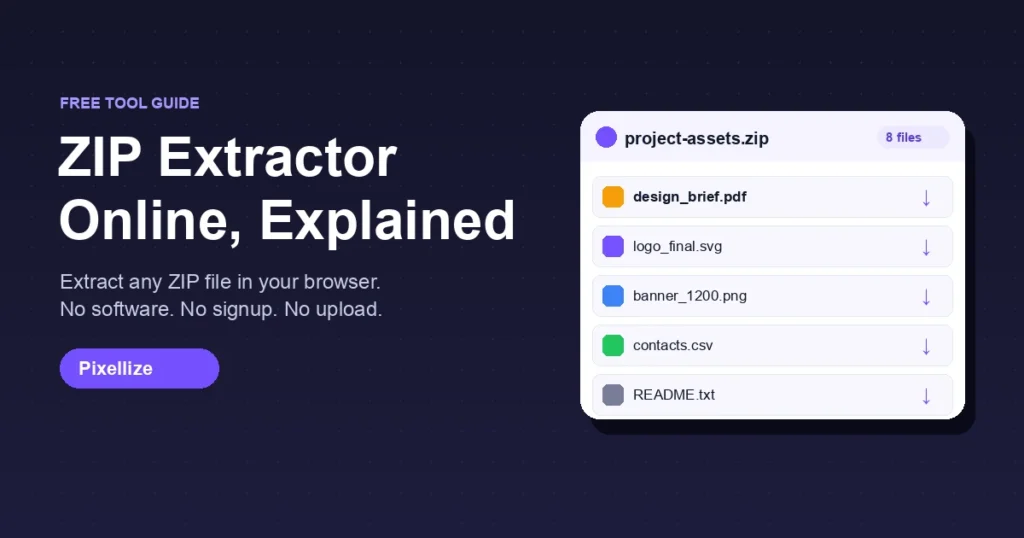
A ZIP file is sitting in your downloads. You need one document out of it, right now, on a laptop that won’t let you install anything. A ZIP extractor online solves this in under a minute. Drop the archive into a browser tab, see every file inside with its name and size, and pull out exactly what you need, without software, without uploading the archive to a server, and without making an account. The Pixellize ZIP extractor is one of the fastest ways to do this, and this guide explains how it works and what to watch for.
Here’s the thing people don’t expect: a good online ZIP extractor reads the archive in your own browser, which makes it faster on large files than server-based tools that have to wait for an upload to finish.
A ZIP extractor online is a browser-based tool that opens a compressed ZIP archive and lists the files inside, letting you download individual entries or all of them at once. It does the job 7-Zip or WinRAR would do on your desktop, but with no installation required and no file leaving your computer in the private-mode versions.
ZIP files work by compressing one or more files into a single container. The ZIP format, standardized in 1989 according to Wikipedia’s archive of the PKZIP specification, stores both the original file data and a directory of all entries at the end, so an extractor can read that directory without decompressing everything first. That’s why you can see a file list instantly even before downloading any content.
To open a ZIP file online, drop the archive into a ZIP extractor online in your browser and it lists every file inside with its name and size. To extract a ZIP file online, click one entry to download it on its own, or grab the whole archive at once. There is no software to install and nothing is uploaded.
That makes it the fastest way to open ZIP files online on a locked-down work machine. For a walkthrough focused purely on opening archives, see our guide on how to open a ZIP file online.
Both approaches work, but they suit different situations. Here’s how they compare across the things that actually matter.
| Feature | Online ZIP extractor (Pixellize) | Desktop app (7-Zip, WinRAR) |
|---|---|---|
| Installation | None | Required (admin rights often needed) |
| Works on locked-down PC | Yes, any browser | Often blocked by IT policy |
| File stays on device | Yes (browser File API) | Yes |
| Formats supported | ZIP (standard) | ZIP, RAR, 7Z, TAR, and 70+ more |
| Password-protected ZIPs | Not supported (Pixellize) | Supported |
| Large archive (over 1 GB) | Depends on device RAM | Handles well via streaming |
| Works on phone/tablet | Yes, same browser | Needs a mobile app |
Keep in mind: if you work with RAR, 7Z, or encrypted archives regularly, a desktop app is the right tool. For standard ZIP files on any device, the online route is faster because there’s no install step.
Opening a ZIP archive online with Pixellize takes three steps and about 30 seconds for a typical file.
ZIP compression shrinks files so they transfer faster and take up less storage space. Typical compression ratios for text files run around 60-70%, meaning a 10 MB collection of documents often becomes a 3-4 MB ZIP. The actual savings depend on file type: already-compressed formats like JPG, MP3, and MP4 shrink by almost nothing because they’re already compact.
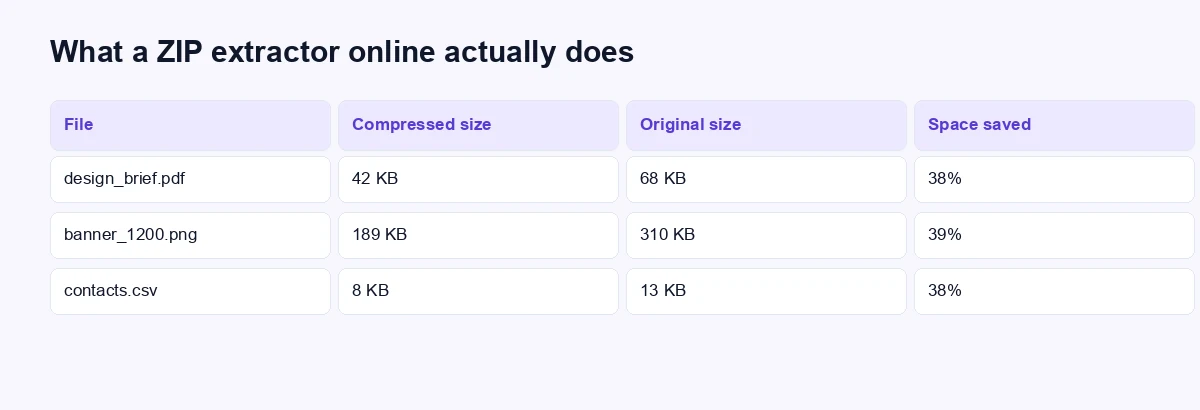
This is also why you can see the “original” size column in Pixellize before downloading. A 400 KB PDF compressed to 240 KB inside a ZIP still takes 400 KB on disk once extracted. The tool shows you both numbers so you know what you’re getting.
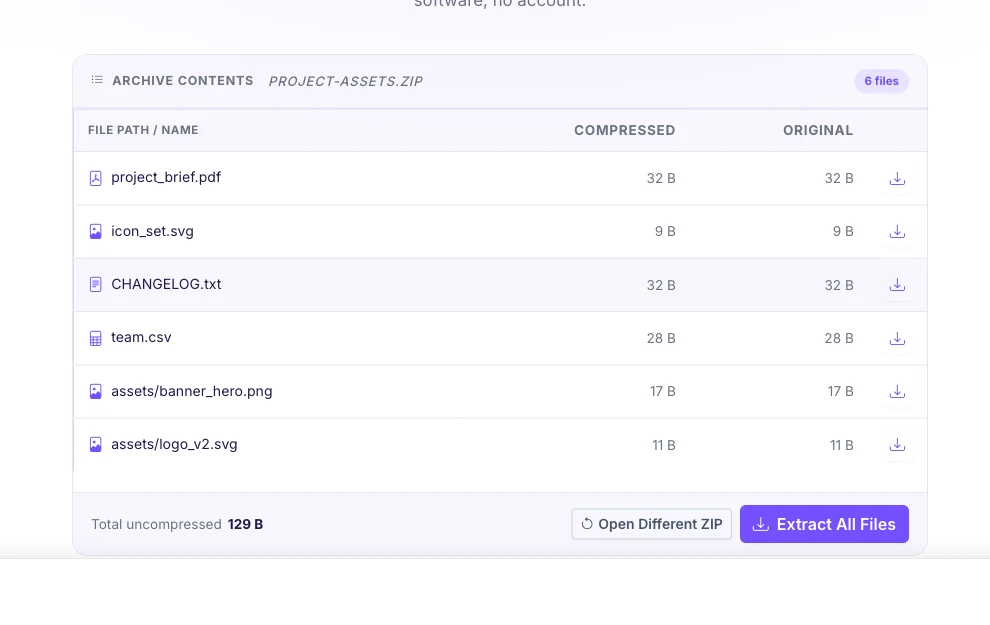
The Pixellize online ZIP extractor handles standard ZIP archives, including files with nested folders. It reads the archive directory client-side using the browser’s File System API, so the file never leaves your device. Each entry in the table shows the full path, both size columns, and a direct download link.
What it doesn’t handle: password-protected ZIPs (those require the encryption key, which a browser-only tool can’t brute-force), RAR or 7Z archives, and partially downloaded or corrupt ZIPs. For RAR files, Pixellize’s RAR to ZIP converter converts the archive to a standard ZIP first, then you can extract it with this tool.
A ZIP extractor online is safe when it processes the archive in your browser rather than on a remote server. Pixellize reads the ZIP entirely from your local disk via the browser File API, meaning the archive data never travels over a network. That makes it appropriate for confidential client files, financial documents, and anything you wouldn’t upload to a random web service.
The safety question matters more than most people realize. Some online ZIP tools do upload your archive to their server, decompress it there, and hope you trust their data-deletion policy. Before you use any tool, look for explicit wording like “no upload” or “processed in your browser.” If a tool shows an upload progress bar, your file went somewhere.
A ZIP extractor online runs in the browser, so the steps are identical on Windows, Mac, and Chromebook. You do not need 7-Zip or WinRAR on Windows, or Archive Utility on Mac. Open the tool, drop in the archive, and download the files you want. It is the quickest way to open a ZIP file online on a work laptop that blocks installs.
The Pixellize ZIP extractor works the same on a phone as on a laptop, because it runs in the browser tab. Open the tool in Chrome or Safari, tap Choose ZIP File, pick the archive from Files or Downloads, and tap any row to download that file to your phone.
This beats the built-in mobile options when you need just one file. Android’s Files app and iOS Files will extract an entire ZIP at once, dropping every file into your downloads folder. An online extractor lets you cherry-pick a single document or image without the rest of the archive cluttering your phone storage.
A browser-based ZIP extractor is the right choice for most everyday tasks. Four situations call for a desktop app instead.
A zip extractor online removes the install barrier that makes ZIP files annoying on work laptops, shared computers, and phones. You open the archive, see the contents, and save exactly what you need, without the file leaving your device. For standard ZIP archives, that’s almost always the fastest path.
The next time a ZIP lands in your email or downloads, open the free Pixellize ZIP extractor, drop the file in, and pull out exactly what you need. No install, no signup, done in seconds.
A ZIP extractor online is a browser-based tool that opens a compressed ZIP archive and lets you see every file inside, then download individual files or the whole archive. It works the same way desktop apps like 7-Zip do, but with no installation. Good private-mode extractors run entirely in your browser so the ZIP never leaves your device.
Open the Pixellize ZIP extractor, click Choose ZIP File or drag the archive onto the tool, and it instantly lists every file with its name, folder path, compressed size, and original size. Click the download icon on any row to save just that file, or click Extract All Files to download everything at once. No signup, no upload, no waiting.
Yes, when the tool processes the archive in your browser rather than uploading it to a server. Pixellize reads the ZIP directly from your disk using the browser File API, so the contents never travel over a network. Look for wording like "no upload" or "processed in your browser" before trusting any online tool with sensitive files.
Not usually. Password-protected ZIPs are encrypted, and decrypting them requires the key. Pixellize's browser-based extractor does not support encrypted archives. For password-protected ZIPs you need a desktop app like 7-Zip, which prompts for the password and decrypts locally.
The terms are used interchangeably. Both describe a tool that opens a ZIP archive so you can access the files inside. "Extract" technically refers to decompressing and saving a file to your disk, while "open" can mean just viewing the contents. In practice, any online ZIP extractor or ZIP opener does both.
Yes. The Pixellize ZIP extractor works in Chrome and Safari on Android and iPhone, the same as on a desktop. Open the tool, tap Choose ZIP File, pick the archive from your downloads, and tap any row to save that file. This is useful when you only need one file from an archive and do not want to extract everything to your phone storage.
A good ZIP extractor online handles large ZIP files well because it reads the archive in your browser instead of waiting for a slow upload to a server. Very large archives depend on your device memory, so a multi-gigabyte ZIP can be smoother in a desktop app. For everyday files, the online extractor is faster.
Founder and CEO of Pixellize.io, building AI-powered web tools and digital products with a focus on user experience and automation. M.Sc. Zoology, working at the intersection of technology, data analytics, and life sciences.