
How to Fix “Excluded by Noindex Tag” in Google Search Console
Seeing "Excluded by noindex tag" in Google Search Console? Find the page, remove the noindex at its real source, clear robots.txt, and…
Read articleThe fastest way to find broken links on a website: scan a page or whole site free, then fix every dead 404 the right way.

A reader once emailed me to say my “contact” button was dead. It had been for weeks. The page it pointed to was renamed, the link never updated, and every visitor who clicked it hit a blank 404. That one broken link quietly turned away people who wanted to reach me. Learning how to find broken links on a website is the fix, and it takes minutes, not a weekend. Paste a URL into the free Pixellize Broken Link Checker and it crawls the page, checks every link, and lists the dead ones with their status codes. This guide covers what a broken link is, how to find them, why they hurt your SEO and your visitors, and exactly how to fix each kind.
A broken link, also called a dead link, is a hyperlink that points to a page that no longer loads. Clicking it returns an error instead of content, most often a 404 (page not found) and sometimes a 5xx server error. The link still looks normal, but the destination is gone, moved, or misspelled.
Status codes tell you what happened. A 404 means the page is missing. A 301 or 302 is a redirect, which is fine on its own but a problem if it chains or loops. A 500 means the server failed. According to the MDN HTTP reference, 404 is the standard “resource not found” response, which is why checkers flag it as the classic broken link.
Links break for a handful of ordinary reasons, and knowing them helps you prevent repeats. Most come down to a URL changing on one end while the link stays the same.
There are five easy ways to find broken links on a website, and the fastest is a free online checker: you paste a URL, it crawls the page or the whole site, checks every link it finds, and returns the broken ones with status codes. No install, no login. Start there, then reach for one of the other four ways below if your site is large.
Paste a URL into the free Pixellize Broken Link Checker and get a full broken-link report in three steps.
Enter the page or site address. Choose Single page for a quick check of one URL, or Whole website to crawl up to 100 pages. Leave “Check external links too” on so outbound links get tested as well.
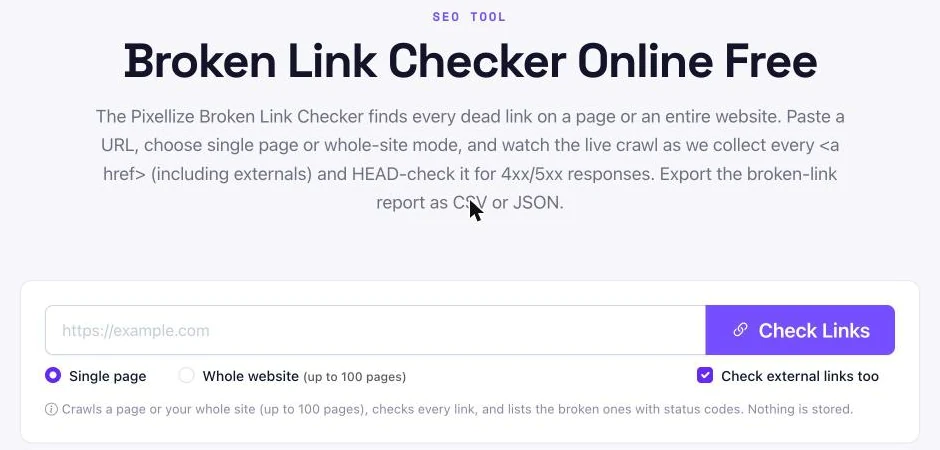
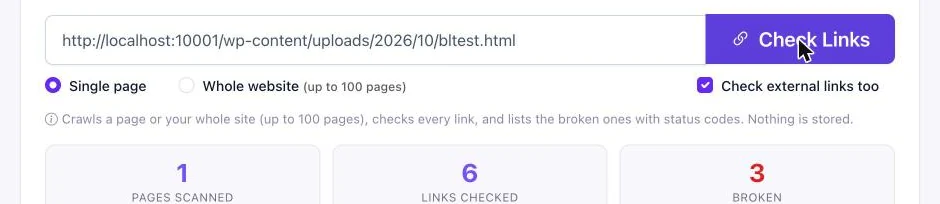
Click Check Links. The Pixellize checker fetches the page, collects every link, and runs a status check on each one. You see live counts for pages scanned, links checked, and links broken as it works.
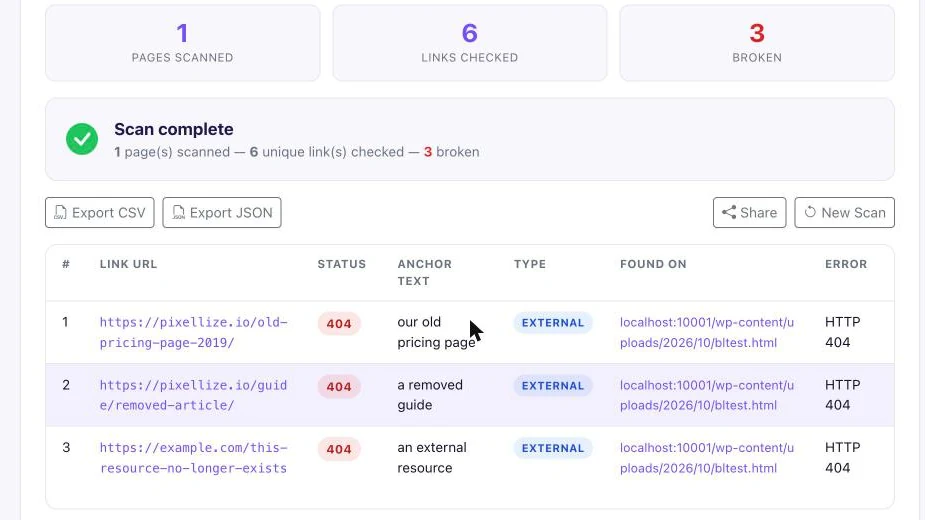
When the scan finishes, you get a table of every broken link: the URL, the status code, the anchor text, whether it is internal or external, and the page it was found on. Export it as CSV or JSON to hand to a developer or work through yourself. In our own test scan of a sample page with six links, the Pixellize checker flagged three dead 404s in about five seconds.
For a quick check while you browse, install the free Pixellize MetaPilot Chrome extension. Open any page, run its one-click audit, then open the Links tab. It status-checks every link on the page and sorts them into All, Internal, External, Nofollow, and Broken, so one click on the Broken filter shows only the dead ones. Each link shows its HTTP status, and 404s, 5xx errors, redirects, and timeouts are color-coded so problems stand out.
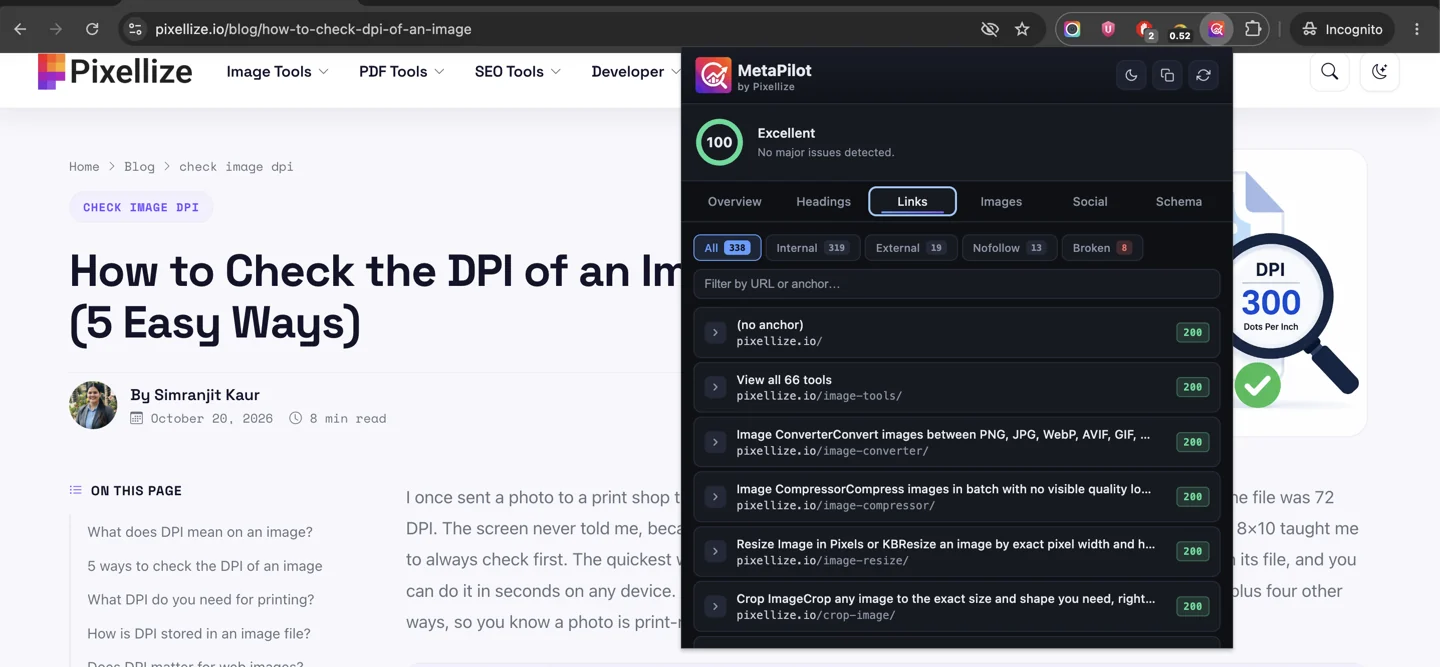
Because it runs on the page you are viewing, it is the fastest way to spot-check a single page right after you edit it, with no URLs to paste. It skips wp-admin and login URLs so you do not get false 404s, and it runs locally with no data collection. Beyond links, the same one-click audit also flags missing image alt text, meta tags, and structured-data issues, so it doubles as a quick on-page SEO check.
If the site is yours and verified, Google Search Console shows the broken internal URLs that Google has already crawled, for free. It only covers your own site’s internal links, misses external ones, and can lag by a few days, but it is the best record of what Google itself is hitting on your site. Here is exactly where to look.
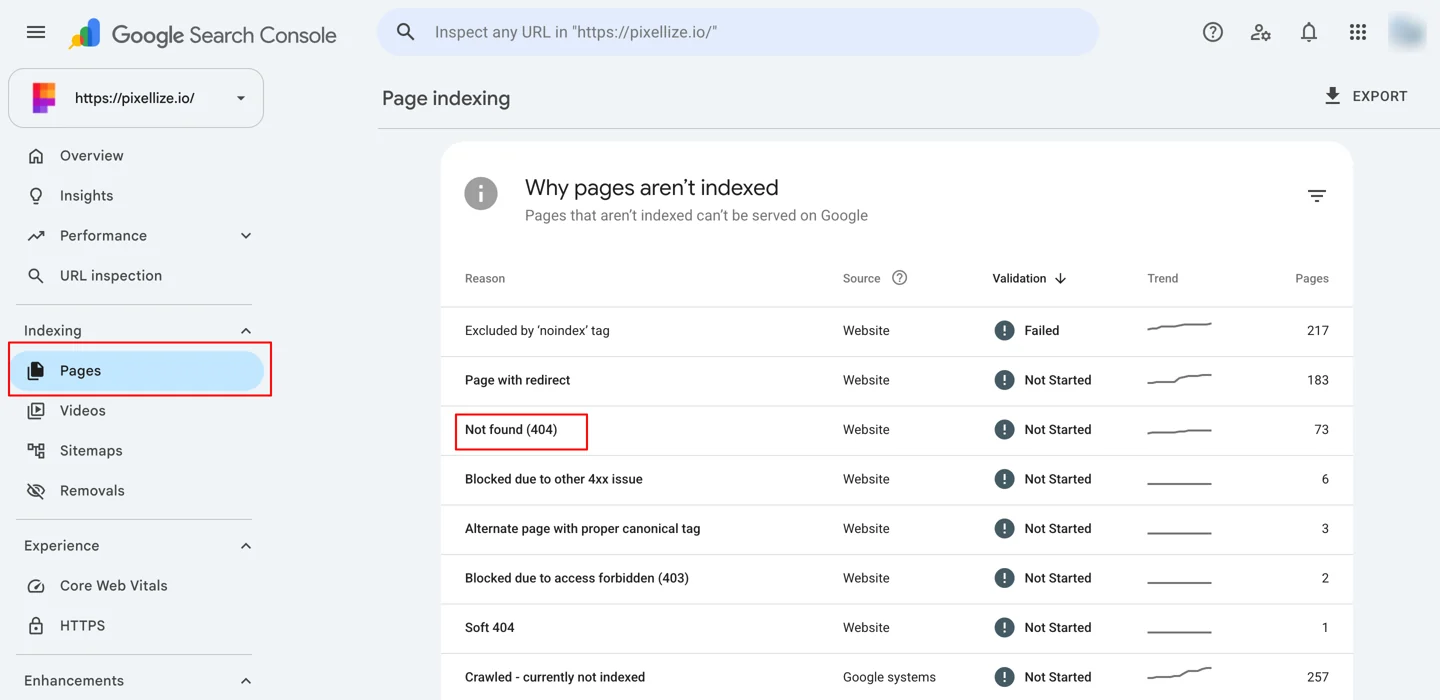
In the left menu, open Indexing and click Pages. Scroll to the “Why pages aren’t indexed” table and find the Not found (404) row. The number beside it is how many of your URLs currently return a 404.
Click the Not found (404) row to open the Examples list. You get the actual broken URLs, each with the date Google last crawled it. Use Export to pull the full list, then redirect or fix every URL on it.
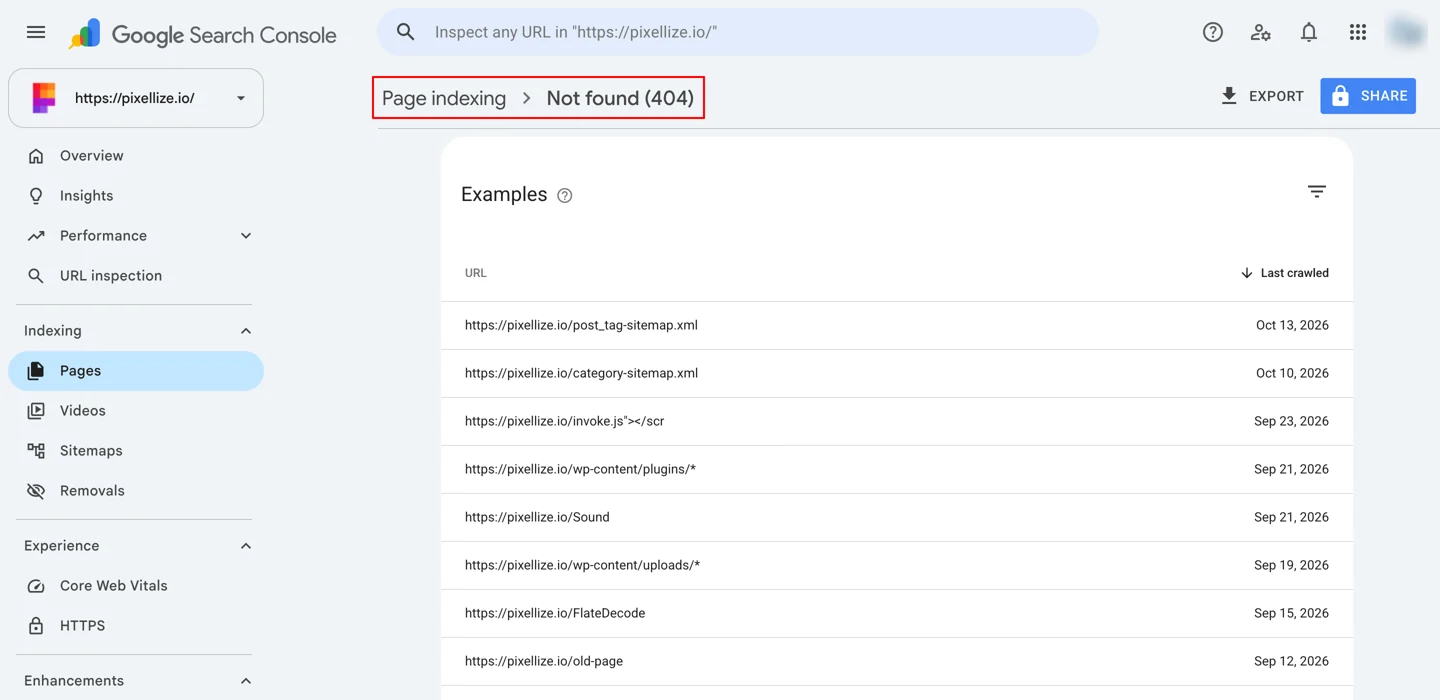
One catch: Search Console only reports internal 404s and refreshes slowly, so pair it with a live scan from the Pixellize Broken Link Checker to catch external and freshly broken links too. The Google Search Central docs on HTTP errors explain how a missing page should return a real 404 so crawlers understand it is gone.
Ahrefs runs a free Broken Link Checker as part of its free SEO tools. Enter a domain or URL, choose whether to include subdomains, and it checks the site for broken inbound and outbound links in seconds, with no account needed for the quick check.
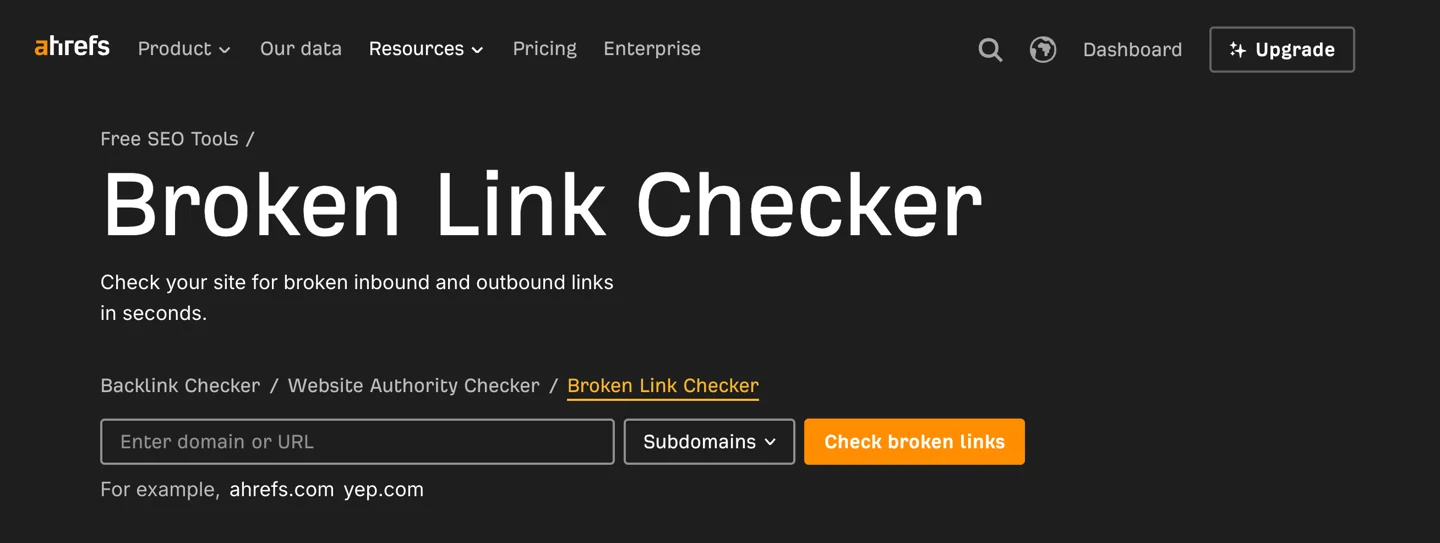
For deeper work, a full Ahrefs account adds Site Audit, which crawls your whole site in the cloud and flags every broken internal and external link with the page it sits on, plus broken backlink reports so you can reclaim lost links. The free checker is great for a fast look, while the full feature set is paid. It is the most hands-off option once you already live in Ahrefs for the rest of your SEO.
The free W3C Link Checker is a no-signup web tool from the people who set web standards. Paste a page URL and it crawls the page, lists every link it checked, and flags the broken ones with their status code and the exact line in the HTML where each one sits, which makes the fixes easy to find.
It is handy for a quick, standards-based second opinion without signing up for anything. The trade-off is a plain, text-heavy report and slower scans on large pages, so it suits spot-checks more than a full site sweep.
Here is how the five ways compare at a glance.
| Method | Best for | The catch |
|---|---|---|
| 1. Pixellize Broken Link Checker | A page or a small site, no setup | Crawl depth is capped on very large sites |
| 2. Browser extension (MetaPilot) | Spot-checking a page while you browse | One page at a time |
| 3. Google Search Console | Internal 404s Google already found | Internal only, no external links, slow to refresh |
| 4. SEO platform (Ahrefs) | Whole-site audits and broken backlinks | Full features are paid |
| 5. W3C Link Checker | A quick standards-based scan | Plain output, slower on big pages |
Which should you use? For most people, start with the free Pixellize checker for a full scan, keep the MetaPilot extension handy for spot-checks while editing, lean on Search Console for what Google already flagged, and bring in Ahrefs for a hands-off whole-site audit and broken backlink reports.
Broken links come in two kinds, and you fix them differently. An internal broken link points to another page on your own site. An external one points to someone else’s site. The Pixellize checker labels each result so you know which is which.
| Internal broken link | External broken link | |
|---|---|---|
| Usual cause | A renamed, moved, or deleted page on your site | The other site moved or removed the page |
| How to fix | Update the URL, or 301 redirect if the old page had traffic | Update the link, or remove it |
| Main impact | Wastes crawl budget, leaks internal link equity | Mostly hurts trust and user experience |
Broken links hurt SEO indirectly in three ways. They waste crawl budget when search bots hit dead URLs, they stop internal link equity from flowing to your real pages, and a site full of 404s reads as poorly maintained. The bigger hit is user experience: visitors who hit a dead end trust you less and leave faster.
Google has said broken links by themselves are not a direct ranking penalty. The real damage is downstream. A broken internal link to a strong page means that page gets less of the authority it should, and a chain of them makes a site look abandoned. The practical rule I use: treat broken internal links as an SEO problem and broken external links as a trust problem. Both are worth fixing, but internal ones move rankings.
Paste your URL and get a full broken-link report with status codes, free and in seconds.
Open the Broken Link CheckerOnce you have the list, each broken link gets one of three fixes. The right choice depends on why it broke and whether the old URL had any value.
| Situation | The fix |
|---|---|
| The page moved to a new URL | 301 redirect the old URL to the new one |
| The link has a typo | Correct the URL in the link |
| The page is gone for good | Remove the link, or point it to a relevant live page |
| A whole section was retired | 301 redirect to the closest live page, not the homepage |
For moved pages, a 301 redirect passes most of the old page’s authority to the new one. You can build the rule with the htaccess redirect generator, and if a redirect points to another redirect, clean it up with the guide on how to fix a redirect chain. For a full sweep across SEO, links, and images, the walkthrough on auditing a WordPress site ties it together.
Check for broken links monthly for most websites, and weekly for large or fast-changing sites like news, stores, or active blogs. Also run a scan right after any redesign, a URL structure change, or a bulk content cleanup, since those are when links break in batches. A five-minute scan with the Pixellize checker beats a reader finding the dead link first.
Set a reminder so it actually happens. A monthly calendar event, or a scan tied to your existing analytics review, keeps link rot from building up quietly between big projects. The sites that stay clean are the ones that treat link checking as routine maintenance, like backups, rather than a task they do only after something visibly breaks.
You now know what breaks links, why they matter, and how to fix each kind. Start with one scan today: paste your URL into the Pixellize Broken Link Checker, work through the 404s, redirect the pages worth saving, and fix the rest. A short scan every month keeps your site clean for visitors and search engines alike, and a clean 301 from the redirect generator saves the authority of any page that moved. That is the whole of how to find broken links on a website, so run your first scan now and clear the dead ends before they cost you traffic.
Paste your URL into a free broken link checker like Pixellize, choose single page or whole site, and run the scan. It lists every dead link with its status code in seconds, with no login or install.
Not as a direct penalty, but they waste crawl budget, stop internal link equity from flowing, and frustrate visitors. Broken internal links are the bigger SEO concern because they affect how authority moves through your site.
Match the fix to the cause: 301 redirect a page that moved, correct a typo in the URL, or remove a link whose target is gone for good. Avoid redirecting everything to the homepage, which reads as a soft 404.
A 404 correctly tells crawlers a page is missing. A soft 404 is a missing page that wrongly returns a 200 OK status or redirects somewhere irrelevant, which confuses search engines about whether the page still exists.
Monthly for most sites, and weekly for large or fast-changing ones. Always scan after a redesign, a URL change, or a bulk content cleanup, since those tend to break links in batches.
Yes. Choose whole-site mode in the Pixellize Broken Link Checker and it crawls up to 100 pages, checking every internal and external link and listing the broken ones with status codes.
Founder and CEO of Pixellize.io, building AI-powered web tools and digital products with a focus on user experience and automation. M.Sc. Zoology, working at the intersection of technology, data analytics, and life sciences.