
Merge Photo and Signature Online for SSC, IBPS, UPSC Forms
Join your passport photo and signature into one JPG for government exam forms. Set the exact pixels and KB the portal asks for, like 200 x 230 px under 50 KB. Runs in your browser, nothing is uploaded.
How to Merge Photo and Signature for an Exam Form
Upload Your Photo
Drag and drop or choose your passport-size photo first. JPG and PNG both work.
Add Your Signature
Upload your signature image. Keep it in the white footer strip below the photo (the layout most exam portals expect) or drag it anywhere in overlay mode.
Set the Size Your Portal Asks For
Open Advanced Settings and type the exact width, height, and KB limit from your exam notification, for example 200 x 230 pixels under 50 KB.
Download the Merged JPG
Click Download and upload the single merged image straight to the application portal.
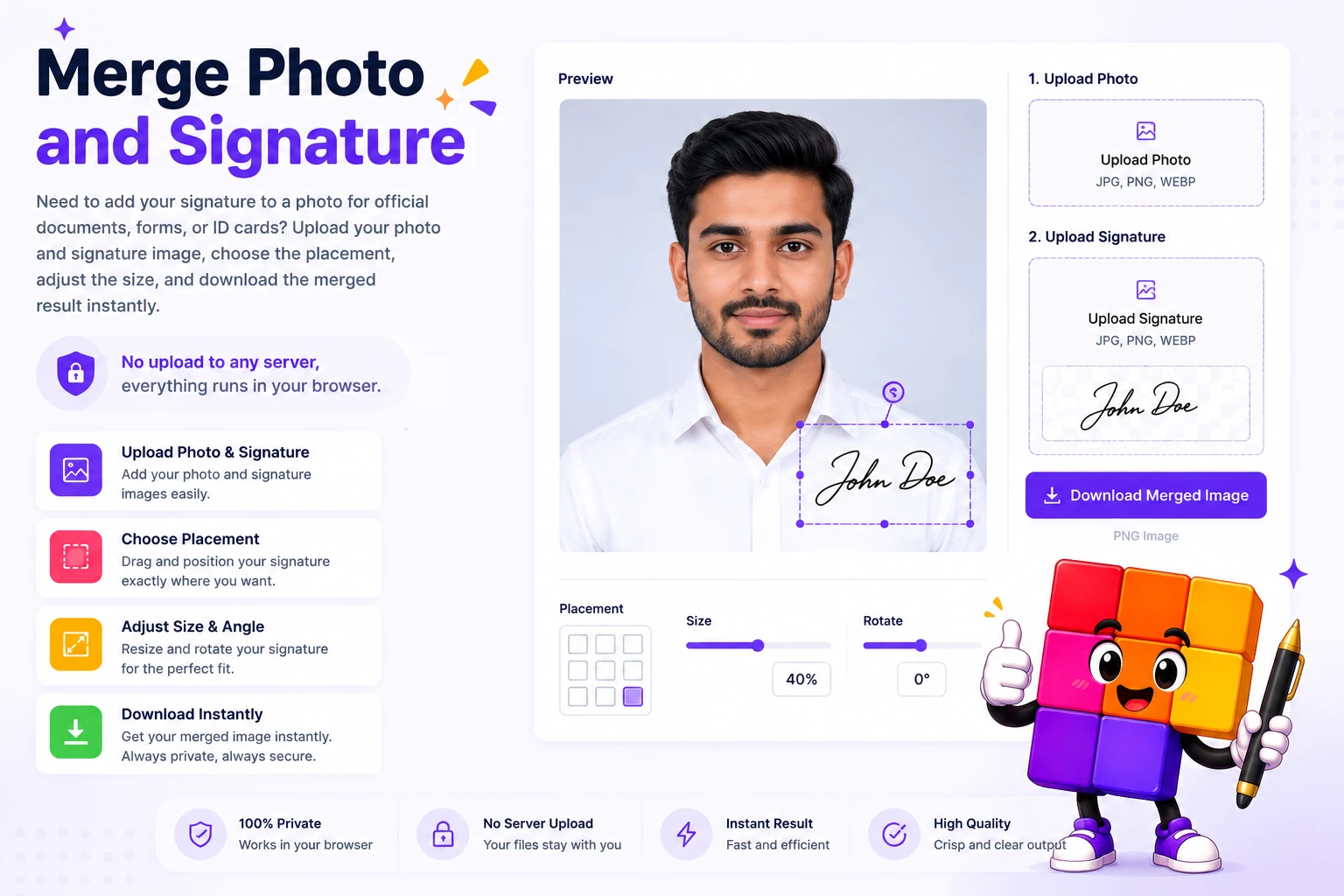
Photo and Signature Sizes Most Indian Exam Portals Ask For
Almost every Indian government job or admission form asks for the photo and signature as one merged image or as strictly sized files. Bank exams like IBPS PO and Clerk typically want the photo at 200 x 230 pixels between 20 and 50 KB, and the signature at 140 x 60 pixels between 10 and 20 KB. SSC portals usually accept a JPEG photo of 20 to 50 KB with a signature of 10 to 20 KB. UPSC allows a wider range, up to 300 KB per image. The exact numbers are always printed in your exam notification, so keep it open while you set the output size.
This tool merges both images into a single JPG and lets you type those exact numbers in Advanced Settings: width and height in pixels or centimeters, plus a KB cap. The merged file lands within the limit on the first try, so the portal does not reject it and you do not lose your form session re-uploading.
Everything runs in your browser. Your photo and signature are identity documents, and they never leave your device, there is no server, no upload, and nothing to delete afterwards. When the exam also needs separate files, use the signature resizer or image compressor on this site.
Made for Indian Exam and Government Forms
Exam-Form Footer Layout
The signature sits in a clean white strip below the photo, the exact layout SSC, IBPS, RRB, and state PSC portals expect. Switch to overlay mode when a form wants the signature on the photo itself.
Exact Pixels and KB Limit
Type the width, height, and file size from your notification, like 200 x 230 px under 50 KB for bank exams. The tool resizes and compresses to hit that number, so the portal never rejects your upload.
Clean Scanned Signatures
Signed on white paper and scanned it? The Remove White Background toggle strips the paper away and keeps only the ink, so the merged image looks clean.
Drag, Resize, Position
Move the signature with your mouse or finger and resize it with corner handles. Works on desktop and mobile, so you can fix your form from your phone.
100% Private, No Upload
Your photo and signature never leave your device. Everything runs in the browser, which matters when the images are your identity documents.
Overlap or Footer
Place the signature in a clean white footer below the photo, or overlap it directly on the photo, whichever the form needs.
Similar Tools
More Image tools you might find useful.
Frequently Asked Questions
Common questions about merging photo and signature for government forms, banking, and exam applications.
What size should the merged photo and signature be for SSC?
SSC portals generally ask for a JPEG photo between 20 and 50 KB and a signature between 10 and 20 KB. When the form wants one merged image, keep the combined file under 50 KB unless the notification says otherwise. Set the KB cap in Advanced Settings and the tool compresses the merged JPG to fit.
What are the photo and signature dimensions for IBPS and bank exams?
IBPS PO, IBPS Clerk, SBI, and most bank exams ask for the photo at 200 x 230 pixels (20 to 50 KB) and the signature at 140 x 60 pixels (10 to 20 KB). Type these numbers in Advanced Settings before downloading and the output matches what the portal validates.
How do I keep the merged file under 50 KB?
Open Advanced Settings, enable the file size cap, and enter 50. The tool automatically adjusts JPEG compression so the downloaded image lands at or under 50 KB while staying clear enough for verification.
Is my photo or signature uploaded to a server?
No. Everything runs entirely in your browser. Neither your photo nor your signature leaves your device, which matters because these are identity documents. Close the tab and nothing remains.
What is the difference between footer mode and overlay mode?
Footer mode adds a clean white strip below the photo and places the signature inside it. This is the layout most exam forms, admit cards, and job portals expect. Overlay mode puts the signature directly on the photo, useful when a form wants a signed photograph.
How do I remove the white background from my signature?
Enable the Remove White Background toggle in the sidebar. It strips pixels brighter than the set threshold, leaving only the ink. This makes a signature scanned from white paper blend cleanly into the merged image.
Can I use this for a passport size photo with signature?
Yes. Set the width and height to your form's passport photo dimensions, 200 x 230 pixels is the most common for online forms, or 3.5 x 4.5 cm for printed ones. The aspect ratio lock keeps proportions correct while you adjust.
What format is the downloaded file?
The merged image downloads as a JPEG at 95 percent quality by default, which every government and exam portal accepts. If you set a KB cap, quality adjusts automatically to stay under your limit.