
SVG Optimizer
Paste your SVG or drop a file to strip the junk and shrink the size. Removes comments, editor metadata, and extra whitespace, and trims long decimals, with a live preview so you can confirm it still looks right. Free, no signup, runs in your browser.
Optimized SVG appears here.How to optimize an SVG
Paste Or Upload
Paste your SVG code into the box, or upload a .svg file from your computer.
Choose What To Strip
Toggle comments, editor metadata, and whitespace, and set how many decimals to keep.
Copy The Result
Check the preview matches, then copy the optimized SVG or download it as a file.
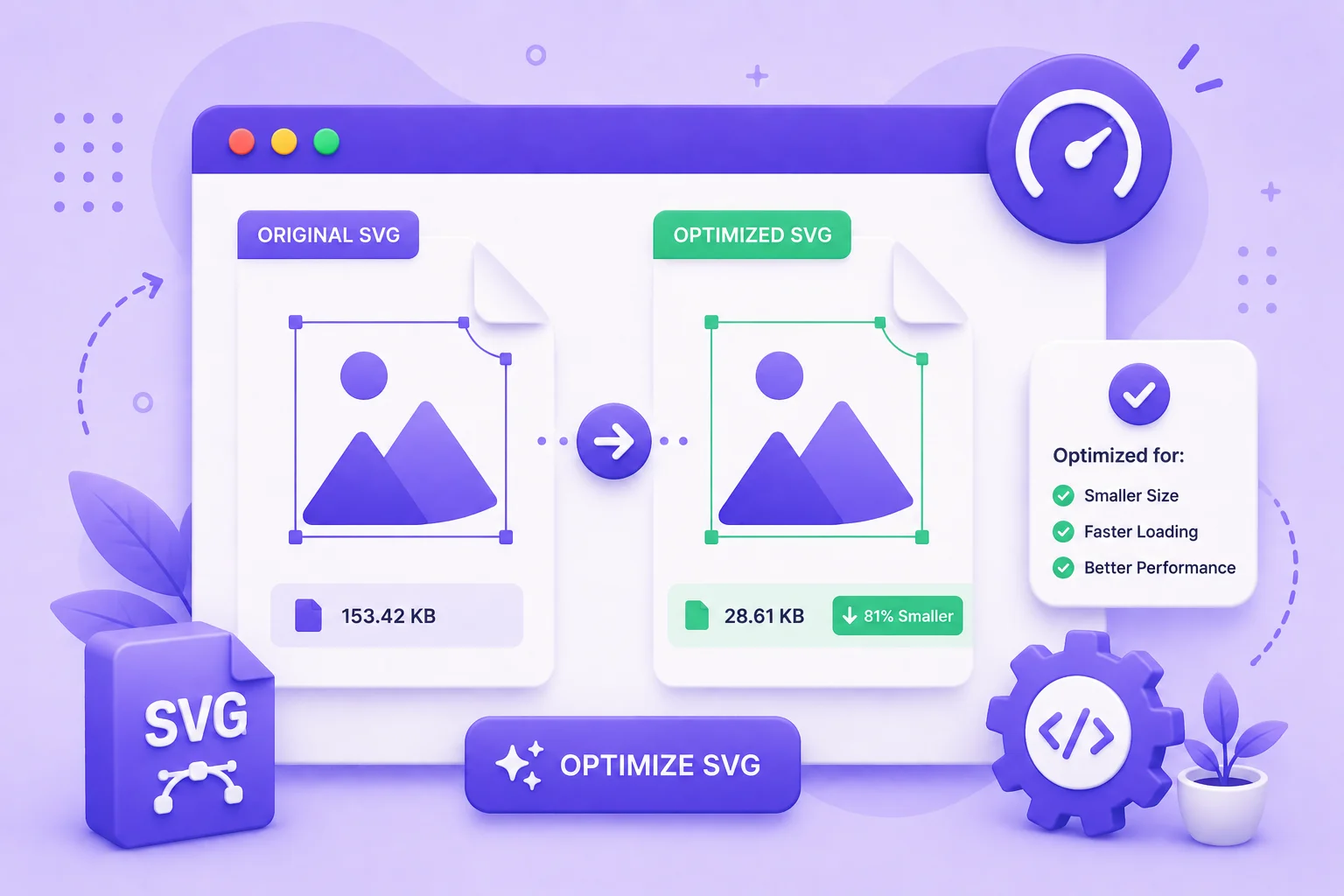
Smaller SVGs Load Faster And Render The Same
SVG files exported from a design app carry a lot of baggage. Editor namespaces, a long metadata block, comments, and coordinates with ten decimal places all add weight that the browser never needs. On an icon set or a hero illustration, that overhead adds up and slows the page down for no visual gain.
This optimizer cleans all of that out. It strips comments, the XML declaration and doctype, and the editor specific tags and attributes that tools like Inkscape and Illustrator leave behind. It rounds coordinate numbers to a precision you pick, which is usually where the biggest size drop comes from, and it collapses the whitespace between tags. The image renders the same, the file is just smaller.
A live preview sits next to the size before and after, so you can confirm the result still looks correct before you copy it. Everything runs in your browser, so even private or unreleased graphics never leave your machine.
Why Use Our SVG Optimizer?
Strip The Junk
Remove comments, the XML declaration, doctype, and editor leftovers from Inkscape and Illustrator.
Trim Decimals
Round long coordinate numbers to the precision you choose, often the biggest size win.
Collapse Whitespace
Drop the extra spaces and line breaks between tags to pack the markup tight.
Live Preview
See the optimized SVG rendered next to the size before and after, so you know it still looks right.
You Stay In Control
Toggle each optimization on or off. Keep titles for accessibility, or strip them for size.
In Your Browser
Your SVG is processed on your device. Nothing is uploaded, and there is no signup.
Similar Tools
More Developer tools you might find useful.
Frequently Asked Questions
Common questions about optimizing SVG files.
What does the SVG optimizer remove?
By default it removes comments, the XML declaration and doctype, editor specific metadata and namespaces from apps like Inkscape and Illustrator, and the extra whitespace between tags. It also rounds long coordinate numbers to the precision you set. Each of these is a separate toggle you can turn off.
Will optimizing change how my SVG looks?
It should not. The optimizer only strips data the renderer ignores and rounds coordinates slightly. The live preview shows the optimized result so you can confirm it matches the original. If you round the precision too low, fine detail can shift, so check the preview and raise the precision if needed.
What is number precision?
SVG coordinates are often saved with many decimal places, like 12.3456789. Most of those digits make no visible difference. Precision controls how many decimals to keep. Lowering it from the default shrinks the file, and 1 or 2 decimals is usually plenty for screen display.
Should I remove the title and desc tags?
The title and desc tags help screen readers describe the image, so keep them for accessibility on SVGs used as meaningful content. For purely decorative icons, removing them saves a little size. That is why it is off by default and left as your choice.
Does this tool upload my SVG?
No. The SVG is read and optimized entirely in your browser. Nothing is uploaded, logged, or stored on a server, and there is no signup required, so it is safe for private or unreleased graphics.
Is the SVG optimizer free?
Yes, it is completely free with no limits. Optimize as many SVG files as you need.