
How to Sign a PDF Without Adobe (Free, No Signup)
Printing a contract just to sign it and scan it back in is a special kind of annoying, and you do not…
Read article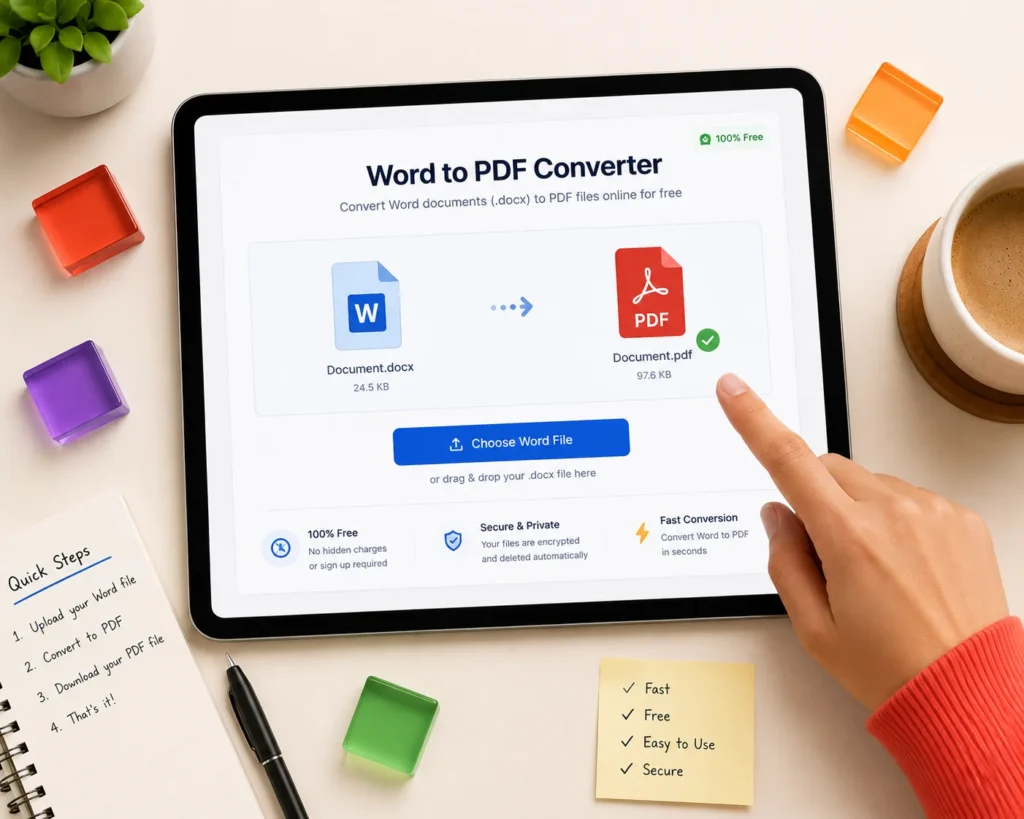
Most “free” Word to PDF sites are free the way a sample stand is free: two conversions, then a signup wall. Smallpdf caps free users at 2 tasks a day, iLovePDF limits file size on its free tier, and Adobe asks you to sign in after a couple of files. If you need a word to pdf converter online free of caps, watermarks, and upload risk, you have more options than the big three, including one that never sends your document anywhere. Here are 7 methods that work in 2026, with the catches spelled out.
Every method below produces a usable PDF. The differences are the daily limits, whether your file gets uploaded to a server, and how well complex formatting survives. This table is the short version.
| Method | Free limit | File uploaded? | Best for |
|---|---|---|---|
| Pixellize Word to PDF | None | No, runs in browser | Private files, no signup |
| Word desktop (Save As) | None | No | Perfect layout fidelity |
| Google Docs | None | Yes, to Google Drive | Files already in Drive |
| LibreOffice | None | No | Offline and batch work |
| Adobe Acrobat online | Sign-in after 2 files | Yes | Occasional one-offs |
| iLovePDF | File size caps on free | Yes | Multi-file batches |
| Smallpdf | 2 tasks per day | Yes | Light, occasional use |
The safest free way to convert Word to PDF is a converter that processes the file in your browser instead of uploading it to a server. Pixellize’s Word to PDF tool works this way, so a contract or resume stays on your device through all three steps: open, preview, download.
Think of it like the difference between photocopying a document at home and handing it to a stranger who promises to shred their copy later. Most converter sites do delete files after a few hours, and they say so in their privacy policies. But “deleted after 2 hours” still means your salary details sat on a server you do not control for 2 hours.
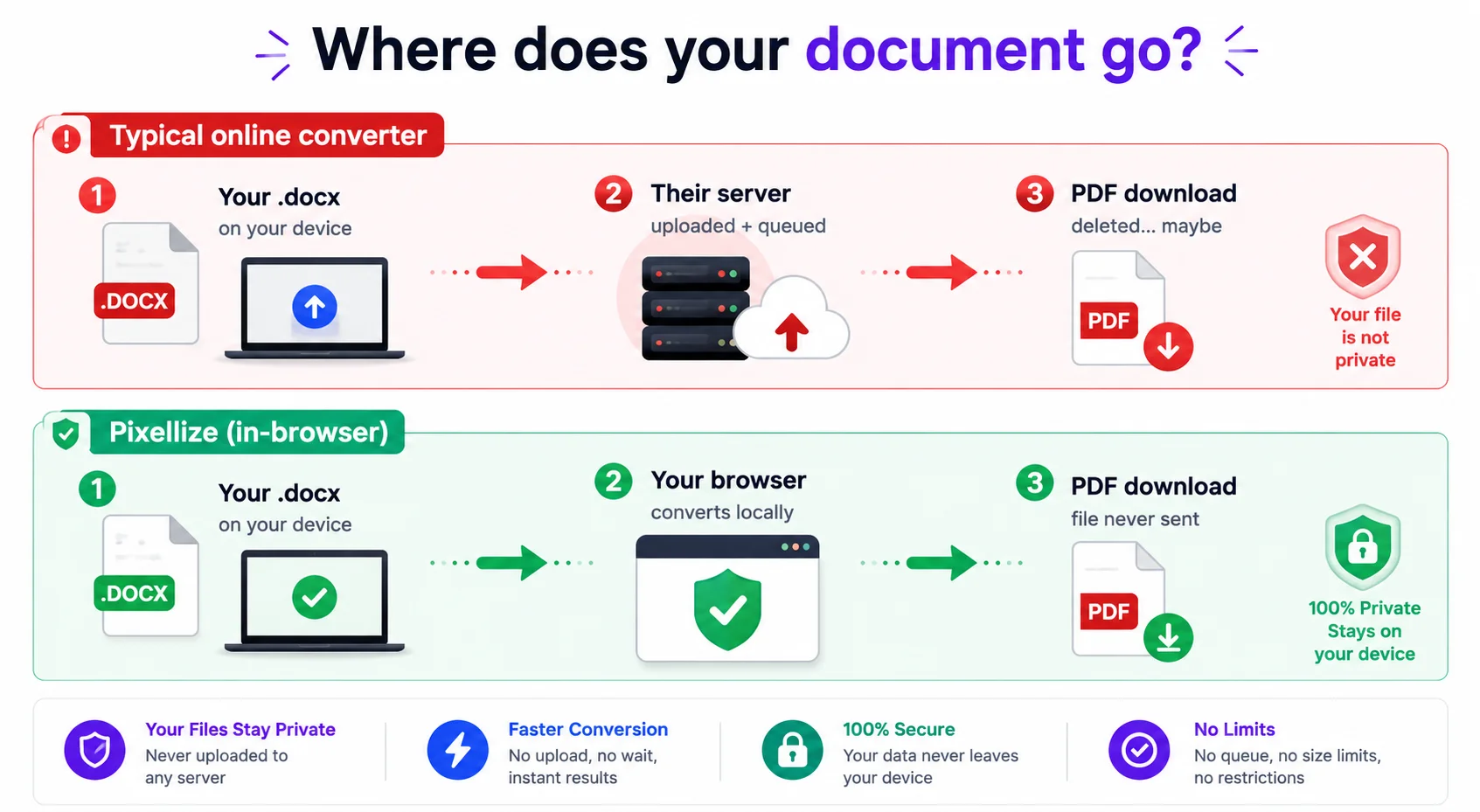
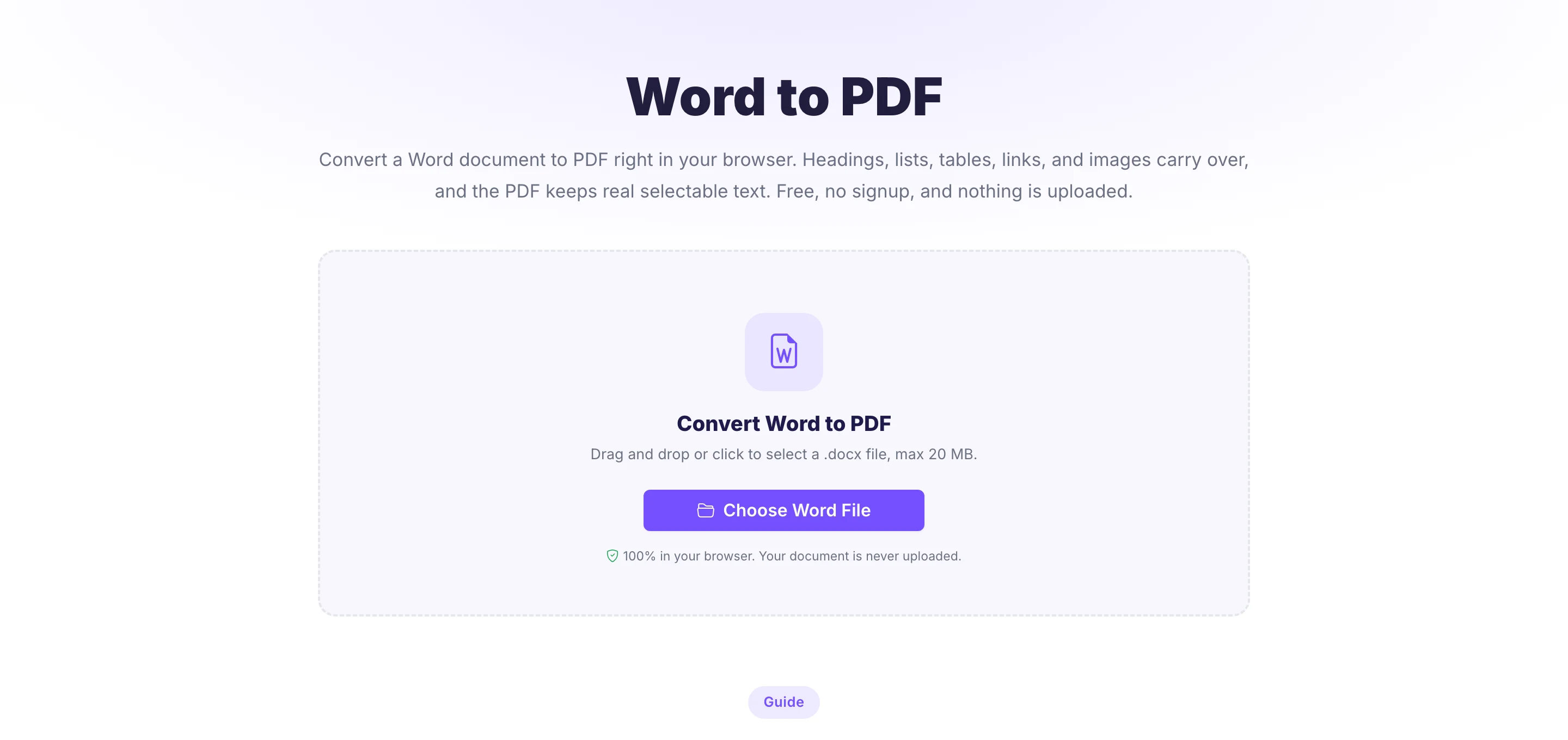
The Pixellize Word to PDF converter opens your .docx on your own device, shows the finished pages before you commit, and builds a PDF with real selectable text. No account, no daily cap, no watermark, and a 20 MB file limit that covers almost any document.
Keep in mind the honest tradeoff: because it rebuilds the document rather than printing it through Word’s own engine, very complex layouts like text boxes, multi-column sections, and headers or footers get simplified. For letters, resumes, reports, and contracts, the output is clean. Pixellize also has matching tools if your source is a spreadsheet or plain text: Excel to PDF, TXT to PDF, and Markdown to PDF.
If you have desktop Word, you already own the highest-fidelity converter there is. Microsoft’s own Save As PDF uses the same layout engine that rendered the document, so nothing shifts. File, Save As, choose PDF, done. It works offline and handles every Word feature, including tracked changes and embedded fonts.
The catch is the price of entry. Microsoft 365 Personal runs about $70 a year, so this method is only “free” if work or school already pays for it. If you opened this article, chances are you do not have Word installed, which is exactly the gap the other 6 methods fill.
Google Docs converts Word files free with any Google account. Upload the .docx to Drive, open it with Docs, then File, Download, PDF Document. For a 10-page report the whole round trip takes under a minute, and it works on a Chromebook where you cannot install anything.
Two things to watch. First, the file does get uploaded to Google’s servers and stays in your Drive until you delete it. Second, Docs re-flows the document with its own engine, so fonts it does not have get swapped and page breaks can drift by a line or two. This caught me off guard the first time a 12-page contract came back as 13 pages.
LibreOffice is a free desktop suite that opens .docx and exports PDF offline. Layout fidelity sits between Google Docs and real Word, and for most business documents you will not spot a difference. It is the strongest option when the file cannot touch the internet at all, like medical or legal work under strict rules.
Its quiet superpower is the command line. One line in a terminal converts a whole folder: soffice --headless --convert-to pdf *.docx. I have watched that one-liner chew through 40 documents in about a minute, which no free web tier will let you do.
The big three converter sites all do a good job on quality, because they run Word-compatible engines on their servers. The differences are the free-tier walls. Adobe Acrobat online converts a couple of files, then asks you to sign in. iLovePDF is generous with task counts but caps file size on the free tier, around 15 MB. Smallpdf allows 2 free tasks per day before the Pro prompt appears.
Here’s the thing: for a single public document, any of them is fine. The friction shows up on the third file of the day, or the first file you would rather not upload. All three route your document through their servers, which their privacy pages confirm, with auto-deletion windows measured in hours.
Free online converters change formatting because they rebuild the document with a different layout engine and a different font library. A typical .docx references 2 to 4 fonts, and when the converter’s server does not have one, it substitutes a lookalike with slightly different widths, which shifts line breaks and sometimes page counts.
You can protect yourself three ways. Stick to common fonts like Arial, Calibri, and Times New Roman. Keep layouts simple, since text boxes and floating images are the first things to drift. And always eyeball the result before sending it, page count first, then tables. A converter with a live preview, like the Pixellize word to pdf converter online free tool, makes that check automatic because the preview is the PDF.
Match the tool to the document. Public file, once in a while: any of the big three sites is fine. Whole folder of files: LibreOffice’s command line. Pixel-perfect layout with Word installed: Save As PDF. Private document, no signup, no daily cap: the Pixellize Word to PDF tool, because a word to pdf converter online free of uploads removes the privacy question entirely.
Pixellize keeps the whole conversion on your device, previews the exact pages you will download, and does not watermark anything. Drop a .docx in and see for yourself.
You have three no-cost routes: an in-browser tool like the Pixellize Word to PDF converter, which has no daily limit and never uploads your file, Google Docs if the file already lives in Drive, or LibreOffice for offline work. Converter sites like Smallpdf also work but cap free use at about 2 tasks per day.
It depends on where the conversion happens. Sites that upload your file to a server usually delete it within a few hours, but the file still leaves your device. An in-browser converter like Pixellize does the whole job on your own machine, so nothing is transmitted, which is the safer choice for resumes, contracts, and financial documents.
It can. Converters that rebuild the document with a different engine may swap fonts and shift line or page breaks, especially with custom fonts, text boxes, and multi-column layouts. Using common fonts like Arial or Calibri and checking the page count after conversion catches most problems. Word's own Save As PDF keeps formatting exactly.
Yes. The Pixellize Word to PDF tool converts .docx files in your browser with no software install, Google Docs converts through Drive with a free account, and LibreOffice is a free desktop suite that exports PDFs offline. All three handle standard documents well, so you only need Word itself for very complex layouts.
Open a browser-based converter, since it needs no app install. The Pixellize converter runs on iPhone and Android in Safari or Chrome: pick the .docx from your Files app, preview the pages, and download. The Google Docs app also exports PDFs on mobile if the document is in your Drive.
None of the mainstream options watermark output, including Pixellize, Google Docs, LibreOffice, Adobe online, iLovePDF, and Smallpdf. The real free-tier differences are daily task caps, file size limits, and whether your document gets uploaded. Pixellize has no cap and no upload; the big converter sites limit free use to a few tasks per day.

Founder and CEO of Pixellize.io, building AI-powered web tools and digital products with a focus on user experience and automation. M.Sc. Zoology, working at the intersection of technology, data analytics, and life sciences.