
Word to PDF
Convert a Word document to PDF right in your browser. Headings, lists, tables, links, and images carry over, and the PDF keeps real selectable text. Free, no signup, and nothing is uploaded.
How to convert Word to PDF
Upload A Word File
Drag in or choose any .docx file up to 20 MB. It opens on your device, not a server.
Check The Preview
Your document appears as a clean page. Pick A4 or Letter and set the margins you want.
Download The PDF
Click download and you get a PDF with real text you can select, search, and copy.
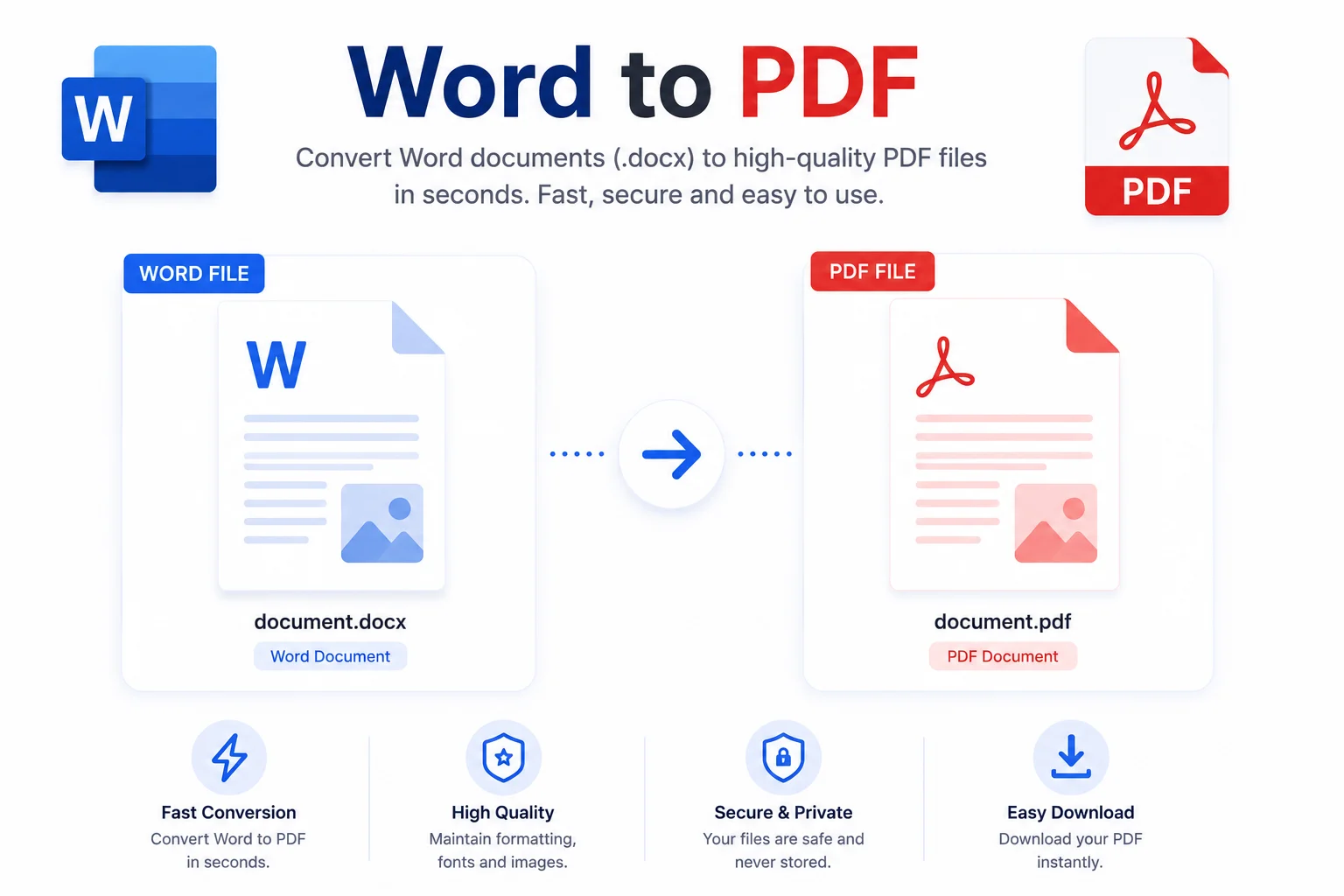
From .docx To A Clean PDF Without The Upload
Most Word to PDF sites make you upload the file to their server, wait in a queue, and hope the service deletes it afterward. That is a bad trade for a resume, a contract, or anything with a name and address in it. This converter does the whole job in your browser: the .docx is opened on your device, rebuilt as a PDF on your device, and saved straight to your downloads folder.
The output is a real text PDF, not a picture of one. Headings keep their size, bold and italic survive, links stay colored, lists keep their nesting, tables keep their grid, and images land where they belong. Because the text is real, the PDF stays searchable and you can copy from it, which also keeps the file size small compared to converters that just screenshot each page.
Before you download you can switch between A4 and Letter and pick normal, narrow, or wide margins. There is no signup, no daily limit, and no watermark. If you also work with spreadsheets or plain text, the same family of tools covers Excel to PDF, TXT to PDF, and Markdown to PDF.
Related guide: 7 free ways to convert Word to PDF online, with the limits of each method compared.
Why Use Our Word to PDF Converter?
Real Selectable Text
The PDF is built from the actual text in your document, not a screenshot, so you can select, search, and copy it in any PDF reader.
Formatting Carries Over
Headings, bold and italic text, links, nested lists, tables, and images all come through to the PDF.
A4 Or Letter
Pick the page size and choose normal, narrow, or wide margins before you download.
Instant Preview
Your document shows up as a clean page the moment it loads, so you know what the PDF will hold before you save it.
No Limits Or Watermarks
Convert as many documents as you want. There is no daily cap, no file queue, and no watermark on the output.
Private And Free
The conversion runs in your browser. Your document is never uploaded, so contracts and resumes stay on your device.
Similar Tools
More PDF tools you might find useful.
Frequently Asked Questions
Common questions about converting Word to PDF.
How do I convert a Word document to PDF?
Upload your .docx file, check the preview, pick A4 or Letter and the margins you want, then click Download PDF. The whole conversion happens in your browser and the finished PDF saves straight to your device.
Does the PDF keep my formatting?
Yes. Headings, bold and italic text, underlines, links, nested lists, tables, and images all carry over. Very complex layouts like text boxes, columns, and headers or footers are simplified, since the tool focuses on clean, readable output.
Will the text in the PDF be selectable?
Yes. The PDF is built from the real text in your document, not a screenshot of it, so you can select, copy, and search the text in any PDF reader. That also keeps the file size much smaller than image-based conversions.
Can I convert an old .doc file?
Not directly. The tool reads the modern .docx format. If you have an old .doc file, open it in Word, LibreOffice, or Google Docs, save it as .docx, and then convert it here.
Is my document uploaded to a server?
No. The file is opened and converted entirely on your device, so it never touches a server. That makes the tool safe for resumes, contracts, invoices, and anything else you would not want sitting on someone else's machine.
Is the Word to PDF converter free?
Yes, completely free with no signup, no daily conversion limit, and no watermark on the PDF. Convert as many documents as you need.