
How to Compress PDF Without Losing Quality, Step by Step
Shrink any PDF without making it blurry. Plain-language guide to lossy vs lossless, the right quality setting for every use case, and…
Read article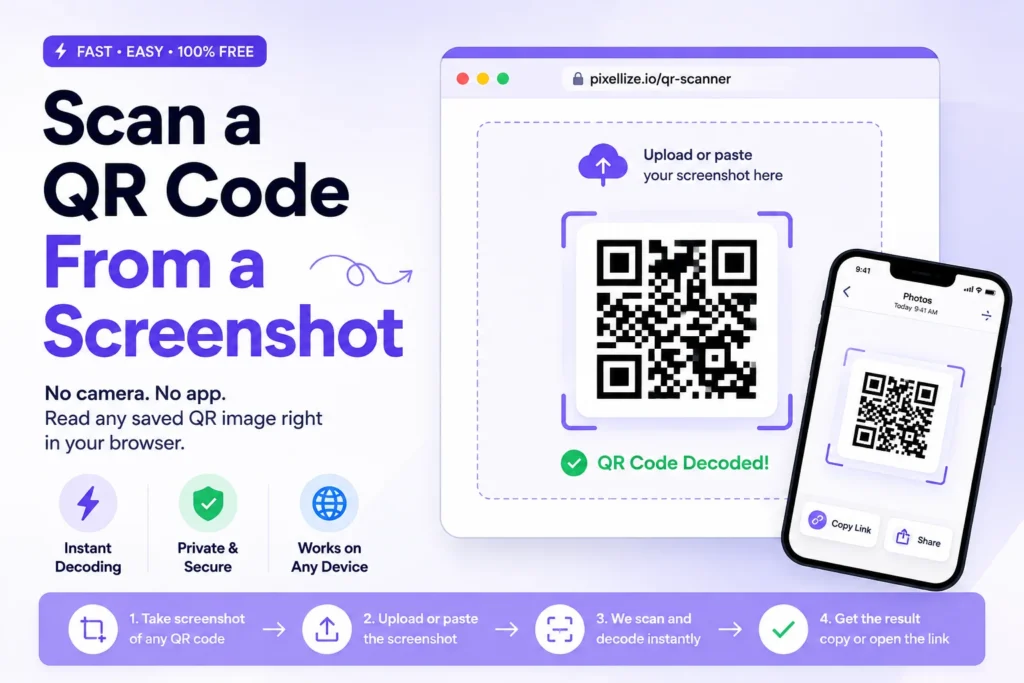
Someone texts you a QR code. It sits there in your camera roll, a flat picture on the same screen you would normally point a camera at. And you cannot point your phone at its own display. This is the little trap that makes people think a saved code is useless. It is not. You can scan a QR code from a screenshot in about five seconds, and on most devices you do not need to install anything. If you want the fastest route that works on a phone or a computer, the Pixellize QR code scanner reads any saved image right in your browser.
This guide covers every method that actually works: the built-in tricks on iPhone and Android, the desktop options nobody explains, and a privacy-first web method for any device. Plus the two questions people always ask, why a code sometimes refuses to scan, and whether opening one from an image is even safe.
Short on time? Here is the quickest way to scan a QR code from a screenshot on each device. The steps for each are explained below.
| Device | Fastest method | Needs an app? |
|---|---|---|
| Any (browser) | Pixellize QR code scanner, upload or paste the image | No |
| iPhone | Long-press the code in the Photos app | No |
| Android | Open the image in Google Photos, tap Lens | Usually built in |
| Windows PC | Upload the screenshot to a browser scanner | No |
| Mac | Open in Preview, or use a browser scanner | No |
Yes, you can scan a QR code from a screenshot on any modern phone or computer. A QR code is just a pattern of squares, so a decoder reads it the same whether it comes from a live camera or a saved image. On iPhone and Android the feature is built in, and on a desktop a free browser tool decodes the picture in seconds.
Here’s the thing most people miss. The camera was never scanning the physical world, it was decoding the pattern in a frame of pixels. A screenshot is the same pattern, frozen. So a saved image, a photo someone sent, or a code on a web page all decode exactly the same way.
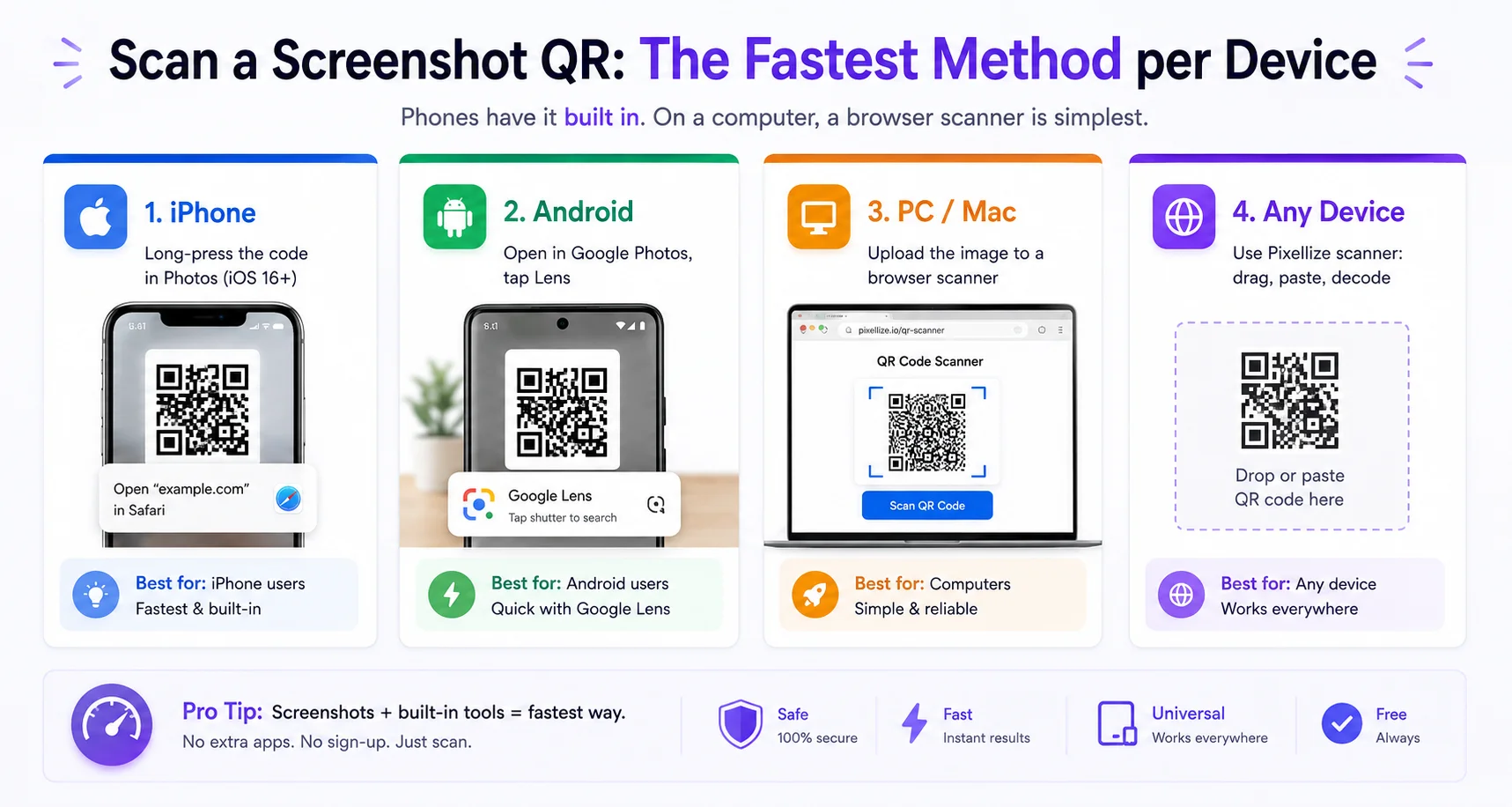
iOS makes this the easiest it has ever been. On iOS 16 and later, open the Photos app, tap the screenshot, then press and hold your finger on the QR code for about two seconds. A little banner pops up with the link. Tap it and you are there.
The catch: if the QR code sits inside a busy screenshot with lots of other text, the long-press sometimes grabs the wrong thing. Crop the image down to just the code first, then it works every time.
Android routes this through Google Lens, which is built into most phones. Open the screenshot in Google Photos, then tap the Lens icon at the bottom. Lens finds the code and shows the link with a tap.
Android is fragmented, so the exact button moves around by brand and skin. If you cannot find Lens, the browser method below works the same on any Android phone with no digging through menus. Google explains the Lens flow in its Google Photos help center.
This is the part most guides skip. You took a screenshot on your laptop, and there is no camera to point. On a computer the reliable path is a browser-based scanner: you upload the image file and it decodes the code. No install, no phone hand-off.
On a Mac you can also open the screenshot in Preview and use the built-in Live Text to catch some codes, but coverage is patchy. On Windows there is no native reader at all. That is exactly why a web tool is the dependable choice on desktop. Did you know a screenshot on a wide monitor often has the code at low resolution? Crop to the code before you upload and the decode rate jumps.
The one method that works the same on every device, iPhone, Android, Windows, Mac, or a Chromebook, is a browser scanner. The Pixellize QR code scanner reads a QR code from any saved image without an app and without sending your file anywhere. Here is the full flow:
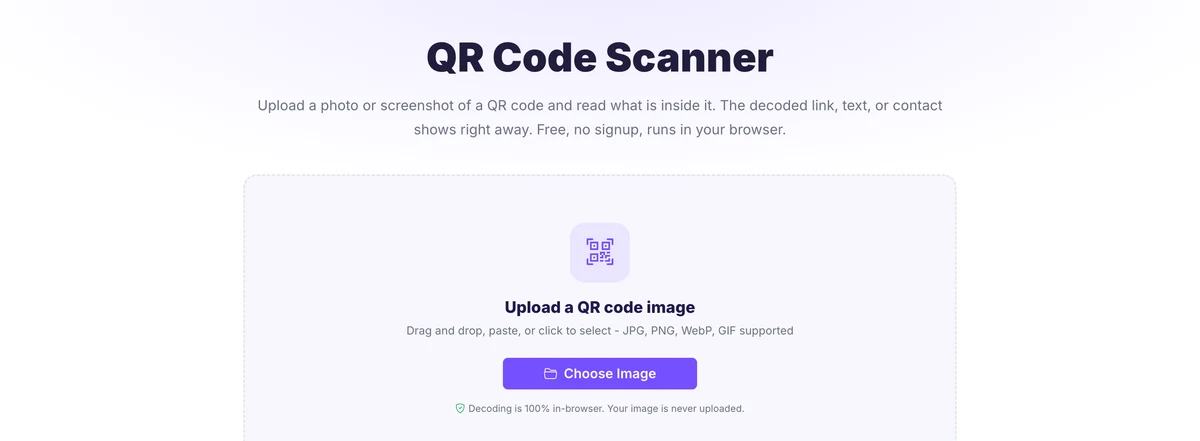
Because the decoding happens on your own device, this is the safest option when the code came from a stranger. It is also the only method that lets you paste a screenshot straight from your clipboard, which is handy when you just grabbed the code and do not want to save a file first. Keep in mind it reads one code at a time, so it is built for the screenshot in front of you, not a folder of images.
A QR code usually fails to scan from a screenshot for three reasons: the image is blurry, the code is cropped so a corner square is missing, or the picture is too small and low resolution. Each one breaks the pattern a decoder needs. Fixing the image, not switching tools, is almost always the answer.
Scanning a QR code from a screenshot is safe, but the link inside it may not be. The scan itself only reveals a URL or text, it does not run anything. The risk is what happens after you tap that link, so always read the full address before opening it, especially when the code came from an email, a poster, or a stranger.
Scam codes, sometimes called quishing, send you to fake login or payment pages. A scanner that shows you the decoded link first, rather than opening it automatically, gives you a chance to check. The Pixellize scanner shows the raw result so you can read the domain before you decide. If the link looks off, a shortened URL you cannot verify or a misspelled brand name, do not open it.
A QR code trapped in a screenshot is not a dead end, it is a five-second job once you know the trick. On a phone, your built-in Photos or Lens feature handles it. On a computer, or when you want the decode to stay private, the simplest way to scan a QR code from a screenshot is the Pixellize QR code scanner: drag, paste, or upload the image and read the result, with nothing sent to a server. Need to make codes too? The Pixellize QR code generator and barcode generator build them free. Whichever device you are on, the code is readable, you just needed the right method.
Yes. A QR code is just a pattern of squares, so a decoder reads it the same from a saved image as from a live camera. On iPhone and Android the feature is built in, and on a computer a free browser tool decodes the screenshot in seconds. You never need to point a camera at your own screen.
On iOS 16 and later, open the screenshot in the Photos app and press and hold your finger on the QR code for about two seconds. A banner with the link appears, and you tap it to open. You can also tap the Live Text icon in the corner to detect the code.
Open the screenshot in Google Photos and tap the Lens icon at the bottom. Google Lens finds the code and shows the link with a tap. On Samsung phones you can also open the image in Gallery and tap Bixby Vision or the QR icon in the toolbar.
Yes. Since laptops and desktops have no rear camera, the reliable method is a browser scanner. Upload the screenshot to a tool like the Pixellize QR code scanner and it decodes the code on the spot. No app and no phone hand-off are needed, and it works on Windows, Mac, and Chromebook.
A screenshot QR usually fails for three reasons: the image is blurry, a corner square is cropped off, or the code is too small and low resolution. Crop tightly to the whole code with a little white margin, use the original rather than a re-compressed copy, and enlarge the source if needed.
The scan itself is safe because it only reveals a link or text, it does not run anything. The risk is the link it points to. Always read the full URL before opening it, especially when the code came from a stranger, an email, or a poster, to avoid scam pages known as quishing.

Founder and CEO of Pixellize.io, building AI-powered web tools and digital products with a focus on user experience and automation. M.Sc. Zoology, working at the intersection of technology, data analytics, and life sciences.