
How to Convert a Twitter Thread to PDF (Free, No App)
A great Twitter thread can vanish overnight. The account gets suspended, the author deletes it, or X changes what you can see…
Read article
A 40-page contract where only 12 pages matter. A scanned report with three blank pages in the middle. A bank statement where you only need the first two pages for a loan application. Sooner or later every PDF needs a trim, and you should not need a paid desktop app to do it. This guide shows how to delete pages from PDF files on any device, starting with the fastest route, the free Pixellize Delete Pages from PDF tool that runs entirely in your browser.
Yes, you can delete pages from a PDF for free using a browser tool, Mac Preview, or several online editors. The free routes handle the job in under a minute with no software install. Paid apps like Adobe Acrobat (around $240 per year for Pro) only become necessary for batch processing hundreds of files or editing locked corporate documents.
The real difference between free options is not capability. It is where your file goes. Most online PDF editors upload your document to their servers, process it there, and send the result back. For a meme PDF that is fine. For a contract, a medical record, or a bank statement, you want the processing to stay on your own machine.
| Method | Works on | File stays private | Limits |
|---|---|---|---|
| Pixellize browser tool | Windows, Mac, Linux, iPhone, Android | Yes, in-browser only | None, free |
| Mac Preview | Mac only | Yes, local app | Deletes annotations with the page |
| Adobe Acrobat online | Any browser | No, server upload | Free tier needs an Adobe account |
| Smallpdf / iLovePDF | Any browser | No, server upload | About 2 free tasks per day |
| PDF24 | Any browser | No, server upload | Free, ad supported |
The fastest method on Windows, Mac, Linux, and any phone. No install, no account, and with the Pixellize tool the file never leaves your device. Like every Pixellize PDF tool, the processing runs on your own hardware, which is why there is no file size cap to enforce. Here is the process.
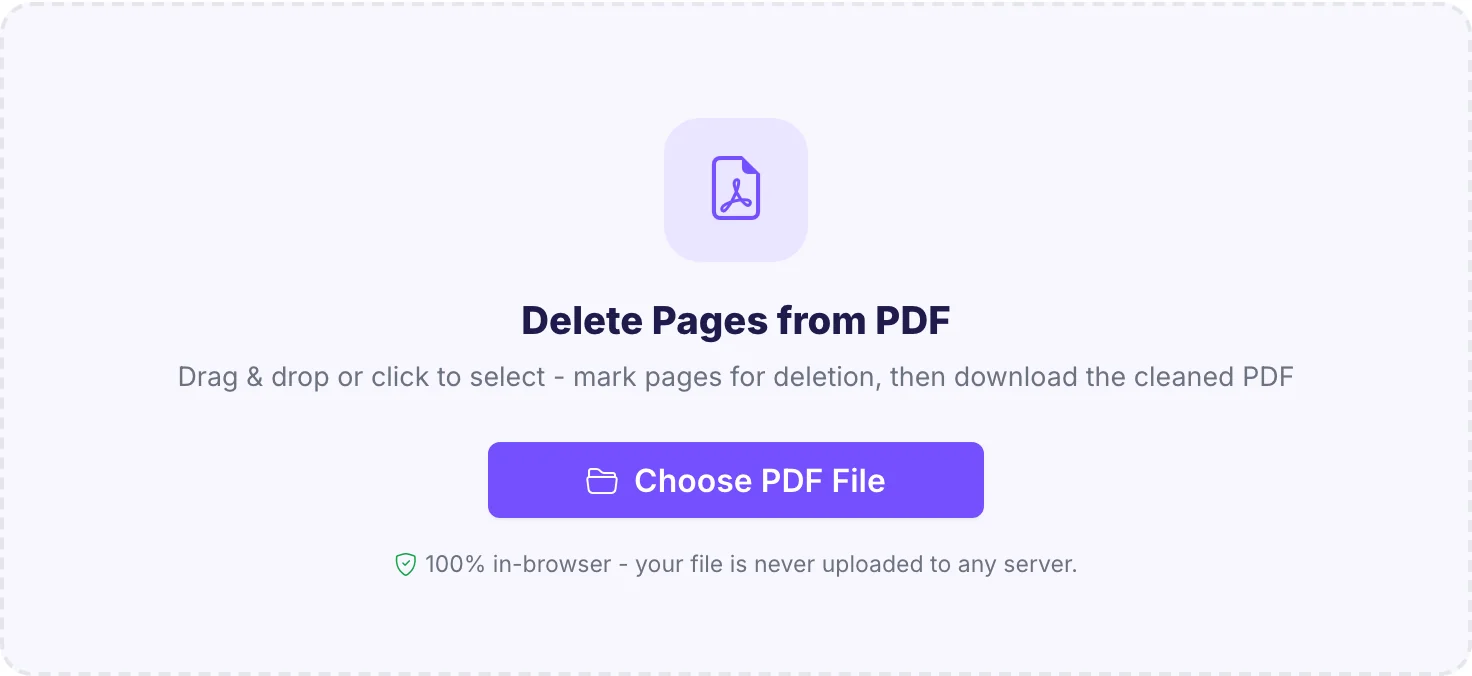
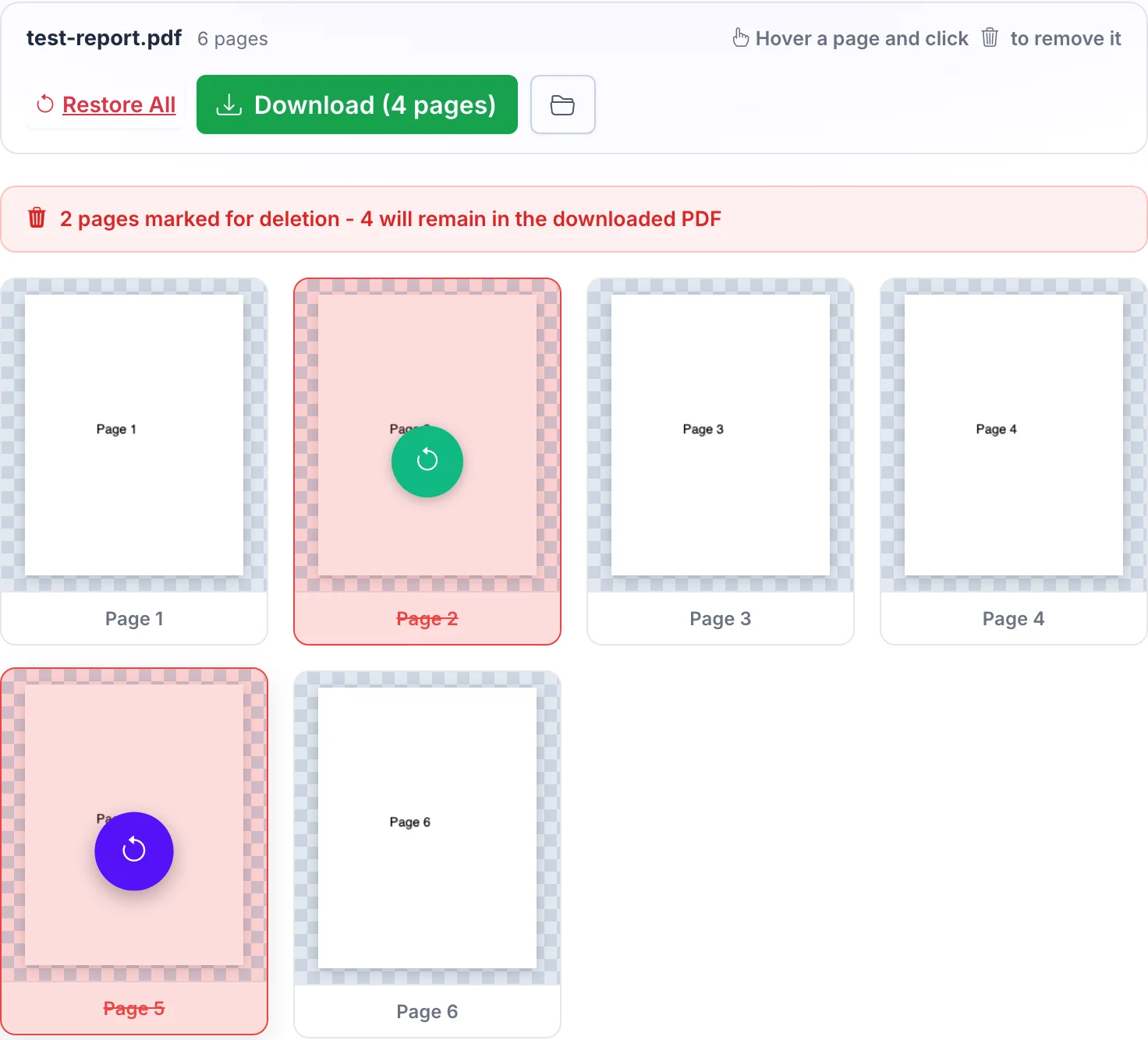
I tested this with a 6-page report, marked pages 2 and 5, and had the trimmed 4-page file downloaded in about 20 seconds total. The thumbnail preview matters more than it sounds: deleting page 7 when you meant page 8 is the classic mistake with tools that only show page numbers.
Every Mac ships with Preview, and it handles page deletion well. Open the PDF, choose View, then Thumbnails to show the page sidebar. Click the page you want to remove, press the Delete key, then File and Save.
Keep in mind two Preview quirks. First, deleting a page also deletes every annotation on it, including highlights and signatures (Apple documents this behavior). Second, Preview saves over the original file by default. Duplicate the file first with Command-D in Finder if you want to keep the full version.
Adobe Acrobat online, iLovePDF, Smallpdf, and PDF24 all offer free page removal with similar click-to-delete interfaces. They work well, with two caveats. Most of them upload your file to their servers for processing, and the free tiers usually cap daily tasks (Smallpdf allows 2 free tasks per day before asking you to subscribe).
Pick a server-side editor when you need their other features in the same session, like OCR or conversion. For a plain page trim on a sensitive document, an in-browser tool avoids the upload entirely. Want the same privacy for shrinking the result afterward? The Pixellize PDF compressor runs in-browser too.
You delete PDF pages on a phone the same way as on a desktop: open a browser-based tool, load the file from your Files app or Downloads, tap the pages to remove, and download the result. No app install is needed on either iPhone or Android.
Here’s the thing about phone PDF apps: most free ones inject watermarks or push subscriptions after the third use. The browser route skips both. iPhones since iOS 15 and any Android from the last 6-7 years render page thumbnails without trouble. One practical tip for big files: a 200-page PDF renders about 200 thumbnails, so give an older phone 10-15 seconds to finish before tapping.
Think of a PDF like a printed binder. Pulling out a sheet does not renumber the printed page numbers on the remaining sheets. The same applies digitally, and it surprises people in three ways.
None of this matters for the common cases, removing blank scans or trimming a statement. It matters for long structured documents like manuals and theses. For those, delete the pages and then spot-check the bookmarks panel before sending the file anywhere.
The workflow that never backfires: keep the original, delete pages from PDF copies using a thumbnail preview, flip through the trimmed result once, then send. The browser route covers every device you own and keeps private documents private, which is the reason Pixellize builds every PDF tool to run client-side. Try the Delete Pages from PDF tool on your next oversized document, and if the file needs to get smaller too, the compressor finishes the job in the same browser tab.
Use a free browser tool: open it, load the PDF, click the thumbnails of pages you want removed, and download the trimmed file. Mac users can also use the built-in Preview app with View, Thumbnails, then the Delete key. Neither route costs anything or needs an Adobe account.
Yes. Browser-based tools, Mac Preview, and the free tiers of online editors like PDF24 all remove pages at no cost. The main differences are daily task caps on some services and whether the file gets uploaded to a server during processing. In-browser tools avoid the upload entirely.
Yes, roughly in proportion to what the deleted pages contained. Removing 5 scanned pages from a 20-page scan cuts around a quarter of the size, since scanned pages are mostly image data. Text-only pages save less. If the file is still too large, run it through a PDF compressor after trimming.
Before downloading, yes: browser tools let you click a marked page to restore it or reset everything. After downloading, the trimmed file is a separate document, so your original stays intact on disk. The exception is desktop apps like Preview that save in place, which is why you duplicate the file first.
The usual cause is a permissions flag: the PDF is protected against editing with an owner password. Print-restricted and form-locked files behave the same way. Unlock the file first if you have the right to, then delete pages normally. A corrupted file can also block page operations and usually needs repair first.
Scanners that capture blank backs of single-sided documents create this need. In a thumbnail grid tool, click each even-numbered page, which takes under a minute for typical documents. Some desktop apps offer an odd-even selection shortcut. Check the preview before downloading since cover sheets can shift the pattern.

Founder and CEO of Pixellize.io, building AI-powered web tools and digital products with a focus on user experience and automation. M.Sc. Zoology, working at the intersection of technology, data analytics, and life sciences.