
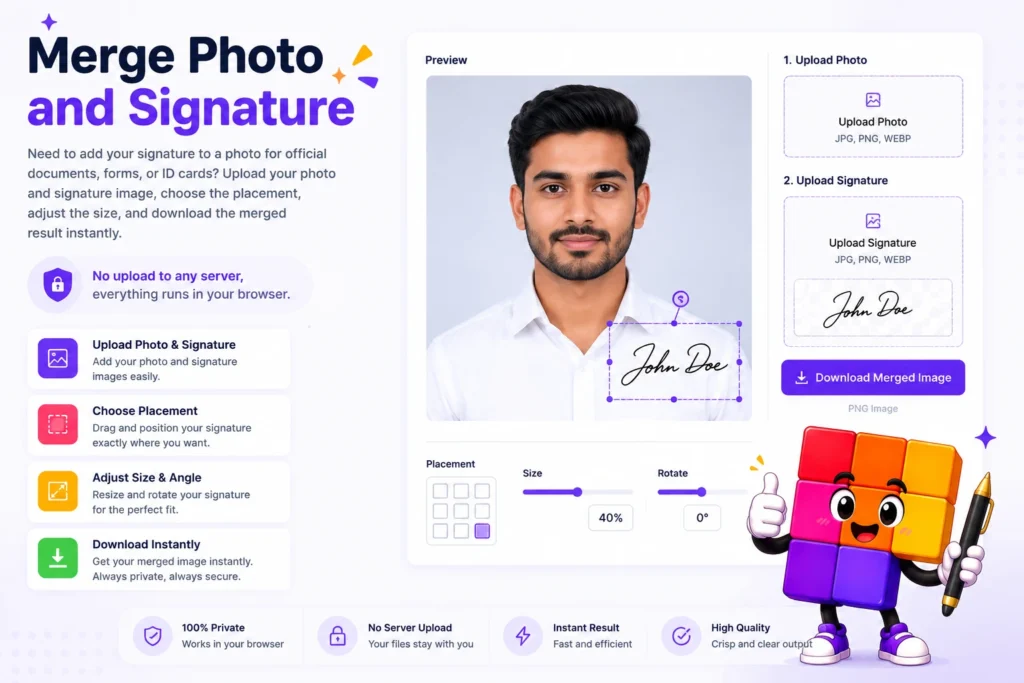
You filled the whole application form, reached the upload step, and the portal rejected your files. Not because the photo was wrong. Because it wanted the photo and signature together, in one image, under a size limit measured in kilobytes. Thousands of candidates hit this wall every application season. This guide shows you how to merge photo and signature online into a single file that passes validation on the first try, using the free Pixellize merge tool or any method you prefer.
- Merge photo and signature online in one browser tab, no app and no signup, with the free Pixellize merge tool.
- Most Indian forms want the photo at 20 to 50 KB and the signature at 10 to 30 KB in JPEG. A merged file usually sits between 50 and 100 KB.
- Use the stacked layout, photo on top and signature in a white strip below, for SSC, state PSC, and university portals.
- Set the exact KB target before you download so the file clears the size check on the first try.
- Everything runs in your browser, so your photo and signature never leave your device.
Why do online forms ask for photo and signature in one image?
Online forms ask for a single merged file because their upload systems were built with one document slot per candidate. One combined image is easier to verify, print on admit cards, and store. State PSC portals, university admissions, and several bank recruitment forms all follow this pattern.
Think of the merged image like a railway ticket with the passenger photo printed on it. One document, everything the checker needs in a single glance. The verification officer matches your face and your signature against the same file, so nothing can be swapped after submission.
Keep in mind that not every portal wants a merged file. SSC and IBPS currently take photo and signature as two separate uploads. Read the photo instructions section of your notification before you merge anything.
Photo and signature size requirements for major exams
Every portal publishes its own limits, and they change between recruitment cycles. The table below lists the ranges these exams have used in recent cycles. Always confirm against the current official notification PDF before uploading.
| Exam / portal | Photo | Signature | Format |
|---|---|---|---|
| SSC (CGL, CHSL) | 20-50 KB, 3.5 x 4.5 cm | 10-20 KB, 4 x 2 cm | JPEG |
| IBPS (PO, Clerk) | 20-50 KB, 200 x 230 px | 10-20 KB, 140 x 60 px | JPEG |
| NEET (NTA) | 10-200 KB, passport size | 4-30 KB | JPEG |
| UPSC (OTR) | 20-300 KB | 20-300 KB | JPEG |
| RRB (NTPC, Group D) | 15-40 KB, 320 x 240 px | 10-40 KB | JPEG |
Notice the pattern: photo limits cluster around 20-50 KB and signature limits around 10-30 KB. When a portal asks for a merged file, the combined limit usually lands between 50 KB and 100 KB. If your camera exports 4 MB photos, you need to shrink the file by roughly 98% before any portal accepts it. Our guide to photo sizes for Indian government forms covers the per-portal details.
How to merge photo and signature online (step by step)
The fastest way to merge photo and signature is a browser tool. No app install, no Photoshop, no watermark. Here is the process with the Pixellize Merge Photo and Signature tool.
- Upload your photo. Click Choose Photo and pick your passport-style picture. JPG, PNG, and WebP all work.
- Upload your signature. The signature slot appears right after the photo loads. Pick the scanned or photographed signature file.
- Adjust the layout. By default the signature sits in a white strip below the photo. Drag the signature size slider until the proportions match your form’s sample image. Flip on overlap mode only if the form wants the signature across the photo.
- Set the file size. Open Advanced Settings and type the KB limit from your notification, for example 50. The tool compresses the output to stay under it.
- Download. Click Download Merged and you get a single JPG ready for the portal.
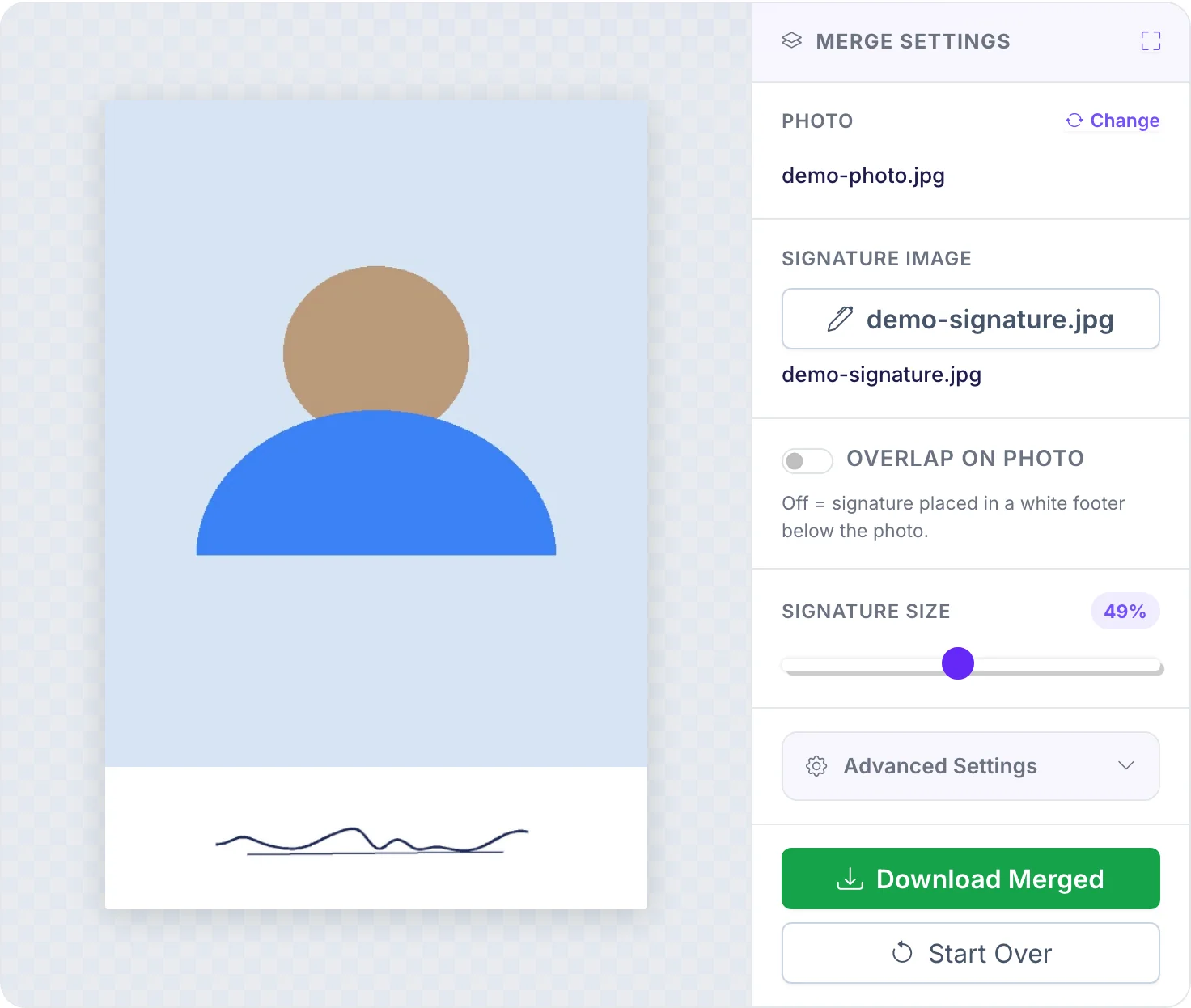
I ran the demo files through the tool while writing this and the merged JPG came out at 38 KB on the first try, well under a 50 KB limit. The whole process took under a minute. Everything happens inside your browser tab. Pixellize never sees your photo or your signature, which matters when the files carry your face and your legal mark.
Which layout should you pick for the merged image?
Pick the stacked layout for almost every form: photo on top, signature in a white strip below. That is the format SSC, state PSCs, and most university portals expect. Use the overlap option only when the instructions say the signature must sit across the photo itself.
Here’s the thing. Portals reject more uploads for wrong proportions than for wrong layout. A signature that fills 80% of the merged image looks wrong to a human verifier even when the file passes the automated size check. Keep the signature at roughly 30-50% of the photo width and leave white space around it.
How to prepare your photo and signature before merging
The merge step is the easy part. Most rejections trace back to bad source files. Five minutes of prep saves a rejected application.
- Sign on plain white paper with a black or blue pen. Gel pens photograph better than ballpoints. Sign at your normal size, not extra large.
- Photograph the signature in daylight, from directly above. Shadows from an angled shot read as smudges after compression.
- Crop tight. Leave about 5 mm of white margin around the signature. The Pixellize signature resizer crops and hits an exact KB target in one pass.
- Use a recent photo. Most notifications demand a photo taken within the last 3 months, and some print the requirement on the admit card check.
- Match the dimensions first. If the form wants 3.5 x 4.5 cm, run the photo through the 3.5 x 4.5 cm resizer before merging, not after.
How to keep the merged file under the KB limit
Did you know JPEG quality 85 looks nearly identical to quality 100 to the human eye but produces a file around 3 times smaller? Compression is your main lever, and the merge tool applies it automatically when you set a target size.
Two edge cases come up. If the portal sets a minimum size, say at least 20 KB, and your merged file lands at 14 KB, the Pixellize increase image size in KB tool pads it up without changing how it looks. If you merged elsewhere and the file is too heavy, the reduce image size in KB tool brings it down to an exact number.
Keep in mind that resaving a JPEG over and over stacks compression damage. Merge once, compress once, upload. If you need a change, go back to the original photo and signature files and start clean.
Merging photo and signature on your phone
More than 60% of exam applications in India are now filled on phones, and most candidates have their photo and signature in the gallery already. You do not need an app for the merge. The Pixellize tool runs in Chrome, Safari, and Samsung Internet on any phone from the last 6-7 years.
The phone workflow is the same: open the tool page, tap Choose Photo, pick from the gallery, repeat for the signature. One practical tip: take the signature photo before you start the form, in landscape, with the paper filling the frame. Hunting for a pen and paper while a session timer counts down is how applications time out.
Why merged images get rejected (and the fix for each)
Whether you’re applying for a bank job or a college seat, the rejection reasons repeat. Here are the five that cover almost every case.
- File too large or too small. The portal states a KB range and your file sits outside it. Fix: set the exact target size in the merge tool’s Advanced Settings before downloading.
- Wrong format. You uploaded PNG where the portal wants JPEG. Fix: the Pixellize merge tool exports JPG by default, so download again rather than renaming the extension, which does not convert anything.
- Blurry signature. Usually caused by upscaling a tiny crop. Fix: rescan or rephotograph at higher resolution, then size down. Detail survives shrinking, never enlarging.
- Shadowed or gray background. The compression in the portal’s preview amplifies any tint. Fix: rephotograph near a window or use the background cleanup option when your tool has one.
- Proportions off. Signature too big relative to the photo. Fix: pull the signature size slider back to 40% and re-download.
For the official specs themselves, check the exam body’s site directly, for example ssc.gov.in for SSC exams or the NTA NEET portal. Specifications sit inside the notification PDF, usually in an annexure titled photo and signature guidelines.
Upload both files, set your KB limit, and download one portal-ready image. Free, private, no signup.
Open the Merge Photo and Signature toolMerge once, upload anywhere
The pattern that works: prepare clean source files, merge photo and signature online in one pass, compress to the exact KB target, and keep the originals for the next form. Application portals will keep changing their limits every cycle, but the workflow stays the same. Try the Pixellize Merge Photo and Signature tool on your own files, and if your form needs separate files instead, the signature resizer handles that side in seconds.
One more pre-upload check: portals also enforce minimum file sizes. If either file is under the floor, increase its size in KB before merging.
Related: add date and time to photos free.
Related: if the form also needs a personal note, you can convert typed text to handwriting before merging it with your signature.
Frequently Asked Questions
How do I merge my photo and signature into one image?
Upload both files to a browser-based merge tool, pick the stacked layout with the photo on top and signature below, set the KB limit your form demands, and download the combined JPG. The whole process takes under a minute and needs no software install or signup.
What is the size of photo and signature for online forms?
Most Indian exam portals want the photo between 20 and 50 KB and the signature between 10 and 30 KB in JPEG format. Merged files usually need to land between 50 and 100 KB. The exact range sits in the photo guidelines annexure of each notification, so check it before uploading.
Can I merge photo and signature on my mobile phone?
Yes. A browser-based merge tool works in Chrome, Safari, and Samsung Internet without any app. Tap Choose Photo, pick the image from your gallery, repeat for the signature, and download the merged JPG straight to the phone. The file lands in your Downloads folder ready to upload.
Why is my merged photo and signature getting rejected?
The five common reasons are a file size outside the stated KB range, PNG uploaded where JPEG is required, a blurry signature from upscaling, a shadowed background, and a signature too large relative to the photo. Fixing the source files and re-merging with an exact KB target clears almost every rejection.
How do I put photo and signature in one PDF?
Merge the two images into a single JPG first, then convert that JPG to PDF with an images-to-PDF tool. Some portals accept the PDF directly. Keep the PDF under the stated size limit, which is typically 100 to 500 KB for document uploads.
Should the signature overlap the photo or sit below it?
Below, in almost every case. The standard merged format places the photo on top with the signature in a white strip underneath. Overlap layouts exist for a small number of forms that want the signature across the photo itself, and those instructions always say so explicitly.
How do I merge photo and signature online for free?
Open a browser merge tool like Pixellize, upload your photo and signature, pick the stacked layout, set the KB limit from your notification, and download the combined JPG. It is free, needs no signup, and runs entirely in your browser, so your files never upload to a server.

Simranjit Kaur
Founder and CEO of Pixellize.io, building AI-powered web tools and digital products with a focus on user experience and automation. M.Sc. Zoology, working at the intersection of technology, data analytics, and life sciences.