
How to Split a PDF (Free, Online)
You have a 60-page scanned contract, but the other side only needs pages 3 to 10. Emailing the whole thing is slow,…
Read articleLearn how to convert a PDF to JPG free, in your browser or on Windows, Mac, and your phone, with every page saved as a sharp image and nothing uploaded.

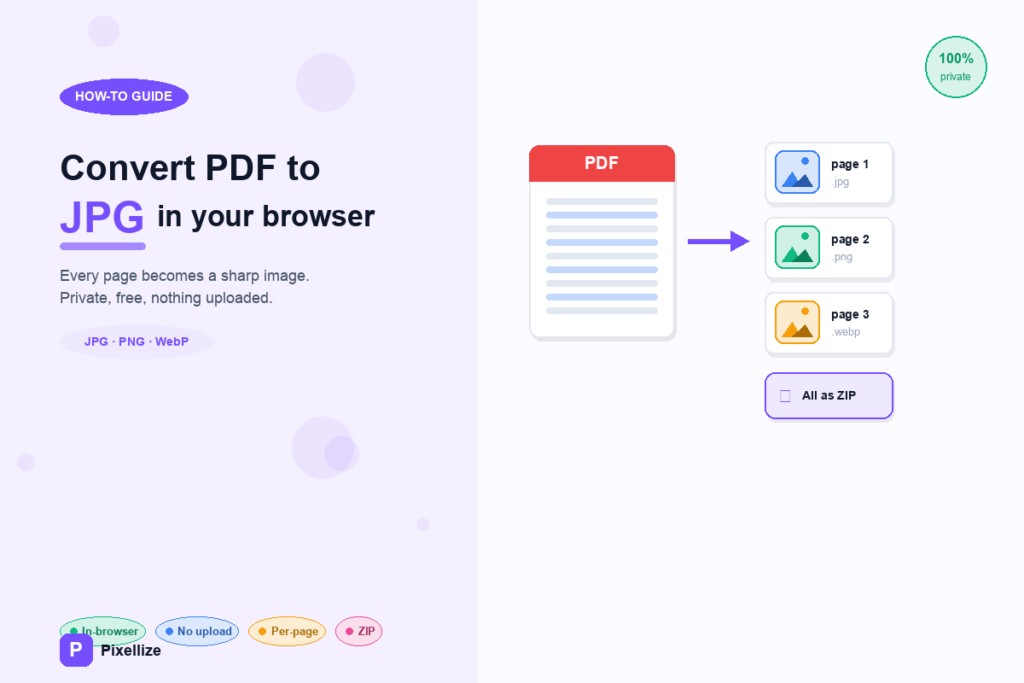
You have a PDF, and you need it as a JPG. Maybe you want to post a page on Instagram, attach it to a WhatsApp chat, or drop it into a slide deck where the PDF stays stubbornly small. The conversion itself takes about ten seconds. The harder question is which method to trust with your file, because a lot of online converters quietly upload your document to their server first, and the privacy story is rarely clear.
This guide covers how to convert a PDF to JPG the private way, entirely inside your browser with the free Pixellize PDF to Image tool, plus the built-in ways to do it on Windows, Mac, and your phone. Your file never has to leave your device. No account, no email, no upload. It also covers when this is the right choice, when it is not, and how to keep the quality high.
| Format | Best for | Quality | File size |
|---|---|---|---|
| JPG | Photos, colorful pages | Slight compression | Smallest |
| PNG | Text, charts, screenshots | Lossless, sharp | Larger |
| WebP | Web use, best of both | Lossless or lossy | Small |
Converting a PDF to JPG means saving each page of the document as a flat image, one JPG per page. A PDF is a layered file that can hold text, fonts, vector graphics, and form fields. A JPG is just colored pixels. So a 10-page PDF becomes 10 JPG files, and the text on them turns into part of the picture.
You can still read that text, but you can no longer select it, copy it, or search it. That tradeoff matters, and we will come back to it near the end. Think of it like taking a clean screenshot of every page and saving the set.
JPGs are everywhere. Every social platform, every chat app, every photo gallery understands them. PDFs are common too, but they are clunky in places where images are expected. A few common reasons people do this conversion:
Both formats produce flat images, but they handle pixels differently. The short version:
If you are not sure, JPG is the safe default. For a contract scan or a colorful brochure page, both look fine. For a black and white legal document where text crispness matters, PNG gives a cleaner result.
The Pixellize PDF to Image tool does the whole thing inside your browser tab. No account, no upload, no install. Here is what it looks like, and the full flow, end to end:
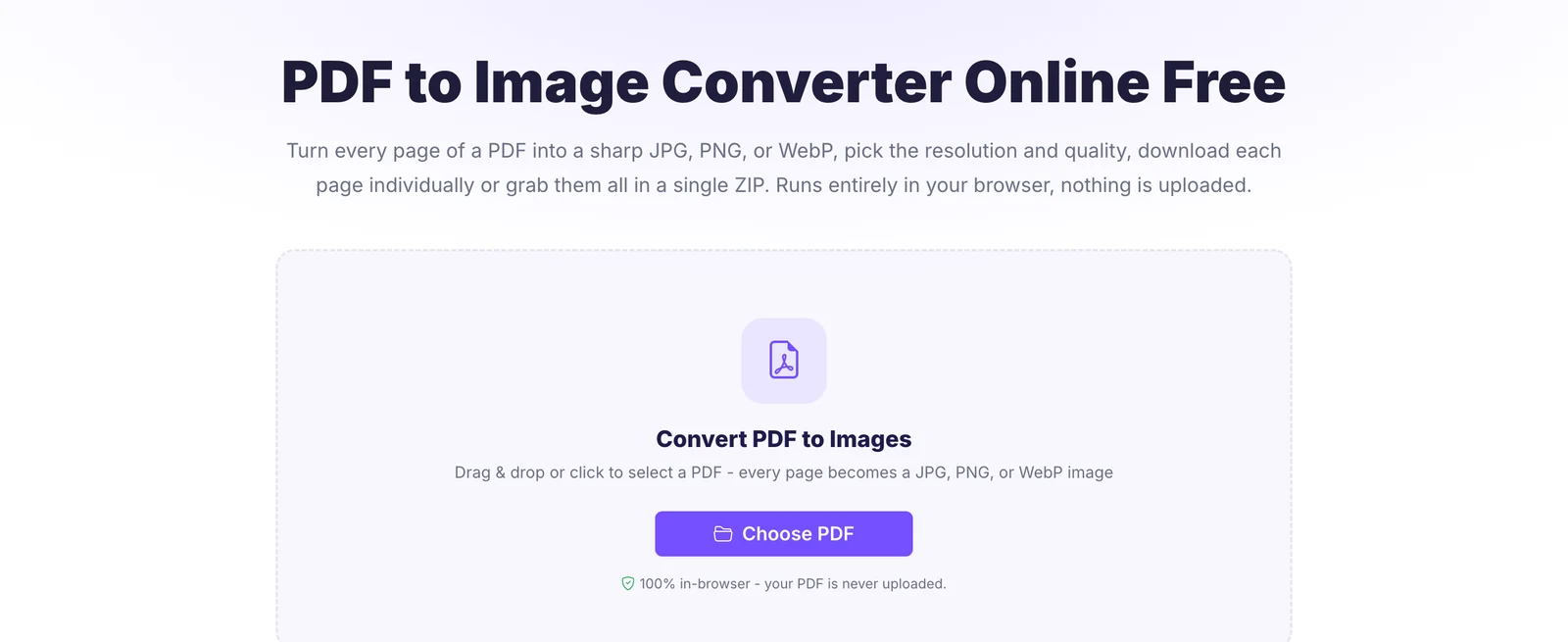
Open the Pixellize PDF to Image tool in any browser, on a phone or a computer. Drag your PDF onto the box or click Choose PDF. The file loads into your browser memory, and the line under the button confirms it is never uploaded.
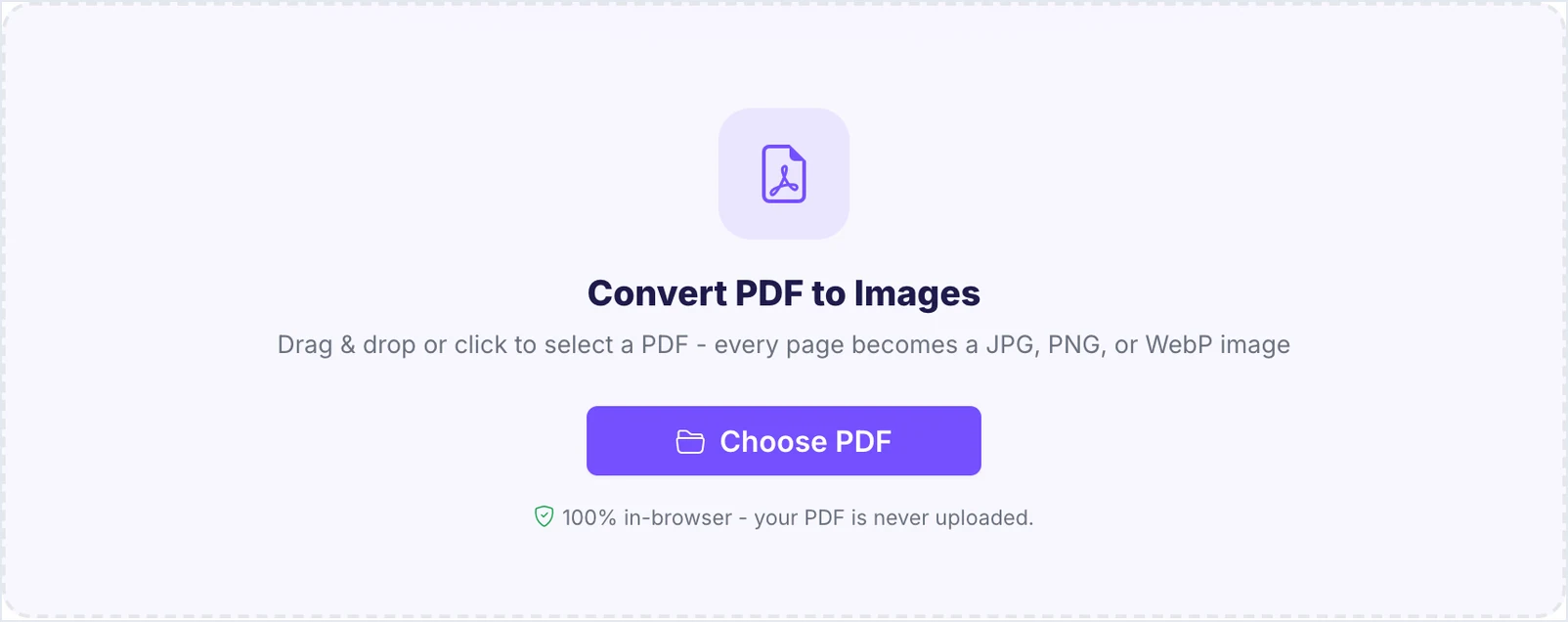
The moment the PDF loads, the render settings appear. Choose an output format (JPG for smaller files, PNG for crisp text, or WebP), set the resolution (2x High is a good default), and tick the pages you want. A thumbnail of every page lets you convert only the ones you need instead of the whole document.
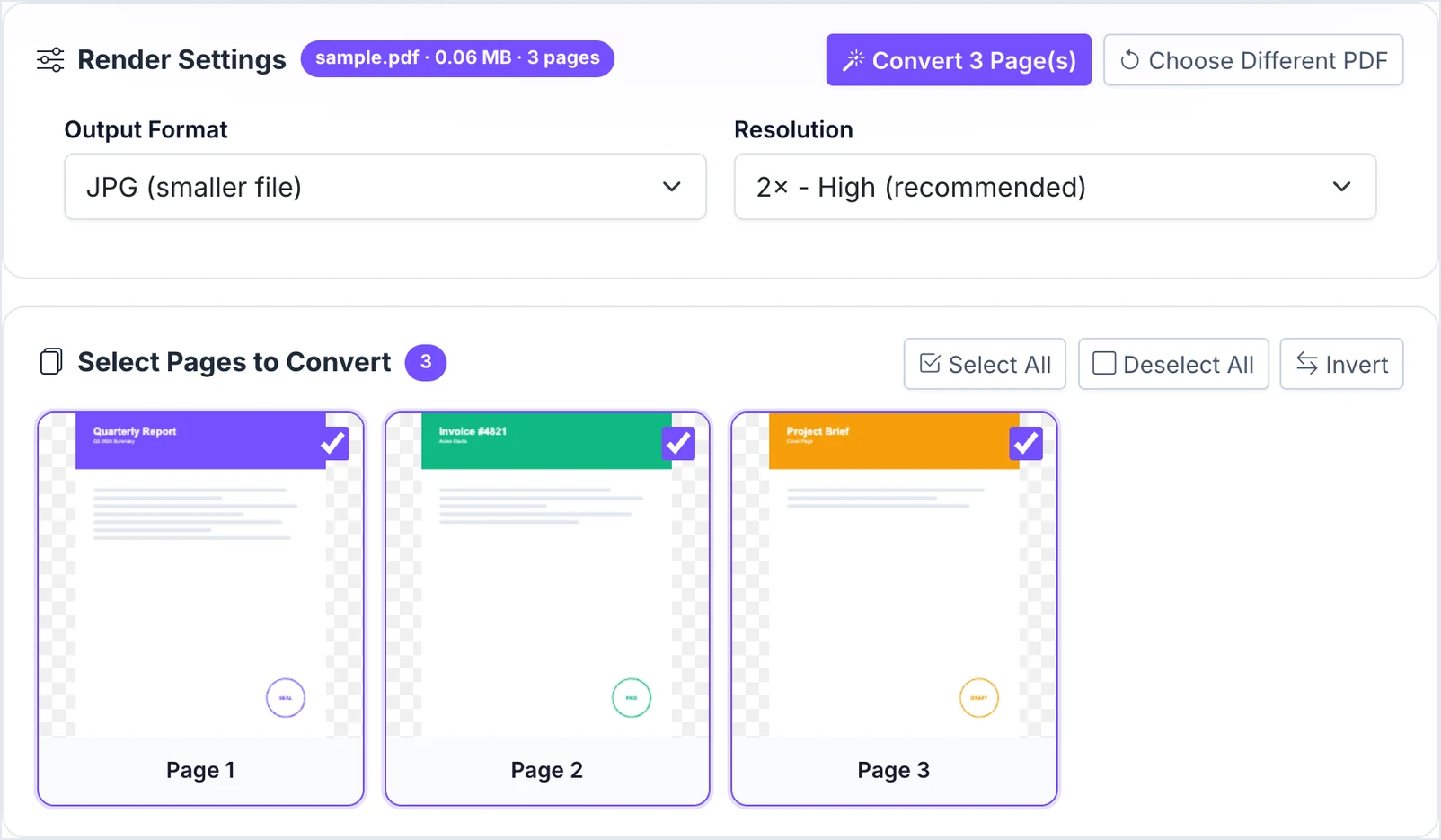
Click Convert, and each selected page renders into its own image in a second or two. Every result shows its exact pixel dimensions with a Download button, and Download All (ZIP) grabs the whole set at once. A 3-page PDF gives you 3 images, one per page.
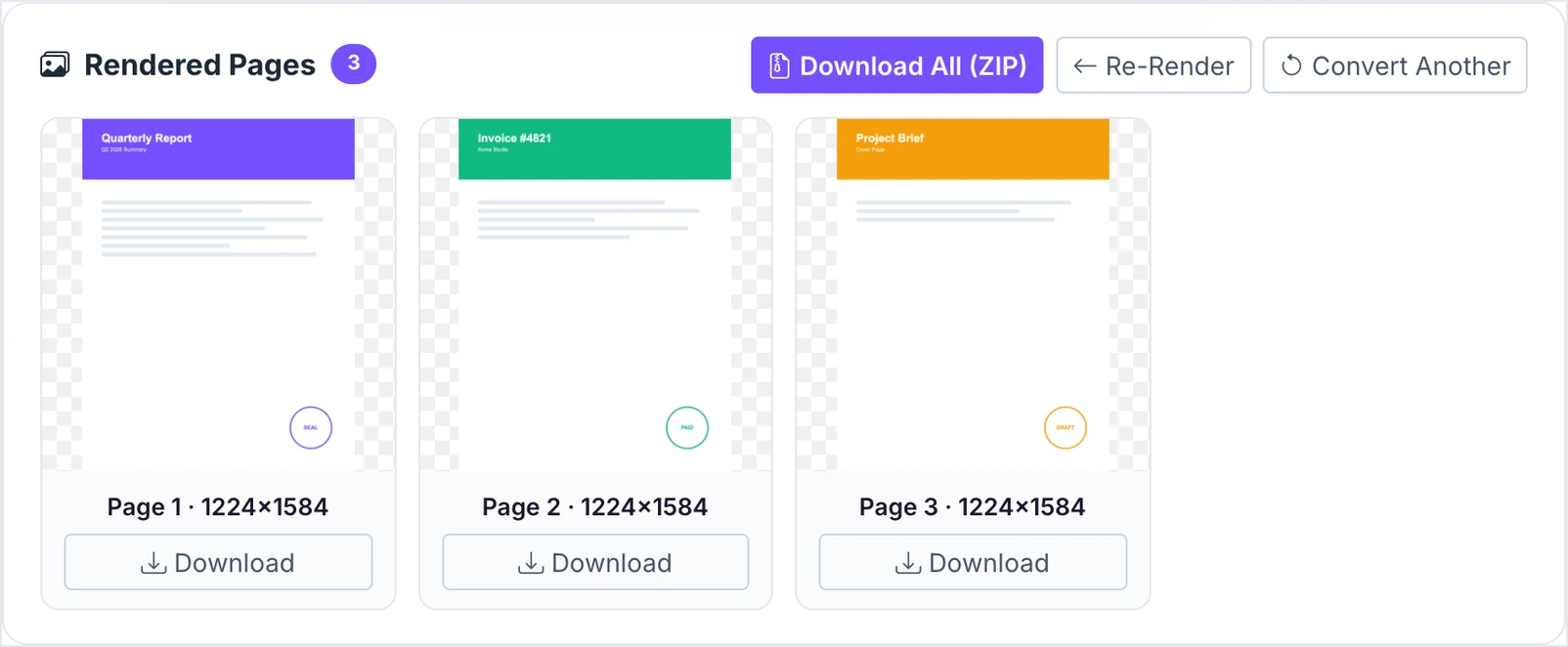
That is it. The whole process usually finishes in under fifteen seconds for a normal-sized PDF, and it works the same on Windows, Mac, Android, and iPhone because it all runs in the browser.
Every major device can convert a PDF to JPG without extra software. On Windows, open the PDF and use Print to a JPG, or screenshot with the Snipping Tool. On Mac, open it in Preview and export as JPEG. On Android and iPhone, take a screenshot or use the built-in Files or Photos share options.
The browser method above is still the most flexible, because it handles every page at once and never uploads your file. But if you are offline or prefer the built-in route, here is the quick version for each device.
| Device | Built-in way to get a JPG | Good for |
|---|---|---|
| Windows 10/11 | Open in Photos or Edge, then Print to a JPG printer, or grab a page with the Snipping Tool (Win+Shift+S) | One or two pages, offline |
| Mac | Open in Preview, choose File then Export, set Format to JPEG | Clean single-page export |
| Android | Open the PDF, screenshot the page, or use a Files app share to image | Quick share to chat |
| iPhone / iPad | Screenshot the page, or open in Files and share as image | Fast, on the go |
| Any browser | Pixellize PDF to Image, all pages at once, nothing uploaded | Whole document, private |
A couple of honest caveats. Screenshots only capture what fits on screen, so a full page often comes out small or cropped. And on Windows there is no JPEG option in the standard Print dialog unless you have a “print to image” printer installed, which is why Microsoft’s built-in tools usually output PDF or PNG. If you want a clean JPG of every page in one go, the browser tool is the simpler path.
Yes, mostly. A JPG is a snapshot at a fixed resolution, so quality depends on the render setting, not luck. Convert at 2x or higher and the text stays crisp on screen and in print. Some faint compression is normal with JPG, so choose PNG when you need perfectly sharp lettering with zero noise.
The single biggest factor is resolution. Rendering a page at 1x gives you a screen-sized image that looks soft when zoomed. At 2x or 3x, each page is rendered at double or triple the pixels, so fine print and thin lines survive. For print work, Adobe recommends 300 DPI or higher, which the higher render settings match. The catch: higher resolution means a larger file, so pick 2x for sharing and 3x or 4x only when you plan to print or zoom in.
Most online converters work like a delivery service. You hand them your file, they take it to their server, they do the work, they hand it back. That sounds harmless, but it is not always.
Your PDF might contain things you would not casually post in public. A bank statement. A tax form. A medical report. A signed contract. A scan of your passport for a visa application. Every one of those documents has details on it that a stranger could use. Once a file leaves your device, you are trusting someone else to delete it, secure it, and not look at it.
The Pixellize PDF to Image tool flips the model. The conversion happens on your own computer or phone, using your browser’s built-in capabilities. The file never goes to a server. There is nothing on our side to leak, lose, or hand over to anyone. When you close the browser tab, every trace of the file is gone with it.
You can verify this yourself. Open your browser’s developer tools, look at the network tab, and convert a PDF. With the Pixellize tool you will see zero outgoing requests during the conversion. That is the proof.
The output is only as good as the input. A few small things make a big difference:
The conversion is not magic. Some PDFs lose value when turned into images. Be honest about whether this is what you actually want before you start.
In those cases, the right move is to keep the PDF and find another way around whatever is bothering you.
To balance the warning above, here are the cases where the conversion is exactly what you want:
Free, no signup, and nothing leaves your device. Drop in a PDF, pick JPG, and download every page.
Open the PDF to Image toolNow you know how to convert a PDF to JPG in the browser and on every device. You do not need to install anything, sign up anywhere, or hand your file to a stranger’s server. Open the Pixellize PDF to Image tool, drop in your file, pick JPG or PNG, click convert. You will have your images in about thirty seconds. If the result is not quite what you wanted, try the other format or a higher resolution. If the PDF is huge and only one page matters, run it through Split PDF first to keep things lean.
The same in-browser approach works for application files too. If a portal wants your picture and signature as one image, you can handle merging photo and signature in the browser without the files leaving your device.
Converting only part of a document? It is often faster to remove the unneeded PDF pages first and convert the trimmed file.
Converting pages is one thing, but if you need the original photos out instead, see our guide on how to extract images from a PDF.
Keeping a file as a PDF instead? Learn how to stamp a watermark on a PDF to mark ownership.
No. The file is read into your browser memory and the conversion happens on your own device. Nothing is sent to a server, nothing is stored, nothing is logged.
The tool converts every page by default. To extract just one page, use the Split PDF tool first to isolate the page you want, then run it through PDF to Image.
There is no hard limit. The browser can comfortably handle PDFs up to a few hundred megabytes on most laptops. Very large files take longer but still work.
No. The output JPG or PNG files are clean, with no watermarks, no logo, no signature added.
You will need to remove the password first. Unlock the PDF in a viewer, save an unlocked copy, then run that through the converter.
Yes. Any modern phone browser can run the tool. The images download straight to your phone gallery or downloads folder.
JPG is best for photo-like pages and gives smaller files. PNG is best for text-heavy pages or screenshots and keeps every pixel sharp.
Founder and CEO of Pixellize.io, building AI-powered web tools and digital products with a focus on user experience and automation. M.Sc. Zoology, working at the intersection of technology, data analytics, and life sciences.