
How to Open a DOCX File Without Word (Free, No Office)
Free, fast ways to open and view a DOCX file without Microsoft Word, in your browser, on Windows, Mac, or your phone.
Read articleLearn how to convert HEIC to JPG on Windows, Mac, iPhone, or online in your browser, with batch conversion and no upload.

You AirDrop a few photos from your iPhone to a Windows laptop, double-click one, and nothing opens. The file ends in .heic, and your PC just shrugs. Apple switched the iPhone camera to HEIC back in 2017, so hundreds of millions of photos now land in a format that most of the web still cannot read. The fix is to convert HEIC to JPG, and there is a way to do it on every device you own. This guide covers how to convert HEIC to JPG on Windows, Mac, iPhone, and straight in your browser with Pixellize, plus which method fits which situation.
HEIC is Apple’s version of the HEIF format, and your iPhone uses it because it stores the same photo in about half the space of a JPG. A 4MB JPG becomes a 2MB HEIC at similar quality. Apple made it the camera default in iOS 11, which is why your recent photos carry the .heic extension.
The catch is support. JPG opens on everything built in the last 30 years. HEIC is newer, so Windows, older photo editors, many web upload forms, and plenty of printers still cannot read it. That gap is the whole reason people search for how to convert HEIC to JPG. Apple documents the format in its own HEIF and HEVC support article, and Microsoft sells the codec that lets Windows read it.
Here is the thing. You do not have to pick one format forever. You can shoot in HEIC to save storage and convert copies to JPG only when you need to share or upload them. If file size is your real worry, our guide on how to reduce image size in KB pairs well with this one.
| Method | Best for | Batch? | Installs anything? | Photos stay private? |
|---|---|---|---|---|
| Pixellize (browser) | Any device, many files | Yes | No | Yes, nothing uploads |
| Windows Photos / Paint | One or two files on a PC | No | Two free extensions | Yes |
| Mac Preview | Mac users | Yes | No | Yes |
| iPhone share as JPEG | Quick single shares | Limited | No | Yes |
Windows 11 can open and convert HEIC, but only after you add two pieces from the Microsoft Store. The first, HEIF Image Extensions, is free. The second, HEVC Video Extensions, costs about 0.99 US dollars, though a free device-maker version often shows up first. Microsoft explains the split on its Windows support pages.
Once the extensions are in, converting is quick:
Prefer Paint? Open the HEIC in Paint, choose File, then Save as, then JPEG picture. Both routes handle one image at a time, which gets old fast if you have 200 vacation photos. This caught me out the first time I tried to clear a full camera roll on a PC, so for anything past a handful of files I skip straight to the browser method below with Pixellize.
Macs read HEIC natively, so no downloads are needed. The built-in Preview app converts in about ten seconds:
For a batch, select every HEIC in Finder, right-click, and use Quick Actions, then Convert Image, then JPEG. It processes the whole selection at once. Keep in mind that Quick Actions strips some editing history, so keep your originals if you still plan to tweak them.
The easiest iPhone trick is to stop making HEIC files in the first place. Open Settings, tap Camera, tap Formats, and choose Most Compatible. New photos now save as JPG. Your existing HEIC shots stay as they are, so you still need to convert those.
To convert a photo you already took, copy it in the Files app and the copy often lands as JPEG, or use a share sheet shortcut. For a clean batch with a guaranteed JPG result, open the Pixellize converter in Safari on your phone, add your photos, and download them back to your camera roll. It works the same on mobile as on desktop.
If you want one method that works on Windows, Mac, Chromebook, and phones without installing anything, convert in the browser. The Pixellize HEIC to JPG converter does exactly that, and it does the whole job on your device. Your photos never travel to a server, which matters for personal shots and anything with faces or documents in frame.
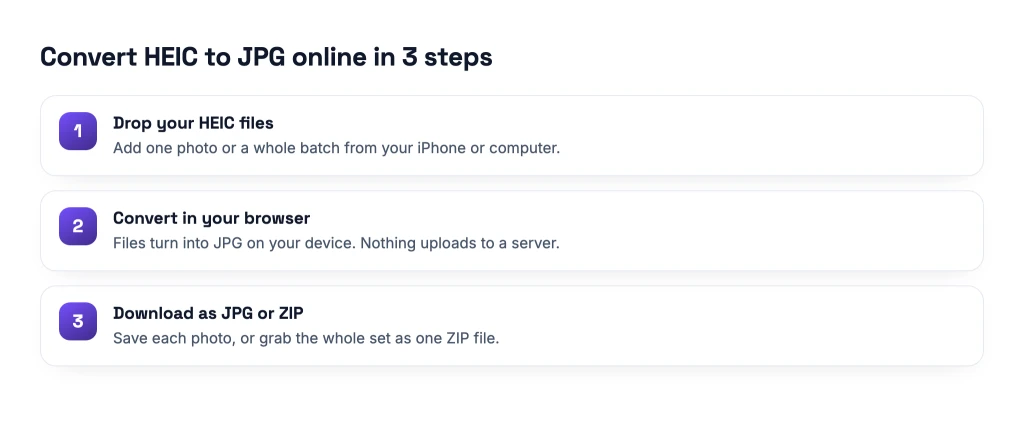
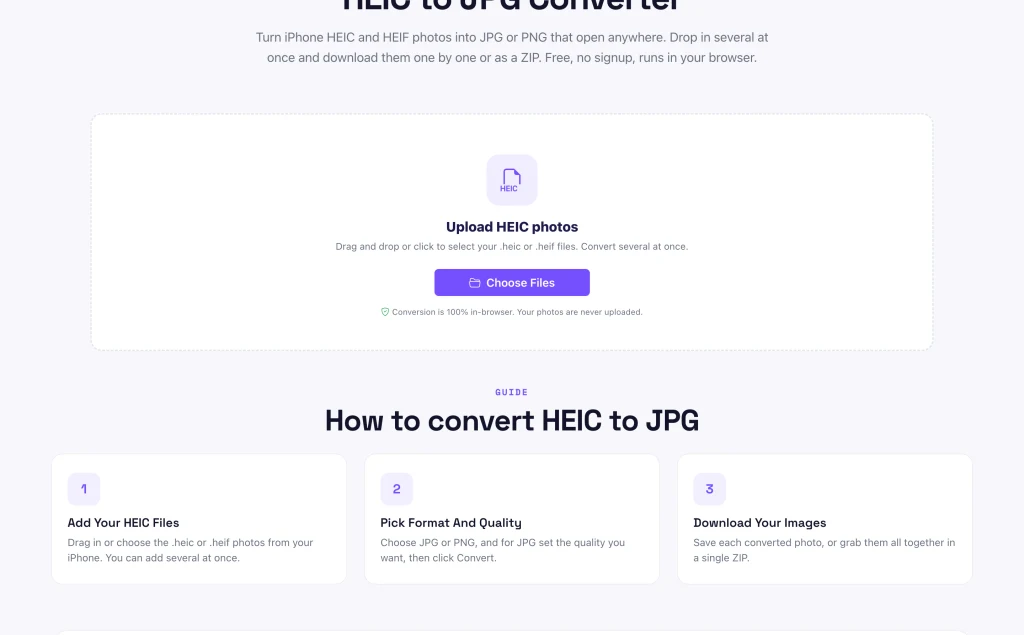
Most online converters cap free use. One popular site stops at 200 photos per batch, and others limit files to well under 40MB. Because Pixellize runs locally, your only real limit is your own device, and there is no signup wall. Did you know a browser can now decode HEIC and re-encode JPG entirely on its own? That is what makes a private, unlimited convert possible without any upload.
Converting HEIC to JPG is technically lossy, but at 90 percent quality the change is invisible for normal photos. HEIC and JPG both throw away some data to save space, so a single convert adds one more small compression pass. You only see a real difference if you convert the same image back and forth many times or zoom far past 100 percent.
Two habits keep quality high. First, keep your original HEIC files as the master copies and convert duplicates. Second, export at 85 to 95 percent rather than a low setting. If sharpness is critical, our note on how to check the DPI of an image helps you confirm the result is print-ready.
Think of it like choosing a route home. Preview and Photos are fine for a short trip, one or two images. For a full camera roll, or when you are on a machine where you cannot install anything, the browser is the road that always works. JPG is also the safest format to hand off to non-technical people, since it opens on every phone, PC, and web form. If you are weighing formats for a website instead, read our breakdown of the best image format for the web.
Drop in your HEIC photos, pick JPG, and download them as a ZIP. Free, no signup, nothing leaves your device.
Open the HEIC to JPG ConverterLearning how to convert HEIC to JPG turns a daily annoyance into a two-click habit. Use Preview on a Mac, the Photos app on Windows, or the camera setting on your iPhone for one-off files. When you have a batch or you are on a device where installing software is off the table, the Pixellize converter handles it in the browser with no upload and no cap. Keep your HEIC originals, export at high quality, and you get JPGs that open anywhere with no visible loss.
Open your HEIC file and export it as JPG. On Mac use Preview, on Windows use the Photos app after installing the HEIF extension, on iPhone share it as JPEG, or use a browser converter like Pixellize to convert a whole batch at once with no upload.
Your photos save as HEIC because Apple set it as the iPhone camera default in iOS 11 to cut file sizes roughly in half. To switch, open Settings, tap Camera, tap Formats, and choose Most Compatible so new shots save as JPG instead.
HEIC is better for storage, since it holds similar quality in about half the space of a JPG. JPG is better for compatibility, because it opens on almost every device, app, and website. Many people shoot in HEIC and convert copies to JPG when they need to share.
On iPhone, open the photo, tap Share, and choose an option that saves as JPEG, or copy it in the Files app so the copy becomes JPG. For several photos at once, open a browser converter such as Pixellize in Safari and download the JPGs to your camera roll.
Converting HEIC to JPG is lossy, but at 85 to 95 percent quality the difference is invisible for everyday photos. Keep your original HEIC files as masters and convert duplicates, so you never lose the highest-quality version of a shot.
Install the free HEIF Image Extensions from the Microsoft Store, then Windows Photos and Paint can open HEIC files. To make them usable everywhere, save the file as JPG from Photos, or convert a batch in the browser with Pixellize.
Founder and CEO of Pixellize.io, building AI-powered web tools and digital products with a focus on user experience and automation. M.Sc. Zoology, working at the intersection of technology, data analytics, and life sciences.