
ZIP Extractor Online: How It Works and When to Use One
How a ZIP extractor online opens archives in your browser, shows every file inside, and lets you download one file or all…
Read articleHow to unzip files online free with no software, extract any zip in your browser, plus built-in steps for Windows, Mac, and your phone.

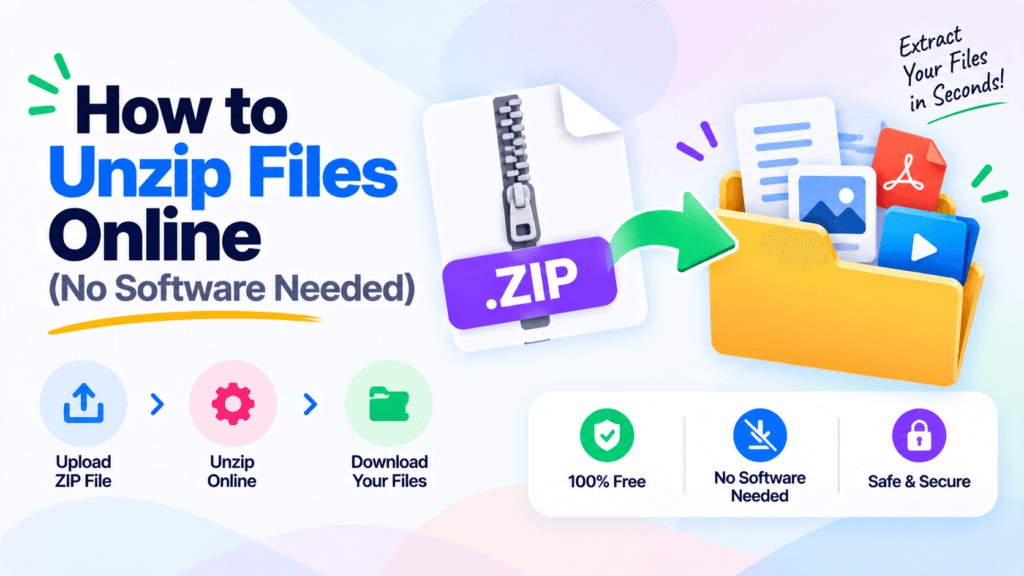
You download a .zip, double-click it, and nothing useful happens. Maybe it opens a locked preview you cannot edit, or the work laptop refuses to install WinRAR. A zip is just a container, and the files you actually need are sealed inside until you extract them. This guide shows you how to unzip files online in your browser, with no software to install, using the free Pixellize unzip tool. It also covers the built-in way to unzip on Windows, Mac, and your phone, plus what to do with a password-protected zip.
Unzipping a file means extracting the contents out of a .zip archive so you can use them as normal files. A zip bundles many files into one compressed container to save space and make sharing easier. Unzipping reverses that, writing each file back to your device at its full original size.
Here is the difference people miss. Opening a zip lets you peek at the file list inside, while unzipping actually pulls those files out so you can edit, run, or move them. If you only want a quick look before you commit, our guide on how to open and preview a zip file online covers that side. This post is about getting every file out.
If you need to know how to unzip files online with nothing to download, a browser tool is the fastest route. Here is the process with the free Pixellize unzip tool. The whole thing takes under a minute, and your archive never leaves your device.
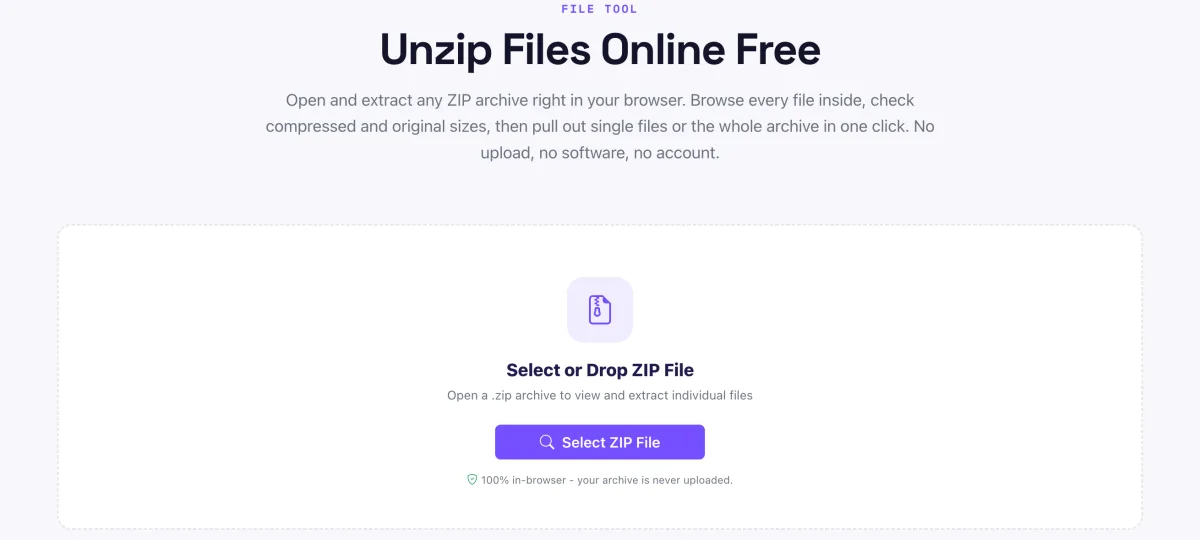
I ran a 12 MB zip of mixed PDFs and images through it while writing this, and Extract All returned every file in about three seconds. Nothing uploaded, so even a folder full of pay slips stays on your own machine. That privacy is the main reason to unzip online instead of using a random download site.
Drop a .zip, browse the contents, and extract one file or all of them. Free, private, no install.
Open the Unzip Files toolWindows 10 and 11 unzip a .zip on their own, no WinRAR needed. Right-click the zip, choose Extract All, pick a destination folder, and click Extract. Windows writes every file into that folder. For a single file, double-click the zip to open it in File Explorer, then drag the one file you want out to your desktop.
Keep in mind the built-in tool handles plain .zip only. For .rar or .7z you still need a separate app or an online converter. Microsoft’s own guide to zipping and unzipping files lists the steps if the right-click menu looks different on your build.
On a Mac it is one step. Double-click the .zip in Finder and the built-in Archive Utility extracts it into a folder next to the original, keeping the same name. There is nothing to install and no settings to touch. Apple documents the behavior in its compress and uncompress files guide.
One catch trips people up. If the zip was made on Windows, you may see an extra __MACOSX folder or hidden files after extraction. They are harmless leftovers, and you can delete them. When a Mac refuses to open a zip at all, the file is usually a .rar in disguise, and the browser tool reads it more reliably.
To unzip a password-protected zip file online, open it in a tool that supports encrypted archives and type the password when prompted. The tool then unlocks the zip and extracts the files on your device. You must know the real password first. No honest tool can crack or recover a password you do not have, and any site promising that is best avoided.
If you set the password yourself and forgot it, there is no safe shortcut, you have to ask whoever created the archive to resend it or share the password. For files you received with a password over a separate channel, entering it in the Pixellize unzip tool is fine, since the archive is still read locally and never uploaded.
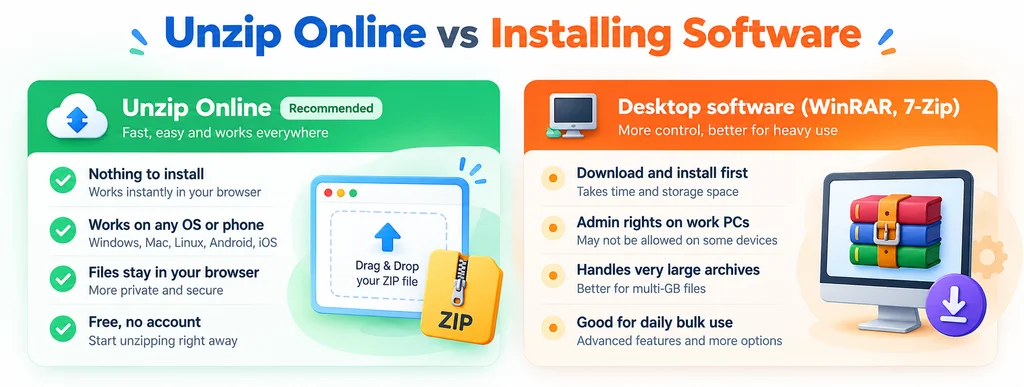
Pick online for a quick, one-off extraction, especially on a locked-down work PC where you cannot install anything. Pick desktop software like 7-Zip when you unzip large archives every day or need formats beyond plain zip.
| Device | How to unzip | Install needed |
|---|---|---|
| Windows 10 / 11 | Right-click, Extract All | No |
| Mac | Double-click, Archive Utility | No |
| iPhone | Files app, tap the zip | No |
| Android | Files by Google, Extract | No |
| Any device, in a browser | Pixellize unzip tool | No |
If you want the background on how a browser-based extractor pulls files out without a server, our explainer on how an online zip extractor works goes under the hood.
Once your files are out, you may need to do something with them next. If the zip held a spreadsheet, see how to open a CSV file without Excel. The same no-install logic applies: let the browser do the work.
The pattern is simple. For a quick job on any device, unzip files online in the browser and keep your data on your own machine. For plain .zip archives, Windows, Mac, and both phone systems already have the feature built in. Save desktop software for heavy daily use or odd formats. Next time a .zip lands in your downloads, try the free Pixellize unzip tool and pull out exactly the files you need.
Open a browser-based unzip tool like Pixellize, drop in your .zip, browse the file list, and click Extract All Files or save a single file. It is free, needs no account, and the archive is read on your device, so nothing uploads to a server.
Yes. Windows, Mac, iPhone, and Android all extract a plain .zip with a built-in feature, and a browser tool unzips files online when you cannot install anything, such as on a locked work laptop.
Right-click the .zip, choose Extract All, pick a destination folder, and click Extract. Windows writes every file into that folder. For one file, double-click the zip and drag that file out.
On iPhone, open the Files app and tap the .zip to get an extracted folder beside it. On Android, open Files by Google, tap the zip, and tap Extract. No extra app is needed on either.
Yes, if you know the password. Open the zip in a tool that supports encrypted archives and type the password when asked. No honest tool can crack a password you do not have.
It is safe when the tool works in your browser and never uploads the archive, like the Pixellize unzip tool. Your files stay on your device, which matters for anything private such as documents or pay slips.
Opening a zip shows the list of files inside without taking them out. Unzipping extracts those files to your device so you can edit, run, or move them. Most of the time you want to unzip.
Founder and CEO of Pixellize.io, building AI-powered web tools and digital products with a focus on user experience and automation. M.Sc. Zoology, working at the intersection of technology, data analytics, and life sciences.