
How to Compress PDF Without Losing Quality, Step by Step
Shrink any PDF without making it blurry. Plain-language guide to lossy vs lossless, the right quality setting for every use case, and…
Read articleSplit a PDF online in seconds, free and with no software. Pick exact page ranges, split every N pages, or save each page as its own file.

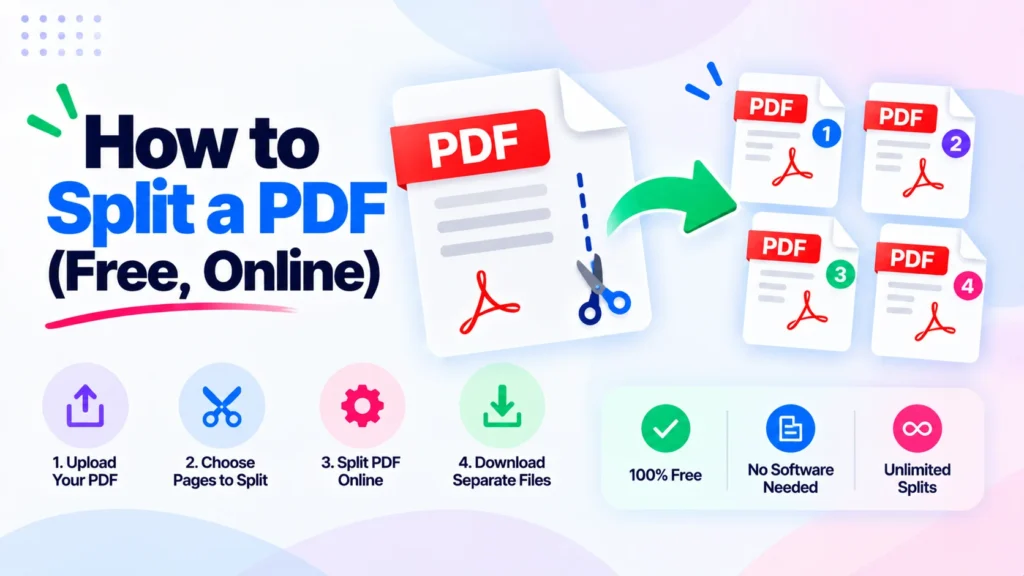
You have a 60-page scanned contract, but the other side only needs pages 3 to 10. Emailing the whole thing is slow, and it hands over pages nobody asked for. Learning how to split a PDF fixes that in seconds, and you do not need Adobe Acrobat or any install. You upload the file, pick the pages or ranges you want, and download clean, separate PDFs. This guide covers the free online way with the Pixellize Split PDF tool, the three split modes worth knowing, a no-tool browser trick, and how to split a PDF on Windows and Mac.
Splitting takes one big file and breaks it into smaller, separate PDFs while the original stays untouched. People do it constantly. A 50-page report where only pages 3 to 10 matter. A textbook chapter you want to share without handing over the whole book. A scanned bundle that must go out in parts because the mailbox caps attachments at 25 MB.
Here is the thing. The clumsy workaround, printing to PDF one page at a time, is slow and often breaks the formatting. A proper split keeps every page exactly as it was. You decide which pages go into each new file, and you get them back in one step.
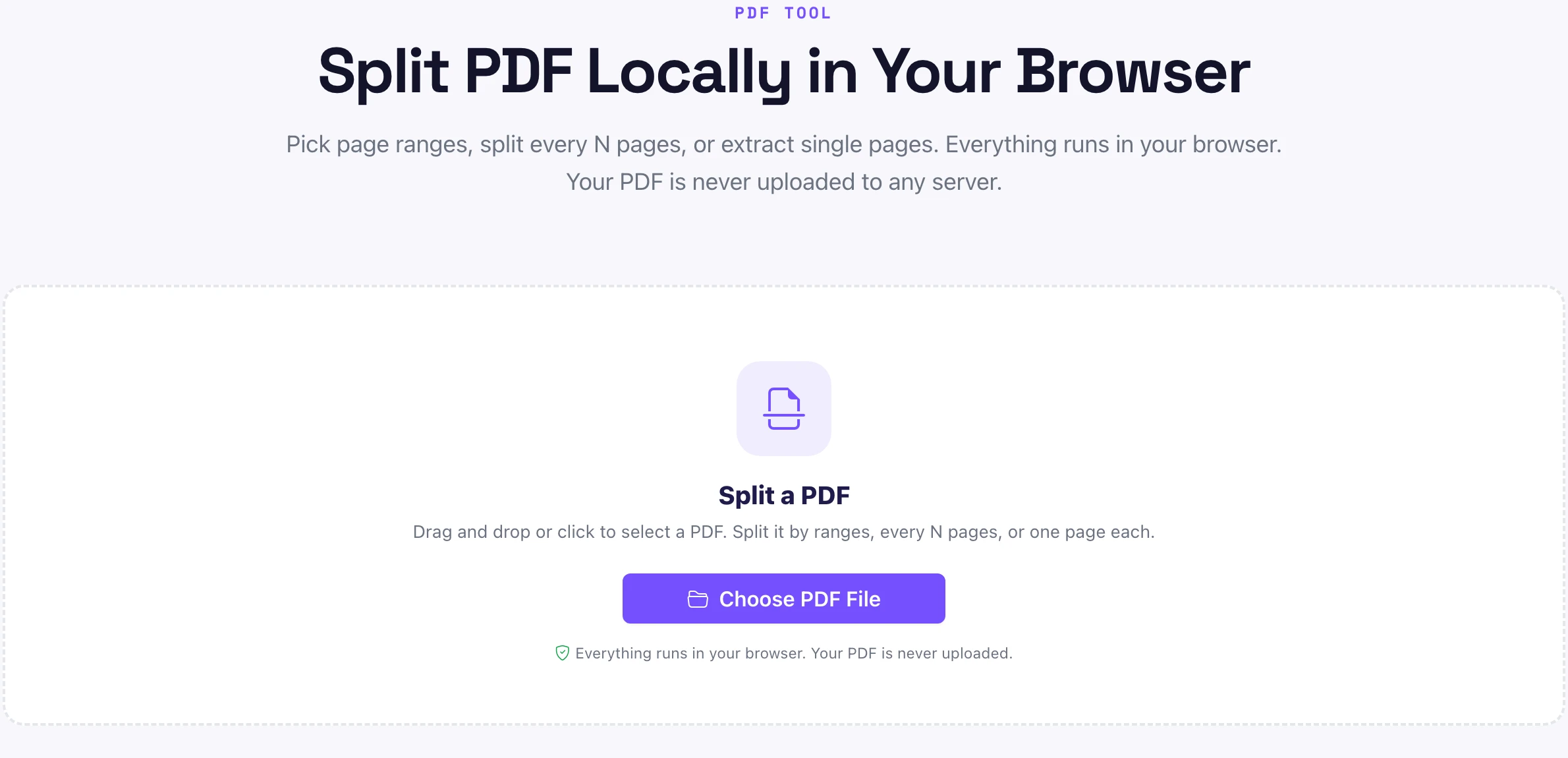
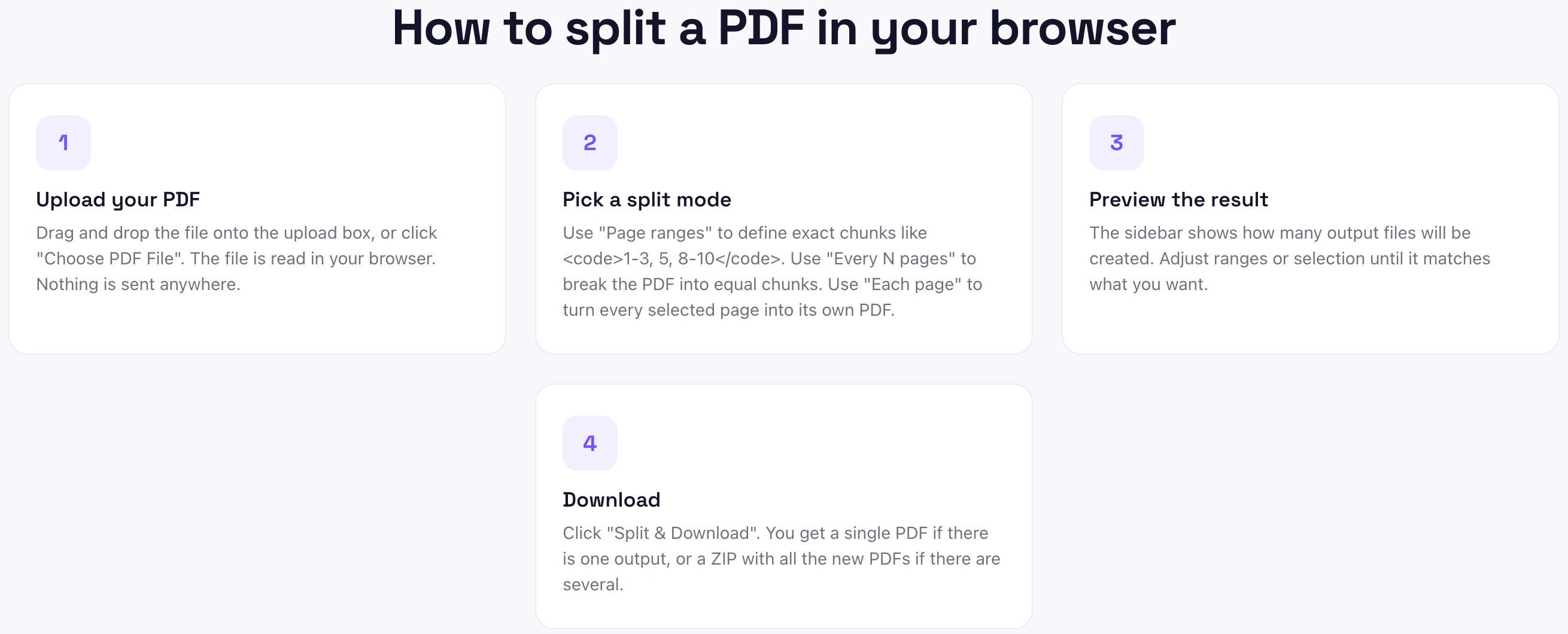
The fastest route is a browser tool, because there is nothing to download. Open the Pixellize Split PDF tool and the whole job takes about four clicks. The file is read on your device, so your PDF never leaves your computer.
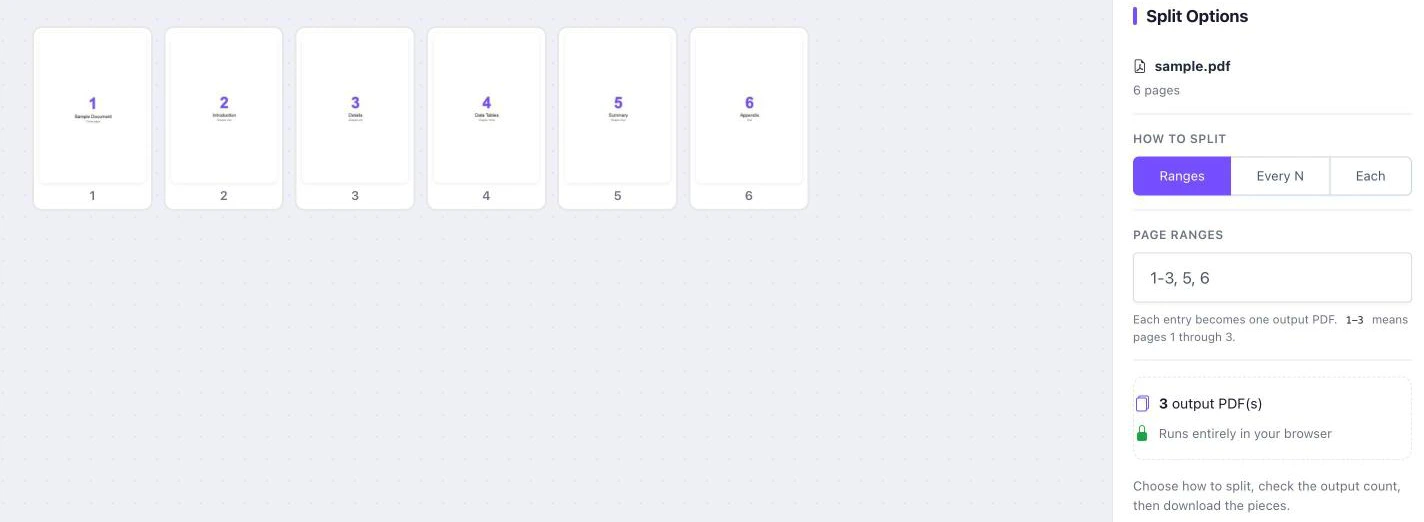
Not every split is the same. Pixellize gives you three modes, and picking the right one saves you from fixing the output afterward. Think of it as the difference between cutting a cake into named slices versus equal pieces.
| Split mode | What it does | Best for |
|---|---|---|
| Page ranges | Define exact chunks like 1-3, 5, 8-10 | Pulling specific sections out |
| Every N pages | Breaks the file into equal chunks | A long scan split into even parts |
| Each page | Turns every selected page into its own PDF | Separating signed forms or invoices |
Use page ranges when you know the exact pages, like pulling a single contract clause. Use every N pages to chop a 200-page scan into ten 20-page files for easier review. Use each page when every page is its own document, think a batch of invoices you need as separate files.
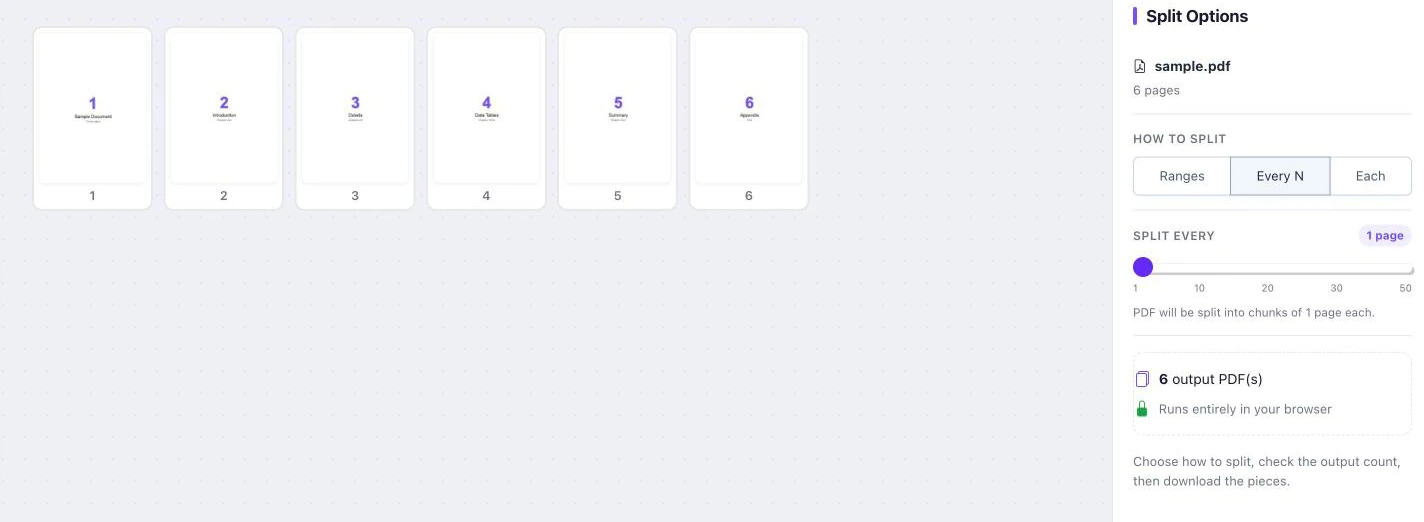
Most popular splitters, Adobe, Smallpdf, and iLovePDF, upload your PDF to their servers to do the work. That is fine for a flyer, less fine for a signed contract, a bank statement, or anything private. Pixellize runs the split in your browser, so the file never leaves your device. Here is how the two approaches compare.
| Feature | Pixellize Split PDF | Typical cloud splitters |
|---|---|---|
| Where your file goes | Stays in your browser | Uploaded to their servers |
| Sign-in | None | Often required for full use |
| Page or file-count caps | None | Common (e.g. up to 20 files free) |
| Cost | Free | Free tier, then paid |
| Works offline after load | Yes | No |
No tool open and just need one section? Your browser can do a basic split through the Print dialog. Open the PDF in Chrome or Edge, press Ctrl+P (Cmd+P on Mac), set the destination to Save as PDF, then under Pages choose Custom and type a range like 2-6. Save, and you have a new PDF with only those pages.
Keep in mind this method handles one range at a time and can flatten some interactive form fields. For a quick single extract it is fine. For multiple ranges or clean output across a big file, the Pixellize Split PDF tool is faster and keeps the pages intact.
On Windows, the browser Print trick above is the built-in option, since Windows has no native PDF splitter. Paid desktop apps can do it too, for example Adobe Acrobat through Organize Pages, but for repeat jobs a browser tool is simpler than installing anything.
On a Mac, Preview can split without extra apps. Open the PDF in Preview, show Thumbnails from the View menu, then drag any page thumbnail out to your desktop to save it as a new one-page PDF. Did you know you can select several thumbnails with Command held down and drag them together? It works, though it is fiddlier than picking ranges in Pixellize.
Splitting by bookmarks or by a maximum file size is a desktop Adobe Acrobat feature, which can cut a PDF at each top-level bookmark or cap each output at a set size. Pixellize does not read bookmarks, but you get the same result with page ranges for chapters, or the every N pages mode to keep files small.
So if your report has chapter bookmarks, note the page each chapter starts on and enter those as ranges. For an email size cap, split into even chunks with every N pages, or run the file through the Pixellize compress PDF tool first, then split.
Splitting a PDF does not reduce quality. The tool copies the chosen pages exactly as they are into new files, so text stays sharp and images keep their original resolution. Nothing is re-rendered or re-compressed. The only time quality changes is if you separately compress a file, which is a different step entirely.
To split a large PDF for email, break it into chunks under your mail provider limit, which is 25 MB for Gmail and Outlook. Use the every N pages mode to make even parts, check each file size, and send them separately. If the pages themselves are heavy scans, compress the PDF first, then split.
For that compress-then-split flow, the Pixellize compress PDF tool shrinks the file before you cut it. And if you later need the opposite, the Pixellize merge PDF tool joins the pieces back into one.
Pick ranges, every N pages, or one page each, then download. No account, no install, nothing uploaded.
Open the Split PDF toolNow you know how to split a PDF online in seconds, which of the three modes fits your file, and how to do it on Windows or Mac without buying software. Open the Pixellize Split PDF tool, drop your file, pick your pages, and download. If you only need a few pages pulled out rather than a full split, the guide on how to extract pages from a PDF covers that exact case.
Open a free browser tool like the Pixellize Split PDF tool, upload your file, choose page ranges or split every N pages, preview the output count, and download. You get a single PDF or a ZIP of several files, with no account, no install, and nothing uploaded to a server.
Use the each page mode in a split tool, which turns every selected page into its own PDF. Upload the file, pick each page mode, and download the results as a ZIP. This is ideal for separating invoices, signed forms, or scans into individual files.
Yes. Open the PDF in your browser, press Ctrl+P or Cmd+P, set the destination to Save as PDF, choose Custom pages, and type a range like 2-6. This handles one range at a time and can flatten form fields, so a dedicated splitter is better for multiple ranges.
No. Splitting copies the chosen pages exactly into new files, so text stays sharp and images keep their resolution. Nothing is re-rendered or re-compressed. Quality only changes if you separately compress the file, which is a different action entirely.
Break it into chunks under your mail limit, which is 25 MB for Gmail and Outlook. Use the split every N pages mode for even parts, check each file size, and send them separately. If the pages are heavy scans, compress the PDF first, then split.
Open the PDF in Preview, choose Thumbnails from the View menu, then drag a page thumbnail to your desktop to save it as a new PDF. Hold Command to select several pages. For exact ranges, a browser splitter like the Pixellize Split PDF tool is faster.
It is safe if the tool processes the file in your browser instead of uploading it. The Pixellize Split PDF tool runs entirely on your device, so your PDF is never sent to a server. Most cloud splitters upload your file, which matters for private documents like contracts, IDs, or bank statements.
Founder and CEO of Pixellize.io, building AI-powered web tools and digital products with a focus on user experience and automation. M.Sc. Zoology, working at the intersection of technology, data analytics, and life sciences.