
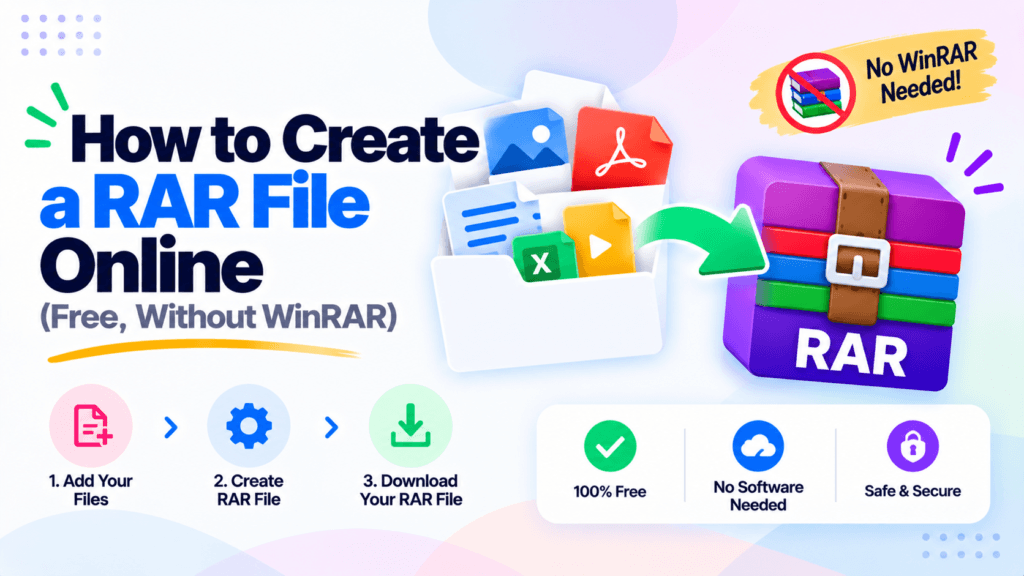
You need to send a few files as a single .rar, but WinRAR is not installed and the trial nag is annoying. Here is the honest version of how to create a RAR file online, what an online RAR actually is, and when a true RAR made in WinRAR is worth it. The fastest route, if you just need one .rar that opens cleanly for the person receiving it, is the free Pixellize Create RAR File tool, which bundles your files in the browser with nothing uploaded.
- A true
.rarcan only be made by WinRAR, the RAR format is proprietary, so no website or browser can build a real RAR. - Online “create RAR” tools, including Pixellize, make a standard archive saved with a
.rarextension that opens cleanly in WinRAR, 7-Zip, and most archive managers. - That is enough for almost every “I just need a .rar to send” case, free, no install, nothing uploaded.
- For real RAR compression, a password, or a recovery record, use WinRAR on desktop.
- ZIP is built into Windows and Mac and opens everywhere, so if the receiver does not need RAR specifically, a ZIP is simpler.
Can you really create a RAR file online?
Not a true one. The RAR format is proprietary and only WinRAR can create a genuine .rar archive, so no browser or website can build the real thing. What online tools do, including Pixellize, is bundle your files into a standard archive and save it with a .rar extension, which opens cleanly in WinRAR, 7-Zip, and other archive managers.
Here is the thing: for most people that distinction does not matter. If someone asked you for “a RAR” and just needs to open the files, a .rar-named archive works fine on their end. The cases where it does matter are real RAR compression ratios, a password-locked archive, or WinRAR’s recovery record, and those need the desktop app. The rest of this guide covers both paths honestly.
How to create a RAR file online for free
The free Pixellize Create RAR File tool runs entirely in your browser, so your files never upload to a server. It bundles everything into a single archive, saves it with a .rar extension, and hands you the download. I reach for this whenever a form or a colleague wants a .rar and I do not want to install anything.
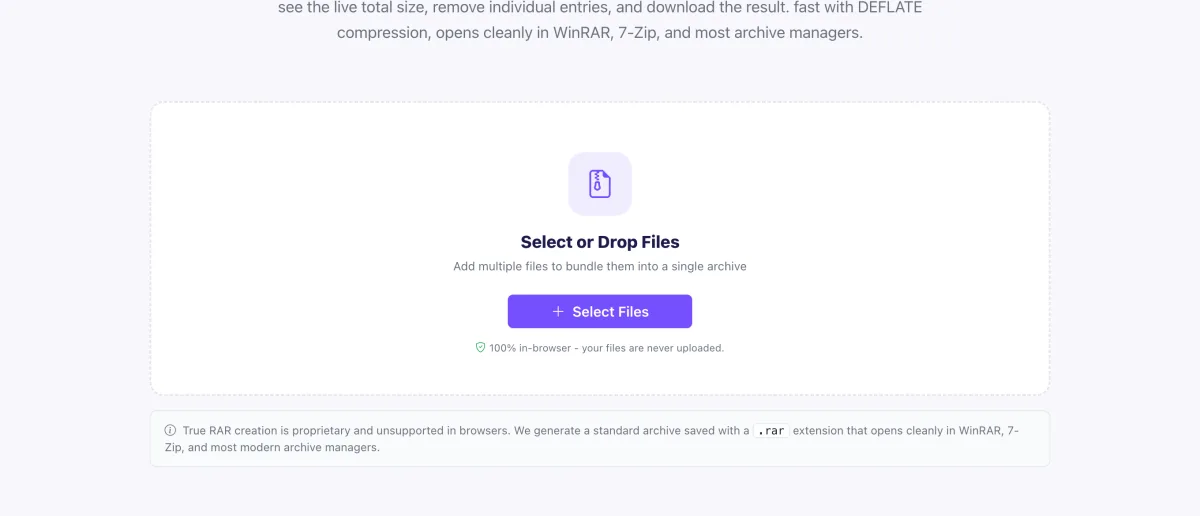
- Open the tool. Go to the Create RAR File page.
- Add your files. Drag them onto the drop zone or click Select Files. You can add several at once, and the running total shows the combined size.
- Review the list. Remove anything you do not want, or click Add More to include extra files.
- Create and download. Click Create and Download RAR. The archive saves to your device with a
.rarextension, ready to send.
That is the whole flow, usually under 20 seconds for a handful of files. Because it is browser-based, it works the same on Windows, Mac, Chromebook, or a phone, with no account and no watermark.
Will it open on the other end? In almost every case, yes. The archive opens in WinRAR, 7-Zip, the built-in extractor on Windows and macOS, and most phone file apps. The only time it can trip up is a strict RAR-only tool that inspects the internal format, which is rare, and if you ever hit that, just send the files as a ZIP instead.
How to make a true RAR file with WinRAR
When you need a genuine RAR, with RAR5 compression or a recovery record, WinRAR is the only app that creates the format. It is paid after a 40-day trial, but the trial keeps working for creating archives.
- Install WinRAR from the official WinRAR site (Windows), or use the
rarcommand line on Linux. - Select your files in File Explorer, right-click, and choose Add to archive.
- Set Archive format to RAR (not ZIP), pick a compression level, and name the archive.
- Click OK. WinRAR builds a real
.rarwith true RAR compression.
Note that 7-Zip, despite being excellent and free, can open RAR files but cannot create them. No free app makes a real RAR, that is the one job reserved for WinRAR.
How to password-protect a RAR file
Password protection is a WinRAR job, not something the online tool does, so be clear on that before you rely on it. In the WinRAR Add to archive dialog, click Set password, type your password, and tick Encrypt file names so the contents stay hidden too. WinRAR uses AES-256, which is strong when the password is long.
If you only need encryption and not the RAR format specifically, 7-Zip password-protects a .7z or .zip with the same AES-256 for free. Keep in mind that a lost archive password cannot be recovered, so store it somewhere safe.
RAR vs ZIP: what is the difference?
RAR usually compresses a little smaller and adds features like recovery records and multi-part splits, but it is proprietary and needs WinRAR to create. ZIP is an open format built into Windows and Mac, opens on virtually any device, and can be made anywhere with no install. ZIP files run slightly larger, which is the trade for that universal compatibility.
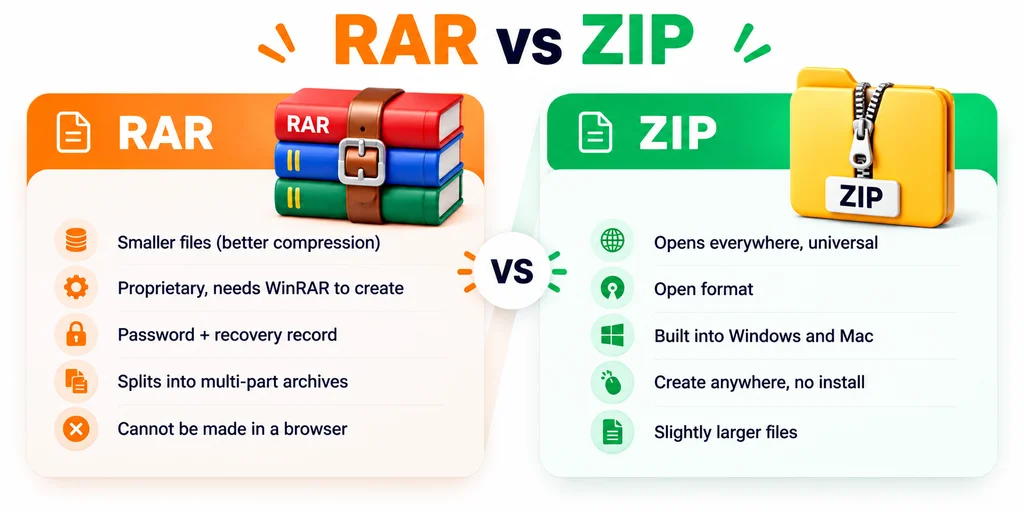
| RAR | ZIP | |
|---|---|---|
| Compression | Usually smaller | Slightly larger |
| Create it anywhere | No, WinRAR only | Yes, built into Windows and Mac |
| Opens everywhere | Needs an extractor | Yes, natively |
| Password | Yes (WinRAR, AES-256) | Yes (7-Zip, AES-256) |
| Recovery record | Yes | No |
| Make online, no install | As a .rar-named archive | Yes, a true ZIP |
How much do files actually shrink in an archive?
It depends on the file type, not the archive format. In our own test (macOS zip -9 on a mixed set), plain text and markdown shrank about 63 percent, a CSV data file 78 percent, and a CSS source file 85 percent. An already-compressed WebP image dropped just 1 percent. In raw size that is stark: a 1.1 MB CSS file came out at 172 KB, while an 18 KB WebP photo barely budged, finishing at 18 KB. A real RAR trims a little more on text and code, but the shape is identical.
zip -9, October 2026.Here is the rule that saves time. Archives squeeze text, code, and data hard, but they barely touch files that are already compressed: JPEGs, PNGs, WebP, MP4 video, and most PDFs. Bundling a folder of phone photos into a .rar or ZIP will not make it meaningfully smaller, you are packaging them for one tidy download, not shrinking them. That single fact decides whether compression is even worth the effort.
When should you use RAR instead of ZIP?
Use RAR when the person receiving the file specifically asked for it, when you need the smallest possible archive for a large upload, or when you want WinRAR’s recovery record to survive minor corruption. Those are the genuine reasons the format still has fans.
Reach for ZIP in almost every other case. It opens on any phone, Mac, or Windows PC with no extra software, and you can build a true ZIP for free with the Pixellize Create ZIP File tool or your operating system’s built-in compressor. If the goal is simply “put these files in one archive and send it,” ZIP is the lower-friction choice.
How to create a RAR on Mac, iPhone, and Android
None of these platforms can make a true RAR, because WinRAR is Windows-first and the format is closed. On a Mac you can right-click and choose Compress to make a ZIP instantly, or use a tool like Keka for other formats. For a .rar-named archive without any install, the browser-based Create RAR File tool works on macOS too.
On iPhone and Android, there is no native RAR creator either. Since the Pixellize tool runs in the mobile browser, you can bundle files into a .rar-named archive straight from your phone, no app store download required. For a native ZIP on iPhone, the Files app can compress with a long press.
How to convert a RAR to ZIP or open one
If someone sent you a .rar and you would rather have a ZIP, convert it with the free Pixellize RAR to ZIP tool, which repackages the contents into a universal .zip. That is the quickest fix when your device cannot open RAR but handles ZIP natively.
To just open an archive, a real RAR needs WinRAR or 7-Zip on desktop, while a ZIP opens natively or with the unzip files online tool. According to the RAR file format reference, the format has been proprietary since its creation, which is exactly why extraction is widely supported but creation is not.
Bundle your files into a ready-to-send .rar archive, free, no WinRAR, and nothing uploaded.
Create your RAR file now
To recap how to create a RAR file online: for a quick .rar to send, use the free in-browser Pixellize Create RAR File tool, which saves a standard archive with a .rar extension that opens everywhere. For a true RAR with real compression or a password, use WinRAR on desktop. And if universal compatibility matters more than the format, a ZIP is the simpler pick. Match the archive to what the receiver actually needs and you will never fight the trial nag again.
Frequently Asked Questions
Can I create a RAR file without WinRAR?
Yes, for a .rar you can send. An online tool like Pixellize bundles your files in the browser and saves the archive with a .rar extension that opens in WinRAR and 7-Zip. For a true RAR with real RAR compression or a password, you still need WinRAR on desktop.
Is an online RAR a real RAR file?
Not exactly. The RAR format is proprietary, so browsers cannot build a true RAR. Online tools create a standard archive saved with a .rar extension. It opens cleanly in WinRAR, 7-Zip, and most archive managers, which is all most people need.
How do I password-protect a RAR file?
Use WinRAR: in Add to archive, click Set password, enter it, and tick Encrypt file names. WinRAR uses AES-256. Online tools do not password-protect, and 7-Zip can lock a .7z or .zip with the same encryption for free.
Is RAR or ZIP better?
ZIP wins on compatibility, it opens on any device with no install. RAR gives slightly smaller files, recovery records, and multi-part splits. If the receiver did not specifically ask for RAR, ZIP is the simpler choice.
How do I open a RAR file?
On desktop, WinRAR or the free 7-Zip opens any .rar. If your device cannot open it, convert the file to a universal ZIP first with the RAR to ZIP tool, then open it natively.
Can I create a RAR on my phone?
There is no native RAR creator on iPhone or Android. Since the Pixellize Create RAR File tool runs in the mobile browser, you can bundle files into a .rar-named archive from your phone with no app install.

Simranjit Kaur
Founder and CEO of Pixellize.io, building AI-powered web tools and digital products with a focus on user experience and automation. M.Sc. Zoology, working at the intersection of technology, data analytics, and life sciences.