
How to Tell if a Website Is Built on WordPress (5 Ways)
You land on a site with a layout you love, or a competitor you want to size up, and one question follows:…
Read article
Chrome extensions are deceptively picky about icons. The official manifest reference says only 128 is strictly required, but in practice you need four PNG files at 16, 32, 48, and 128 pixels if you want your extension to look sharp everywhere it shows up. This guide covers the chrome extension icon sizes the browser actually uses, where each one renders, how to declare them in manifest.json, and the format rules that catch most people the first time.
For a complete Chrome extension you need PNG files at exactly four pixel sizes:
chrome://extensionsTechnically only the 128 file is required by the manifest schema. Skip any of the others and Chrome falls back to downscaling the 128 px version, which looks soft at 16 px and is the single biggest reason extension icons look blurry in the toolbar.
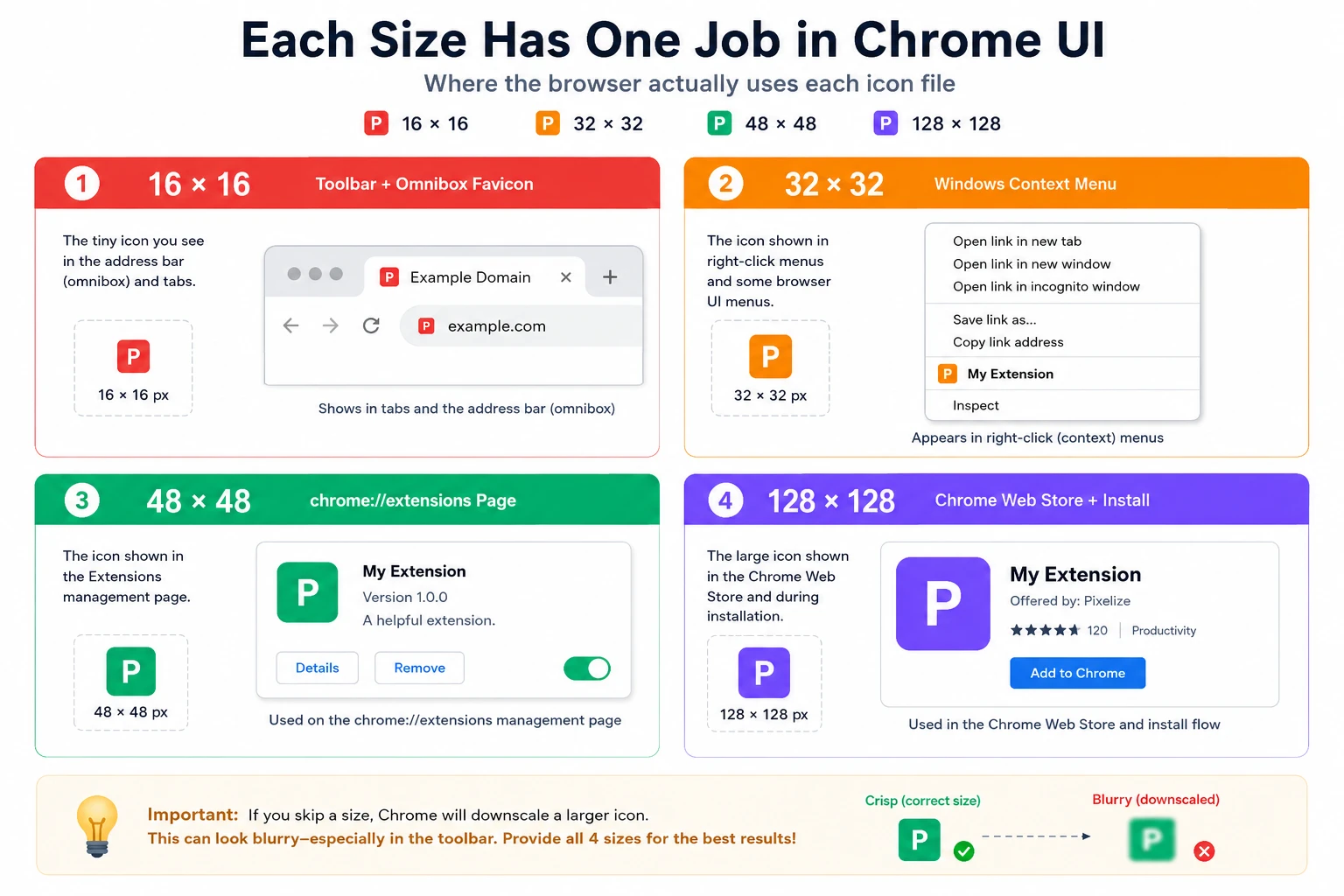
The 16 px icon is the favicon for any HTML page your extension serves, including the popup and options pages. It also shows next to the URL in the omnibox when the extension is actively acting on a tab. The 16 px slot is also where most users form a first impression, because the icon often appears pinned to the toolbar.
On Windows, when your extension contributes to the right-click context menu, Chrome reaches for the 32 px file. Mac and Linux do not use this size as often, but shipping it is a small file and a one-line addition to the manifest. Skip it and Windows users see a softer downscaled 128 px instead.
The 48 px icon is what users see most often after installing your extension. It is the icon on chrome://extensions where the user reviews, disables, or removes installed extensions. Make sure this size looks distinct from the 128 px version. The smaller variant should be slightly less detailed so it stays readable.
This is the marketing icon. It shows on the Chrome Web Store listing page, in the install confirmation dialog, and in store search results. Spend more time on this one than the others. A good 128 px icon is bold, recognizable from across the room, and uses two colors at most. Fine details disappear at any other size, so design at 128 then test at 16 to make sure the silhouette still reads.
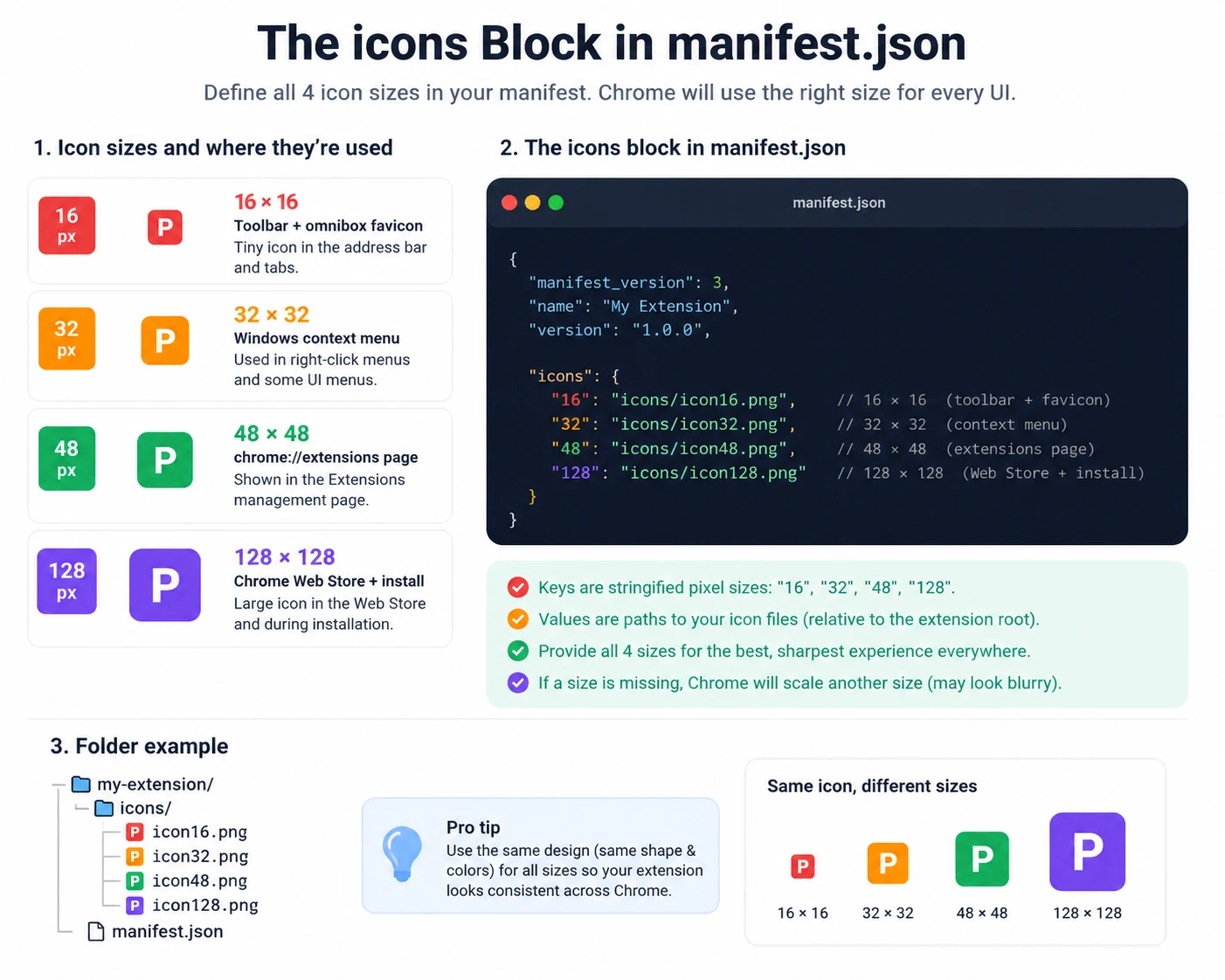
The icons block goes in the top level of manifest.json. Keys are stringified pixel sizes, values are paths relative to the extension root.
{
  "manifest_version": 3,
  "name": "My Extension",
  "version": "1.0",
  "icons": {
    "16":  "icons/icon16.png",
    "32":  "icons/icon32.png",
    "48":  "icons/icon48.png",
    "128": "icons/icon128.png"
  }
}
The convention is to keep your icons in a folder named icons at the project root and name each file icon<size>.png. Chrome does not require these names. They are just easier for humans to scan than iconLarge.png or thumbnail.png.
The Chrome extension docs explicitly list which raster formats are accepted: PNG, BMP, GIF, ICO, and JPEG. WebP and SVG are not supported for extension icons, even though both work fine for content on extension pages. The reason is that Chrome rasterizes icons into the native UI at exact pixel sizes, and the renderer was built around the assumption that icons are bitmaps.
In practice, use PNG. PNG has the best transparency support of the accepted formats, and Chrome treats it as the default. JPEG icons end up with visible compression artifacts at 16 px. GIF and BMP work but are rare and have no advantage over PNG.
Manifest V3 is the current spec. The icon rules did not change much between V2 and V3, but a few details are worth knowing if you are porting an old extension.
icons block syntax is identical in V2 and V3.browser_action.default_icon and page_action.default_icon blocks from V2 are gone. V3 collapses both into a single action.default_icon block.chrome.action.setIcon(). The image data can be an ImageData object, not just a file path.If you are starting fresh in 2026, use V3. Manifest V2 extensions are no longer accepted by the Chrome Web Store for new submissions and will be removed from existing users in phases.
This trips up most developers the first time. There are two separate icon blocks in manifest.json, and they serve different purposes.
icons block covers what the browser shows for the extension itself: install dialog, store listing, extensions page, omnibox favicon.action.default_icon block covers what shows in the Chrome toolbar button that triggers your extension popup. You can reuse the same files, but the action icon can also be set dynamically per tab from JavaScript.You can declare both with the same files:
{
  "icons": {
    "16":  "icons/icon16.png",
    "32":  "icons/icon32.png",
    "48":  "icons/icon48.png",
    "128": "icons/icon128.png"
  },
  "action": {
    "default_icon": {
      "16": "icons/icon16.png",
      "32": "icons/icon32.png",
      "48": "icons/icon48.png"
    }
  }
}
The 128 px size is rarely needed in the action block because the toolbar never renders that big.
Icons that look great at 128 px often dissolve into mush at 16. Some rules of thumb that hold up across hundreds of extensions on the Chrome Web Store:
Hand-exporting four sizes from a design tool works, but it is slow and easy to miss a size. Easier path: design at 512 x 512 PNG or SVG, then run it through a Chrome extension icon generator that exports all four sizes at once with the correct file names. The free Pixellize Chrome Extension Icon Generator takes one upload and gives back icon16.png, icon32.png, icon48.png, and icon128.png as a ZIP with the matching manifest.json snippet ready to paste.
Everything runs in the browser, so the source image never leaves the device. The output PNGs use canvas resampling with high quality smoothing, which keeps the 16 px and 32 px versions crisp instead of soft.
The good news is that the same four PNG sizes work everywhere. Firefox, Edge, Brave, Opera, and Vivaldi all use the same manifest icons format and the same 16, 32, 48, 128 pixel convention. Safari extensions are a different format (App Extensions packaged through Xcode), but if you are using a converter the same source PNGs feed into the Safari pipeline as well.
One real difference: Firefox encourages adding a 96 x 96 size for the about:addons page. Chrome does not need it. If you want a single icon set that works on both stores without fallbacks, add the 96 px too.
To keep scope honest: this guide is about the four standard icon sizes for Chrome extensions. It does not cover dynamic action icon swapping with chrome.action.setIcon(), theme-aware icons in Manifest V3, Progressive Web App icons (different spec), or Apple App Extension icons (App Store, packaged through Xcode). Those each deserve their own write-up.
Four PNG files, four pixel sizes, one icons block in manifest.json. The chrome extension icon sizes are 16, 32, 48, and 128, and shipping all four is a five-minute task that makes the difference between an extension that looks polished and one that looks rushed. Generate them once, drop the icons folder into your project, paste the manifest snippet, and ship.
If you want to skip the export step, try the Pixellize Chrome Extension Icon Generator. Upload one image, download all four icons plus the matching manifest snippet, free and in-browser.
Four PNG files at 16, 32, 48, and 128 pixels. Only the 128 px file is strictly required by the manifest schema, but the other three are strongly recommended. Skip them and Chrome downscales the 128 version, which looks soft at 16 px and is the single biggest reason extension icons look blurry.
No. The Chrome extension manifest does not accept SVG for the icons block, only PNG, BMP, GIF, ICO, and JPEG. Use PNG. SVG works fine for content rendered inside your extension HTML pages but not as a manifest icon.
The top-level icons block covers Chrome UI: install dialog, store listing, extensions page, omnibox favicon. The action.default_icon block covers the toolbar button. You can reuse the same files in both, but the action icon can also be set dynamically per tab from JavaScript using chrome.action.setIcon().
Yes. 16, 32, 48, and 128 work for all three browsers and Brave, Opera, and Vivaldi. Firefox encourages an extra 96 x 96 for the about:addons page, but Chrome does not require it. If you want a single icon set that works on both stores without fallbacks, add the 96 too.
The most common cause is shipping only a 128 px icon and letting Chrome downscale it to 16 px for the toolbar. Add a dedicated icon16.png that you have designed at the smaller scale, with simpler details, and the toolbar version will look sharp.
The convention is a folder named icons at the project root with files named icon16.png, icon32.png, icon48.png, and icon128.png. Chrome does not require these names or this folder. The paths in manifest.json just need to match wherever you put the files.
Yes. Design at 512 x 512 PNG or SVG, then run it through an icon generator that exports all four sizes. The Pixellize Chrome Extension Icon Generator does this in your browser and outputs a ZIP with the icons folder plus a manifest.json snippet ready to paste.

Founder and CEO of Pixellize.io, building AI-powered web tools and digital products with a focus on user experience and automation. M.Sc. Zoology, working at the intersection of technology, data analytics, and life sciences.