
How to Design for Color Blindness: A Practical Guide
A practical guide to design for color blindness: the rules that matter and how to test your work with a free simulator.
Read article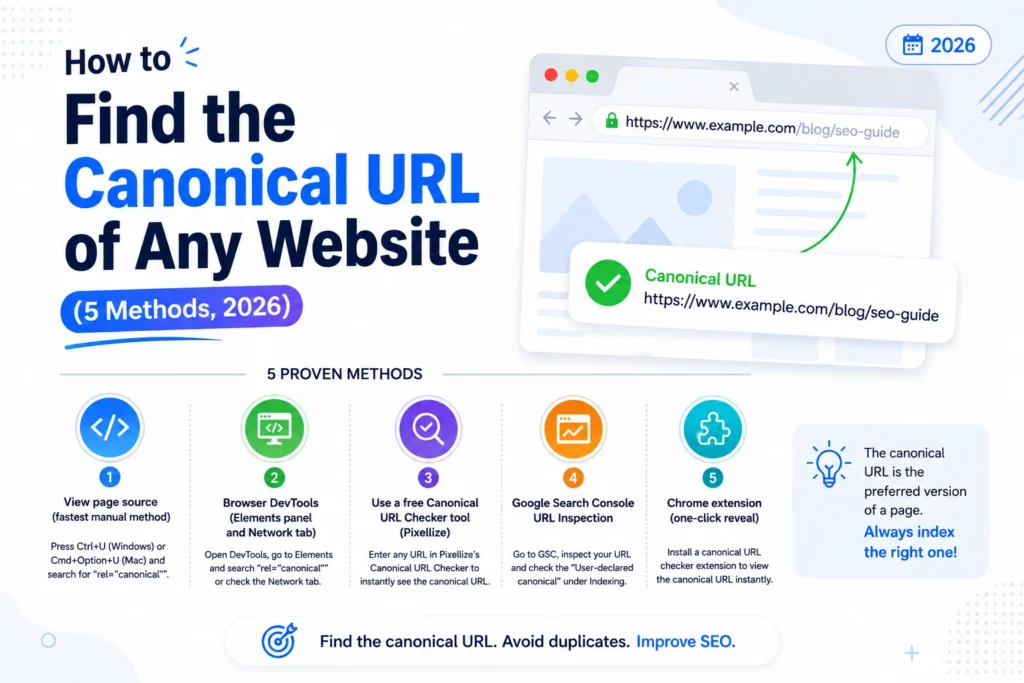
To find the canonical URL of any website, view the page source (Ctrl+U or Cmd+Option+U) and search for “canonical”. Look for a line like <link rel="canonical" href="..."> inside the head. The href value is the canonical URL the site declares.
The canonical URL tells search engines which version of a page should be treated as the master, when several URLs serve similar content. Knowing how to read this tag matters whether you are auditing your own site, studying a competitor, or debugging a duplicate-content issue. This guide walks through five reliable methods, from the manual view-source approach to a one-click online tool, with the strengths and limits of each.
A canonical URL is the preferred version of a webpage that the site tells search engines to index. When the same content is reachable at multiple URLs (with and without www, with and without trailing slash, with sort parameters, on AMP variants, and so on), the canonical tag picks one as the master. Without it, Google picks one on its own, and that pick may not be the version you want ranking.
The canonical declaration can live in two places: inside the HTML head as a <link rel="canonical"> element, or in the HTTP response as a Link header. Most pages use the HTML version. Both signals are valid for Google. If they conflict on the same page, Google may ignore both.
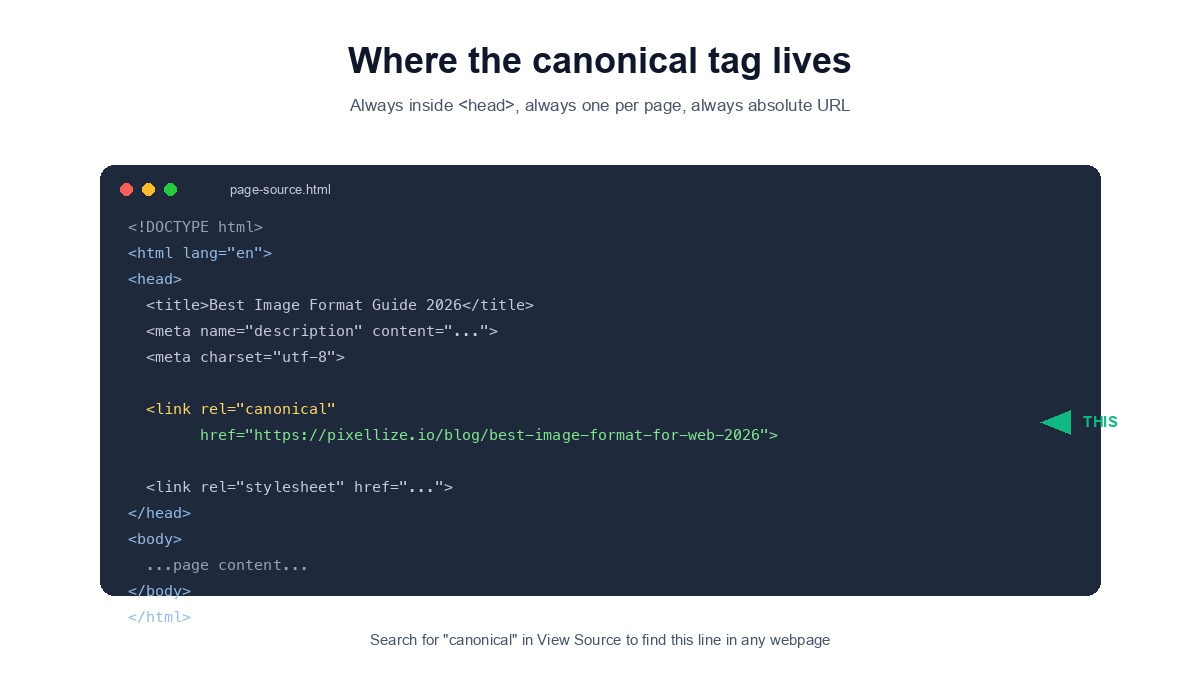
View Source is the fastest way to find the canonical URL of one page without installing anything. Right-click anywhere on the page, click View Page Source, press Ctrl+F (Cmd+F on Mac), type “canonical”, and look at the highlighted line.
In the source tab, hit Ctrl+F and search for the word canonical. The line you want looks like this: <link rel="canonical" href="https://example.com/preferred-url/">. Copy the href value, that is the canonical URL.
View Source shows you the HTML response as the server first sent it. If a page injects the canonical tag with JavaScript after the page loads (rare but it happens on some React or Vue sites), View Source will not show it. You will need a method that reads the rendered DOM instead, like DevTools.
View Source also will not show the canonical declared in an HTTP response header. Most websites use the HTML version, but if you suspect a header canonical, use Method 2 below.
DevTools is the most thorough method because it reads both the rendered HTML and the HTTP response headers. Open DevTools with F12, search the Elements panel for “canonical”, and check the Network tab for the page request to see Link headers.
Open DevTools (F12 or Ctrl+Shift+I), click the Elements tab, press Ctrl+F inside Elements to open the search box, and type rel="canonical". The browser highlights the line in the DOM tree. This works even when JavaScript injected the canonical tag after page load.
Switch to the Network tab, refresh the page, click the first request (the document request), and scroll the Response Headers section. Look for a Link: header with rel="canonical". If the site uses a header canonical, you will see it here.
Most websites do not use header canonicals, they declare the canonical only in HTML. But content-management systems sometimes set both, and an HTTP header canonical can override the HTML version in Google’s eyes. DevTools is the only browser-built way to see both signals at once.
The fastest path for non-developers is a free online tool that fetches the page server-side and reads both the HTML and HTTP header canonicals in one click. The Pixellize Canonical URL Checker handles the whole job in under 30 seconds.
Visit pixellize.io/canonical-url-checker. The tool loads instantly, no signup or login required. You will see a single input box at the top, ready for a URL.
Copy the URL of the page you want to inspect from your browser address bar. Paste it into the input box. The tool accepts any public webpage URL, your own site, a competitor, a blog post, an e-commerce product page, anything that is publicly reachable. The URL must include the protocol (https:// or http://).
Click the purple Check Canonical URL button. The tool fetches the page server-side using a Googlebot-style user agent (so cloaked or geo-redirected pages return the same canonical Googlebot sees, not a localized version). Results appear in about 2 to 4 seconds depending on how fast the target server responds.
The tool returns six pieces of information:
<link rel="canonical"> tag inside the page head.Link response header (often empty, but if present it can override the HTML version).If the tool flags a problem, fix it at the source. In WordPress, Yoast SEO and Rank Math both have a Canonical URL field on every post and page edit screen. For static sites, edit the <link rel="canonical"> tag in your head template. After the fix is live, paste the URL back into the checker and confirm the verdict turns green.
The Canonical URL Checker has no daily limit and no rate cap. Audit a single page, batch through a long migration list one URL at a time, or check your competitor pages without burning through a SaaS trial.
For pages on a site you own, Google Search Console URL Inspection shows the canonical Google actually selected for indexing, which can differ from the one declared in your code. This is the only method that reveals Google’s pick.
Open Search Console, paste a URL into the top search bar, click Inspect, and scroll to the Indexing section. You will see two labels: User-declared canonical (the URL in your link rel canonical tag) and Google-selected canonical (the URL Google actually chose). If they match, your declaration was respected. If they differ, Google has overridden you, and you need to investigate why.
Google overrides happen when your declared canonical points to a noindex page, a 404, a redirect, or a page with very different content. The URL Inspection tool will explain the reason if Google chose differently.
A Chrome extension shows the canonical URL of any page you visit with one click on the toolbar icon. Useful when you check canonicals across many pages in a single browsing session without opening DevTools or pasting URLs into a tool.
MetaPilot is a free Chrome extension that surfaces the canonical URL of the current tab in one click, alongside other on-page SEO signals like title, meta description, robots tag, and Open Graph metadata. It is the fastest way to do canonical checks while you browse, no copy-paste, no separate tool, no DevTools.
Extensions like MetaPilot are great for in-flow auditing while you are browsing. Use them when you want a quick glance at the canonical of every page you visit without breaking your reading flow. They are also faster than View Source for checking 10+ pages in a session.
The tradeoff: most extensions only read the HTML canonical, not the HTTP response header. If you need to audit both signals together, fall back to Method 2 (DevTools Network tab) or Method 3 (the Canonical URL Checker tool).
Whichever method you pick, look for these red flags when reviewing a canonical:
The Pixellize Canonical URL Checker flags all six of these issues automatically. For manual audits, walk through this list every time you View Source.
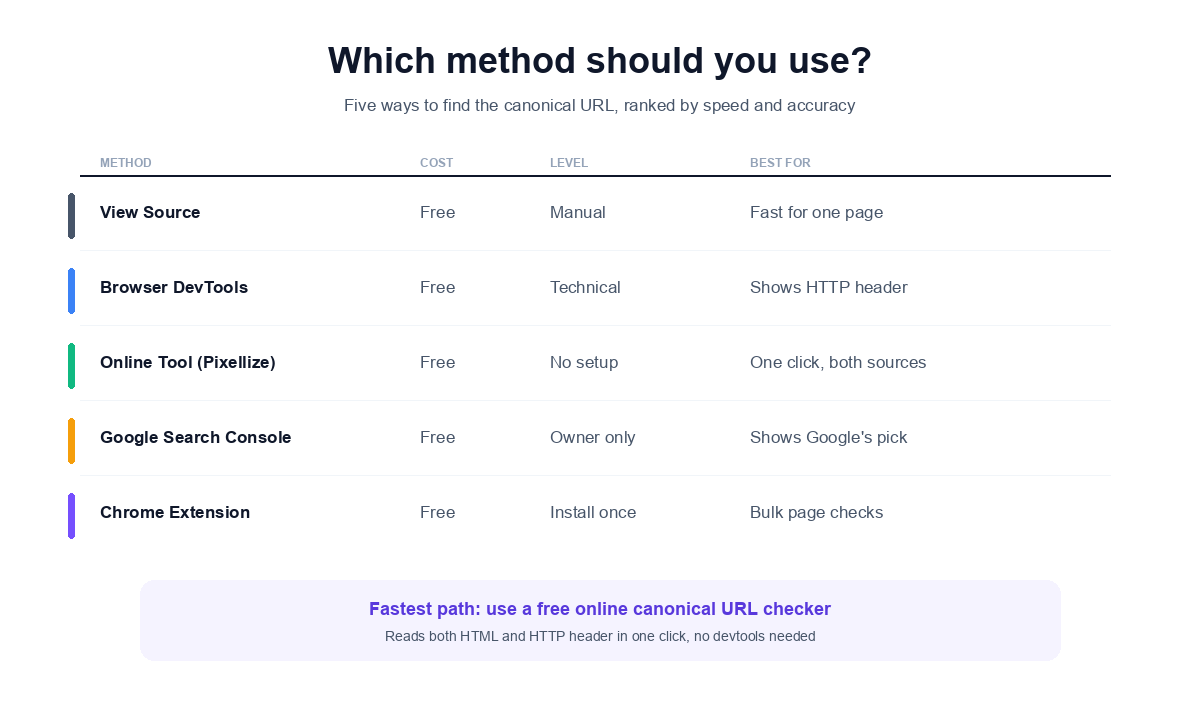
For one-off checks, view-source plus Ctrl+F is the fastest path. For a thorough audit (HTML plus HTTP header plus issue detection), a free online canonical URL checker is the most reliable. For your own site, Google Search Console URL Inspection is the only way to see what Google actually picked. Pick the method that matches what you are trying to learn.
When you find a problem (missing tag, mismatch, multiple tags), fix it in your CMS or template head, re-check with the same method, and request a re-crawl in Google Search Console. A correct canonical is one of the highest-impact SEO fixes there is, smaller payoff than building backlinks, but you can do it in 10 minutes.
Right-click the page, click View Page Source (or press Ctrl+U / Cmd+Option+U), then press Ctrl+F and search for "canonical". The line you want looks like link rel canonical href value. That href is the canonical URL the page declares.
Yes. Open browser DevTools with F12, go to the Elements panel, search for rel canonical. This also catches canonicals added by JavaScript after page load, which view-source misses. For HTTP header canonicals, check the Network tab response headers.
A free online canonical URL checker. You paste the URL, the tool fetches the page server-side, reads both HTML and HTTP header canonicals, and flags any issues (cross-domain, HTTPS mismatch, multiple tags). One click, no devtools knowledge needed.
Open Google Search Console, paste your URL into the top search bar, click Inspect, and scroll to Indexing. You will see both the User-declared canonical and the Google-selected canonical. If they differ, Google overrode your declaration.
Some sites do not declare one. Google picks a canonical on its own based on URL structure, internal links, and sitemap signals. Pages without a canonical tag are valid but give up control over which URL ranks for duplicate content.
View Source shows the HTML the server first sent, exactly as received. Inspect Element shows the live DOM, including any changes JavaScript made after page load. If JavaScript injects the canonical tag after load, only Inspect Element will show it.
Technically yes, plugins or themes can output multiple link rel canonical tags. Google does not pick the strongest one, it ignores all of them when it sees a conflict. Use a checker tool to count canonical tags on any page and fix sites that output more than one.

Founder and CEO of Pixellize.io, building AI-powered web tools and digital products with a focus on user experience and automation. M.Sc. Zoology, working at the intersection of technology, data analytics, and life sciences.