
How to Find All Links on a Website (Free Link Finder Online)
Five ways to find all links on a website: browser console, Pixellize Link Finder, Chrome extension, Python, and wget. Pick the right…
Read article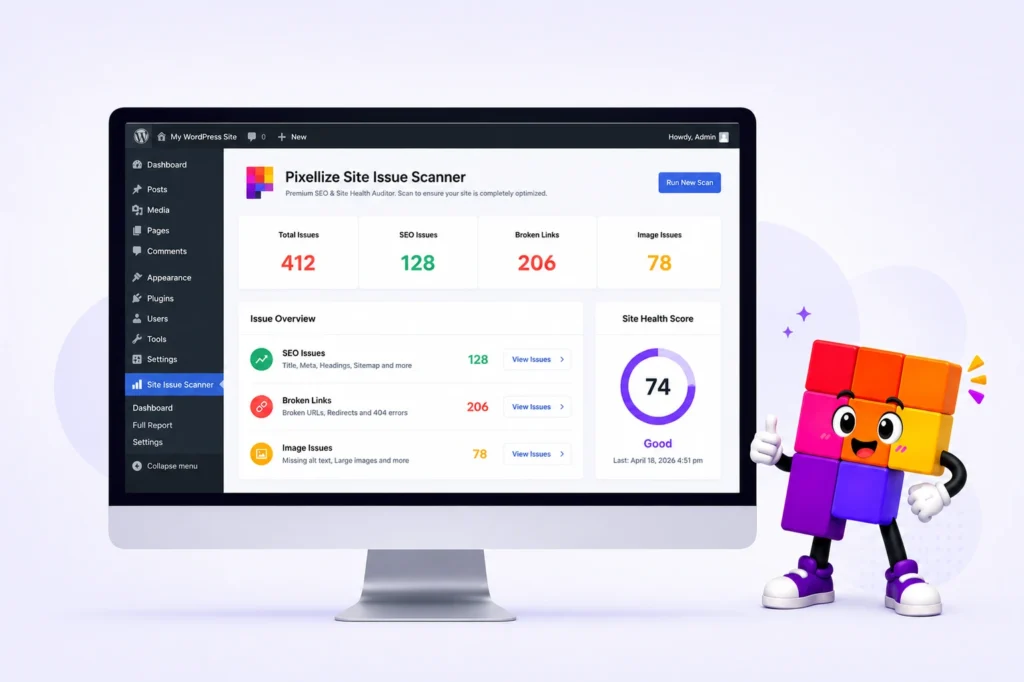
Most WordPress sites carry dozens of small SEO and accessibility issues their owners never see. A few missing meta titles here, a stretch of broken external links there, a handful of images without alt text or width attributes. Each one is small in isolation. Stacked together, they cost rankings, conversions, and trust.
This guide walks through running a complete WordPress site audit in roughly five minutes using a single free plugin: the Pixellize Site Issue Scanner. By the end of this post you will have a prioritized list of fixes for your own site, plus the one-click tools to apply most of them.
Search engines and visitors notice the same things, just in different ways. A page with a missing meta description loses click-through in search results. A broken outbound link drops user trust the moment it is clicked. An image without dimensions causes the page to jump while it loads, which Google measures and uses as a direct ranking signal.
Doing this kind of audit by hand means opening every page, viewing source, and ticking checks off a list. Doable for ten pages, miserable for fifty, impossible for five hundred. A scanner that crawls the entire site once and surfaces only the issues is the practical answer.
Pixellize Site Issue Scanner runs four categories of checks against every published page on your site:
target="_blank" or the security attributes that prevent reverse-tabnabbing.The plugin is GPL-licensed and listed on WordPress.org with a five-star rating. There is no premium tier, no API key prompt, and no remote service. Everything runs inside your own admin.
Most small to medium sites finish a scan in under a minute. The crawler is throttled by default to keep the load on your server low.
When the scan finishes, the dashboard shows a single Site Health Score at the top, calculated from the ratio of clean pages to pages with errors. Below that, issues are grouped by category with counts:
Each issue is clickable and includes a How to Fix note explaining what the problem is, why it matters, and what to do. This is what makes the plugin useful even if you have never run a technical SEO audit before.
Several of the most common issues can be resolved without leaving the dashboard. Here are the four most useful one-click tools:
Outbound links should open in new tabs and include rel="noopener" for security. The scanner finds every external link missing those attributes and lets you fix them across the entire site in one click.
The Auto-Dimension Fixer fetches each image, reads its real width and height, and injects the correct attributes into your HTML. The result: layout shifts disappear, your Cumulative Layout Shift score drops, and Core Web Vitals improve immediately.
Click an entry, edit the meta title or description with live character counting, save. The change syncs automatically with Yoast, Rank Math, or AIOSEO so your existing SEO plugin reflects the new value too. No double entry, no conflicting data.
If you find pages flagged as hidden from search engines that you actually want indexed, the Noindex Removal tool toggles the tag off in a single click. A common cause of mysterious traffic drops after a theme switch.
If a domain you link to has died, or you migrated images from one CDN to another, the scanner will surface every broken link. The Bulk Find & Replace tool then lets you swap the old URL for a new one across post content, meta fields, and serialized option data in one operation.
Two safety guardrails keep this from being dangerous: the search runs as a preview first so you see exactly which rows will change, and serialized data is rebuilt with correct length prefixes instead of being string-replaced naively.
After applying fixes, run another scan. The dashboard saves a Crawl History with date and time stamps for every batch, so you can compare two reports and see which fixes actually moved the Site Health Score. Export the report as a CSV to share with a developer, an SEO consultant, or a client.
Honest scope: this is a structural audit tool. It will not write meta descriptions for you, generate alt text from image content, rewrite slow JavaScript, or replace a manual content review. What it does well is finding the technical issues humans tend to miss and offering quick fixes for the most repetitive ones.
If you have never audited your site before, an hour with the Pixellize Site Issue Scanner is one of the highest-impact WordPress maintenance moves you can make. Most users find ten to twenty fixable issues on a site they thought was clean, and the one-click tools handle the bulk of them in minutes.
Get the plugin from the WordPress.org listing, or read the full feature breakdown on our Site Issue Scanner page.
Yes. It is published on WordPress.org under the GPL license. There is no premium tier, no subscription, and no upsells inside the admin.
Most small to medium sites complete a scan in under a minute. Larger sites with hundreds of pages take a few minutes. The crawler is throttled by default to keep server load low, and you can pause or resume at any time.
No. The integrated meta editor reads and writes the same data Yoast, Rank Math, or AIOSEO already uses, so any titles or descriptions you change here update inside your existing SEO plugin automatically.
Yes. Open Settings, choose which post types and post statuses to include, and set a maximum page count per scan. Useful when you only want to audit one section of a large site.
No. Every scan runs inside your own WordPress install. Reports are saved in your database. Nothing about your site or visitors is uploaded anywhere.

Founder and CEO of Pixellize.io, building AI-powered web tools and digital products with a focus on user experience and automation. M.Sc. Zoology, working at the intersection of technology, data analytics, and life sciences.