
How to Download an Entire Website (Free Website Cloner to ZIP)
Three ways actually work: a free online website cloner that needs no install, desktop software like HTTrack or SiteSucker, or a one-line…
Read article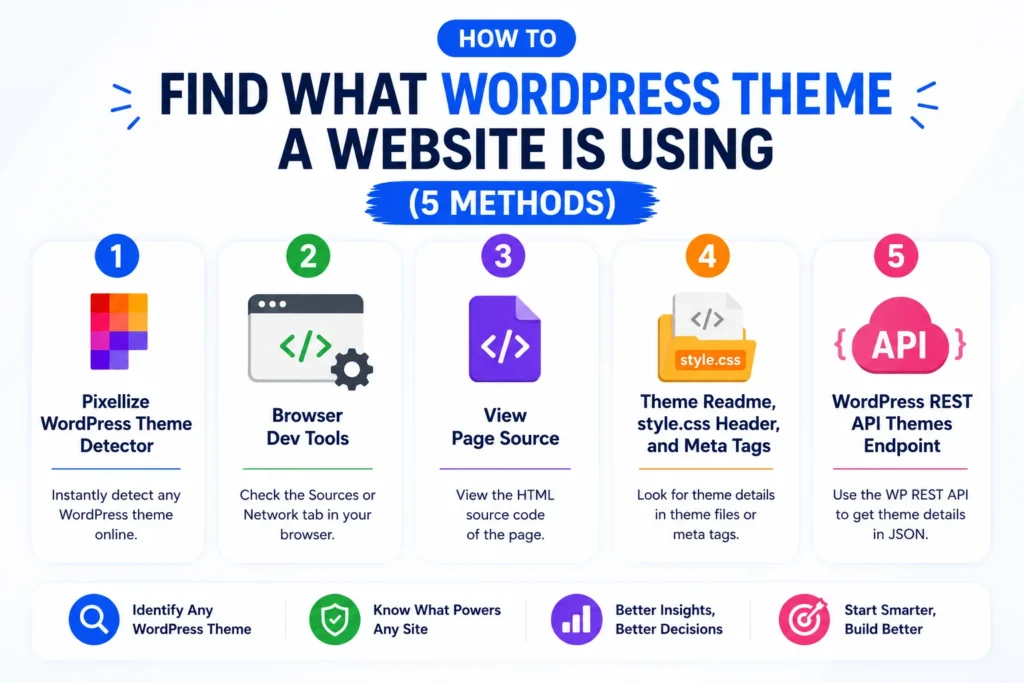
You found a WordPress site whose design you want to study, copy a pattern from, or pitch a redesign of. The next obvious question is: what WordPress theme is it built on? This guide covers how to find what WordPress theme a website is using, in five practical methods, ranked by speed and reliability, with honest tradeoffs for each. By the end you will know how to detect the theme name, the version, child theme, page builder, and a sample of the plugins powering the site.
Two reasons cover most cases. Designers and developers want to copy patterns from a site they like, and knowing the theme tells them whether the design is achievable with a stock template or required custom CSS and a child theme. Agencies pitching a redesign want to know the current stack so they can size the work. Curious site owners want to identify a competitor’s setup so they can decide whether to use the same theme or pick something different.
The detection process is honest: WordPress doesn’t try to hide its theme. Theme files live at a well-known path (/wp-content/themes/<slug>/) and every page that renders pulls CSS from that directory. So unless the site owner went out of their way to obfuscate paths and strip generator meta tags, the theme is visible in the page source.
The five methods below are ranked by how fast they get you the answer plus how often they succeed on real sites. Faster is better when the site uses a stock theme; slower methods become necessary when the site is heavily customized or when a security plugin strips telltale signs.
The fastest method is a hosted detector. The Pixellize WordPress Theme Detector fetches the page server-side, parses the HTML for theme paths, plugin paths, and the generator meta tag, then cross-references known theme slugs. Here is exactly how to use it.
https:// protocol (e.g. https://wpastra.com). Paste it into the input box. The tool accepts any public URL, you don’t need to land on a specific page like the homepage, any inner page works.astra)4.10.2, parsed from the theme’s style.css header)astra, child astra-child)/wp-content/plugins/<slug>/ paths in the page source. Typically 3 to 10 plugins surface; backend-only plugins remain invisibleThree things can produce an incomplete answer. If the result shows only “WordPress detected” without a theme name, the site is probably behind Cloudflare’s Bot Fight Mode or using a WPHide-style security plugin that masks /wp-content/ paths. Switch to method 2 (browser dev tools) and inspect the CSS file paths directly in your own browser, which bypasses the detector’s user agent block.
If the result shows a theme name but no plugins or page builder, the site is likely heavily optimized with a plugin like Asset CleanUp or Perfmatters that strips unnecessary CSS and JS from public pages. The plugin paths only appear in source when their assets actually load. View the source of an inner page (a blog post or a contact page) where more plugins are likely active, then re-run detection on that URL.
If the URL fails entirely with a fetch error, check that you included the https:// prefix and that the site is publicly reachable. The tool cannot detect themes on intranet sites, staging environments behind basic auth, or sites that require a VPN.
Best for: a one-paste answer when you want the theme PLUS plugins and page builder, all in one screen. Limitation: detectors can be fooled by aggressive security plugins that strip theme paths or by sites that have moved theme files to a custom location. When that happens, the manual methods below are the fallback.
Open the site in Chrome or Firefox and press F12. In the Sources tab (Chrome) or Debugger tab (Firefox), expand the page’s CSS files in the left sidebar. Look for any file path that includes wp-content/themes/<theme-slug>/. That slug is the theme name. The Network tab works too: filter by CSS and inspect the request URLs.
Best for: when you trust your own eyes more than a detector, or when the detector’s result looks suspicious. The CSS path doesn’t lie. Limitation: a site that renames its theme slug or moves CSS to a CDN with a custom path will look generic in dev tools.
Right-click the page and choose View Page Source, or use the keyboard shortcut. Press Ctrl+F (Cmd+F on Mac) and search for wp-content/themes. The first match shows the active theme’s slug. Search for wp-content/plugins in the same view to find some of the active plugins (the ones that ship CSS or JavaScript).
Best for: when a hosted detector is blocked (Cloudflare’s Bot Fight Mode is a common culprit) or when you want a low-friction manual check. Limitation: walls of HTML get annoying to scan on big sites. Dev tools are faster for the same job.
Most themes ship a style.css file with a header block declaring the theme name, version, author, and license at the top. You can fetch this file directly: append /wp-content/themes/<slug>/style.css to the site URL and open it in a browser. Even if the detector or dev tools method got you only a generic slug like twentytwentyfour, the style.css header confirms the official theme name and version.
Also worth checking: the <meta name="generator"> tag in the HTML head. Many themes append themselves to it (“WordPress 6.8 with Astra Theme”), and many security plugins strip it but not always.
Best for: confirming a theme name and version when other methods returned just a slug. Limitation: custom child themes often inherit the parent’s slug in CSS paths but show their own name in style.css, which can cause confusion.
WordPress exposes a REST API at /wp-json/wp/v2/themes that returns the active theme details as JSON. On sites that haven’t blocked the endpoint, this is the most authoritative answer: theme name, version, author, screenshot URL, parent theme reference, all in one response. Try fetching https://<site>/wp-json/wp/v2/themes directly.
Best for: developer use cases where you want machine-readable theme info. Limitation: 80% of production WordPress sites block the public /wp-json/ endpoints for security reasons. When it works it is perfect, when it does not it returns a 401 or 403.
A good detector goes past the headline answer. The same techniques (CSS path inspection, source viewing, REST API) surface several other useful facts about a WordPress site:
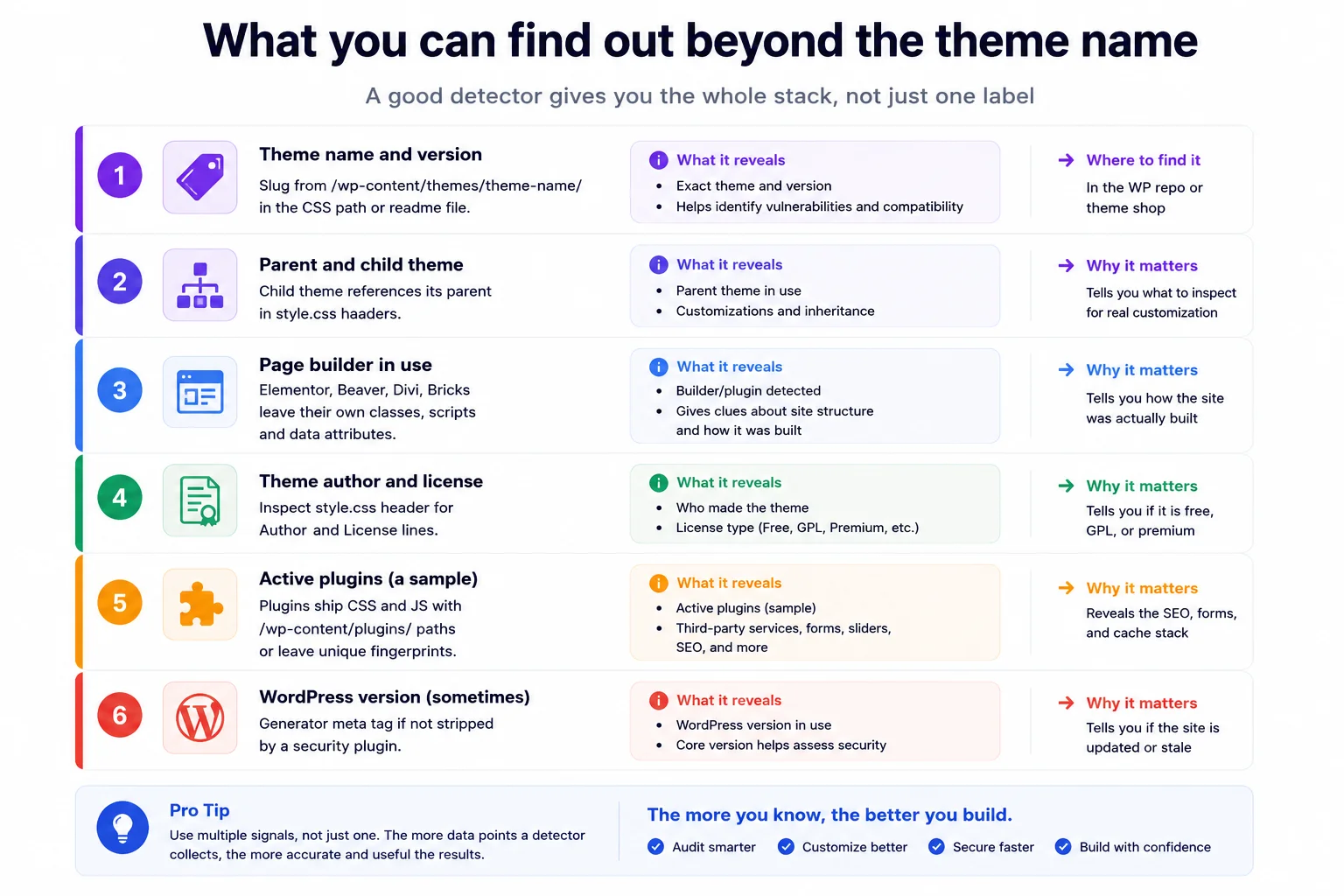
Child themes are common on customized WordPress sites. A child theme is a thin wrapper around a parent theme that overrides specific styles or templates. To tell them apart, fetch /wp-content/themes/<slug>/style.css and look for a Template: line in the header. If present, the file you are reading is a child theme and the Template: value is the parent theme’s slug.
If the same site loads CSS from BOTH /wp-content/themes/astra/ AND /wp-content/themes/astra-child/, you have a confirmed child-of-Astra setup. Always check both files when investigating a customized site. The customization lives in the child; the foundation lives in the parent.
The theme answers “what does the site look like by default?” The page builder answers “how was the actual content laid out?” Page builders ship recognizable CSS class patterns and JavaScript files:
elementor-element, elementor-widget classes and loads /wp-content/plugins/elementor/ assets.et_pb_ class prefixes and loads /wp-content/themes/Divi/ or /wp-content/plugins/divi-builder/.fl-builder- class prefixes and loads /wp-content/plugins/beaver-builder-lite-version/./wp-content/themes/bricks/, and uses brxe- class prefixes.ct- prefixes (legacy) or oxy- prefixes (newer) and loads /wp-content/plugins/oxygen/.Spotting these classes in dev tools or view source tells you which builder the site is on, which is often more useful than the theme itself for designers trying to replicate a layout.
Sometimes detectors return nothing, or just a generic “WordPress detected” with no theme name. Common reasons:
/wp-content/ and /wp-includes/ to custom paths. The site still works but CSS files load from /assets/themes/ instead of the standard path. Slug detection breaks.wp-content URLs to a generic /static/ prefix. Rare but happens on enterprise sites.Each of these has a workaround. The detector approach is fastest when it works; the manual dev-tools method is most reliable when it doesn’t.
Knowing the theme name isn’t enough. A site might be on the free Astra base, or it might be on Astra Pro with the premium addon plugin and a Starter Site template. The full picture costs nothing extra to gather:
style.css for a “Pro” or “Premium” suffix in the theme name./wp-content/plugins/astra-addon/ or /wp-content/plugins/astra-pro-sites/ are paid extensions.Why this matters: a designer copying the free Astra setup is a 30-minute job; matching an Astra Pro Starter Site with header builder, mega menu, and advanced footer takes hours and costs money. Knowing which version you’re up against changes the project scope.
Not every site is WordPress. Sometimes the theme detector returns nothing because the site isn’t on WordPress at all. Quick checks to confirm whether a site is WordPress before hunting for a theme:
wp-content anywhere? If yes, it’s WordPress.<site>/wp-admin/ redirect to a login page? If yes, WordPress.<site>/wp-json/ return JSON or a Discovery document? If yes, WordPress.X-Powered-By header that lists something else (Hugo, Webflow, Shopify)? Then it isn’t WordPress, no theme to find.If you’ve confirmed the site is on Shopify, the Pixellize Shopify Theme Detector is the equivalent tool. For Webflow, Squarespace, and other site builders, there are platform-specific detectors but the methodology is the same: inspect the page source for known platform signatures.
Theme detection is public information. Anyone visiting the site can find this data by viewing the source. Using a detector is no different from reading the open part of the front door. Where it crosses a line: scraping someone’s customized child theme code, copying premium theme files without buying the license, or republishing a design as your own. Detect the theme, then buy the license if it’s a premium product. The theme authors deserve the payment, and you avoid a copyright headache later.
For most cases, the fastest path is to paste the URL into a free detector and get the theme name plus a plugin sample in under five seconds. The manual methods (dev tools, view source, style.css inspection, REST API) become useful when the detector returns nothing or when you want to verify a result independently. Knowing how to find what WordPress theme a website is using is one of those small skills that pays off every time you scout a competitor site, audit a new client, or research a design pattern you want to reproduce. Pair it with other quick WordPress audits like checking for broken images or running the Pixellize Theme Detector for a full first-pass survey.
Yes. The Pixellize WordPress Theme Detector is free, runs in your browser, requires no signup, and returns the theme name, version, parent theme (if any), page builder, and a sample of detected plugins. Most other detectors also have a free tier.
Three common reasons: Cloudflare or similar service blocks the detector user agent, a WordPress security plugin (like WPHide) rewrote the standard /wp-content/ paths, or the site is a headless WordPress setup where the front-end is rendered by a different framework.
Open the site, press F12 to open dev tools, find any CSS file path that contains /wp-content/themes/<slug>/. That slug is the theme. Confirm by fetching /wp-content/themes/<slug>/style.css and reading the theme header.
Yes. Child themes declare their parent in style.css with a Template: line. Sites running a child theme load CSS from both /wp-content/themes/parent/ and /wp-content/themes/child/. Inspect the child style.css to identify both.
Partially. Plugins that ship CSS or JavaScript leave /wp-content/plugins/<slug>/ paths in the page source. Plugins that operate only on the server side (backup plugins, admin-only tools) are invisible from outside. A detector typically surfaces 30-70% of the active plugins.
Detecting is fine, it is public information. Copying depends on the license. Most themes are GPL-licensed, which permits copying and modification, but premium themes typically also require a paid license for support and updates. Always check the License line in the theme style.css header and buy a license for premium themes.
No. The methods covered here are WordPress-specific. For Shopify use the Shopify Theme Detector. For Webflow, Squarespace, Wix, and other builders, there are platform-specific detectors. The general approach (inspect source for platform signatures) is the same.

Founder and CEO of Pixellize.io, building AI-powered web tools and digital products with a focus on user experience and automation. M.Sc. Zoology, working at the intersection of technology, data analytics, and life sciences.