
Best Free WordPress Themes 2026: 10 Fast Picks Ranked
Compare the best free WordPress themes for 2026: ten fast, flexible picks, what each does well, and how to find the theme…
Read article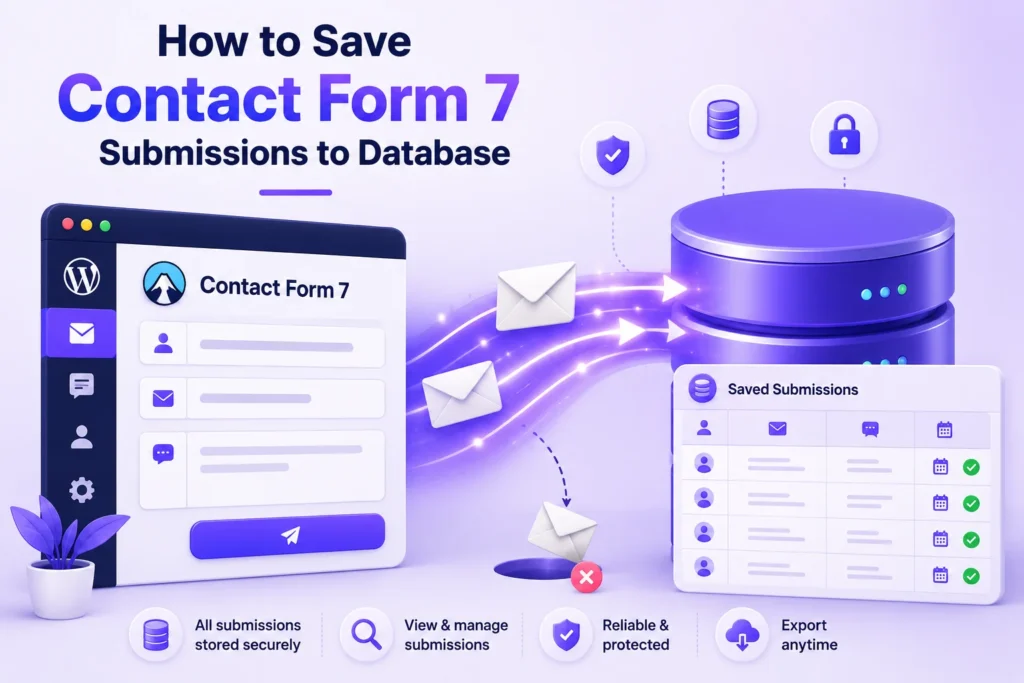
Contact Form 7 has been the default WordPress contact form plugin since 2008. It now runs on over 5 million sites. But it has one giant blind spot: by default, every submission goes only to your email inbox. If an email gets lost, sent to spam, or accidentally deleted, the message is gone forever. There is no second copy in your WordPress database.
This guide shows you five practical ways to save Contact Form 7 submissions to a database, so every message has a permanent backup inside your WordPress dashboard. We cover three plugin solutions (one is our own, free, and recommended), one developer-friendly custom-code approach, and how to export entries to CSV when you need them outside WordPress. Start with the Pixellize Form Database plugin if you want a clean modern dashboard with no setup beyond install-and-activate.
| Method | Best for | Free? | Code required? |
|---|---|---|---|
| Pixellize Form Database | Modern dashboard with search, filter, CSV export, and multi-plugin support | Yes | No |
| Flamingo | Official CF7 companion. Lightweight. Built by the CF7 dev. | Yes | No |
| CFDB7 | Classic option installed on 700K+ sites. Stable, no-frills. | Yes | No |
Custom code (wpcf7_before_send_mail hook) | Total control. You write the SQL. | Free (own time) | Yes |
| Form Vibes / Contact Form Entries | Multi-plugin support (CF7 + WPForms + Elementor forms in one dashboard) | Freemium | No |
By default Contact Form 7 only sends submissions as email; nothing is written to the WordPress database. If your email goes to spam or SMTP fails silently, the message is permanently lost. To save Contact Form 7 submissions to database, install one of the five plugins or hooks below within the first week.
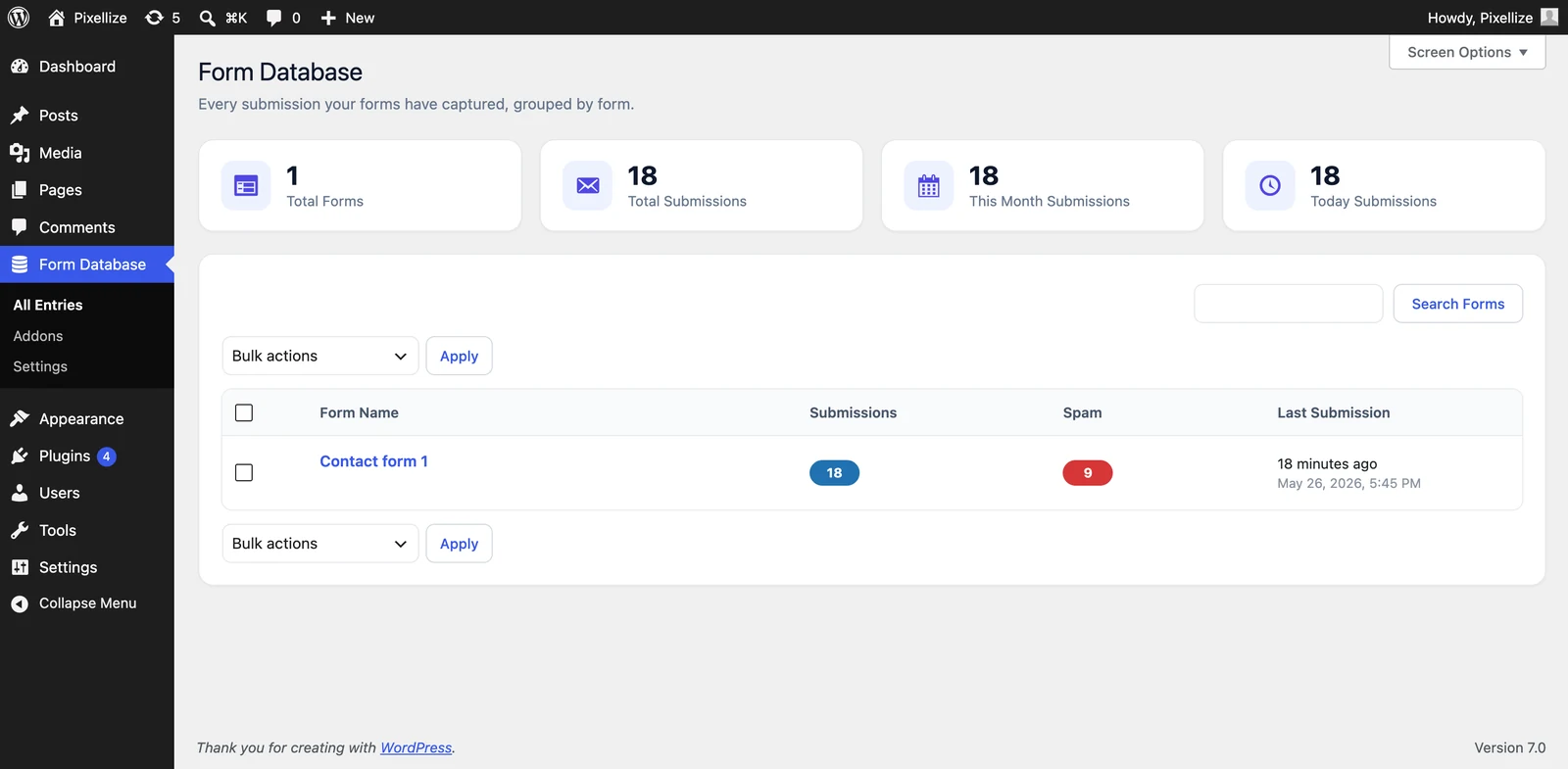
The Pixellize Form Database plugin is a free WordPress plugin that captures every submission from Contact Form 7, WPForms, Ninja Forms, and Elementor Forms into a single dashboard inside your WordPress admin. No setup beyond install-and-activate. As soon as someone submits a form, the entry appears in Pixellize → Form Database in the WP admin sidebar, with the original form name, timestamp, and every field shown in a sortable table.
Install steps: WordPress admin → Plugins → Add New → search “Pixellize Form Database” → Install → Activate. That is the entire setup. From the next form submission onward, every entry is saved to your database. You can filter by form, search by field value, view the raw JSON for any submission, and export filtered results to CSV.
Why we built it: most existing CF7 database plugins were either abandoned, limited to CF7 only, or had clunky 2015-era admin UIs. We wanted one modern dashboard that handles every popular form plugin with the same interface. Read the launch post for the Pixellize Form Database plugin for the full feature list and screenshots.

Flamingo is built by Takayuki Miyoshi, the same developer who created Contact Form 7. It stores every Contact Form 7 submission as a custom post type inside the WordPress database. Because Flamingo is officially blessed by the CF7 team, it is the safest choice for sites that want to stay on the official path.
WordPress admin → Plugins → Add New → search “Flamingo” → Install → Activate. After activation, a new “Flamingo” menu appears in your admin sidebar with two sub-items: Inbound Messages (all form submissions) and Address Book (contacts the plugin extracted from those submissions). No configuration is needed; CF7 submissions start saving from the next one received (Source: Contact Form 7 official docs).
Limitation worth knowing: Flamingo only saves Contact Form 7 submissions. If you also use WPForms or Ninja Forms on the same site, you need a separate plugin for each, or one unified plugin like Pixellize Form Database.
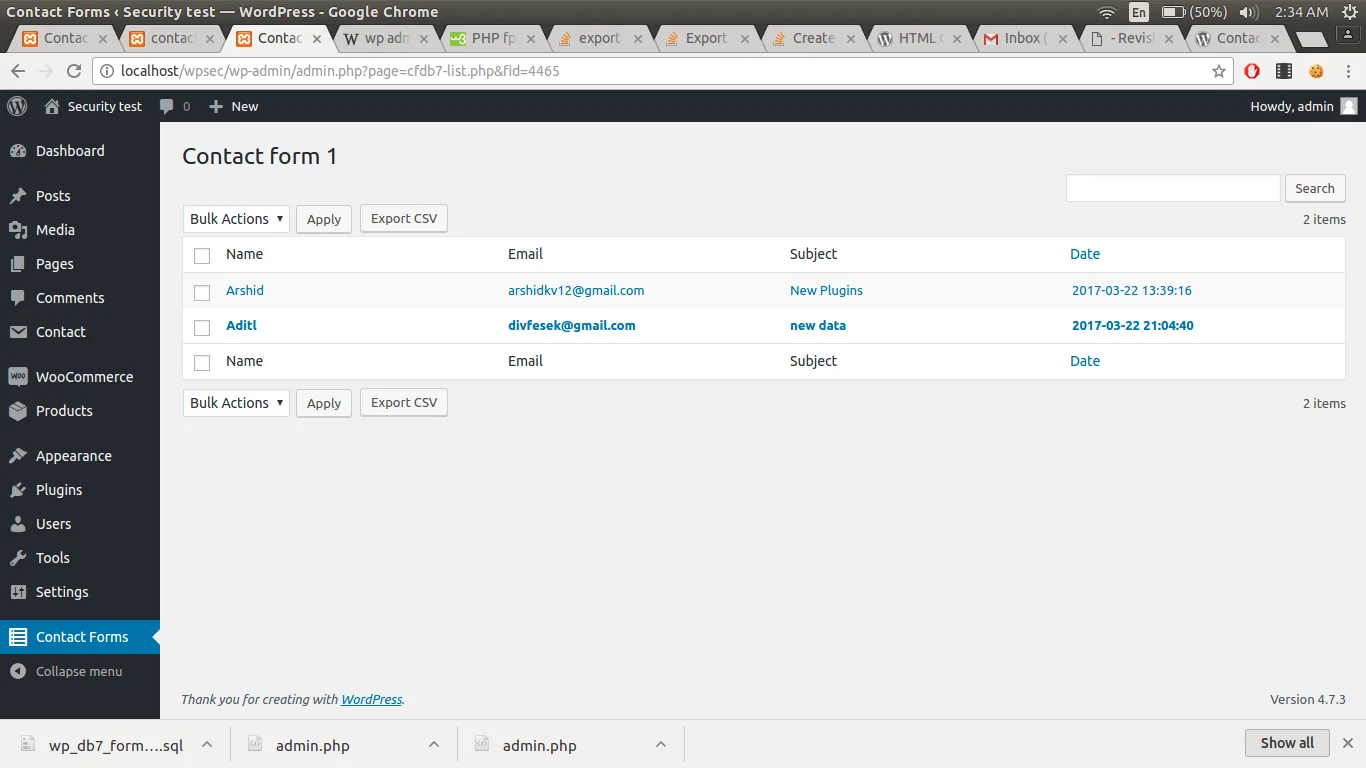
CFDB7 is the original third-party “save CF7 to database” plugin. As of 2026 it sits on 700,000+ active installs and is still maintained. It creates its own custom table in your WordPress database (wp_db7_forms) and stores every CF7 submission as a single row with all field values as serialized data.
Install steps: WordPress admin → Plugins → Add New → search “Contact Form CFDB7” → Install → Activate. A “CFDB7” menu appears in the admin sidebar. Click any form name to see all entries. CSV export is one click on the entries page. CFDB7’s interface is intentionally barebones, which makes it fast but feels dated compared to newer plugins (Source: WordPress.org plugin directory).
wpcf7_before_send_mail hookFor developers who want zero plugin dependency, Contact Form 7 fires a wpcf7_before_send_mail action hook before sending the email. You can hook into it and write the submission to any custom table you create. This is the right choice if you have an existing CRM or external API the data should also flow to.
Minimal code example for your functions.php or a small mu-plugin:
add_action('wpcf7_before_send_mail', function ($cf7) {
    $submission = WPCF7_Submission::get_instance();
    if (!$submission) return;
    $data = $submission->get_posted_data();

    global $wpdb;
    $wpdb->insert(
        $wpdb->prefix . 'cf7_entries',
        [
            'form_id'    => $cf7->id(),
            'form_name'  => $cf7->title(),
            'submission' => maybe_serialize($data),
            'created_at' => current_time('mysql'),
        ]
    );
});
You also need to create the cf7_entries table once via a one-time SQL script or a register_activation_hook in your custom plugin. The trade-off: total control over the schema and zero plugin overhead, but you also own all the future maintenance (CSV export, search, GDPR deletion, schema migrations).
Form Vibes and Contact Form Entries are two free plugins that handle Contact Form 7, WPForms, Elementor Forms, and a few others in a single dashboard. They are similar to the Pixellize Form Database approach but with a freemium pricing model. The free tier covers CF7 storage; advanced features like multi-site sync or webhook forwarding need a paid upgrade.
Pick one of these if you specifically need cross-plugin entry consolidation and prefer a freemium model. Otherwise the Pixellize Form Database covers the same multi-plugin use case in its free tier without an upsell screen.
To export Contact Form 7 entries to CSV, install any database-saving plugin (Pixellize Form Database, Flamingo, or CFDB7) and open the entries list in WP admin. Each plugin has a one-click CSV export button. Filter your entries first if you only want a subset, then click Export.
Once you store form submissions in a database, they become personal data under GDPR (EU), CCPA (California), and similar regulations elsewhere. Four practical compliance points:
Five errors that trip up most first-time setups:
The fastest way to save Contact Form 7 submissions to database is a plugin. For a new site or any site you maintain yourself, install the Pixellize Form Database plugin. The modern dashboard, multi-form support, and zero-upsell free tier cover what 95% of sites need. If you specifically want the safest official-blessed option, use Flamingo. If you need full custom control over schema and downstream integrations, write your own wpcf7_before_send_mail hook.
Whichever method you pick to save Contact Form 7 submissions to database, install it the same day you launch the form. The cost of lost submissions during a “we’ll add the database later” period is always higher than the 5 minutes it takes to install a plugin upfront. For a broader look at our WordPress plugin stack, see the Pixellize tools directory.
No. Contact Form 7 only sends an email when someone submits a form. The submission is never written to the WordPress database by default. You need a separate database-saving plugin like Pixellize Form Database, Flamingo, or CFDB7, or a custom code hook, to keep a copy of every submission.
For most sites, the Pixellize Form Database plugin offers a modern dashboard, multi-form support (CF7, WPForms, Ninja Forms, Elementor), CSV export, and zero upsells. Flamingo is the official choice from the Contact Form 7 author. CFDB7 is the classic option with 700,000+ active installs.
Flamingo stores every Contact Form 7 submission as a custom post type in the WordPress wp_posts table. You can browse them in WP admin under Flamingo → Inbound Messages. The plugin also extracts a contact entry in the Address Book for each unique sender email.
Yes. All major database plugins (Pixellize Form Database, Flamingo, CFDB7, Form Vibes) include one-click CSV export. CSV opens directly in Excel and Google Sheets. For continuous sync to Google Sheets specifically, use WPSyncSheets for Contact Form 7 instead.
No. Each CF7 submission is one INSERT query, executed only when a form is submitted (not on every page load). Even on a busy site with 1,000 submissions per day, the database overhead is negligible. Set a retention policy of 90-180 days to keep the entries table small.
It can be, with three steps: update your privacy policy to mention database storage, set an auto-deletion retention window (90-180 days for general forms), and add an explicit consent checkbox to your form. Make sure your plugin supports entry deletion by email so you can honor GDPR Article 17 requests.

Founder and CEO of Pixellize.io, building AI-powered web tools and digital products with a focus on user experience and automation. M.Sc. Zoology, working at the intersection of technology, data analytics, and life sciences.