
How to Download Instagram Profile Picture Full Size (HD)
Tap someone's Instagram profile picture and Instagram gives you a tiny circle, sometimes not even a full view. There is no built-in…
Read article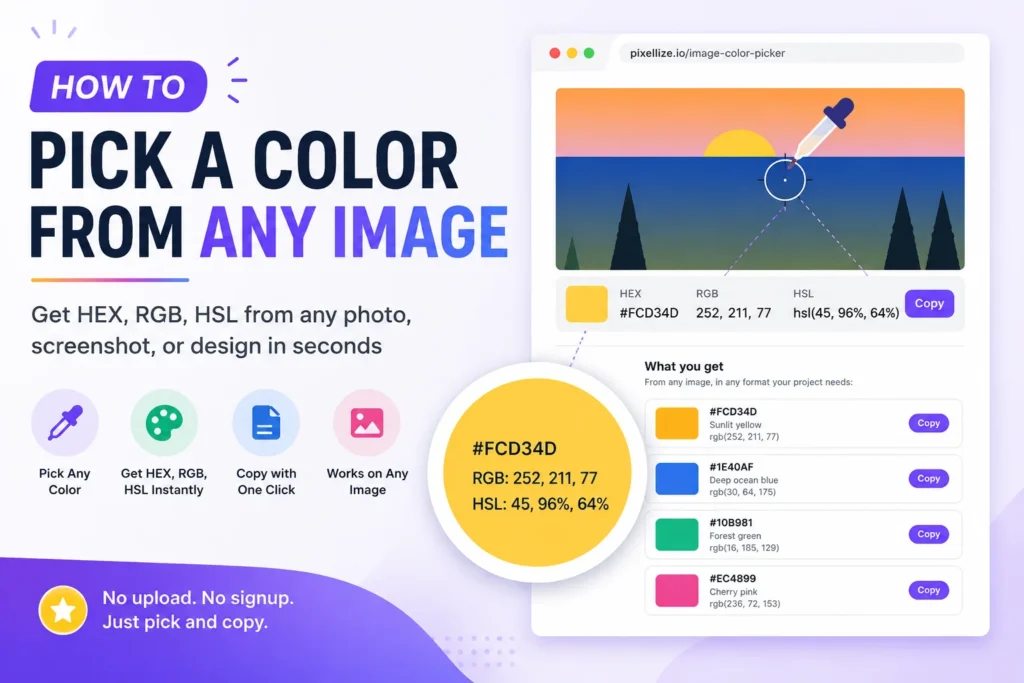
You spot a color in a photo, a logo, or a screenshot, and you need its exact value for your own design. This guide covers how to pick a color from an image, in five practical methods ranked by speed and reliability, plus what HEX, RGB, and HSL each mean and which one to use where. By the end you will know how to extract any color in seconds, in a free browser-based image color picker or with the OS-level tools that come built into Mac and Windows.
A color picker is a tool that returns the exact color value of a pixel you select, in formats like HEX, RGB, HSL, or CMYK. An eyedropper is the cursor or tool inside a color picker that you click with. People use the two words interchangeably, but technically the eyedropper is the input and the color picker is the system that converts the picked pixel into named values. Photoshop calls it the Eyedropper Tool, Figma calls it the color picker, browsers expose it as the EyeDropper API. Same job, three names.
Three reasons cover almost every use case. Designers match a client’s brand without a style guide by sampling colors from the logo, business card, or product packaging. Developers extract the color palette from a competitor’s site to build a similar look without copying CSS line by line. Marketers and social media managers keep visual feeds consistent by anchoring every post to colors picked from a hero image. In all three cases the workflow is identical: open an image, click the pixel, paste the value.
The challenge is that screen colors are not what they seem. The same red can look different on different monitors, and JPEG compression sometimes shifts the actual stored color away from what the designer intended. A proper image color picker reads the exact pixel value from the file, not what your eyes interpret, which is why a 30-second tool beats a 5-minute guess in Figma.
Each method below has a clear best-fit scenario. Faster methods (browser-based pickers) win for one-off extractions; full design tools become worthwhile once you are also editing or building a palette.
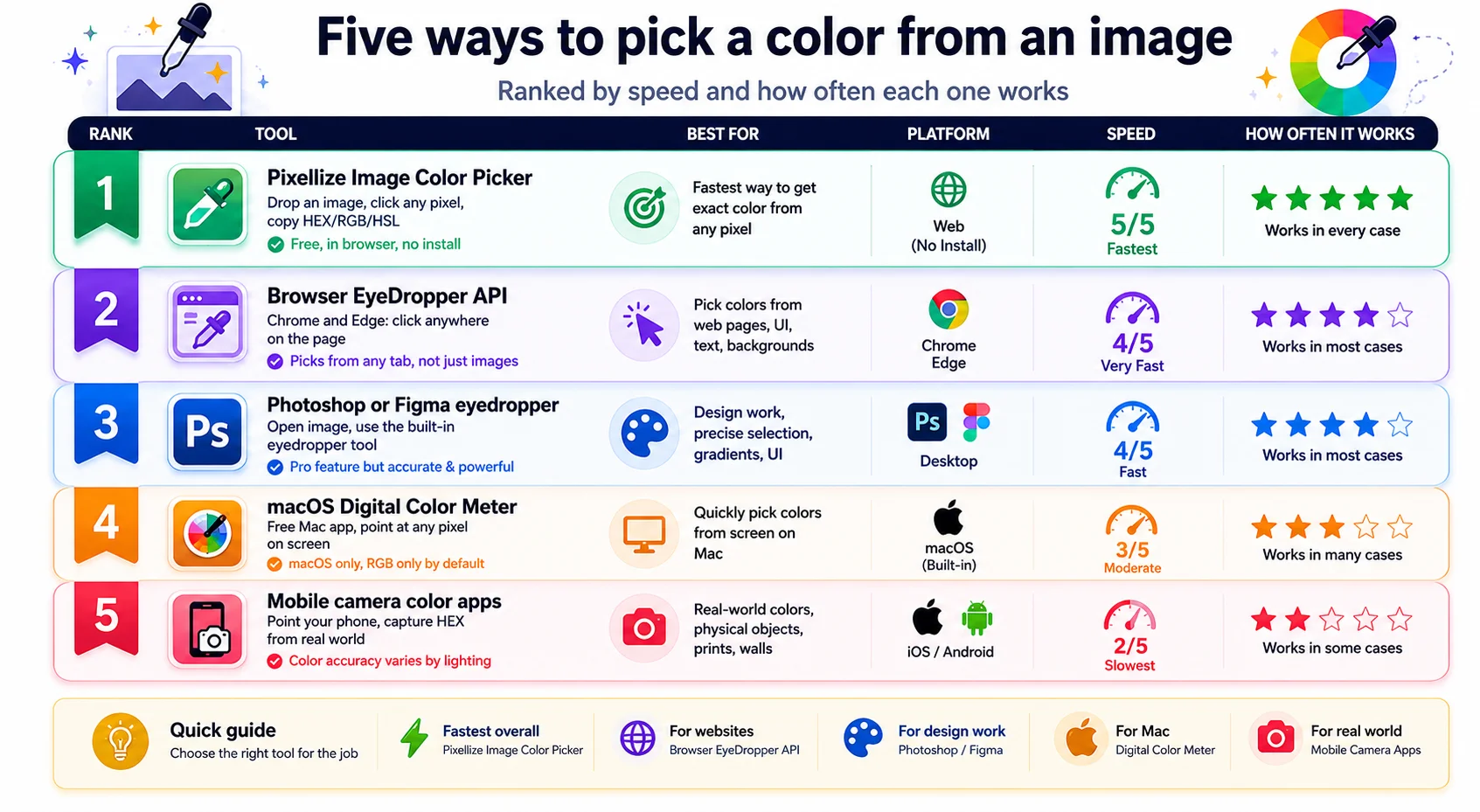
The fastest method is a browser-based picker. The Pixellize Image Color Picker takes any uploaded image (JPG, PNG, WebP, GIF, SVG), shows it on a canvas, and lets you click any pixel to get the HEX, RGB, and HSL values instantly. Hover for a real-time preview, click to lock the value, copy with one button. No upload to a server, the file stays in your browser.
#FCD34D), RGB (rgb(252,211,77)), and HSL (hsl(45,96%,64%)). Click any value to copy it to clipboard.Modern Chromium browsers ship a built-in EyeDropper API. Open DevTools, press F12, switch to the Console tab, and run new EyeDropper().open(). The cursor turns into a system color picker that works across the entire screen, not just an image. Pick any pixel, the returned object has a sRGBHex property with the value.
Best for: developers who want a color value from a non-image source (a CSS gradient, a video frame, a PDF). Limitation: Firefox and Safari don’t support the API yet, and the value comes back only as HEX without RGB/HSL conversion.
Every professional design tool has a built-in eyedropper. In Photoshop press I for the Eyedropper Tool, then click anywhere in your canvas. The foreground color updates instantly. In Figma the eyedropper icon lives in the color panel. In Sketch it’s the small color picker icon at the top of the inspector. All three return the exact pixel value and can paste into a swatch library.
Best for: designers already working in a pro tool who want to add the picked color directly to a palette or style library. Limitation: you need the software installed, and most of these are paid (Figma’s free tier is the exception, and it works perfectly for color picking).
Mac users have a hidden gem: Digital Color Meter ships with macOS in Applications/Utilities. Open it, point at any pixel on your screen, and the live RGB values display in the panel. Toggle the format to display as sRGB, native, or generic RGB. Press Shift+Cmd+H while hovering to convert and copy the HEX value automatically.
Best for: Mac users who want a free system tool that works across all apps, browsers, and design files. Limitation: only RGB by default (HEX requires a shortcut, HSL needs manual conversion), and it is macOS only.
Several iOS and Android apps point your phone camera at a real-world object and return a HEX value. Apps like Color Picker (iOS) and Color Grab (Android) work well for matching paint, fabric, or any physical object to a digital color. Point, tap, get the HEX.
Best for: matching physical materials (paint chips, fabric, packaging) to digital designs. Limitation: results vary significantly by camera quality, ambient lighting, and white balance. Always pick the same color in three different conditions and take the median for accuracy.
Five formats describe the same color. Each one is preferred in different contexts:
#FCD34D) is the shortest. Paste into CSS, design tools, brand documents. The web and design world’s universal default.rgb(252, 211, 77)) shows the three channel intensities (0-255). Useful when you need to do math on the value, like averaging two colors or blending toward another.hsl(45, 96%, 64%)) shows hue, saturation, and lightness. Best when you need to make a color lighter or darker while keeping the same “feel”. Designers prefer HSL for systematic palette work.cmyk(0, 16, 69, 1)) is for print. The four channels are cyan, magenta, yellow, and black. If you’re picking a color for a brochure, business card, or product label that goes to a print shop, CMYK is the format the printer’s RIP software expects. Don’t use CMYK for screens.oklch(85% 0.15 90)) is the modern CSS color format. Three values: perceived lightness, chroma (intensity), and hue. OKLCH respects how humans actually perceive color differences, so when you build a palette with evenly-spaced OKLCH lightness values, the steps look evenly spaced to the eye. Supported in modern browsers (Chrome 111+, Safari 16.4+, Firefox 113+). Use this when you want a perceptually accurate palette.A good color picker gives you all five at once so you can pick the format your downstream tool wants. For web work, HEX or OKLCH. For print, CMYK. For palette math, HSL.
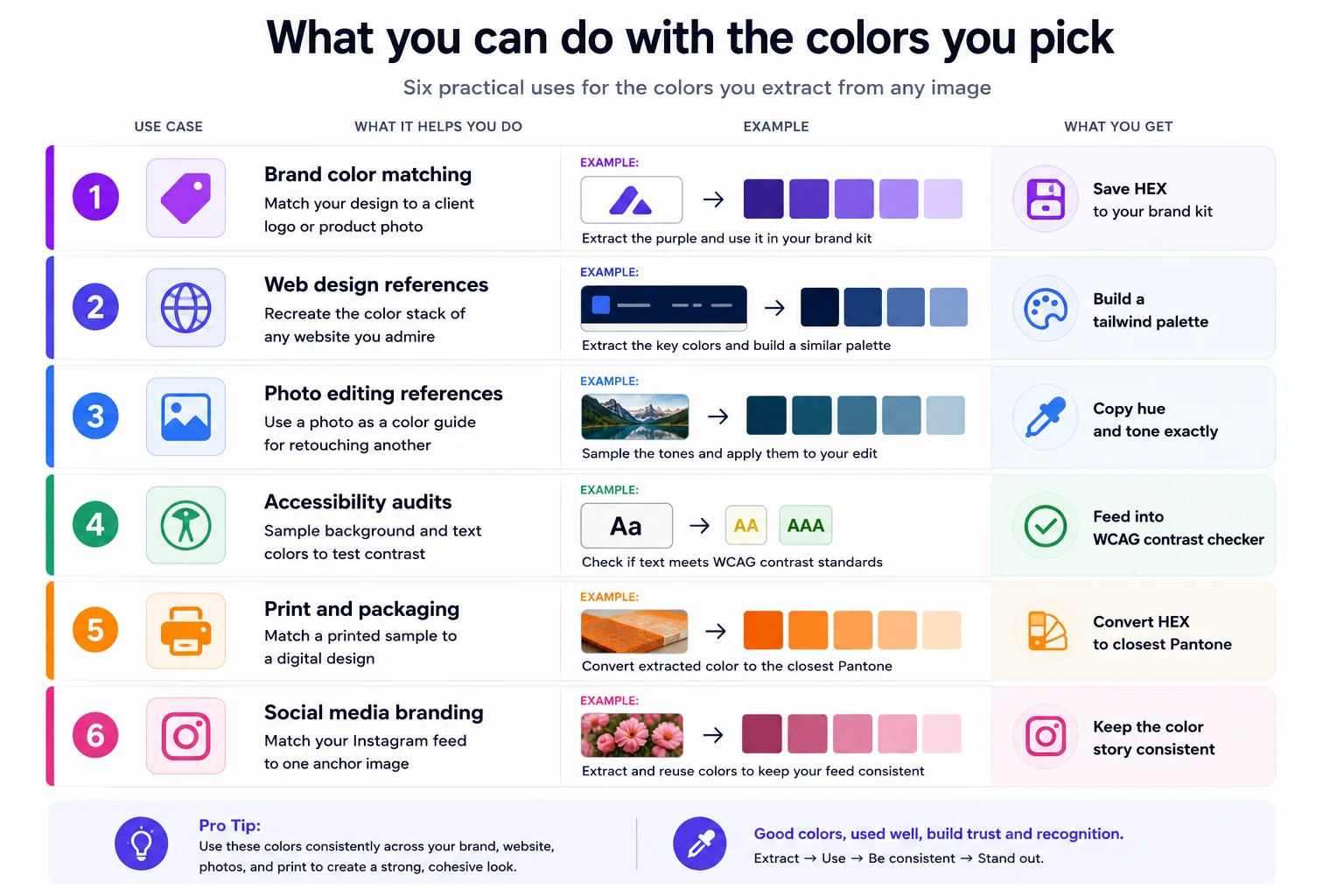
Picking the color is the start. Six common workflows turn a picked color into something useful:
When you need not one color but a whole palette from an image (a brand mood, a competitor’s design, a moodboard reference), single-pixel picking is too slow. Two approaches work better:
For brand color matching, manual click-through usually wins because you know which areas of the image are “the brand” and which are background or filler.
The same color can look different depending on context. Three things to watch for:
The Pixellize tool reads the raw pixel value as stored in the file, which is what your code or design system actually uses. Visual appearance is a separate concern handled by display calibration and color management.
For the Pixellize Image Color Picker, no. The image is processed entirely in your browser using the HTML5 Canvas API. The file never leaves your device, no server logs your image or the colors you pick. The same is true for desktop tools (Photoshop, Figma, Digital Color Meter): they all read the file locally. Mobile camera apps are the exception: they typically process the image on the device but may upload the picked HEX to an analytics service, so check the app’s privacy policy if that matters.
Sometimes the color you want isn’t in a photo, it’s in a video. A brand intro animation, a TikTok or Instagram Reel, a YouTube thumbnail mid-play. Three quick paths:
new EyeDropper().open(), click the paused frame. Returns HEX immediately.ffmpeg -i video.mp4 -vf fps=1 frame-%03d.png), then pick colors from each frame.The first method is the easiest by far and works for 99 percent of needs. The FFmpeg route is overkill unless you’re building a color script from a music video or movie.
If you’re building your own color picker or a tool that automatically extracts colors from images, the browser’s Canvas API gives you raw pixel data in a few lines:
const img = new Image();
img.crossOrigin = 'anonymous';
img.src = 'your-image.jpg';
img.onload = () => {
  const canvas = document.createElement('canvas');
  canvas.width = img.width;
  canvas.height = img.height;
  const ctx = canvas.getContext('2d');
  ctx.drawImage(img, 0, 0);

  // Pick the pixel at x=100, y=100
  const data = ctx.getImageData(100, 100, 1, 1).data;
  const [r, g, b, a] = data;
  const hex = '#' + [r, g, b].map(x => x.toString(16).padStart(2, '0')).join('');
  console.log({ r, g, b, hex }); // { r: 252, g: 211, b: 77, hex: "#fcd34d" }
};
This is exactly how every browser-based color picker works under the hood. The image gets drawn to an off-screen canvas, getImageData(x, y, 1, 1) returns the RGBA values of that pixel, and you convert to HEX with a one-liner. Total: 10 lines of JavaScript for a working color picker. The CORS rule matters: if the image is hosted on a different domain, the source server must allow cross-origin reads or the canvas becomes “tainted” and getImageData throws a security error.
For most cases a browser-based image color picker is the fastest path from “I want that color” to a value you can paste into your project. The manual methods (dev tools EyeDropper, Photoshop, Mac Digital Color Meter) become useful when you need to pick from a non-image source or stay inside an existing design tool workflow. Knowing how to pick a color from an image reliably is one of those small skills that saves hours over the course of a year of design and development work. Pair it with related quick wins like running an image audit on your site or extracting a full palette from any website when you need more than one color.
The fastest way is a browser-based image color picker. Drop the image into the tool, click any pixel, get HEX, RGB, and HSL values you can copy in one click. No software install, no signup, no upload to a server. For one-off color extraction this beats opening Photoshop or Figma every time.
Yes. The Pixellize Image Color Picker accepts JPG, PNG, WebP, GIF, BMP, and SVG up to 50 MB. The format does not affect color accuracy: a PNG and a JPEG of the same image return the same color from the same pixel (although heavy JPEG compression can shift the value slightly off the original).
They describe the same color in different formats. HEX (#FCD34D) is the compact form preferred for CSS and design tools. RGB (rgb(252,211,77)) shows the three channel intensities from 0 to 255 and is useful for color math. HSL (hsl(45,96%,64%)) shows hue, saturation, and lightness, which makes it easier to adjust a color systematically (lighter, more saturated, etc.).
Yes, two paths. Take a screenshot of the website first, then drop the screenshot into the image color picker. Or, in Chrome and Edge, use the built-in EyeDropper API (open DevTools console, run new EyeDropper().open()) which lets you pick any pixel on the screen including a live website, without taking a screenshot first.
Yes. The Pixellize Image Color Picker is free with no daily limit, no signup, and no watermark. Photoshop and Sketch are paid, but Figma free tier and the macOS Digital Color Meter cover most professional needs at zero cost too.
The picked value is the exact pixel value stored in the image file. What you see on screen depends on your monitor calibration and OS color management. The HEX value is correct, but two monitors showing the same #FCD34D may display it slightly differently. For accurate visual matching, use a calibrated display.
Yes. For a multi-color palette use a palette extractor that runs median-cut quantization on the image, which surfaces the dominant colors automatically. The Pixellize Color Palette Extractor is the sibling tool to the color picker and exports 4 to 16 dominant colors as HEX, RGB, HSL, CSS variables, or Tailwind config.
No. The Pixellize Image Color Picker runs entirely in your browser using the HTML5 Canvas API. The image file is read locally, displayed locally, and the color values are computed locally. Nothing is uploaded, no account is needed, and the page works on the WiFi-disconnected airplane mode after the initial load.
They are the same job with different names. The eyedropper is the cursor or input tool (you click with it). The color picker is the broader system that converts the picked pixel into named color values like HEX, RGB, or HSL. Photoshop calls it the Eyedropper Tool. Figma calls it the color picker. Browsers expose it as the EyeDropper API. All three do the same thing.
Yes, depending on the tool. The Pixellize Image Color Picker returns HEX, RGB, and HSL by default. CMYK and OKLCH conversion is handled by some tools (RedKetchup includes CMYK, htmlcolorcodes.com supports OKLCH). For print work you need CMYK. For modern CSS perceptual color palettes you want OKLCH. For everything else HEX and RGB cover 95 percent of needs.

Founder and CEO of Pixellize.io, building AI-powered web tools and digital products with a focus on user experience and automation. M.Sc. Zoology, working at the intersection of technology, data analytics, and life sciences.